The WhatsApp inbox connects a WhatsApp Business number to Teloring. Every message a customer sends to that number becomes a conversation in the shared inbox, and agents reply from the same place they handle every other channel. WhatsApp also supports rich features unique to the channel: a managed business profile, pre-approved message templates for reaching customers outside the 24-hour window, media, and delivery/read receipts.
WhatsApp Business runs on Meta's official platform. Connecting an inbox means verifying a phone number and completing Meta's onboarding — Teloring guides you through both. You do not need any technical setup or code.
Prerequisites
| You need | Why |
|---|---|
| Inbox permission | Adding or verifying a number needs My Ring → Create; configuring the inbox needs My Ring → Update. See Roles and Permissions. |
| A phone number | Either a number you own (that is not already active on the WhatsApp or WhatsApp Business app), an existing WhatsApp Business App account, or a number already running on the WhatsApp Business API. |
| Access to that number | To receive a verification code by SMS or phone call (for the "bring your own number" path). |
| A business name and display name | The display name is what customers see on WhatsApp. |
| Meta approval | After you create the inbox, Meta must complete onboarding and approve the number before it can send. |
Connect a WhatsApp inbox
Open My Ring, click the WhatsApp icon, and choose Add. A four-step wizard opens.
Step 1 — Name and number type
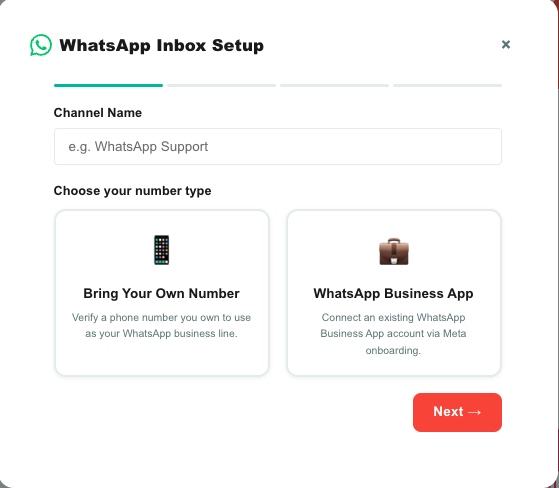
| Field | What to enter |
|---|---|
| Channel Name | The internal name for this inbox (for example, WhatsApp Support). Agents see it in Conversations. |
| Number type | Choose one of the three cards below. |
| Number type | Use when |
|---|---|
| 📱 Bring Your Own Number | You want to verify a phone number you own and use it as your WhatsApp business line. |
| 💼 WhatsApp Business App | You already have a WhatsApp Business App account and will connect it during Meta onboarding. |
| 🔗 Connect existing account | The number is already connected to the WhatsApp API — you have its sender number and API key. |
Click Next →. Bring Your Own Number goes to Step 2; WhatsApp Business App skips straight to Step 3; Connect existing account goes to its own one-step screen (below).
Step 2 — Verify your number (Bring Your Own Number)
You'll see any numbers you've already verified. Pick one, or click + Add New Number to verify a new one.
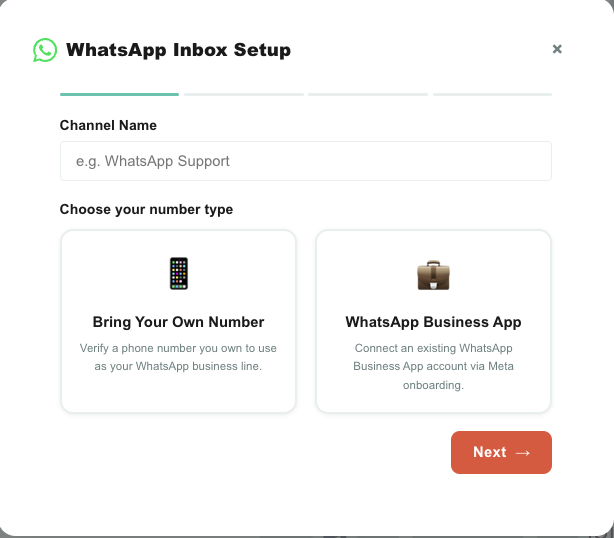
The verification sub-flow asks for:
| Field | Detail |
|---|---|
| Phone Number | Enter with the country code and no spaces or dashes (for example, 972501234567). |
| Verification Method | 📩 SMS or 📞 Phone Call. |
| Code Language | The language of the code message — English, Hebrew, Arabic, Russian, Spanish, Chinese, Hindi, Thai, or French. |
Click Send Code, then type the 6-digit code you receive into the boxes and click Verify. If it doesn't arrive, use Resend SMS or Resend via Call.
Meta allows up to 2 verification attempts per number. Make sure you can receive the code before sending it.
Step 3 — Business details
| Field | What to enter |
|---|---|
| Business Name | Your company's legal or business name. |
| Display Name | The name customers see on WhatsApp (for example, My Company Support). |
Click Create WhatsApp Inbox.
Step 4 — Complete Meta onboarding
The inbox is created but not yet live. Click Open Meta Onboarding ↗ to finish setup with Meta (or copy the link and open it later). When Meta approves the number, the inbox becomes Active and can send and receive.
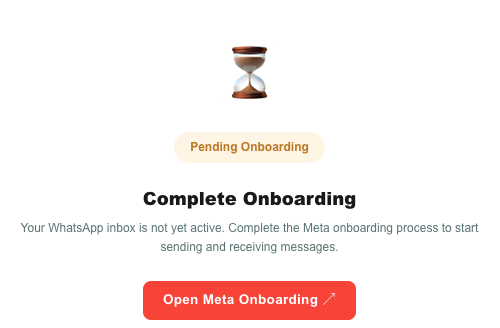
Onboarding happens on Meta's side, in a pop-up, across six screens. Complete WhatsApp onboarding with Meta walks through every one of them with screenshots, and explains what happens in the hour after you finish.
Connect an account already on the WhatsApp API
If the number is already live on the WhatsApp Business API — it was set up before you moved to Teloring, or it runs through another system today — there is nothing to verify and no Meta onboarding to complete. Pick 🔗 Connect existing account in Step 1 and fill in the two details your WhatsApp provider gave you:
| Field | What to enter |
|---|---|
| Sender number ("From") | The number messages are sent from, with the country code and no spaces or dashes (for example, 972501234567). |
| API key | The API key issued for that number. It is stored on our servers, never shown again, and never sent to your browser. |
Click Connect Inbox. Teloring checks the pair against the provider, points the provider's incoming-message webhook at your account, and the inbox goes live as Active straight away — messages, templates and the business profile all work immediately.
Setting the webhook replaces whatever address the provider was posting to before. If another system is still handling this number, it stops receiving from the moment you connect. Connect the inbox when you are ready to switch over.
If the credentials are refused, check the number for typos (digits only, with the country code) and confirm the API key belongs to that exact sender number. A number that is already connected to another inbox is rejected — one number can have only one live webhook.
Inbox status
A WhatsApp inbox moves through these states, shown as a badge in the channel modal:
| Status | Meaning |
|---|---|
| Pending Onboarding | Created in Teloring; Meta onboarding not finished yet. Not sending or receiving. |
| Pending Approval | Onboarding done; waiting for Meta to approve the number. |
| Receive Only | Can receive messages but cannot send yet. |
| Active | Fully live — sending and receiving. |
| Error | Something went wrong. Contact support. |
| Deleted | The WhatsApp account for this number was removed. |
While the inbox is pending, its edit page shows an Onboarding tab with the Open Meta Onboarding ↗ button so you can finish setup at any time. See Complete WhatsApp onboarding with Meta for the full walkthrough.
Once onboarding is finished, allow up to one hour for the number to become fully operational. That wait is automatic — no support ticket is needed unless the inbox is still not Active after an hour.
The WhatsApp edit page
Open the inbox from My Ring (the pencil icon) to reach its edit page. It has four tabs. The Profile and Templates tabs unlock once the inbox is Active (or Receive Only); before that, you'll land on Onboarding.
Profile tab
Manage the business profile customers see on WhatsApp.
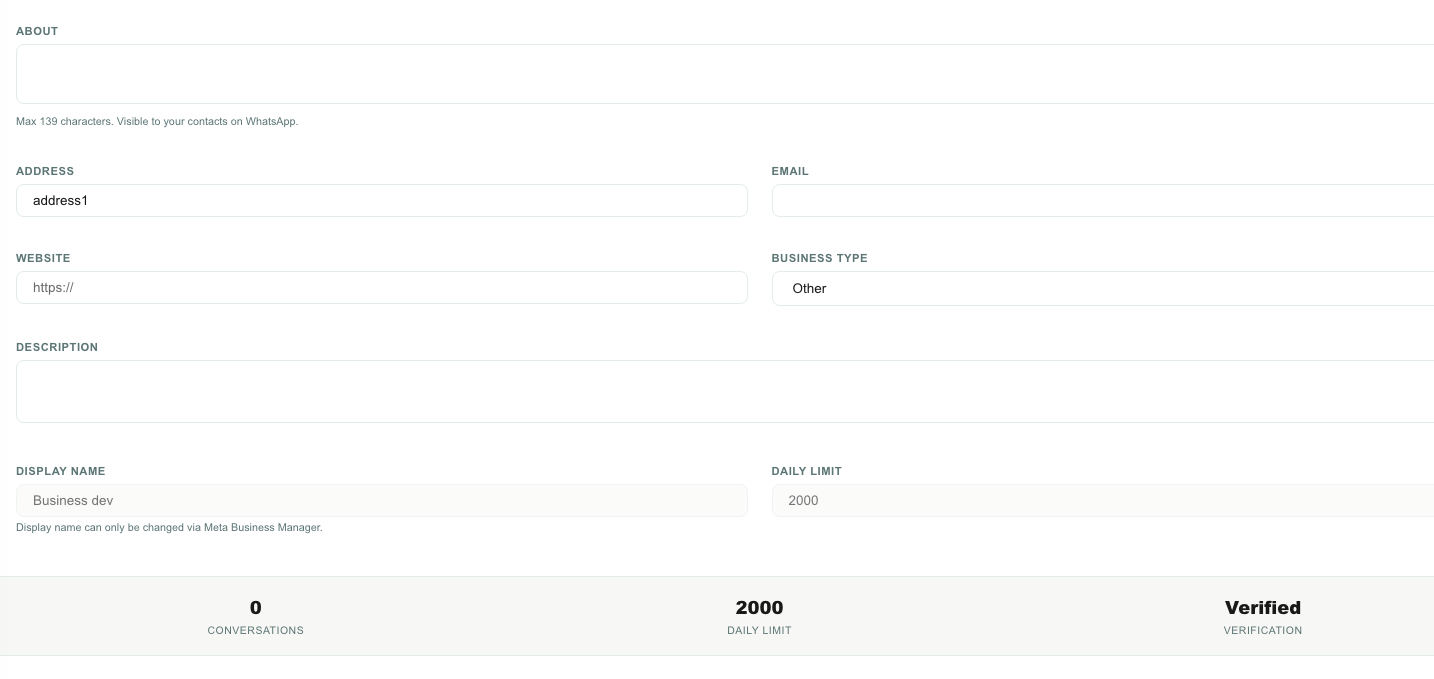
| Field | Notes |
|---|---|
| Profile picture | Upload a JPEG or PNG, up to 5 MB. Use a square image. |
| About | A short line visible to your contacts (up to 139 characters). Cannot be left empty. |
| Address | Up to 256 characters. |
| A contact email for the business. | |
| Website | Must start with http:// or https://. |
| Business Type | One of Meta's categories (Automotive, Beauty, Education, Finance, Medical, Retail, Restaurant, and so on). |
| Description | A longer description, up to 256 characters. |
| Display Name | Read-only. It can only be changed in Meta Business Manager. |
| Daily Limit | Read-only. Meta's messaging limit for the number. |
A stats bar shows conversations this month, the daily limit, and the number's verification status (Verified, Not Verified, Under Review, and so on).
Templates tab
WhatsApp message templates are pre-written message formats that Meta reviews and approves. You need a template to message a customer outside the 24-hour window (see Capabilities).
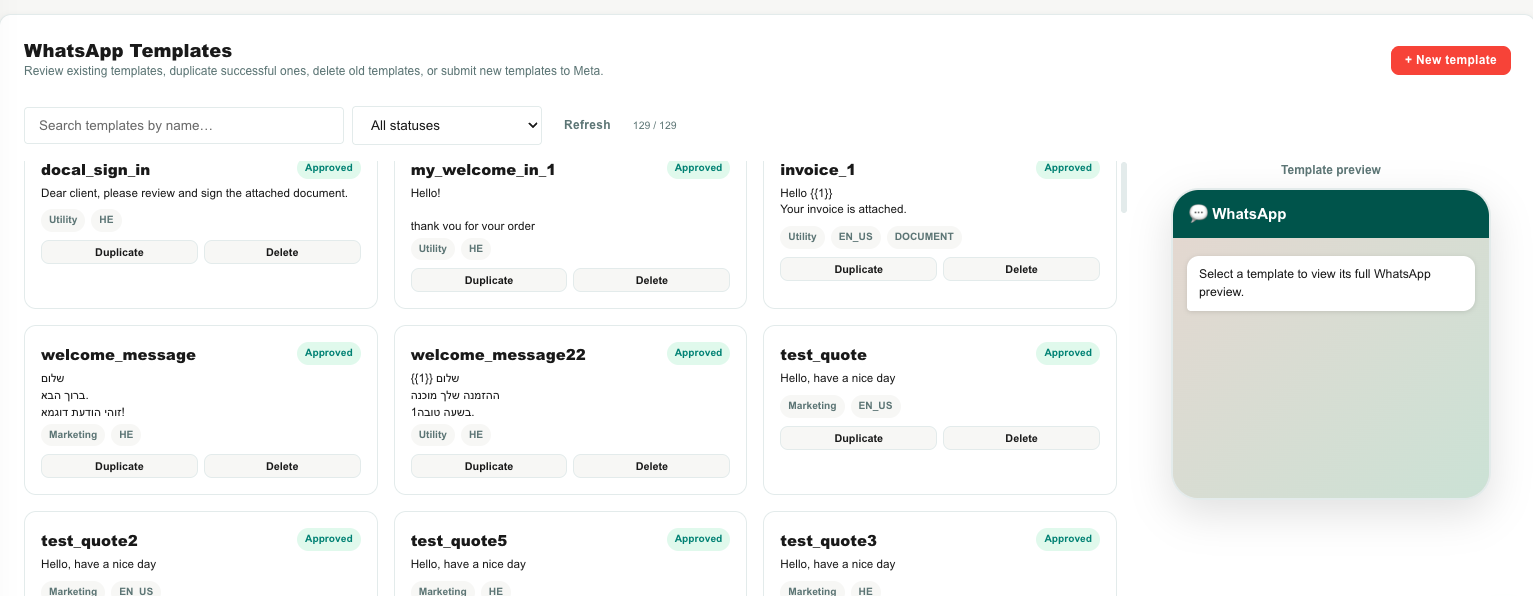
The list shows each template with a status pill (Approved / Pending / Rejected), a category (Utility / Marketing / Authentication), a language, and its content. You can search, filter by status, duplicate a template, or delete one.
A template cannot be edited after it is submitted, and a deleted template's name cannot be reused for 30 days.
Create a template with the three-step wizard (Setup → Content → Review), which shows a live WhatsApp preview as you build:
| Step | What you set |
|---|---|
| Setup | Language; template type (Regular, Authentication, or Document signature); and a template name (lowercase English letters, numbers, and underscores; at least 5 characters; unique). |
| Content | For a Regular template: the header type (text, or text with an image / video / document), the body (up to 1024 characters, with variables {{1}}–{{10}}), an optional footer (up to 60 characters, no emoji), and up to 10 buttons (quick replies, a website link, a call button, or a coupon code). |
| Review | A summary, then Submit for review. Meta reviews the template before it can be used. |
Templates are created here but sent from inside a conversation. Sending a template uses account credits based on its category; the charge is refunded automatically if the send fails.
Inbox Settings tab
| Field | Notes |
|---|---|
| Channel Name | Editable — rename the inbox. |
| Channel Type | Read-only (WhatsApp). |
| Phone Number | Read-only — the connected number. |
| Status | Read-only — the current status label. |
An active inbox also offers 🔄 Re-register webhook. It tells your WhatsApp provider to send incoming messages to Teloring again — use it if the inbox suddenly stopped receiving because another tool pointed the number somewhere else. It is safe to click at any time and changes nothing else about the inbox.
Deleting a WhatsApp inbox
The Danger Zone at the bottom of this tab deletes the inbox. It needs My Ring → Delete and asks twice: a warning dialog, then typing the inbox name exactly.
Deleting the inbox tells the provider to delete the WhatsApp account behind the number — that is the only way to release a number once it is onboarded on the WhatsApp API. The number stops sending and receiving, and using it again means going through onboarding from scratch. Existing conversations stay in Teloring; only the inbox and the WhatsApp account go away.
Onboarding tab
Shows whether Meta onboarding is complete. While pending, it offers the Open Meta Onboarding ↗ button and a Read the docs link to the walkthrough; once done, it confirms the inbox is active and ready. See Complete WhatsApp onboarding with Meta.
Capabilities and limits
| Capability | Detail |
|---|---|
| Send text | Free-form text with WhatsApp formatting (*bold*, _italic_, ~strikethrough~) and line breaks. |
| Send media | Images, video, audio, and documents, with an optional caption. |
| Receive | Text, images, audio, video, voice notes, documents, location (shown as a map link), contacts, reactions, and stickers. Incoming media is saved into Teloring (up to 25 MB). |
| Delivery & read receipts | Outgoing messages show sent, delivered, and read status. |
| Reply to a message | Both text and media can quote a specific earlier message. |
The 24-hour window (session vs template messages)
WhatsApp only allows free-form replies within a 24-hour customer-care window that reopens each time the customer messages you.
| Message type | When it works |
|---|---|
| Session message (free-form text or media) | Only within 24 hours of the customer's last message. |
| Template message | Any time — this is how you reach a customer after the 24-hour window has closed, or start a conversation. Templates must be pre-approved by Meta. |
Teloring shows the remaining session time on the conversation so agents know when a template is required.
Other limits
- The display name can only be changed in Meta Business Manager, not in Teloring.
- Template names must be unique, cannot be edited after submission, and a deleted name is reserved for 30 days.
- Profile editing and template management require the inbox to be Active or Receive Only.
- Profile pictures must be JPEG or PNG, square, and up to 5 MB.
How WhatsApp messages become conversations
When a customer messages your number:
- Teloring matches the contact by phone number, or creates a new contact (and a customer record) if it's the first time.
- It reuses the customer's existing open conversation on this inbox, or opens a new one.
- The message — and any media — is stored, and the conversation updates with a preview and unread count.
- Real-time updates, Studio automations, and AI Copilot all fire, so the conversation is ready for an agent instantly.
From there, agents reply, assign, label, prioritize, resolve, and link the conversation to a customer — see Conversations.