AI World
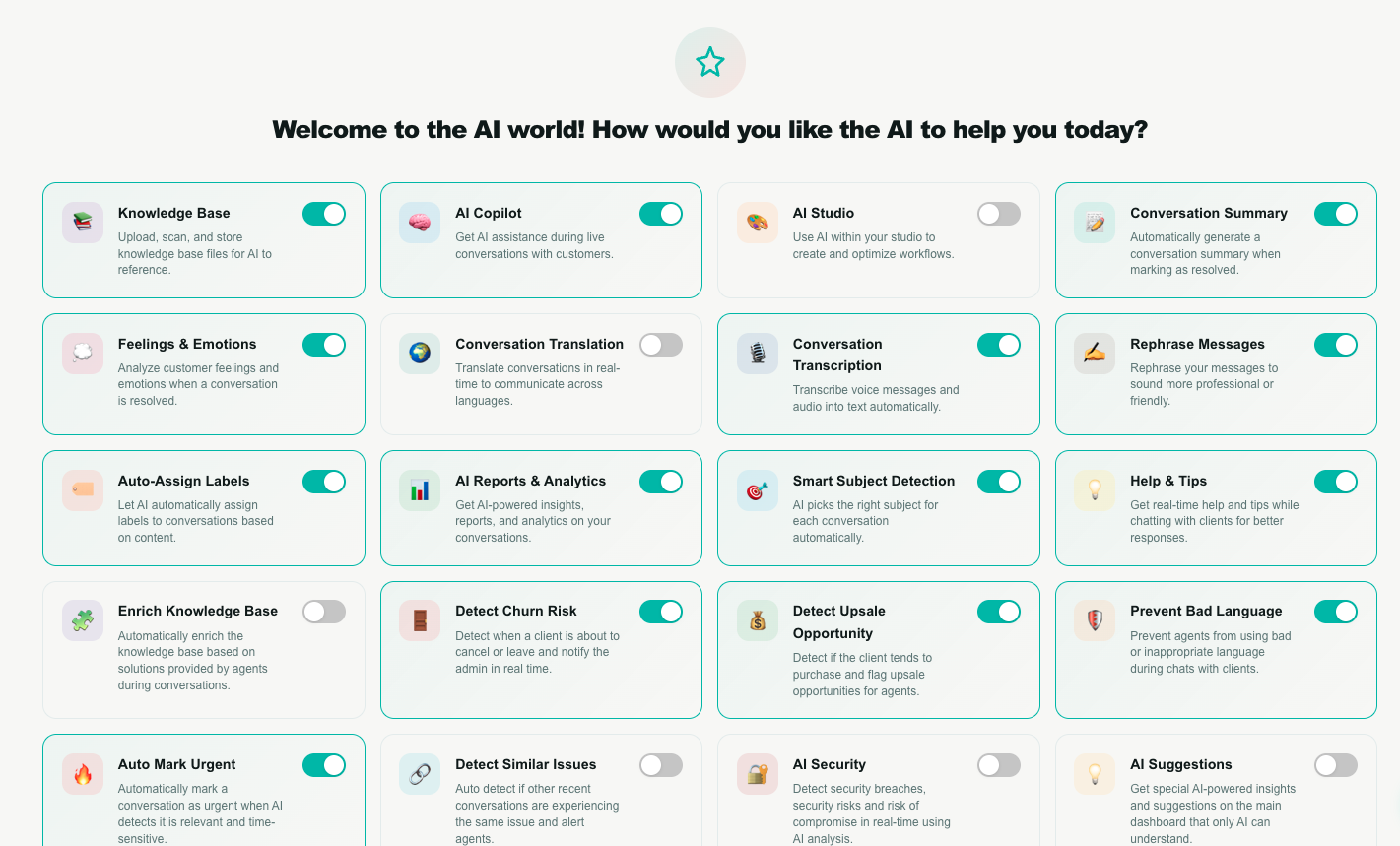
AI World is the control room for every artificial‑intelligence feature in Teloring. It's a single page of on/off switches — one per capability — that decide how much AI helps your team across conversations, the knowledge base, and analytics.
Turn a switch on and that capability becomes available everywhere it belongs: the reply composer, the AI Copilot panel, the resolve action, the Knowledge Base page, or the Analytics report builder. Turn it off and it disappears again. Nothing here changes what your agents can do by hand — it only decides where AI lends a hand.
Open AI World from the Tools section of the sidebar.
Key facts
| Fact | Meaning |
|---|---|
| Account‑wide | Every switch applies to your whole business. When an admin turns a feature on, it's on for all agents in the account. |
| Admins change it, everyone benefits | Only account administrators can flip a switch. Agents can view the page but the toggles are read‑only for them. |
| Off by default | Every feature starts off. Nothing sends data to AI until an admin turns it on. |
| Saves instantly | There is no Save button. Each switch saves the moment you flip it and shows a short Saving… → Saved! status on the card. |
| Every switch is independent | There is no master switch. Turn on exactly the capabilities you want and each one works on its own — see Every switch stands alone. |
| Each card shows its price | A small 🪙 sits next to every switch. Hover it to see what that capability costs in credits and how it is billed. Turning a switch on is free — credits are only spent when the feature actually does the work. |
| Your data stays yours | AI only ever reads the conversations, files, and records of your own account. Features are fully account‑isolated. |
| Some cards are on the roadmap | A few switches are shown for what's coming and are not active yet — see Coming soon. |
Who uses AI World
| Role | What they do here |
|---|---|
| Admins | Decide which AI features the account uses, and turn them on or off. |
| Agents & managers | Benefit from whatever is enabled — Copilot tips, rephrase, summaries, and more — but cannot change the switches. A lock notice appears at the top of the page for them. |
If you open AI World and the switches won't move, you're signed in as a non‑admin. Ask an account administrator to change the settings for you.
How the page works
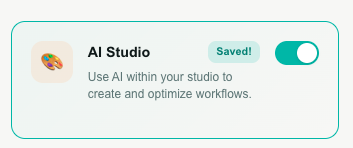
Every capability is shown as a card with an icon, a name, a one‑line description, and a switch on the right.
| Element | What it means |
|---|---|
| Card icon & title | The feature's name and a plain‑language description of what it does. |
| Switch (right side) | Click to turn the feature on or off. |
| Active highlight | When a feature is on, its card gets a teal border and subtle tint, so you can see at a glance what's enabled. |
| Status text | A small label next to the title flashes Saving…, then Saved! (or Failed to save if something went wrong). |
To enable a feature: click its switch on. To disable it: click it off. That's the whole workflow — the change takes effect across the account within moments.
Every switch stands alone
Teloring used to have an AI Copilot master switch that had to be on before six of the live‑conversation helpers would do anything. It has been removed. It produced nothing by itself, and having it silently disable six features that each looked independent caused more confusion than it solved.
Now each of these works the moment you turn it on, with nothing else required:
- Copilot Tips
- Smart Subject Detection
- Auto‑Assign Labels
- Detect Churn Risk
- Detect Upsale Opportunity
- Auto Mark Urgent
They still share one thing behind the scenes: when several are on, Teloring answers them in a single AI request rather than one per feature. You are billed per capability that actually produces something — not for the request, and never for a capability that found nothing.
Nothing you had switched on starts running by surprise. If your account had AI Copilot off, those six helpers were doing nothing anyway, so they were left off when the master switch was removed. Turn on the ones you want and they take effect immediately.
A good starting point for most teams: Copilot Tips, Smart Subject Detection and Auto‑Assign Labels. Add churn, upsale and urgency detection once your team is comfortable.
Feature reference
The sections below cover every live feature — what it does, where you'll see it, and what it needs to work.
Live‑conversation assistance
These features act while agents are chatting with customers. Teloring analyzes each new incoming customer message in the background and surfaces its findings in the AI Copilot panel on the right of the conversation. Turn on as many or as few as you like — each one is independent. See AI Copilot in conversations for the agent‑side view.
Copilot only runs on conversations that are open or pending and not already handled by a Studio flow or an AI agent.
💡 Copilot Tips
Copilot offers real‑time suggestions and coaching — how to respond, what the customer seems to need, and what tone fits. Tips can appear several times as a conversation develops.
| Where you see it | As Copilot tips in the AI Copilot panel. |
| Requires | Nothing else. |
| Good to know | This is the one helper that comments repeatedly, so it is billed per message it comments on. The others act once per conversation. |
🎯 Smart Subject Detection
Copilot writes a short, clear subject line for the conversation once it understands the topic.
| Where you see it | The conversation's subject updates automatically; Copilot notes that it set it. |
| Requires | Nothing else. |
| Good to know | Only sets the subject when the conversation doesn't already have one. It never overwrites a subject you set yourself. |
🏷️ Auto‑Assign Labels
Copilot tags the conversation with relevant category labels (for example billing, refund or technical, bug), creating them in your account if they don't exist yet.
| Where you see it | Labels appear on the conversation; Copilot notes what it added. |
| Requires | Nothing else. |
| Good to know | Only labels a conversation that has no labels yet, up to 5 labels. It won't touch conversations you've already labelled. |
🚪 Detect Churn Risk
Copilot watches for signs that a customer wants to cancel, leave, or is deeply dissatisfied, and raises a clear alert describing what triggered it.
| Where you see it | A churn alert in the AI Copilot panel. It can also start a Studio automation (a churn‑risk signal). |
| Requires | Nothing else. |
💰 Detect Upsale Opportunity
Copilot spots when a customer shows interest in buying, upgrading, or spending more, and flags the opportunity for the agent.
| Where you see it | An upsale alert in the AI Copilot panel. It can also start a Studio automation (an upsale signal). |
| Requires | Nothing else. |
🔥 Auto Mark Urgent
Copilot assesses how urgent a conversation is and sets its priority — urgent, high, medium, or low.
| Where you see it | The conversation's priority changes automatically. |
| Requires | Nothing else. |
| Good to know | Only adjusts priority while it's still at the default medium. It won't override a priority you set by hand. |
Writing help
✍️ Rephrase Messages
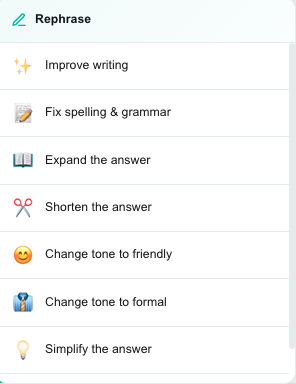
Gives agents a one‑click ✨ rephrase button in the reply composer. Before sending, an agent can rewrite their draft in several ways.
| Rephrase option | What it does |
|---|---|
| Improve | Makes the text clearer, more polished, and professional. |
| Fix spelling & grammar | Corrects mistakes without changing meaning or tone. |
| Expand | Adds detail and elaboration. |
| Shorten | Trims to the essentials. |
| Friendly | Rewrites in a warm, approachable tone. |
| Formal | Rewrites in a professional, business tone. |
| Simplify | Uses short sentences and simple words. |
| Translate | Translates the reply into the customer's language, detected from their last message. |
| Where you see it | The ✨ button next to the reply composer's formatting tools. |
| Requires | Nothing else — works on its own. |
| Good to know | The AI keeps the agent's original language for every option except Translate. Agents always review the result before sending. |
When a conversation is resolved
These two features run automatically the moment an agent marks a conversation Resolved. They read the conversation (skipping private notes) and act in the background.
📝 Conversation Summary
Generates a concise 2–4 sentence summary of the conversation — the topic, what the customer needed, and how it was resolved — written in the same language as the conversation.
| Where you see it | Added as a private note (🤖 AI Summary) at the end of the conversation, visible to your team but never to the customer. |
| Requires | Nothing else. |
💭 Feelings & Emotions
Reads the customer's overall mood across the conversation and records it on a 20‑point scale — from satisfied, happy, and appreciative, through neutral, to frustrated, angry, and threatening.
| Where you see it | Stored on the conversation (visible in resolved‑conversation views and available to Analytics and Studio). |
| Requires | Nothing else. |
| Good to know | A customer‑emotion change can start a Studio automation — useful for escalating an angry ending, for example. |
Knowledge & media
📚 Knowledge Base
Unlocks the Knowledge Base page, where you upload, scan, and store documents for AI to reference. It also lets AI Copilot answer agents' questions from your approved knowledge.
| Where you see it | The Knowledge Base page (in the sidebar) becomes usable; Copilot can search it. |
| Requires | Nothing else. |
| Good to know | While this is off, the Knowledge Base page shows a "feature disabled" message instead of your files. |
🖼️ Image Detection
For every image a customer sends, AI looks at it and describes what's in it — objects, brands, documents, and any visible text.
| Where you see it | The description is attached to the incoming image in the conversation, and appears as soon as the analysis is ready. |
| Requires | Nothing else. |
Automation
🎨 AI Studio
Adds a second way to create a Studio flow: Hermes, an AI flow builder that interviews you in plain language and then lays out the whole automation — blocks, settings, and connections — on your canvas.
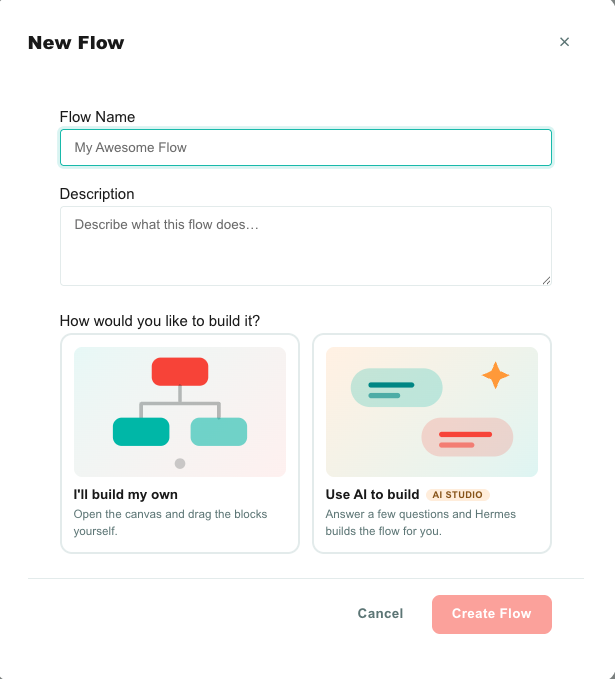
| Where you see it | Studio → New Flow → How would you like to build it? → Use AI to build. |
| Requires | Nothing else. It helps to connect the inboxes, teams, and CRM objects you want to automate first, because Hermes offers your real ones by name. |
| Who can use it | Any agent with Studio → Create. Flipping this switch is a different permission — AI World → Update. See Roles and Permissions. |
| Good to know | Hermes always produces a draft. Nothing goes live until someone publishes it from the editor. Building the flow is a one-way step that ends the conversation; the flow is then edited by hand like any other. |
While this switch is off, the Use AI to build card still appears in Studio but is greyed out, with a link back to this page.
📖 Full guide: Build a flow with AI (Hermes).
Analytics
📊 AI Reports & Analytics
Adds a ✨ Use AI to build the report button to the Analytics report builder, so anyone can describe a report in plain language and let AI fill in the fields.
| Where you see it | The ✨ Use AI to build the report button in Analytics. |
| Requires | Nothing else. When off, the button is hidden. |
Coming soon
A few switches appear on the AI World page to show what's on the roadmap. They are not active yet — turning them on does not change anything in the product today. We're listing them here so you know what each one is intended to do.
These features are in development. Leave them off until this guide marks them as live.
| Feature | Planned behaviour |
|---|---|
| 🌍 Conversation Translation | Translate whole conversations in real time to communicate across languages. |
| 🎙️ Conversation Transcription | Turn voice messages and audio into text automatically. |
| 🧩 Enrich Knowledge Base | Grow the knowledge base automatically from the solutions your agents give in real conversations. |
| 🛡️ Prevent Bad Language | Stop agents from sending inappropriate language to customers. |
| 🔗 Detect Similar Issues | Spot when several recent conversations report the same problem and alert your team. |
| 🔐 AI Security | Detect security risks and signs of compromise in real time. |
| 💡 AI Suggestions | Surface AI‑only insights and suggestions on the main dashboard. |
| 🛡️ AI File Protection | Scan every incoming and outgoing file and block malicious ones. |
| 🎓 Auto Agent Skills | Detect each agent's strengths automatically from their conversations and performance. |
Frequently asked questions
Do I have to turn everything on? No. Start with the features you need — every switch is independent and works on its own. There is no master switch to turn on first.
Will customers know AI is involved? Customer‑facing help is always in the agent's hands. Rephrase suggestions, Copilot tips, summaries, and emotion scores are shown to your team only — nothing is sent to the customer automatically. Summaries are saved as private notes.
Can agents change these settings? No — only account administrators. Agents see the page in read‑only mode with a lock notice.
A switch flipped back off after I clicked it. Enabled features stay on. If a switch won't stay on, it may be one of the roadmap items in Coming soon, which aren't active yet — check with your Teloring contact.
Where do I actually see the AI at work? In the conversation workspace (Copilot panel, rephrase, image descriptions), on resolved conversations (summaries and emotions), on the Knowledge Base page, in Studio when you create a flow, and in Analytics.