Conversation Attributes
Conversation Attributes are custom fields that belong to one conversation. You design them once for the whole account — Reason for contact, Outcome, Order number, Refund amount — and agents fill them in from the right side of the conversation while they work.
The important word is conversation. A contact field describes a person and follows them for ever. A conversation attribute describes this exchange: why they wrote in today, what you did about it, which order was involved. The same customer writing again next week starts with a clean, empty set — because it is a new conversation with a new reason and a new outcome.
That is what makes them worth reporting on. "How many conversations were about billing this month?" is a question about conversations, and only a field stored on the conversation can answer it.
Unlike CRM objects, where you can create Deals, Tasks and Contracts side by side, an account has exactly one set of conversation attributes. Every conversation in the account — every channel, every inbox — can carry the same attributes. There is nothing to choose before you start filling them in.
Key facts
| Fact | Meaning |
|---|---|
| Stored on the conversation | Values live with that one conversation, never on the contact or the customer. |
| Fresh every conversation | A new conversation with the same person starts empty. Nothing is inherited or copied forward. |
| One set per account | You design one layout in Settings; it applies to every conversation. |
| One field per row | The conversation panel is a narrow column, so attributes always stack one per line. The builder previews it exactly that way. |
| Filled in by people or automation | Agents type them in the panel; Studio flows set them automatically. |
| Available to automation | Every attribute becomes a {{conversation.custom_attributes.…}} variable for later Studio blocks, including HTTP requests. |
| Reportable | Attributes appear in Analytics as fields you can group by, measure and filter on. |
| Kept after resolve | Values travel with the conversation into the resolved archive and stay readable there. |
| Permission-controlled | A separate role permission decides who can see, fill in, and change attributes. |
What people use them for
| Attribute | Type | Why |
|---|---|---|
| Reason for contact | Dropdown — Billing, Technical, Sales, Complaint | The single most useful reporting field most support teams are missing. |
| Outcome | Dropdown — Solved, Escalated, Refunded, No action | Lets you measure resolution quality, not just resolution speed. |
| Order number | Text | Ties a conversation to an order in your own system, and can be pushed there by Studio. |
| Refund amount | Currency | Sum it in Analytics to see money moved per month, per agent, per channel. |
| Follow-up date | Date | A date you can filter and report on. |
| Products discussed | Multi-select | Which products come up most often, per channel. |
| Handled by (specialist) | Agent picker | Records who really solved it when it passed through several people. |
| Escalated to vendor | Checkbox / dropdown | A simple flag you can count. |
All three organize a conversation, but they answer different questions.
- Labels are a flat, free-growing list agents add on the fly. Great for loose themes; hard to report on consistently because anyone can invent a new one.
- Attributes are a structured form: a fixed set of named fields, each with its own type and its own allowed values. Use them when you want the same answer in the same place on every conversation.
- Tags behave like labels.
A good rule: if you would put it in a spreadsheet column, it is an attribute.
Part 1 — Build your attributes (Settings)
Designing the attributes is an admin job you do once. Agents never see this screen.
Open Settings → Conversation Attributes from the sidebar.
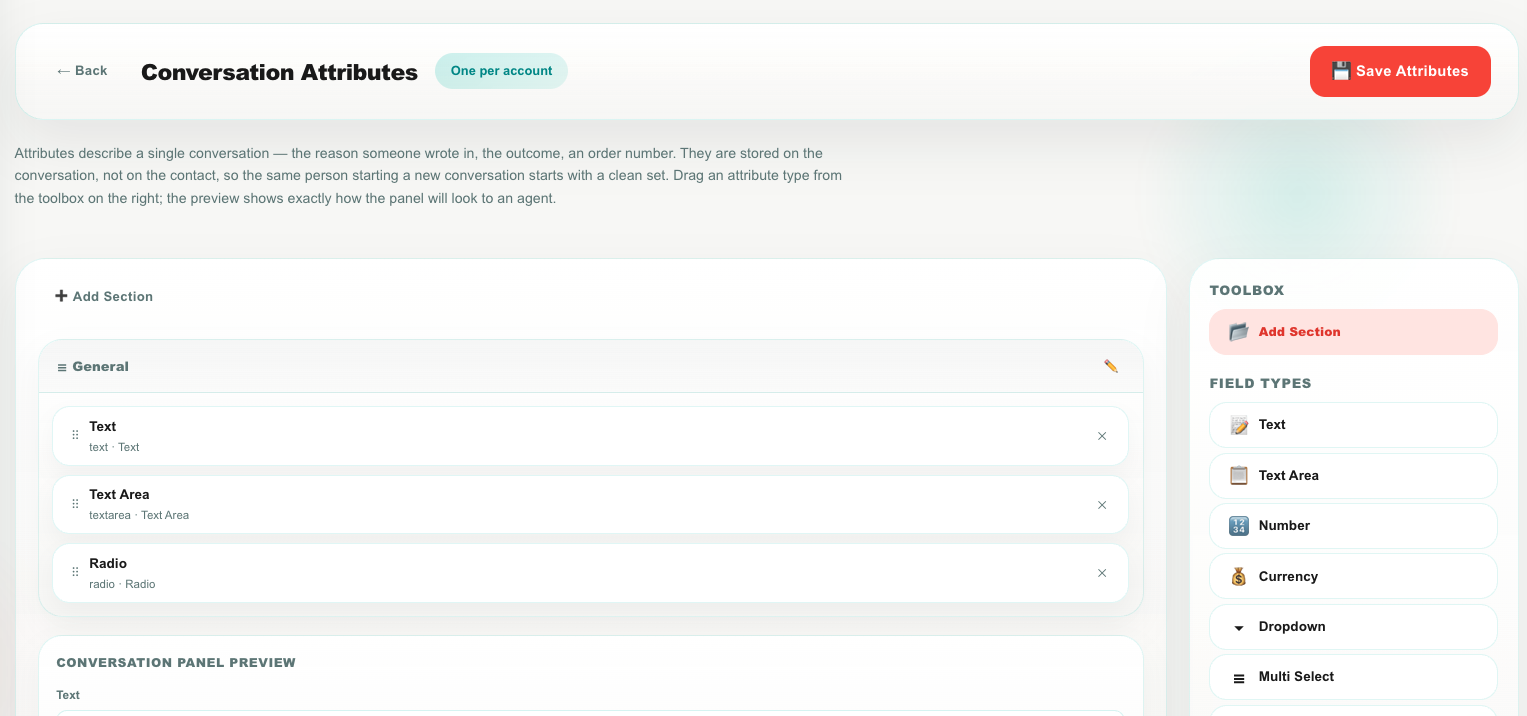
The screen has three parts:
| Area | What it is |
|---|---|
| Left — layout | Your sections and the attributes inside them. This is the thing you are building. |
| Left, below — preview | A live mock-up of the panel agents will see in the conversation. It updates as you work. |
| Right — toolbox | One draggable block per attribute type, plus a Section block. |
If you have used the object builder, this is the same idea with one deliberate difference: conversation attributes are always one per row, because the conversation panel is a narrow column and a two-column form would not fit.
Add an attribute
- Drag an attribute type from the toolbox on the right into a section on the left.
- The edit popover opens automatically. Set the Label, and the API ID if you want something friendlier than the generated one.
- For a choice type, add your Options.
- Tick Required if agents must fill it in.
- Click Save in the popover to close it.
- Repeat for every attribute, then click Save Attributes at the top right.
Nothing is live until you click Save Attributes.
Dropping an attribute onto an existing card inserts it above that card. Dropping it into the empty area of a section adds it at the end. Drag existing cards around the same way to reorder them, or into another section to move them.
Attribute properties
Click any attribute card to open its editor.
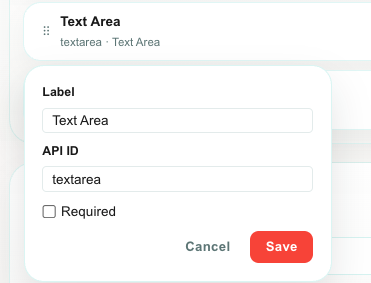
| Property | What it does | Notes |
|---|---|---|
| Label | The name agents see above the field. | Write it the way your team talks — Reason for contact, not reason_code. Change it whenever you like; it does not affect stored data. |
| API ID | The stable technical name — used in Studio variables, Analytics field names, and the API. | Lowercase letters, numbers and underscores, starting with a letter (for example reason_for_contact). See the warning below before changing one. |
| Options | The allowed values for a choice attribute. | Only shown for Dropdown, Radio, Multi-select and Checkbox. At least one option is required. |
| Required | Marks the attribute with a red * for agents. | A visual signal for the team. It does not block an agent from saving the rest of the panel. |
The API ID is the key the values are stored under. Renaming reason to contact_reason gives you a new, empty attribute — the values already saved under the old name are no longer shown, and any Studio block or report referring to the old name stops finding data.
Set the API ID when you create the attribute, then leave it alone. The Label is the safe thing to change later — rename it as often as you want.
Attribute types
| Type | Agent sees | Best for | In Analytics |
|---|---|---|---|
| Text | A single-line box | Order number, reference, external ID | Filter only |
| Text Area | A multi-line box | A short free-text note about the conversation | Filter only |
| Number | A numeric box | Counts, quantities, scores | Sum, average, min, max |
| Currency | A numeric box | Refund amount, order value, credit given | Sum, average, min, max |
| Dropdown | A single-choice list | Reason for contact, outcome, department | Group by, filter |
| Radio | A single-choice list | The same as Dropdown — in the narrow conversation panel both are shown as a dropdown list | Group by, filter |
| Multi-select | A checkbox for each option, several allowed | Products discussed, systems affected | Group by, filter |
| Checkbox | A checkbox for each option, several allowed | Multiple yes/no flags from one list | Group by, filter |
| Date | A date picker | Follow-up date, promised date | Time grouping |
| Date & Time | A date and time picker | Scheduled callback | Time grouping |
| A box with email keyboard | An alternative contact address for this issue only | Filter only | |
| Phone | A box with phone keyboard | A callback number for this issue only | Filter only |
| URL | A link box | A ticket link in another system | Filter only |
| Agent Picker | A list of your agents | Who really handled it, second-line owner | Group by, filter |
| Caption | Read-only helper text | An instruction or divider inside the panel | Not stored, not reported |
A dropdown gives you consistent, countable answers. A text box gives you billing, Billing, billling and bill q. If you ever want to chart the field, make it a choice type.
A caption is a note to the agent — "Only fill the refund fields when money was actually returned." It is never stored on a conversation, never appears in Studio, and never appears in Analytics. It cannot be marked required.
Sections
Sections group attributes under a small heading in the agent's panel. Use them when you have more than a handful of attributes — for example Why they wrote and What we did.
| Action | How |
|---|---|
| Add a section | Click ➕ Add Section and type a name, or drag the Section block from the toolbox. |
| Rename a section | Click the ✏️ button on the section header. |
| Reorder sections | Drag a section header up or down. |
| Move an attribute between sections | Drag its card into the other section. |
| Delete a section | Click the ✕ on the section header. Its attributes move to the first section — they are not deleted. |
With a single section, agents see no heading at all — just the fields. Section headings only appear when there is more than one.
The live preview
Under the layout you get a Conversation panel preview: exactly what agents will see, in the same one-per-row order, with your section headings and your * marks.
Use it to sanity-check length. A panel with twenty attributes is a panel nobody fills in. Most teams do well with four to eight.
Limits
| Limit | Value |
|---|---|
| Sections | 20 |
| Attributes | 60 |
| Options per choice attribute | 100 |
Deleting an attribute
Remove an attribute by clicking the ✕ on its card, then Save Attributes.
| What happens | Detail |
|---|---|
| It disappears from the agent panel | Immediately, on the next conversation opened. |
| Existing values are kept | The data stays on the conversations that already had it — it is history, and deleting a field should not destroy the record of what happened. |
| Put it back and the data returns | Re-create the attribute with the same API ID and the old values are visible again. |
| Studio blocks that set it | Skip it silently and keep running. Your flow does not break. |
| Reports that use it | Stop finding new values. Edit the report to point at something else. |
| Permission | Removing an attribute needs Conversation attributes → Delete, which is separate from editing. |
Part 2 — Fill attributes in (the conversation)
Agents work with attributes in the right sidebar of a conversation, in a section called Conversation Attributes, just above AI Copilot.
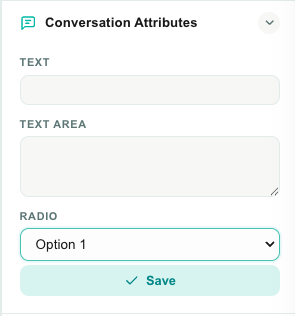
- Open a conversation.
- Expand Conversation Attributes in the right sidebar.
- Fill in the fields.
- Click Save.
That is the whole workflow. Values save to this conversation only.
| Behavior | Detail |
|---|---|
| Collapsible | Click the section header to open or close it, like the other sidebar sections. |
| Saves what you see | Only the fields shown are saved. An attribute added after this conversation started is never wiped by an older panel. |
| Does not bump the queue | Saving an attribute is bookkeeping, not a customer message — the conversation does not jump to the top of anyone's list. |
| Partial is fine | Fill in what you know now and come back later. * marks an attribute your team considers important; it does not block saving. |
| Read-only for some roles | With Read but not Update, the fields are visible but greyed out. |
| Hidden when empty | If your account has not defined any attributes, the section does not appear at all. |
Where it is not shown
| Situation | Why |
|---|---|
| The account has no attributes yet | Nothing to show. Build them in Settings first. |
| The role has no Conversation attributes → Read | The whole section is hidden. |
| A resolved conversation | It becomes read-only — see below. |
Part 3 — Resolved conversations
When a conversation is resolved, its attributes go with it.
Open the Resolved queue and select a conversation: the right panel shows a read-only Conversation Attributes block alongside the timeline, labels, emotion and contact details.
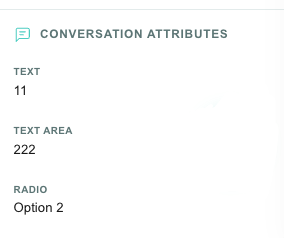
| Behavior | Detail |
|---|---|
| Read-only | A resolved conversation is a record of what happened. Re-open it if you genuinely need to correct a value. |
| Only filled attributes | Attributes nobody answered are left out, so the block stays short and readable. |
| Agent names, not IDs | An Agent Picker value shows the person's name. |
| Multi-select values | Shown as a comma-separated list. |
Teloring does not block the Resolve button on an empty attribute. If your process needs "no resolve without a disposition", enforce it with team policy — or build a Studio flow that reacts to a resolve and notifies the agent when a key attribute is empty.
Attributes are also included in the conversation.resolved webhook, in full — not just the ones the closing action happened to change — so an external system receiving a resolved conversation gets the whole picture in one payload.
Part 4 — Automation (Studio)
Studio can both read and write conversation attributes.
Setting attributes from a flow
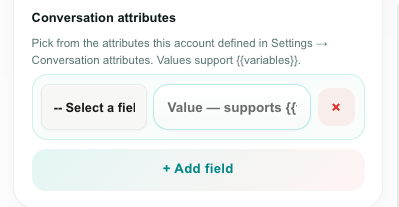
Attributes are set inside the existing Change Conversation action — there is no separate block. They are fields on the conversation, exactly like priority and subject, so a flow that sets three attributes and a label stays one readable node.
- Add or open a Change Conversation block.
- Scroll to Conversation attributes.
- Click Add field, choose an attribute from the Select a field list, and type its value.
- Values accept
{{variables}}— for example{{webhook.body.order_id}}or{{answers.reason}}.
If the account has no attributes yet, the picker says "No conversation attributes are set up for this account yet." Build them in Settings first.
Common uses:
| Flow | What it sets |
|---|---|
| A bot asks "what is this about?" and offers three buttons | Reason for contact = the button the customer pressed |
| A form is submitted and starts a conversation | Order number = the order number from the form answers |
| An HTTP request looks the customer up in your ERP | Account tier = the tier the API returned |
| A conversation is auto-resolved by the bot | Outcome = Solved by bot |
| Rule | Behavior |
|---|---|
| Values are validated | A dropdown value that is not one of your options fails the block, so a flow can never write something the agent panel would refuse to display. |
| Deleted attributes are skipped | If an attribute is removed from Settings after the flow was built, the block skips that line and keeps running. |
| Existing values are merged | Setting one attribute does not clear the others. |
| Multi-select values | Separate them with commas or new lines. |
Reading attributes in a flow
Every attribute becomes a variable named after its API ID:
{{conversation.custom_attributes.reason_for_contact}}
{{conversation.custom_attributes.order_number}}
And the whole set is available as one object:
{{conversation.custom_attributes}}
| Where they come from | Detail |
|---|---|
| The trigger | Incoming Message, Incoming Call and Conversation Changed all load the conversation's current attributes. You do not need a Change Conversation block to read them. |
| A Change Conversation block | After the block runs, the variables hold the new values, so every block below it sees what was just written. |
| An attribute nobody filled in | Resolves to an empty value, not to the raw {{placeholder}}. |
This is what makes attributes useful to an HTTP Request: put {{conversation.custom_attributes.order_number}} in the URL or body to look the order up, or send {{conversation.custom_attributes}} to push the whole disposition into your own system in one field.
Branch on them with a Condition If/Else block — for example, route every conversation whose Reason for contact is Billing to the finance team.
Saving the attributes panel counts as a conversation change, so a Conversation Changed trigger fires. Use it for rules like "when Outcome is set to Escalated, notify the duty manager".
Part 5 — Reporting (Analytics)
Conversation attributes are first-class fields in Analytics.
- Create a report and choose the Conversations data source.
- Your attributes appear in the field lists, named with their labels.
- Use them as Group by, as a measure, or as a filter.
There is nothing to select first — an account has one attribute set, so they are always available on the Conversations source.
| Question | Report |
|---|---|
| What are people contacting us about? | Pie, Conversations, Group by Reason for contact |
| Which reasons take longest to resolve? | Bar, Conversations, Average of Resolution time, Group by Reason for contact |
| How much did we refund this month? | Value card, Conversations, Sum of Refund amount |
| Billing conversations per week | Line, Conversations, Count, Group by time, filtered to Reason for contact = Billing |
| Which agent handles the most complaints? | Bar, Conversations, Count, Group by Assigned agent, filtered to Reason for contact = Complaint |
| Outcomes by channel | Stacked bar, Conversations, Count, Group by Channel type, stacked by Outcome |
What each type can do is in the attribute types table above. In short: choice and agent-picker attributes can be grouped by; number and currency attributes can be summed and averaged; date attributes can drive time grouping; text attributes are for filtering.
An attribute added in March cannot describe a conversation from January, and conversations nobody filled in group under (none). That is a good early signal — a large (none) slice usually means the attribute is not part of the team's routine yet.
Permissions
Conversation attributes have their own row on the System permissions tab of a role, under Workspace.
| Action | What it grants |
|---|---|
| Read | See the Conversation Attributes section in a conversation and on a resolved conversation, and open the Settings page to look at the design. |
| Update | Fill values in on a conversation, and add or edit attributes in Settings. |
| Delete | Remove an attribute from the account's design. |
There is no Create, because an attribute is part of one account-wide design — adding one is editing that design.
Objects separate the two — record values are governed per object, the object builder by Objects builder — but conversation attributes do not. If you want front-line agents to fill attributes in without being able to redesign them, the practical control is that the Settings page is not somewhere agents normally go.
Default roles:
| Role | Access |
|---|---|
| Owner | Everything, always. |
| Team Leader | Read, Update, Delete. |
| Marketing | Read, Update. |
| Agent | Read, Update — so front-line agents can fill attributes in. |
| Viewer | Read. |
This is a new permission. Roles that already existed before it was added do not have it ticked, so at first only the Owner sees the feature. Open Roles & Permissions, tick Conversation attributes on the roles that need it, and save. New accounts get the defaults above automatically.
Attributes vs. everything else
| Store it as | When | Lives on |
|---|---|---|
| Conversation attribute | It is true of this conversation — the reason, the outcome, the order being discussed. | The conversation |
| Contact field (Objects) | It is true of the person — their department, their preferred language. | The contact |
| Customer field (Objects) | It is true of the business — their plan, their industry, their account manager. | The customer |
| Record of an object (Objects) | It is a thing with its own life — a deal, a service call, a contract. It can outlive the conversation and there can be many per customer. | Its own record, linked to the customer |
| Label | A loose, quickly-added theme. | The conversation |
A quick test: if the same person contacted you again tomorrow, should this value still be there? If yes, it is a contact or customer field. If no, it is a conversation attribute.
Worked example — a support desk disposition
A five-minute setup most support teams can copy.
In Settings → Conversation Attributes:
| Section | Attribute | Type | Options |
|---|---|---|---|
| Why they wrote | Reason for contact reason_for_contact | Dropdown, required | Billing · Technical · Sales · Complaint · Other |
| Why they wrote | Order number order_number | Text | — |
| What we did | Outcome outcome | Dropdown, required | Solved · Escalated · Refunded · No action needed |
| What we did | Refund amount refund_amount | Currency | — |
| What we did | Follow-up needed by follow_up_by | Date | — |
For agents: fill the two dropdowns before resolving. Thirty seconds a conversation.
In Studio: a welcome flow asks "What can we help with?" with three buttons and writes the answer straight into Reason for contact, so most conversations arrive pre-classified.
In Analytics: a board with a pie of Reason for contact, a bar of average resolution time by reason, and a value card summing Refund amount this month.
Within a month you can answer "what do people actually contact us about, how long does each type take, and how much is it costing us" — from data your team was already producing.
Tips
| Tip | Why it helps |
|---|---|
| Start with two attributes | Reason and Outcome answer most questions. Add more once the habit sticks. |
| Prefer choice types | Consistent values are the difference between a chart and a mess. |
| Keep the panel short | Four to eight attributes get filled in. Twenty do not. |
| Add an Other option | Without it, people pick the nearest wrong answer and quietly poison the data. |
| Use a Caption for instructions | One line of guidance in the panel beats a training document nobody re-reads. |
| Pre-fill with Studio | Anything the bot, a form, or an API already knows should not be typed by a human. |
Watch the (none) slice | It tells you how well the team has adopted the field. |
| Set API IDs deliberately | They are the names in your reports, your flows, and your API. Choose them once. |
Troubleshooting
| Problem | What to check |
|---|---|
| I don't see the section in a conversation | The account may have no attributes yet, or your role is missing Conversation attributes → Read. Existing roles do not get the new permission automatically. |
| The fields are greyed out | Your role has Read but not Update. |
| I can't open the Settings page | Your role needs Conversation attributes → Read to view it and Update to change it. |
| Saving fails with "not one of the allowed options" | The value does not match the attribute's option list. This usually means a Studio block sends a value that was later renamed in Settings. |
| A Studio block will not save the attribute | Check the attribute still exists in Settings and that its API ID has not been renamed. A renamed API ID is a different attribute. |
| My old values disappeared | An API ID was probably renamed. Rename it back to the original and the values reappear — the data was never deleted. |
| The attribute isn't in my report | Make sure the data source is Conversations. Text and text-area attributes can only be filtered on, not grouped by — use a choice type for grouping. |
A big (none) group in a report | Those conversations have no value for that attribute — usually conversations from before the attribute existed, or conversations nobody filled in. |
| I deleted an attribute by mistake | Re-create it with the same API ID. The values were kept and become visible again. |
| Values from an old conversation appeared on a new one | They cannot. Attributes are per conversation. If two conversations show the same value, both were filled in — check whether a Studio flow is setting it. |
Related guides
- Conversations — the agent workspace and the right sidebar.
- Objects — contact fields, customer fields, and the objects you build.
- Studio — Change Conversation — setting attributes from a flow.
- Studio — Variables — using
{{conversation.custom_attributes.*}}. - Analytics — building reports on your attributes.
- System permissions reference — the Conversation attributes permission.
- Account settings — the rest of the Settings area.