Knowledge Base
The Knowledge Base is where you teach Teloring's AI about your business. You upload files and websites, Teloring reads and indexes them, and then anyone (a person or the AI) can ask a question in plain language and get an answer built only from the content you provided — never from the open internet and never from the AI's general knowledge.
Think of it as a private, searchable library for your account. A support team can load product manuals, price lists, policies, and help articles; an agent (or the AI Copilot) then asks "What's the return window for damaged items?" and gets the exact answer, with a reference back to the document it came from.
Open the Knowledge Base from the Tools section of the sidebar (the 📖 book icon, next to AI World).
Key facts
| Fact | Meaning |
|---|---|
| Answers come only from your content | The AI is instructed to use only the files and pages you uploaded. If the answer isn't in your content, it says so — it never makes something up from the web. |
| Account-isolated | A knowledge base and everything in it belongs to one account. Business A can never see Business B's content. |
| Multiple knowledge bases | You can create as many separate knowledge bases as you like — e.g. one for Support, one for Sales, one for HR — and each is searched independently. |
| Powered by AI | Every uploaded document is read, split into small pieces, and turned into a searchable form so the AI can find the most relevant parts of your content for each question. |
| Files and websites | Upload documents (PDF, Word, Excel, text, CSV, images) or point Teloring at a web page — optionally crawling its inner pages too. |
| Processing happens in the background | After you upload, Teloring keeps working while you carry on. Each source shows a live status (Processing → Ready) and the page updates itself automatically. |
| Requires the AI feature to be on | The Knowledge Base is unlocked by the Knowledge Base switch in AI World. While it's off, the page shows a "feature disabled" message. |
| Feeds the AI Copilot | Once a knowledge base has content, agents can point the AI Copilot at it to answer customer questions during a live conversation. |
Who uses the Knowledge Base
| Role | Typical use |
|---|---|
| Admins | Turn the feature on in AI World, create knowledge bases, and decide what content goes in. |
| Team managers | Keep the content accurate and up to date — upload new policies, rescan changed websites, remove outdated files. |
| Agents | Ask questions to find answers quickly, and let the AI Copilot draw on the knowledge base while chatting with customers. |
| The AI | The AI Copilot and AI agents read the knowledge base to ground their answers in your approved content. |
Before you start: turn the feature on
The Knowledge Base page only works when the Knowledge Base capability is enabled in AI World.
- If it's on, the page works normally.
- If it's off, you'll see a "Knowledge Base is Disabled" card with a button that takes you to the AI World settings.
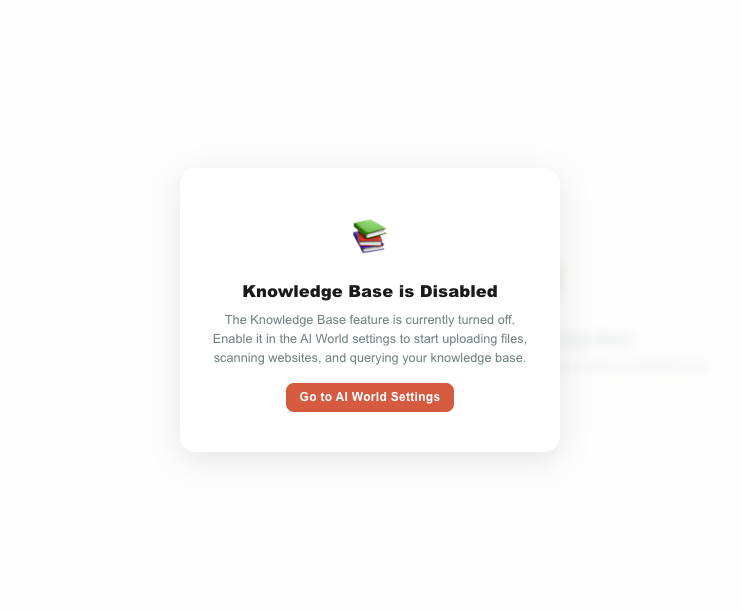
Only account administrators can turn the feature on in AI World. If the page is locked, ask an admin to enable it.
How the page is laid out
The page has two areas:
| Area | What it holds |
|---|---|
| Left panel | Create a new knowledge base, and the list of all your knowledge bases with a count badge. |
| Main panel | Everything for the knowledge base you've selected: statistics, upload, the sources table, and the question box. |
When you first open the page — before you've picked a knowledge base — the main panel shows a "Select a Knowledge Base" prompt. Click any knowledge base in the left list (or create one) to fill in the main panel.
Knowledge bases (left panel)
A knowledge base is one library of content. Most businesses keep a few — for example, separate libraries for different departments or products — so that a question is answered only from the relevant set of documents.
Create a knowledge base
In the Create New card:
- Type a Knowledge Base Name (required, up to 200 characters) — e.g.
Support Docs. - Optionally add a Description — a short note about what it contains.
- Click Create Knowledge Base.
The new knowledge base is added to your list and selected automatically, ready for you to upload content.
Your knowledge bases list
The Your Knowledge Bases card lists every knowledge base in the account, with a count badge showing how many there are.
| Element | What it does |
|---|---|
| A row | Click it to select that knowledge base and load its content into the main panel. The selected one is highlighted. |
| Name & description | Shows the name, plus the description if you added one. |
| 🗑️ Delete (trash icon) | Appears when you hover over a row. Deletes the knowledge base and all of its content. |
Deleting a knowledge base removes all its sources and everything Teloring learned from them, permanently. There is no undo. You'll be asked to confirm first.
Adding content
Everything you add lives inside the currently selected knowledge base. Select one first, then use the Upload File card.
Upload a file
| Method | How |
|---|---|
| Click | Click the dashed upload area and pick a file. |
| Drag & drop | Drag a file from your computer onto the dashed area. |
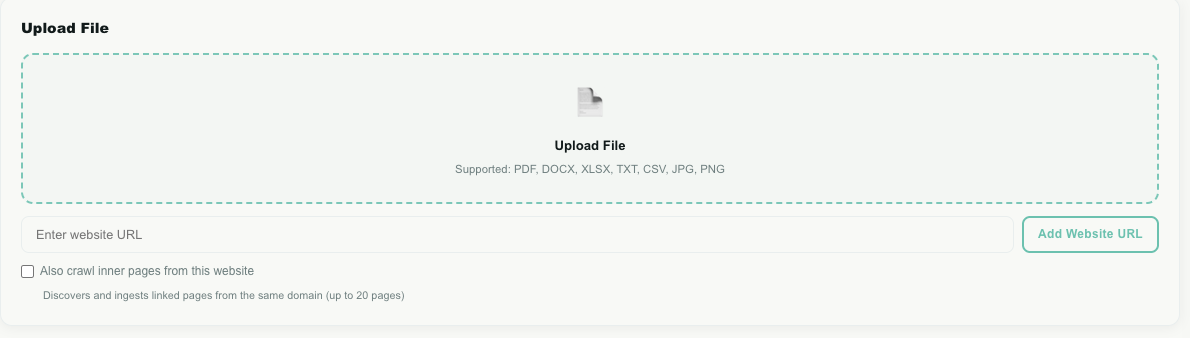
Supported file types: PDF, Word (.docx), Excel (.xlsx), plain text (.txt), CSV, and images (.jpg, .png, .gif, .webp).
| Rule | Detail |
|---|---|
| Maximum size | 50 MB per file. |
| Text documents | The text is read and indexed so it can be searched. |
| Scanned PDFs (no selectable text) | Each page is read as an image so the AI can still understand it. |
| Images | The picture itself is understood by the AI, so you can ask questions about what it shows. |
Add a website URL
To bring in a web page instead of a file:
- Paste the full address (starting with
http://orhttps://) into the Enter website URL box. - Optionally tick Also crawl inner pages from this website (see below).
- Click Add Website URL.
Teloring visits the page, extracts its readable text, and indexes it.
Crawl inner pages
When you tick Also crawl inner pages from this website, Teloring doesn't just read the one page — it discovers other pages on the same website and reads those too (via the site's sitemap and the links on the page), up to 20 pages. All of them are stored under a single source, and the source name shows how many extra pages were included (for example https://example.com (+7 pages)).
Use this to load a whole help centre or product section in one step, instead of adding each page by hand.
While content is processing
Uploading is instant, but reading and indexing happens in the background so you don't have to wait. After you upload:
- A status message appears ("Processing in background… Source status will update automatically.").
- The new source shows up in the sources table as Processing.
- The page checks for updates on its own every few seconds and switches the status to Ready (or Failed) when it's done — no need to refresh.
Sources
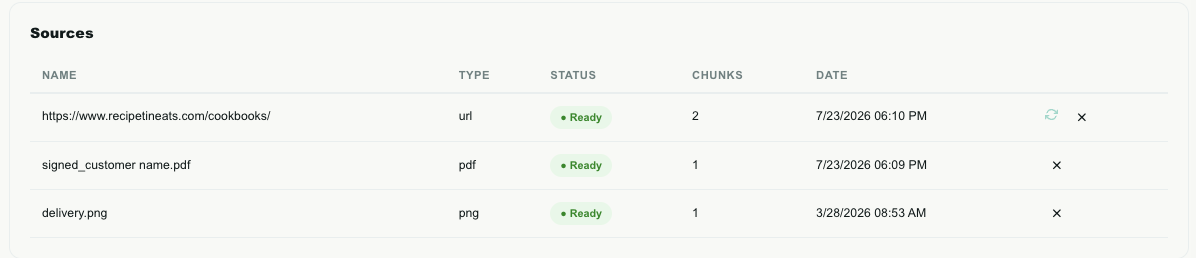
A source is one thing you added: a file or a website. The Sources table lists everything in the selected knowledge base.
| Column | What it shows |
|---|---|
| Name | The file name, or the website address. Long names are shortened; hover to see the full name. |
| Type | The kind of source — pdf, docx, xlsx, txt, csv, url, or an image type. |
| Status | Ready (indexed and searchable), Processing (still being read — shown with a spinner), or Failed (something went wrong). |
| Chunks | How many searchable pieces this source was split into (see How it works). A rough measure of how much content it holds. |
| Date | When the source was added. |
| Actions | Per-row buttons (below). |
Row actions
| Action | Appears on | What it does |
|---|---|---|
| 🔄 Rescan | Website (URL) sources that aren't currently processing | Re-reads the website from scratch: removes the old content and fetches the current version. Use it after the website changes. |
| ✕ Delete | Every source | Removes the source and everything Teloring learned from it. You'll be asked to confirm. |
Websites change over time. When a page you've added is updated, use Rescan so the knowledge base reflects the latest content. Files don't change on their own, so there's no rescan for uploaded files — delete and re-upload if the document itself changed.
Statistics
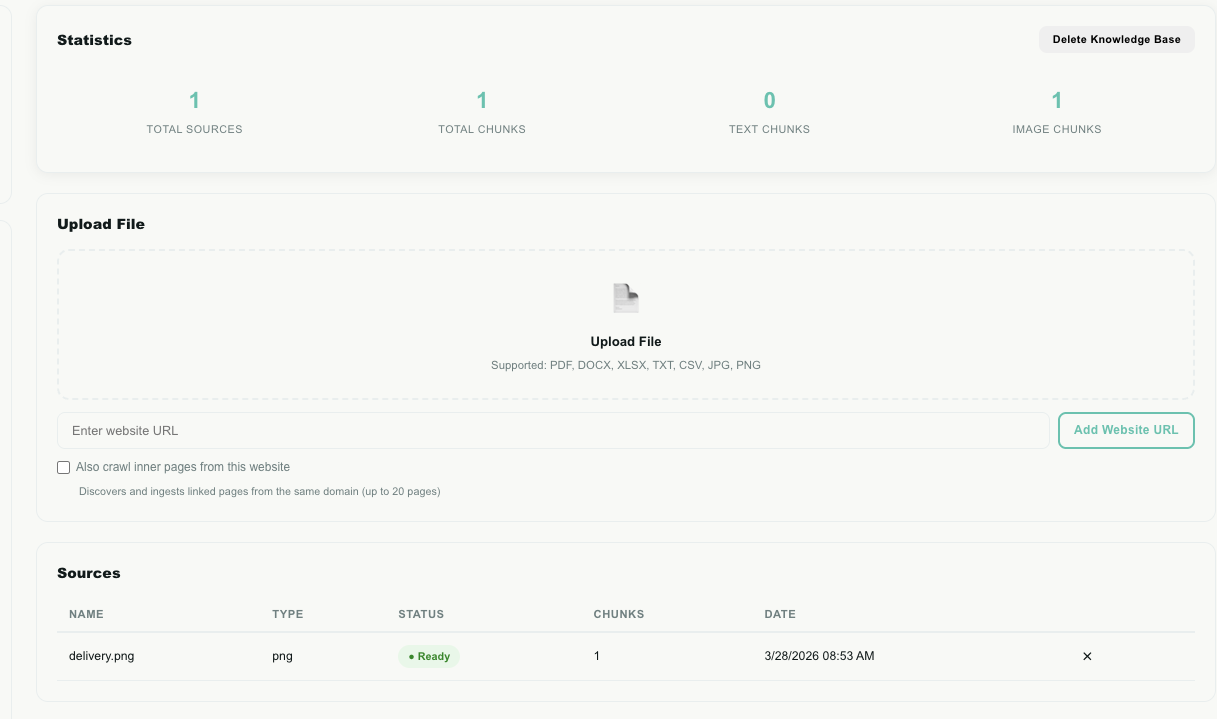
The Statistics row gives a quick health-check of the selected knowledge base.
| Stat | Meaning |
|---|---|
| Total Sources | How many files and websites are in this knowledge base. |
| Total Chunks | The total number of searchable pieces across all sources. |
| Text Chunks | Pieces that came from text (documents and web pages). |
| Image Chunks | Pieces that came from images or scanned PDF pages. This stays at 0 for a text-only knowledge base. |
The Delete Knowledge Base button sits in the top-right of this card — it removes the whole knowledge base (same as the trash icon in the left list).
Asking a question
The Ask a Question card is where you (or the AI) query the knowledge base.
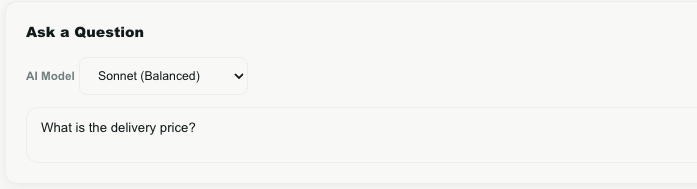
- Choose an AI Model (see the table below).
- Type your question in plain language — the same way you'd ask a colleague.
- Click Ask (or press Enter; use Shift + Enter for a new line).
Choosing an AI model
The model decides how the answer is written and how much it costs to run. All three answer only from your content — they differ in speed, depth, and cost.
| Model | Best for |
|---|---|
| Haiku (Fast & Cheap) | Quick, straightforward look-ups where you just need the fact. |
| Sonnet (Balanced) | The default — a good balance of quality and cost for most questions. |
| Opus (Most Powerful) | Complex questions that need careful reasoning across several documents. |
The answer
When the AI has an answer, it appears in a highlighted card with:
| Part | What it shows |
|---|---|
| Answer text | The answer, written in the same language as your question (ask in Hebrew, get Hebrew back; ask in English, get English back). |
| Model & chunks used | Which model answered, and how many pieces of your content it read to do so. |
| Sources Used | A chip for each document the answer drew from, with a match score (how closely that piece matched the question), and a page number when the source has pages. |
When there's no answer
If none of your content is relevant to the question, the AI does not guess. It replies "No relevant information found." This is deliberate: it means the answer genuinely isn't in your knowledge base, so you can trust that any real answer came from your own documents. (For automated uses, this "not found" case is returned as a clean signal that an AI agent can act on.)
How it works
You don't need to know the internals to use the page, but a short explanation helps both people and AI understand what to expect.
- Read — Teloring opens each file or web page and pulls out its text (or reads it as an image, for scanned PDFs and pictures).
- Split — the text is broken into small overlapping chunks so that each piece is a bite-sized, self-contained passage.
- Index — every chunk is turned into a mathematical "fingerprint" (an AI embedding) that captures its meaning, and stored.
- Search — when you ask a question, Teloring turns the question into the same kind of fingerprint and finds the chunks whose meaning is closest. Pieces that aren't close enough are ignored, so weak matches don't pollute the answer.
- Answer — the most relevant chunks are handed to the AI model you picked, which writes a plain-language answer grounded only in those pieces — and tells you which sources it used.
Because search is based on meaning rather than exact words, a question like "how long do I have to send something back?" can still find a policy that says "returns are accepted within 30 days."
Where else the knowledge base is used
The Knowledge Base page is where you build and test your content, but the real payoff is that the same content powers AI elsewhere in Teloring:
| Where | How it uses the knowledge base |
|---|---|
| AI Copilot | During a live conversation, an agent can point the Copilot at a knowledge base and ask a question — the Copilot answers from your content without leaving the conversation. All this needs is Knowledge Base on in AI World. |
| AI agents | Automated AI answering can draw on a knowledge base to respond to customers with your approved information. |
Keeping your knowledge bases accurate directly improves the quality of these AI answers.
Element reference
A quick map of every control on the page.
Left panel
| Element | Use |
|---|---|
| Knowledge Base Name field | Name for a new knowledge base (required, ≤ 200 characters). |
| Description field | Optional note about the knowledge base. |
| Create Knowledge Base button | Creates the knowledge base and selects it. |
| Knowledge base row | Selects that knowledge base. |
| Count badge | Number of knowledge bases in the account. |
| 🗑️ per-row delete | Deletes that knowledge base and all its content (with confirmation). |
Main panel — Statistics
| Element | Use |
|---|---|
| Total Sources / Total Chunks / Text Chunks / Image Chunks | Read-only counts describing the selected knowledge base. |
| Delete Knowledge Base button | Deletes the selected knowledge base and all its content (with confirmation). |
Main panel — Upload
| Element | Use |
|---|---|
| Upload area (dashed box) | Click or drag a file to add a document or image. |
| Enter website URL field | The web address to read. |
| Add Website URL button | Reads and indexes the page. |
| Also crawl inner pages checkbox | Also reads linked pages on the same site, up to 20. |
| Status line | Shows uploading / processing / complete / failed. |
Main panel — Sources
| Element | Use |
|---|---|
| Sources table | Lists every file and website, with type, status, chunk count, and date. |
| 🔄 Rescan (URL sources) | Re-reads a website to pick up changes. |
| ✕ Delete | Removes a source and its content (with confirmation). |
Main panel — Ask a Question
| Element | Use |
|---|---|
| AI Model dropdown | Choose Haiku, Sonnet, or Opus. |
| Question box | Type your question (Enter to send, Shift+Enter for a new line). |
| Ask button | Sends the question. |
| Answer card | Shows the answer, the model and pieces used, and the sources with match scores. |
Good practices
| Recommendation | Why it helps |
|---|---|
| Split content into focused knowledge bases | A Support knowledge base and a Sales knowledge base give cleaner answers than one giant mixed library. |
| Give each knowledge base a clear name and description | Makes it obvious which one to pick — and helps the AI Copilot choose the right one. |
| Upload the source of truth, not summaries | The AI can only answer from what you give it, so load the real manuals, policies, and price lists. |
| Rescan websites after they change | Keeps answers current. Otherwise the AI answers from the old version. |
| Test with real questions | Ask the questions your customers actually ask, and confirm the answers and sources look right before relying on the AI Copilot. |
| Remove outdated sources | Old documents can produce old answers — delete what's no longer true. |
Troubleshooting
| Problem | What to check |
|---|---|
| The page shows "Knowledge Base is Disabled" | The Knowledge Base switch is off in AI World. Ask an admin to turn it on. |
| A source is stuck on Processing | Large files and multi-page website crawls take longer. The page updates itself; give it a little time. If it turns to Failed, try again. |
| A source shows Failed | The file may be corrupt, password-protected, empty, or the website may have blocked access or had no readable text. Check the file/URL and re-add it. |
| The answer is "No relevant information found" | The content genuinely isn't in this knowledge base. Add the relevant document, pick the right knowledge base, or rephrase the question. |
| Answers seem out of date | The underlying document or website changed. Rescan the website, or delete and re-upload the file. |
| A website added almost nothing | The page may load its content dynamically (via scripts), which can't always be read. Try adding a more content-rich URL, or upload the information as a file instead. |
| The AI Copilot can't answer from the knowledge base | Confirm Knowledge Base is on in AI World, and that a knowledge base with content is selected for the conversation. |
Frequently asked questions
Will the AI ever answer from the internet or its own knowledge? No. It's instructed to use only the content you uploaded to the selected knowledge base. If the answer isn't there, it says "No relevant information found."
Can other businesses see my content? No. Every knowledge base belongs to a single account and is fully isolated. Your files never cross to another business.
What languages are supported? You can upload content and ask questions in Hebrew or English. The answer comes back in the same language you asked in.
How many knowledge bases or sources can I have? You can create multiple knowledge bases and add many sources to each. Individual files are limited to 50 MB, and website crawling reads up to 20 inner pages per URL.
Do I have to wait for a file to finish processing? No. Uploads process in the background and the page updates the status on its own. You can keep working and come back when it says Ready.
What's the difference between a source and a chunk? A source is one thing you added (a file or website). A chunk is a small piece that source was split into for searching. One source usually becomes many chunks.