Agents and AI Agents
The Agents page is the account directory for the people and the autonomous AI profiles that work on customer conversations in Teloring.
Use it to:
- Invite human team members and manage their access.
- Choose each person's role, language, login security, and voice access.
- Let people reset their own password or move their own sign-in email — safely, through their inbox.
- Resend invitations, deactivate access, or delete a profile.
- Create AI Agents and control how they speak, what they know, what they collect, and how they hand a conversation back to a human.
Open Admin → Agents, Teams & Roles → Agents from the Teloring sidebar.
Once your agents exist, group them into Teams — Sales, Support, Billing — so a conversation can be routed to a whole team instead of one person. Teams is the second page under Agents, Teams & Roles.
The Department field on an agent profile is not a team. It is a free-text label for display and search only.
Everything on this page belongs only to the current Teloring account. An agent or AI Agent created here is never visible in another account.
Human agents and AI Agents at a glance
Both types live in the same table, but they work very differently.
| Human agent | AI Agent | |
|---|---|---|
| What it is | A person who signs in to Teloring. | An autonomous conversation profile. No person behind it. |
| Sign-in | Email + password, with optional email 2FA. | None. No email, no password. |
| What you configure | Identity, role, language, 2FA, department, notes, voice. | Identity, writing style, knowledge, rules, goals, outcomes, working hours. |
| Conversation assignment | Picked in the Assigned to control. | Same control, marked with a robot icon. |
| Once assigned | The person answers in the workspace. | Teloring opens an AI session and the AI answers incoming messages. |
| Turn it off | Deactivate (reversible). | Set the profile Status to Inactive. |
| Delete it | Yes, an admin can delete the profile. | Not from this page — no delete action exists yet. |
| Can join a Team | Yes | Yes |
| Counts as "online" | Yes, while signed in to Teloring. | Always online. An AI Agent is software, so it never goes offline. |
This distinction matters once you use Teams, and it is deliberate:
- Team auto-assignment treats an AI Agent as always online, so an AI member can pick up work at 3 a.m. Use a team's Only real agents rule when you do not want that.
- Presence features — the Team Chat green dot, the live-chat "agents online" count, and Studio's Agent availability condition — ask "is a person there?" and never count AI Agents.
Who can do what
Any signed-in member can open the page and read the directory. Everything that changes something is enforced on the server.
| Action | Permission it needs |
|---|---|
| View the directory and search it | Agents → Read |
| Create a human agent or an AI Agent | Agents → Create |
| Edit an agent or an AI Agent profile | Agents → Update |
| Change per-agent voice access | Agents → Update |
| Resend an invitation | Agents → Update |
| Activate or deactivate a human agent | Agents → Update |
| Delete an agent profile | Agents → Delete |
| Change account voice settings | My Ring → Update |
| Reset their own password | None — always allowed |
| Reset somebody else's password | Agents → Update |
| Change their own sign-in email | None — always allowed |
| Change somebody else's sign-in email | Agents → Update |
| Assign a conversation to a human or AI Agent | Can assign conversations on that inbox |
| Create, edit, or delete a Team | Teams → Create / Update / Delete |
See Roles and Permissions for how these are granted.
Two rules apply to everyone, whatever their role:
- You cannot deactivate or delete your own profile here.
- Nobody — not even an admin — types a password or a new email address on someone else's behalf. Both always travel through a one-time link sent to the agent's own inbox.
Page overview
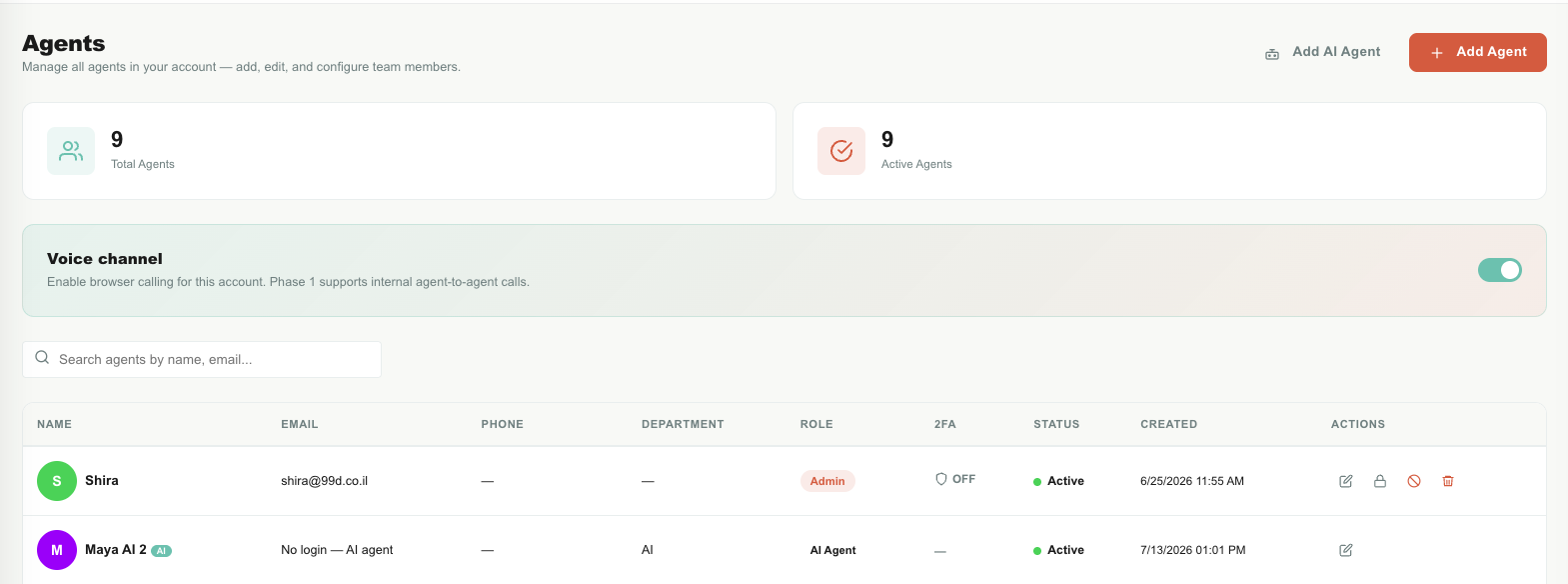
| Element | What it does |
|---|---|
| Add AI Agent | Asks for a name, then creates the AI profile and its directory row. |
| Add Agent | Opens the human-agent invitation form. |
| Total Agents | Every row in the account: active people, pending invitations, inactive profiles, and AI Agents. |
| Active Agents | Rows whose internal active flag is on. This includes pending humans and active AI Agents, so it can be higher than the number of green Active labels. Read the Status column for the exact onboarding state. |
| Voice channel | Account-wide switch for Teloring browser calling. It must be on before voice can be enabled for any individual person. |
| Search | Filters the loaded table by name, email, phone, or department. It does not search role, status, 2FA, or creation date. |
| Agents table | The directory and its per-row actions. |
Changes are account-wide, and the table reloads after each successful operation.
Understand the table
| Column | Meaning |
|---|---|
| Name | Display name, optional description, a You badge on your own row, and an AI badge on AI rows. The colored circle is the first letter, tinted from the name. |
| Sign-in address. AI rows show No login — AI agent. | |
| Phone | Optional, informational only on this page. |
| Department | Free-text label such as Support or Sales. Display and search only — not a Team. AI Agents are always filed under AI. |
| Role | The role this person holds — one of your account's own roles. AI rows show AI Agent, which is a label, not a role. |
| 2FA | Whether that person's own 2FA switch is on. AI rows show a dash. |
| Status | Active, Pending, or Inactive. |
| Created | Creation date and time, in your browser's format. |
| Actions | See Row actions. |
What each status means
| Status | Meaning | Can they sign in or be assigned work? |
|---|---|---|
| Active human | Registered and enabled. | Yes. |
| Pending human | Invited, but has not chosen a password yet. | Sign-in is blocked. The profile can still appear in assignment pickers, so avoid assigning work to a Pending row. |
| Inactive human | An admin deactivated the profile. | New sign-ins are blocked. |
| Active AI Agent | Ready to be assigned. | Yes. |
| Inactive AI Agent | Profile status is disabled. | New assignments are rejected. |
Deactivation blocks new sign-ins, but it does not end a browser session that is already open. When access must stop immediately, also revoke that person's sessions in Settings → Security & Login → Active sessions. (Deleting a profile does revoke sessions.)
Row actions
The icons at the end of each row change with the row's type, its status, and your role.

| Icon | Appears on | What it does |
|---|---|---|
| Edit (pencil) | Every row | Human → the agent form. AI → the AI profile editor. Saving needs Agents → Update. |
| Resend confirmation email (envelope) | Agents → Update, on a Pending person | Sends a fresh 1-hour invitation and stops the previous invitation link from working. |
| Reset password (padlock) | Your own row always; anyone else's with Agents → Update | Emails a one-time link so a new password can be chosen. See Passwords. |
| Change email (envelope with arrow) | Your own row always; anyone else's with Agents → Update | Starts a sign-in-address change, confirmed from the current inbox. See Change a sign-in email. |
| Deactivate / Activate | Agents → Update, on someone else | Turns the profile off or back on. Reversible. |
| Delete agent (bin) | Agents → Delete, on someone else | Permanently removes the profile after typing DELETE. |
Reset password and Change email are the two actions that never need a permission — everybody gets them for their own row. Extending either to somebody else is Agents → Update.
Password reset does not appear on a Pending row — there is no password to reset yet. Use Resend confirmation email instead.
Human agents
Invite a person
- Open Admin → Agents.
- Click Add Agent.
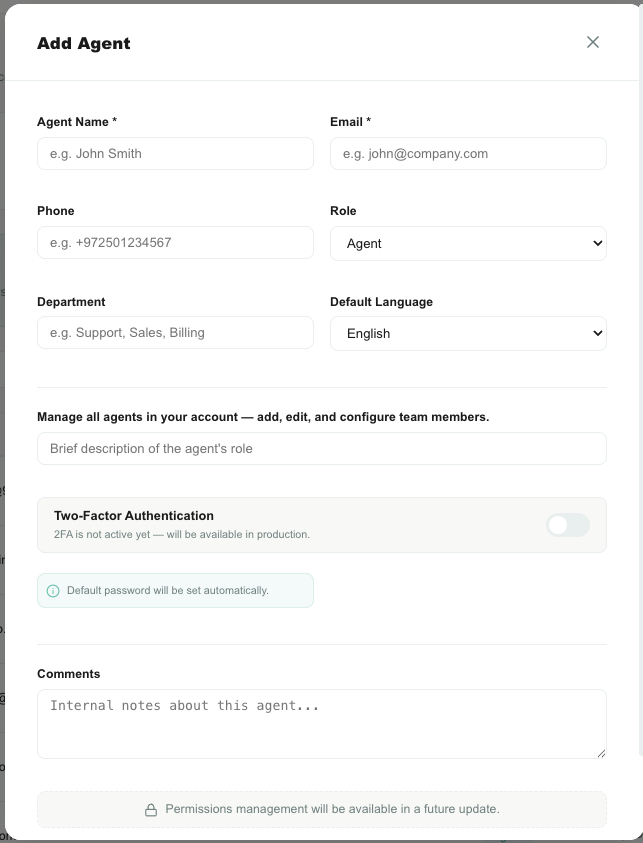
- Fill in the name and email (both required).
- Choose the role and default language.
- Optionally add phone, department, description, 2FA, and comments.
- Click Create Agent.
Teloring creates a Pending profile and emails a one-time password-setup link.
- The link is valid for 1 hour and can be used once.
- Until the person chooses a password their row stays Pending and sign-in is blocked.
- No password is set from this form. Nobody in the account ever sees or chooses another person's password.
- Sending a new invitation cancels the person's earlier unused invitation links.
- If the email fails to send, the profile is still created. Fix the address or the mail problem and use Resend confirmation email.
Field reference
| Field | Required | What it controls |
|---|---|---|
| Agent Name | Yes | The name shown across Teloring: assignments, messages, audit entries, Team Chat. |
| Yes | The sign-in address. It must be unique across all of Teloring. In Edit it is read-only — move it with Change email. | |
| Phone | No | Internal contact number. Local or international format. |
| Role | No | One of your account's roles. The list is your own, and the role's description appears underneath so you can confirm the choice. Defaults to the account's Agent role. |
| Department | No | Free-text label, used for display and search only. It does not create a team, a queue, or a permission group. To group agents for routing, use Teams. |
| Default Language | No | English or Hebrew. Sets the person's workspace language and the language of their invitation, reset, and 2FA emails. |
| Description | No | One line about the person's responsibility, shown under their name. |
| Two-Factor Authentication | No | When on, sign-in also requires an emailed code. |
| 2FA Method | No | Leave on Email. See What is not finished yet. |
| Comments | No | Internal notes. Never shown to customers, but any member who can open the profile can read them. |
| Voice for this agent | Edit only | Turns on this person's browser softphone, once account voice is on. |
Choosing a role
The Role list contains your account's own roles. Every account starts with five — Owner, Team Leader, Marketing, Agent and Viewer — and you can rename, re-scope, duplicate or delete any of them except Owner.
Picking a role decides everything the person can reach: which pages, which inboxes, and what they may do in each. Read the description under the picker if you are unsure, or open Admin → Agents, Teams & Roles → Roles & Permissions to see the full grid.
| If the person is… | Start with |
|---|---|
| A front-line agent answering customers | Agent |
| A support manager who is not the account owner | Team Leader |
| Working on campaigns, automations and reports | Marketing |
| A stakeholder who only wants dashboards | Viewer |
| A co-owner of the workspace | Owner |
| Anything else | Duplicate the closest role and adjust it |
Owner can reach everything, including billing and account deletion, and its permissions cannot be narrowed. Give it only to people who genuinely own the workspace — but give it to at least two of them, so nobody is ever locked out.
Edit a person
Click the pencil on a human row. You can change name, phone, role, department, default language, description, 2FA, comments, and voice access.
The email field is read-only here on purpose — see below.
Passwords
Passwords are only ever chosen by the person themselves, from a one-time emailed link. There are three ways one gets issued.
| Path | Who starts it | Effect on the current password |
|---|---|---|
| Invitation (new profile / resend) | Admin | No password exists yet. |
| Reset password — my own row | Anyone, for themselves | Keeps working until the new one is chosen, so a lost or slow email cannot lock you out. |
| Reset password — someone else | Admin | Stops working immediately. Use this when credentials may be compromised. |
| Forgot your password? on the sign-in page | Anyone, without signing in | Same as a self-reset. The page answers identically whether or not the address exists, so it cannot be used to discover who has an account. |
Every one of those links:
- lasts 1 hour and works once;
- is stored only as a hash — the real value exists only inside the email;
- cancels the person's other unused links of the same kind (so a new password link no longer silently cancels a pending email-change confirmation);
- stops working if the profile is deactivated or its address changes in the meantime.
Password reset requests are rate limited per IP, and repeated requests for the same address are throttled, so one inbox cannot be flooded.
Password rules
A new password must:
- be at least 8 characters (and at most 72 bytes);
- contain an uppercase letter;
- contain a lowercase letter;
- contain a digit;
- contain one special character — anything visible that is not a letter or a digit. Spaces do not count.
The set-password page lists the same rules and checks them as you type.
Change a sign-in email
The sign-in address is an identity, so moving it is deliberately a two-step, inbox-confirmed operation.
- Open the person's row (or the Edit form) and click Change email.
- Confirm. Teloring emails a confirmation link to the address currently on file — never to a new one.
- The recipient opens the link and types the new address there, once.
- Only then does the sign-in address move. Teloring also notifies the old address that it is no longer the sign-in email.
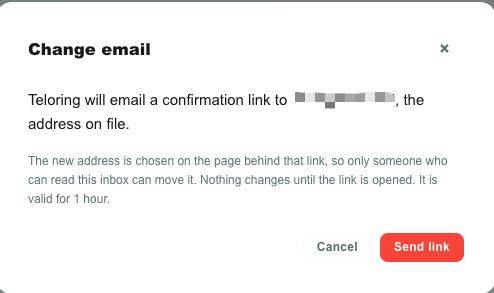
Why it works this way: control of the existing inbox is what authorises the move. An admin — or someone who hijacked a dashboard session — cannot take over an agent's identity without being able to read the inbox that agent already uses.
The link lasts 1 hour, is single use, and nothing changes until it is opened.
Two-factor authentication
Per-person 2FA is separate from the account-wide Enforce 2FA for all members switch in Settings.
A code is required when either is true:
- the person's own Two-Factor Authentication switch is on;
- the account-wide enforcement setting is on.
The code is emailed, expires after 5 minutes, is stored only as a hash, and is attempt-throttled.
Teloring can also ask for a code when someone signs in from a browser it has not seen before, depending on your account's new-device setting.
Keep the method on Email. The WhatsApp option can be saved, but every code is still delivered by email.
Voice
Voice works at two levels, and the account level comes first.
1. Account voice
The Voice channel card switches Teloring browser calling on or off for the whole account.
- Needs My Ring → Update.
- It must be on before any individual can get voice credentials.
- Turning it off stops account voice sessions from starting.
- The card is a single switch. The account's concurrent-call limit exists in the backend but is not editable here.
2. Per-person voice
Open a person's profile and use Voice for this agent. When you enable it, Teloring:
- generates a private SIP extension and password;
- encrypts the password at rest;
- provisions the extension on the Teloring voice server;
- allows that person's call window to start voice sessions.
If provisioning fails, the operation reports an error and the switch reverts.
Reset voice credentials rotates the SIP password, ends the current voice session, and updates the provisioned extension. Use it if credentials may have leaked or the softphone can no longer register.
These controls are for human browser softphones. AI Agents never receive SIP credentials.
Deactivate or delete?
| Choose | When | What survives |
|---|---|---|
| Deactivate | Leave of absence, suspension, or a reversible offboarding step. | Everything. The profile can be switched back on. |
| Delete agent | Permanent removal, after access and ownership have been reviewed. | Conversations, messages, audit entries, and names already copied into records. |
Deleting a profile also revokes that person's dashboard sessions, outstanding password-setup links, trusted devices, and personal API tokens.
Before you delete:
- Reassign any open conversations they still own.
- Check Studio flows or processes that name that agent.
- Turn voice off first — deleting the profile does not deprovision the voice extension.
- Accept that history stays, without a live profile behind it.
AI Agents
An AI Agent talks to the customer directly. Do not confuse it with AI Copilot:
- AI Agent owns the conversation and answers the customer.
- AI Copilot only advises a human in the right-hand panel.
- They never run on the same conversation at the same time.
Create an AI Agent
- Open Admin → Agents.
- Click Add AI Agent.
- Type a name when prompted, and confirm.
- Find the new row and click its pencil to open the profile editor.
- Complete the profile before you point real customers at it.
Creating the row does not attach it to any inbox or conversation.
Put an AI Agent to work
- Open an active conversation.
- Open Assigned to.
- Pick the AI Agent (robot icon).
- Teloring starts an AI session from a snapshot of the profile.
- The conversation moves to the AI Agent queue, unless a Studio flow still owns it.
- The AI sends its greeting when appropriate, and answers incoming messages from then on — the greeting itself is not also an answer, so a customer who asked something before the AI arrived gets a reply once they write again.
Because each session uses a snapshot, editing a profile changes future sessions only. A conversation already running keeps the settings it started with.
Setting a profile to Inactive blocks new assignments but does not stop a session that is already running. To stop one immediately, reassign that conversation to a human or back to the waiting line.
The profile editor
Nine tabs, one Save AI Profile button that saves all of them together.
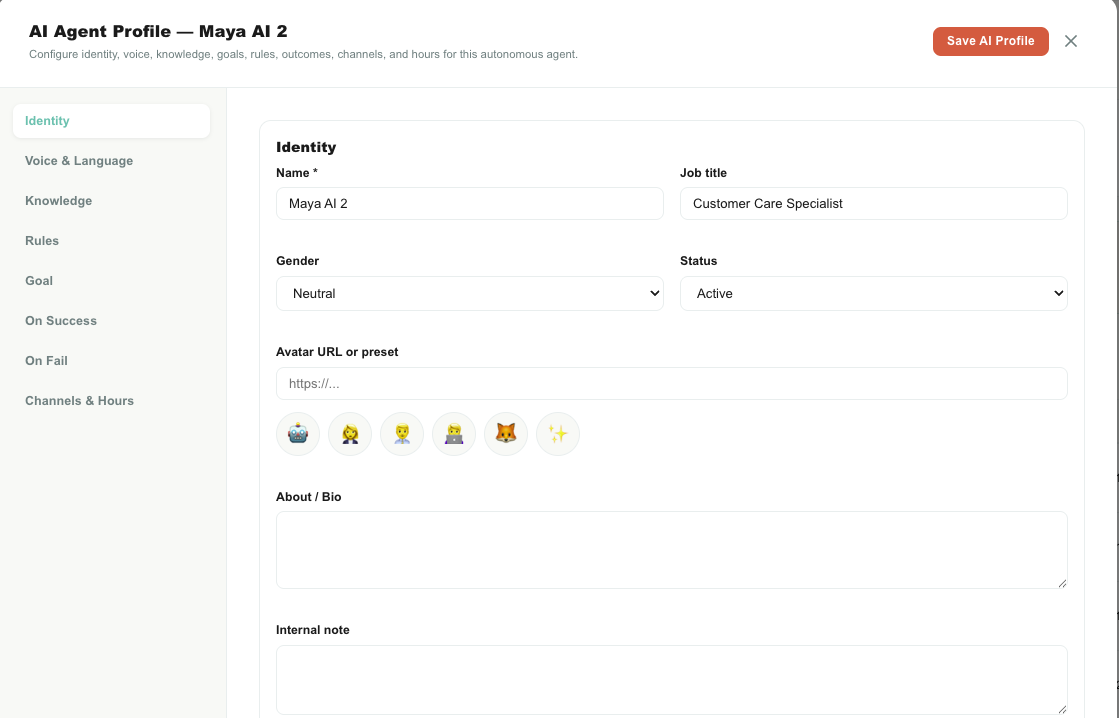
Identity
| Field | What it controls |
|---|---|
| Name | The sender name customers see, and the directory name. |
| Job title | Goes into the AI's instructions, e.g. Customer Care Specialist. |
| Gender | Tells the AI which self-reference forms to use in gendered languages. |
| Status | Active allows new assignments; Inactive blocks them. Saving also updates the directory row. |
| About / Bio | Explains the AI's role and the business it represents. Part of the instructions. |
| Internal note | For your team only. Never sent to the model or the customer. |
Use the bio to describe responsibility and context — not to re-type a whole Knowledge Base.
Voice & Language
“Voice” here means writing style. It has nothing to do with phone calls.
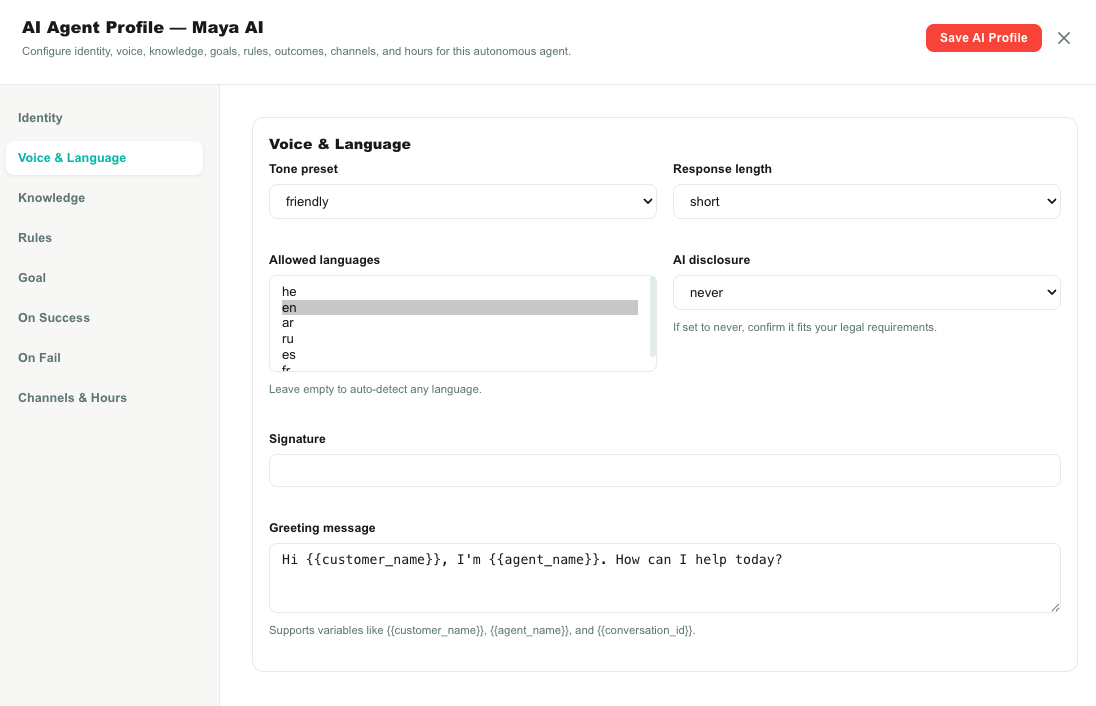
| Field | What it controls |
|---|---|
| Tone preset | Friendly, professional, casual, formal, playful, empathetic, or concise. |
| Response length | Short, medium, or long guidance — not a hard character limit. |
| Allowed languages | Which languages the AI should answer in. Hold Ctrl (Windows) or Command (macOS) to pick several. Select none to let it follow the customer. |
| AI disclosure | Always, If asked, or Never. “Never” tells the AI not to describe itself as automated — check that against the rules that apply to your business. |
| Signature | Appended to AI messages when not already present. |
| Greeting message | The first message, sent on assignment, if the conversation has not already been greeted by an AI. It is sent exactly as written, and it is the AI's only message at that point — even if the customer already asked something. The AI answers from the customer's next message onward. |
Greeting variables:
| Variable | Becomes |
|---|---|
{{customer_name}} | The customer or contact name, or “there” if unknown. |
{{agent_name}} | The AI Agent's name. |
{{conversation_id}} | The current conversation ID. |
Hebrew, Arabic, and English are the languages Teloring can reliably detect server-side. Russian, Spanish, and French shape the prompt but are not enforced.
Knowledge
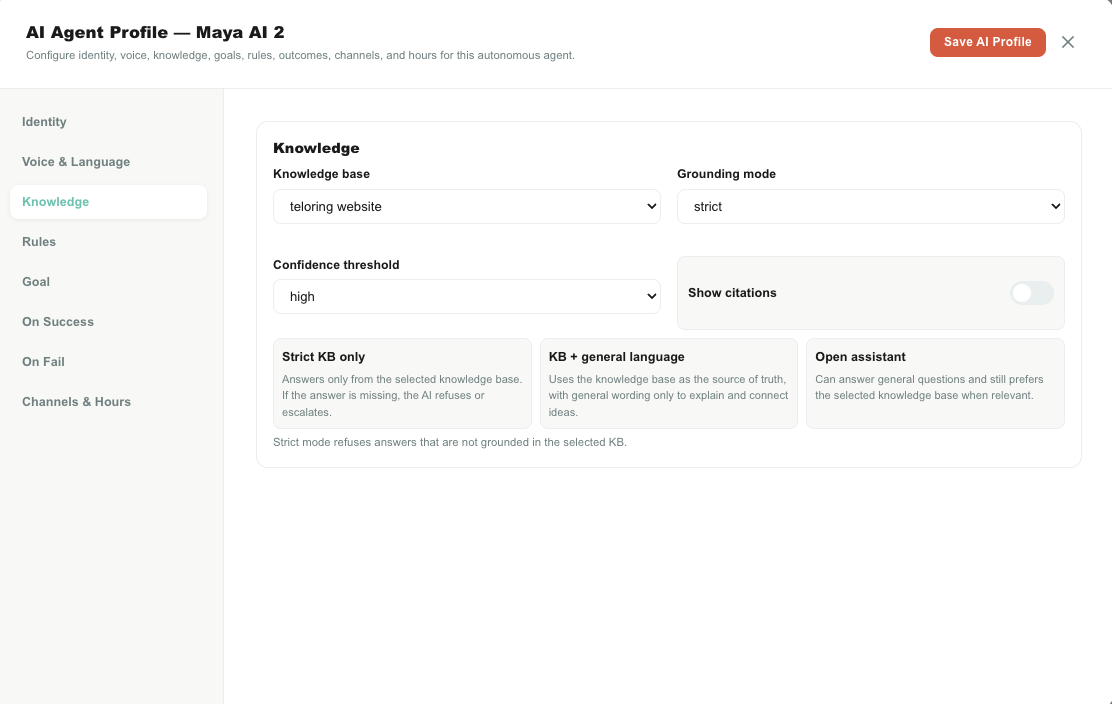
| Field | What it controls |
|---|---|
| Knowledge base | Which account Knowledge Base is searched before every AI turn. |
| Grounding mode | How strictly the AI must stay inside that Knowledge Base. |
| Confidence threshold | How similar a passage must be to be retrieved. Low is broadest, High is strictest. |
| Show citations | Asks the model to cite grounded information. Guidance, not a guaranteed format. |
| Grounding mode | Use it for |
|---|---|
| Strict KB only | Regulated or tightly controlled answers. A Knowledge Base must be selected before you can save. |
| KB + general language | The Knowledge Base is the source of truth, but the AI may phrase things naturally. A good default. |
| Open assistant | Broader answers, still preferring Knowledge Base context when it exists. |
Build and test the Knowledge Base before switching to strict mode.
Rules
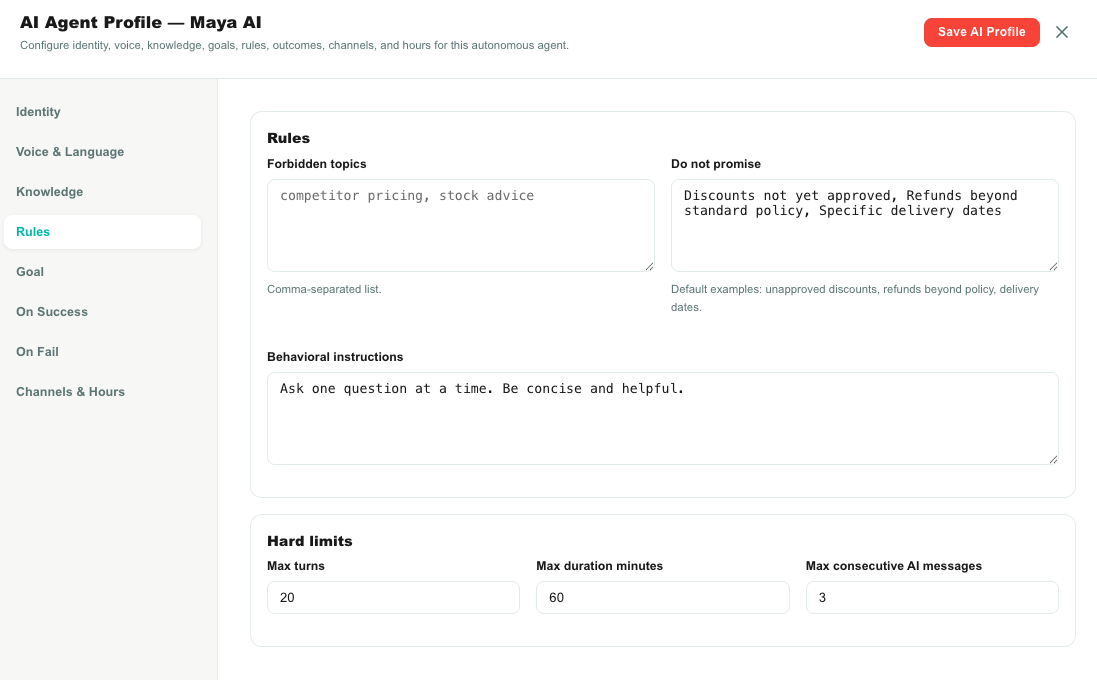
| Field | What it controls |
|---|---|
| Forbidden topics | Comma-separated topics the AI must not discuss. If a generated answer contains one of these exact phrases, Teloring replaces it with a refusal/handoff sentence. |
| Do not promise | Comma-separated commitments the AI must not make, such as unapproved discounts or delivery dates. |
| Behavioral instructions | Free-text operating rules. Keep them short and non-contradictory. |
| Max turns | Enforced. Maximum customer turns before the session ends on a limit. |
| Max duration minutes | Enforced. Maximum session age, checked when a message is processed. |
| Max consecutive AI messages | Guidance only — see What is not finished yet. |
Put factual material in the Knowledge Base, collection requirements in Goal, and only true behavioural rules here.
The forbidden-topic filter replaces an unsafe answer, but replacing text does not move the conversation. Keep the Forbidden topic escalation reason enabled with a real routing action.
Goal
Goal decides whether the AI only answers, or also gathers information into your CRM.
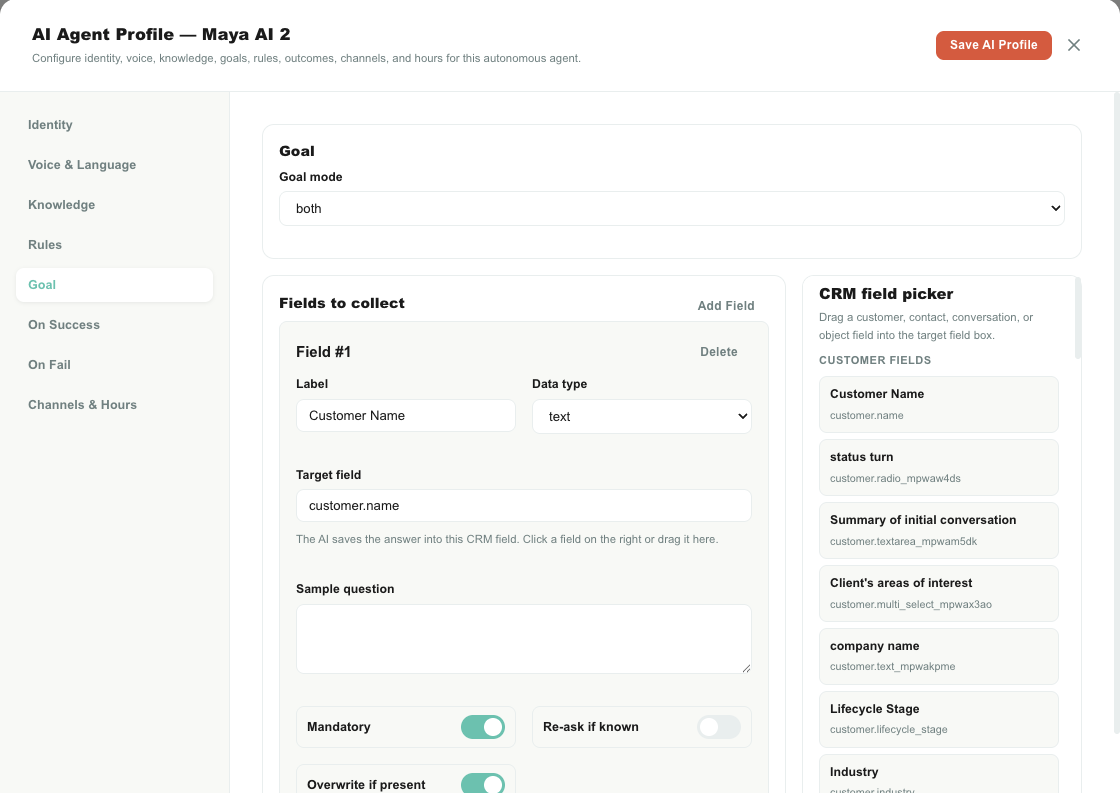
| Mode | Meaning | Use it? |
|---|---|---|
| Give info | Answer and help. Collects nothing: the AI is not given the fields, nor the tool to save them, so it never asks the customer for personal details. | Yes — for information and support profiles. |
| Get info | Collect the fields, one missing required field at a time, while still answering what the customer asks. | Yes. |
| Both | The same as Get info, stated explicitly: answer the customer and collect. | Yes. |
The fields you configured stay on the profile and reappear if you switch the mode back — they are simply inactive while the mode is Give info. An agent set to Give info will not ask for them, even if they are still listed there from an earlier setup.
Add a field to collect
- Set the mode to Get info or Both.
- Click Add Field.
- Drag a CRM field from the right-hand picker onto the card's Target field box. The target box is read-only — dragging is how it gets filled, and it also fills the label, internal slug, data type, and choice values.
- Adjust the customer-facing label if you want.
- Check the data type.
- Optionally write a sample question.
- Set the toggles.
- Repeat for each field.
| Property | Meaning |
|---|---|
| Label | The human name, used to phrase a natural question. |
| Data type | Text, number, email, phone, date, single select, multi select, boolean, or file. |
| Target field | Where the answer is saved in the CRM. |
| Sample question | Optional. Leave it empty and the AI writes its own question from the label and type. |
| Allowed values | For select types, the accepted values. |
| Mandatory | Counts towards “all mandatory fields collected”. |
| Re-ask if known | Whether the AI may ask again when the value already seems known. Guidance. |
| Overwrite if present | Off = never replace a non-empty CRM value. On = a new answer may replace it. |
Supported destinations:
customer.<field>contact.<field>conversation.custom_fields.<field>
Answers are validated (email, phone, number, boolean, and choice values) before saving, and customer/conversation writes fire the usual Studio change events.
The three Conversation targets write under conversation.custom_fields. The Conversation priority target, for example, does not change the real priority control in the conversation header.
Two picker quirks to work around
- Type the label after dragging the target. Typing first can freeze the hidden slug after one character.
- With several field cards open, drag the CRM field onto the exact card you mean; a click can land on the first card instead.
Objects — the records an AI Agent may use
The AI Agent can look things up in your objects and write to them — the customer's orders, your product catalogue, a service call — within an allow-list you set on this tab.

| Column | Meaning |
|---|---|
| Read | The agent may search the object and read its records (find_records, get_record). |
| Create | The agent may add a record (create_record). |
| Update | The agent may change a record it found (update_record). |
Calls and Documents are written by the platform and can only be read. Ticking Create or Update ticks Read as well.
How it behaves:
- The customer's own records only. When an object links to Customers or Contacts (an Orders object with a Customer field), the agent only ever finds, reads or changes records linked to the customer or contact in this conversation — it cannot be talked into another customer's order — and a record it creates is linked to that customer for it. Objects with no such link (products, branches, price lists) are open to it.
- It confirms before writing. The instructions tell it to confirm details with the customer in one message before creating or changing a record.
- Its writes are real. Every value is validated like any other write; the record's change log shows the source AI agent; lookups, counts and the Object change trigger follow. Records of your own objects count against the plan.
- Record values are information, not instructions. Whatever a record contains, the agent treats as data about the business.
The records already linked to the customer are also handed to the agent at the start of each turn, so where is my order? is answered without a search.
AI Copilot, the assistant in the conversation sidebar, answers a human agent from the knowledge base and from the records linked to the conversation's contact and customer — within that agent's own permissions on each object. Nothing to configure.
On Success
A session can end successfully when the customer confirms it is resolved, or when every mandatory field has been collected and the customer then goes quiet until the follow-up timer.
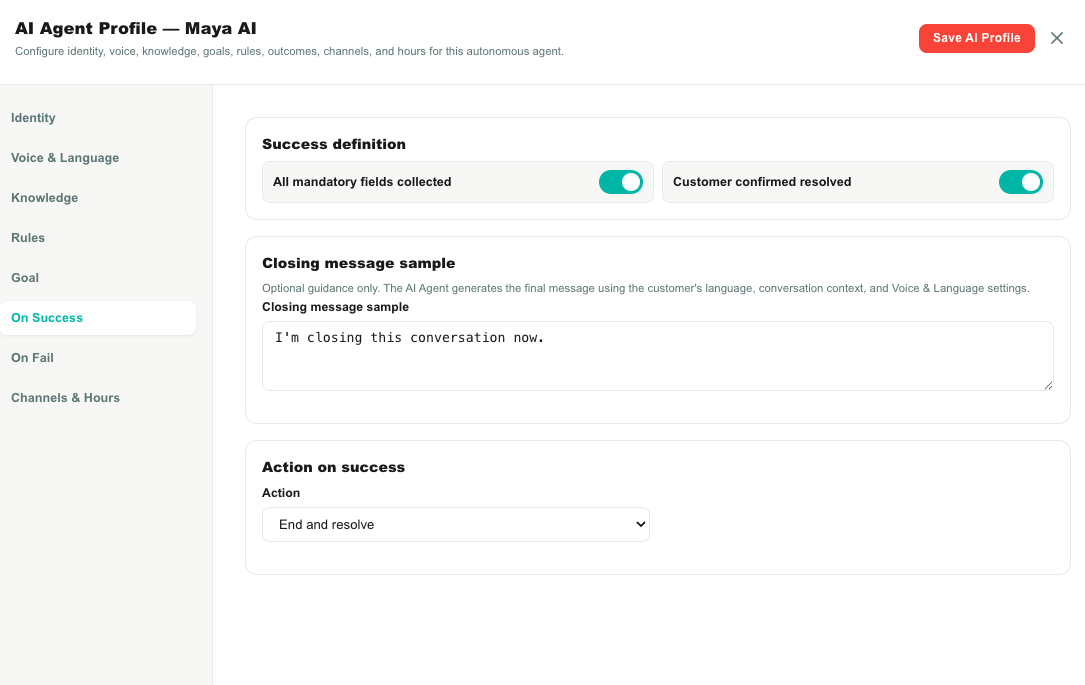
| Setting | Meaning |
|---|---|
| All mandatory fields collected | Lets completed collection become a quiet success after the follow-up timeout. |
| Customer confirmed resolved | Lets a clear “all good” or “thanks” close the session. |
| Closing message sample | Guidance for tone and intent. The real closing text is generated from the conversation and the customer's language. |
| Action | What happens after the closing message. |
| Action | Result |
|---|---|
| End and resolve | Resolves the conversation and clears the assignment. |
| No action | Ends the AI session and changes nothing else. Be careful: the conversation can stay assigned to the AI with no live session. |
| Send back to waiting line | Clears the assignment so a human can pick it up. |
| Assign to human agent | Assigns the chosen active person. If that person is no longer valid, it goes to the waiting line instead. |
On Fail
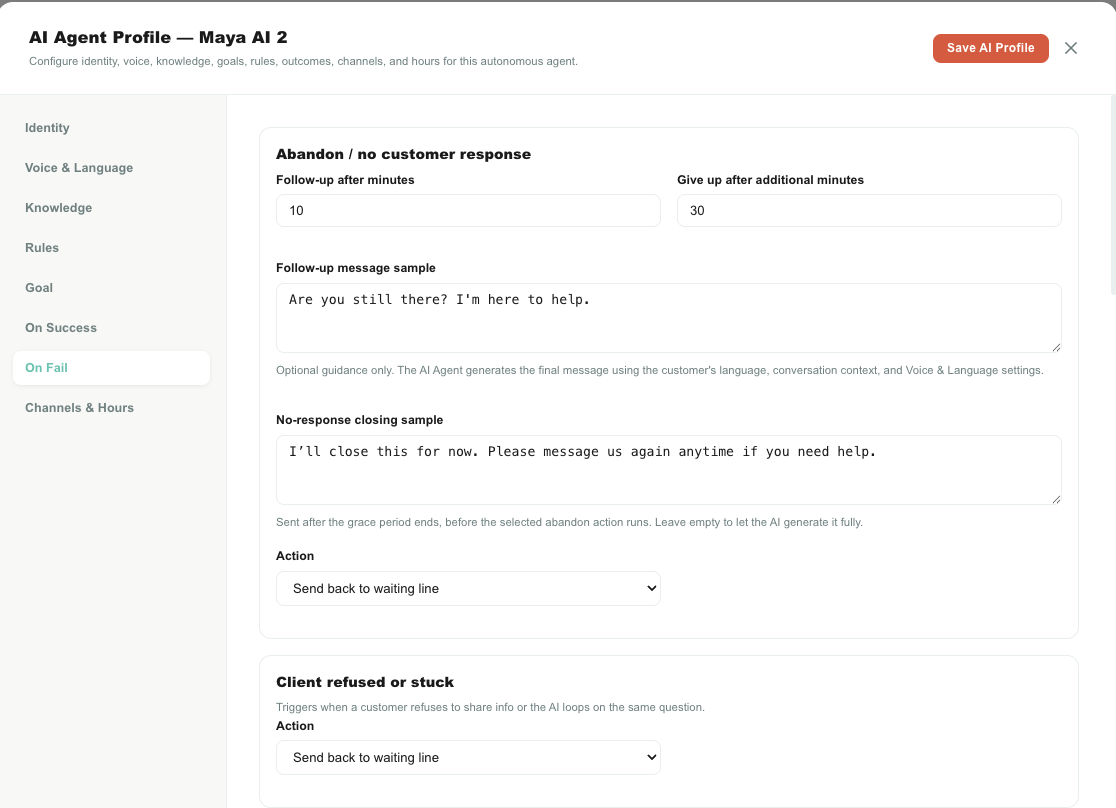
The customer went quiet
| Setting | Meaning |
|---|---|
| Follow-up after minutes | After this much silence, Teloring generates and sends a follow-up. 1–1,440 minutes. |
| Follow-up message sample | Guidance for that follow-up. |
| Give up after additional minutes | Grace period after the follow-up. 1–1,440 minutes. |
| No-response closing sample | Guidance for the closing sent before the action runs. |
| Action | Resolve, do nothing, return to the waiting line, or assign to a human. |
If every mandatory field was already collected, reaching the follow-up time counts as a quiet success instead of abandonment.
The customer refused or got stuck
The AI can report that the customer will not provide the information, or that collection is going in circles. Choose the action for that outcome.
Escalation reasons
Six reasons can be configured: asked for agent, angry or frustrated, upsell opportunity, churn risk, forbidden topic, and low confidence. For each one, set whether it is enabled, an optional handoff message sample, and the routing action (with a target person if relevant).
Turning a reason off disables its handoff handler, not the AI's ability to reach that outcome. A disabled reason can end the session with no routing at all. Keep the reasons you care about enabled, each with an explicit action.
Channels & Hours
The tab is named Channels & Hours, but today it only exposes working hours and after-hours behaviour. There is no per-inbox control here.
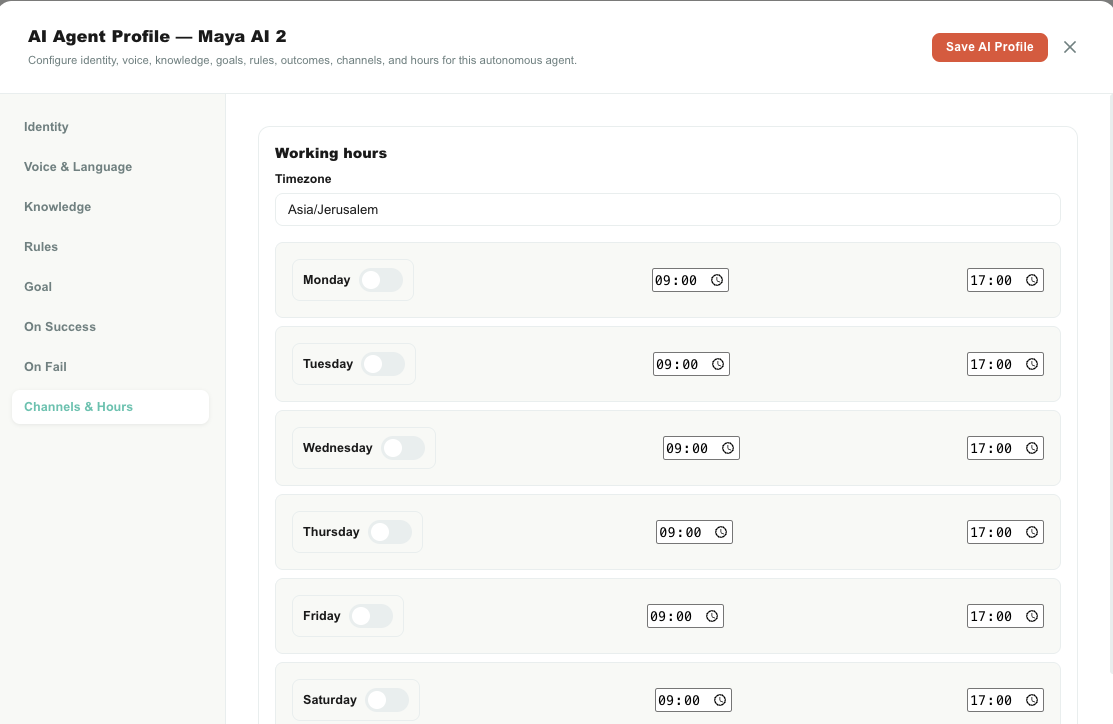
| Setting | Meaning |
|---|---|
| Timezone | An IANA timezone such as Asia/Jerusalem or Europe/London. An invalid value falls back to UTC. |
| Day switch | Marks that weekday as an operating day. |
| Start and end | One operating interval for that day, inclusive of both ends. |
Two behaviours worth knowing:
- If every day is switched off, the AI Agent is treated as available 24/7. It does not mean “closed all week”.
- Only one same-day interval is supported. An overnight range such as
22:00–06:00is not treated as an overnight shift.
| After-hours behaviour | Result |
|---|---|
| Do not respond | Skips the immediate AI reply outside working hours. |
| Respond normally | Runs the normal AI turn anyway. |
| Respond with after-hours message | Sends your fixed after-hours text instead of a generated answer. |
The scheduled follow-up job does not re-check working hours. A profile set to Do not respond can still send a follow-up later, outside hours. Do not rely on it as a guarantee of total silence.
What happens during an AI session
- Someone assigns an open conversation to an active AI Agent.
- Teloring checks the profile is active and snapshots it into a session.
- The AI greets the customer when appropriate.
- Incoming customer messages go to the AI Agent instead of AI Copilot.
- On a WhatsApp inbox the customer sees the "typing…" indicator while the turn is being prepared, so the wait does not look like silence.
- For each turn Teloring searches the Knowledge Base, builds the instructions, and runs the model.
- The AI answers, saves a configured field, or reports a terminal outcome.
- Teloring sends the generated follow-up, closing, or handoff text the profile calls for.
- The configured action resolves, unassigns, assigns a human, or does nothing.
AI messages carry an AI Agent badge. Model requests, retrieval details, responses, provider failures, and fallbacks are recorded for Teloring administrators to review in internal tooling.
The typing indicator is automatic on every AI Agent and needs no setting. It is a WhatsApp feature, so it appears on WhatsApp inboxes only; WhatsApp itself clears it as soon as the AI's reply arrives, or after about twenty seconds.
Recommended setups
A support AI Agent
- Write a narrow job title and bio.
- Select only languages your content and team actually support.
- Connect a tested Knowledge Base.
- Start on KB + general language.
- Add forbidden commitments and a few short behavioural rules.
- Keep the mode on Give info (or Get info / Both if it must collect).
- Send success to End and resolve.
- Send failure and escalation to the waiting line or a monitored person.
- Set working hours and test after-hours behaviour.
- Run a full test conversation before going live.
A lead-collection AI Agent
- Mode Both.
- Add only the fields the business truly needs.
- Use Customer, Contact, or Conversation targets.
- Mark the critical ones Mandatory.
- Turn Overwrite if present off for fields that must not replace verified data.
- Route completed collection to a human, or resolve it — whichever matches your process.
Grouping agents into Teams
Both human agents and AI Agents can be grouped into Teams — the second page under Agents, Teams & Roles.
A team lets you assign a conversation to a group instead of one person, and it changes who may pull a waiting conversation with Get next:
| Effect on this page | |
|---|---|
| Membership | Set on the Teams page, not in the agent form. An agent can be in many teams. |
| Human vs AI members | Both are allowed. A team's Only real agents rule excludes AI Agents and removes any already in it. |
| Auto-assignment | A team can hand a conversation to a random online member. AI Agents count as always online. |
| Deactivating an agent | They are silently dropped from teams the next time a team is saved. |
| Deleting an agent | They are removed from every team automatically. |
Department is not a team. It is a free-text label on the agent profile, used for display and search only. Team membership is set on the Teams page.
Read the full guide: Teams.
What is not finished yet
These are real gaps, not things you are doing wrong. Plan around them.
Every item below was re-verified against the current build.
| Item | What actually happens | Do this instead |
|---|
| 2FA method: WhatsApp | Saved, but every code is emailed. | Leave it on Email. |
| “2FA is not active yet” hint under the 2FA switch | Outdated text. Email 2FA works. | Ignore the hint. |
| Conversation priority / topic / notes targets | Write to conversation.custom_fields, not the real conversation controls. | Use them only as custom data. |
| Goal data type file | Stores text. Nothing is uploaded or registered as a CRM file. | Collect a link, or use a form or attachment instead. |
| Max consecutive AI messages | Goes into the prompt only. Unlike max turns and max duration, nothing enforces it. | Treat it as a hint. |
| Escalation reason off switch | Disables the handoff handler, not the detection. The session can end with no routing. | Keep needed reasons on, each with an action. |
| Escalation “other” fallback | Not in the editor, and hardcoded to no action. | Configure the six visible reasons and avoid no-action paths. |
| Allowed inboxes for an AI Agent | The runtime honours the setting, but the editor has no control for it and clears it on every save, so it can never be used. | Control where an AI runs by only assigning it there. |
| After-hours Do not respond | Stops immediate replies; scheduled follow-ups still go out. | Do not treat it as full silence. |
| Add AI Agent name box | Still a plain browser prompt, unlike every other dialog on the page. | Nothing to do — it works. |
| Active Agents statistic | Counts pending humans and active AI Agents too. | Read the Status column for real onboarding state. |
| Pending humans in assignment pickers | They are technically active, so they can be picked before they finish registering. | Do not assign work to a Pending row. |
| Deactivate and open sessions | Blocks new sign-ins only; an open session keeps working. | Also revoke sessions in Settings → Security & Login. |
| Deleting a voice-enabled person | The voice extension is not deprovisioned. | Turn voice off first, then delete. |
| Voice channel card | On/off only; the concurrent-call limit is backend-only. | Ask Teloring support to change the limit. |
| Management buttons for non-admins | Some can still render; the server rejects the change. | Ask an admin to do it. |
| AI Agent delete | There is no delete action for an AI Agent row. | Set the profile Status to Inactive. |
Team-specific limitations are listed in the Teams guide.
Troubleshooting
Someone is stuck on Pending
- Check they opened the newest email — invitations last 1 hour.
- Click Resend confirmation email to issue a fresh link (the old one stops working).
- Check spam filtering and that the address is spelled correctly.
Someone cannot sign in after a password reset
If an admin reset it, the old password stopped working right away — they must complete the newest link, which lasts 1 hour. If they reset it themselves, the old password still works until they finish. Either way, sending a new link cancels the previous one, so make sure they are using the latest email.
A new password is rejected
It must meet all five rules: 8+ characters, upper, lower, digit, and one special character. The set-password page shows which rule is failing.
The email-change link does not arrive
It goes to the address currently on file, not to the new one. Confirm that inbox is reachable. If it is not, an admin can create the correct profile and deactivate the old one.
An AI Agent does not appear in Assigned to
- Confirm its Status is Active.
- Reload the conversation after saving the profile.
- Confirm the conversation is still open.
An AI Agent ignores changes I just saved
The running conversation uses the snapshot from when its session started. Reassign it, or start a new conversation, to pick up the new profile.
The AI is not collecting a field
- Check the mode is Get info or Both. A profile on Give info collects nothing by design, even if fields are still configured.
- Mark the field Mandatory if it must be asked.
- Check the target starts with Customer, Contact, or Conversation.
- Confirm the conversation is assigned to the AI and the session is still live.
The AI cannot find a customer's records
- Open the profile's Objects tab and tick Read on the object.
- For objects linked to customers or contacts, the agent only sees records linked to the customer or contact in the conversation. Check the record's linked-record field points at them.
The AI cannot answer from the Knowledge Base
- Confirm a Knowledge Base is selected.
- Confirm it has processed sources.
- Lower the confidence threshold for broader recall.
- Ask the same question on the Knowledge Base page to compare.
- In strict mode, missing context is meant to produce a refusal or a limited answer.
Voice cannot be enabled for someone
- Turn the account Voice channel on first.
- Confirm the profile is active.
- If provisioning reports an error, the voice server needs attention before retrying.
Related guides
- Teams — group agents and route conversations to a whole team.
- Conversations — assignment and the AI Agent queue.
- AI World — account-wide AI Copilot and AI feature switches.
- Knowledge Base — build and test grounded sources.
- Settings — account-wide 2FA, security, and session revocation.
- Voice inbox — voice channels and calling behaviour.