Notifications
Notifications tell you when something you care about happens in Teloring — a conversation lands on your name, a customer replies, or an automation you built decides you need to know.
Two questions decide everything:
- WHAT do you want to be told about?
- HOW should Teloring tell you?
You answer both in your own profile, and the two combine: every delivery method you switch on applies to every notification type you switch on.
Open your name at the bottom-left of the sidebar → My Profile → Notifications, or go straight to /dashboard/profile#notifications.
A brand-new agent receives no notifications at all. Nothing is sent until you turn it on yourself. This is deliberate — Teloring never decides on your behalf that something is worth interrupting you for.
Key facts
| Fact | Meaning |
|---|---|
| Personal, not account-wide | Your settings are yours alone. Turning email alerts on does not turn them on for a colleague, and an admin cannot set them for you. |
| Opt-in | Every switch defaults to off. |
| Four delivery methods | Sound, Email, Browser push, Notification bell. |
| Three notification types | Conversation assigned to me, New message, Studio notifications. |
| One master switch | Turn everything off in one click without losing your choices. |
| Studio covers everything else | The two built-in types are shortcuts. Anything else you can imagine is built with a Studio block. |
| Works across all inboxes | WhatsApp, Email, SMS, Telegram, LINE, Live Chat, Messenger, Facebook, Instagram, TikTok, Voice, and the API. |
| Account isolated | Notifications never cross between Teloring accounts. |
Who can do what
| Action | Who can |
|---|---|
| Change my own notification settings | Everyone. No permission needed. |
| Change someone else's notification settings | Nobody. There is no such screen and no such API call. |
| Read someone else's notification bell | Nobody. |
| Build a Studio flow that notifies other agents | Anyone with Studio → Create — see Roles and Permissions. |
Your identity comes from your signed-in session, never from the page. There is no screen — and no API call — that lets one agent read or change another agent's notifications.
The settings screen
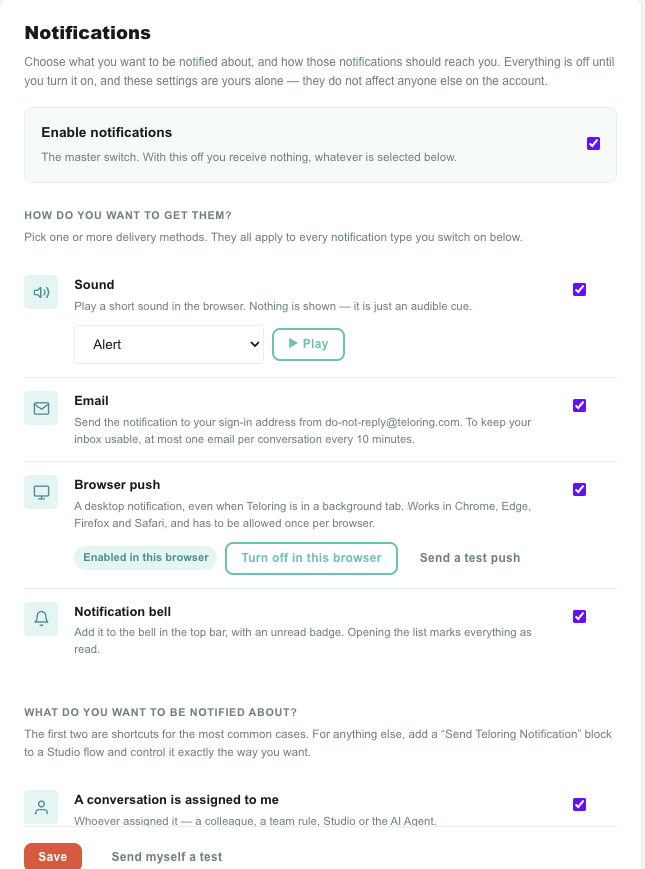
The panel sits on the right-hand side of My Profile, next to your photo and display name. It has three parts:
| Part | Purpose |
|---|---|
| Enable notifications | The master switch at the top. |
| How do you want to get them? | The four delivery methods. |
| What do you want to be notified about? | The three notification types. |
Changes are not live until you press Save. The confirmation appears next to the button.
The master switch
Enable notifications is an on/off switch for the whole feature.
- Off — you receive nothing, whatever else is selected. The rest of the panel greys out.
- On — your selected methods and types take effect.
Switching it off keeps your choices. Switch it back on and everything is exactly as you left it — useful for a focused afternoon, a holiday, or a noisy launch day.
Turning the master switch off also removes this browser's push registration, so a backgrounded tab stops buzzing too — not just the in-app parts.
HOW — the four delivery methods
Pick one or more. They are not exclusive; most agents run the bell plus one attention-getter.
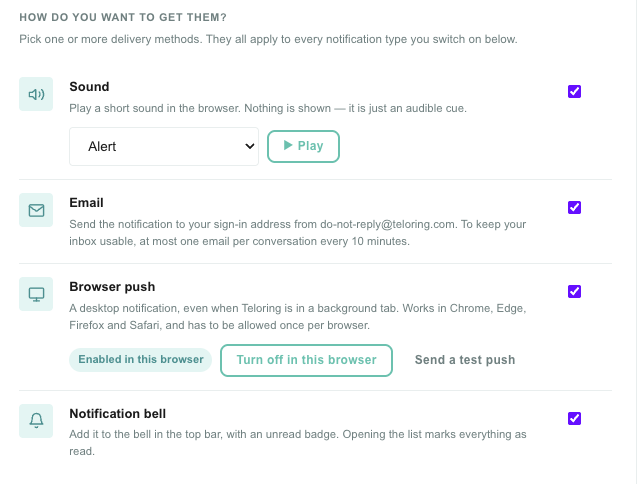
| Method | You get | Best for |
|---|---|---|
| Sound | A short sound in the browser. No text. | Knowing something happened while you work in another tab. |
| A message to your sign-in address. | A record you can search, forward, or read on your phone. | |
| Browser push | A desktop notification, even when Teloring is not the active tab. | Not missing anything while you work in other apps. |
| Notification bell | An entry in the bell menu, with an unread count. | Catching up on what you missed. |
Sound
Plays a short audio cue in your browser. Nothing is displayed — this is purely "look up, something happened".
Choose from ten sounds and press Play to hear one before committing. Selecting a sound from the dropdown also plays it immediately.
| Sound | Character | Length |
|---|---|---|
| Chime (default) | Three-note glassy arpeggio. Warm and unobtrusive. | 1.5s |
| Bell | A struck bell with a long tail. | 2.2s |
| Ding | The classic bright "you have a message". | 1.1s |
| Ping | Very short, high blip. The least intrusive option. | 0.5s |
| Pop | Soft percussive pop. | 0.4s |
| Marimba | Woody two-note. Carries well in a busy room. | 1.4s |
| Alert | Two-tone descending. Reads as "attention needed". | 1.3s |
| Bubble | Rising water-drop blip. Light and playful. | 0.6s |
| Knock | Soft double knock. Low and quiet — good for open offices. | 0.5s |
| Digital | Retro three-step blip. Cuts through noise without being harsh. | 0.6s |
Browsers block audio until you have clicked somewhere on the page. If you load Teloring and leave it untouched, the first sound may be silent. Any click anywhere unlocks it for the rest of the session.
Email
Sends the notification to your sign-in address from do-not-reply@teloring.com.
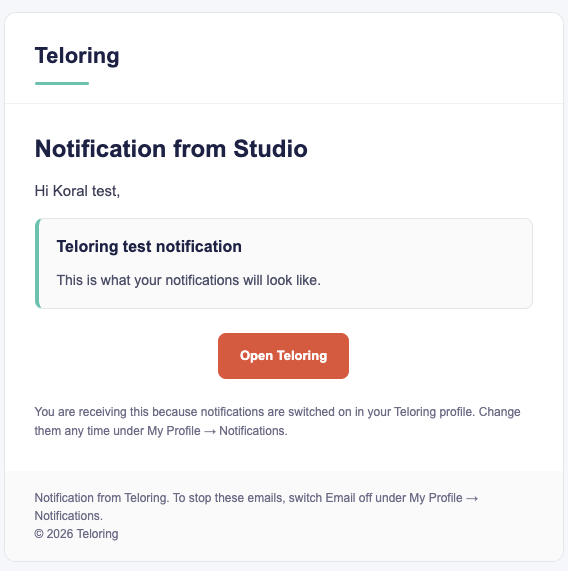
| Element | What it contains |
|---|---|
| Subject | The conversation ID in brackets, then what happened — [#4821] New message in your conversation. |
| Heading | The notification type in words. |
| Message box | The notification text, plus any extra detail. |
| Conversation | The conversation ID again, as a searchable line. |
| Button | Opens the conversation (or page) the notification points at. |
| Footer | A reminder of where to switch these emails off. |
Three things worth knowing:
- The email is written in your profile language, not the language of whoever triggered it. Set it under Admin → Agents.
- The conversation ID appears in the subject for every type that belongs to a conversation. Search your mailbox for
#4821to pull up every alert about that one conversation, and most mail clients will thread them together. - New-message emails are rate-limited to one per conversation every 10 minutes. See Email flood protection.
Browser push
A desktop notification from your operating system, shown even when Teloring is in a background tab or another window is in front.
Supported in Chrome, Edge, Firefox, and Safari 16.4 and later.
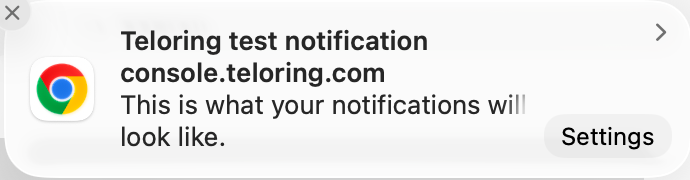
Turning it on takes two steps, because your browser must agree as well as Teloring:
- Press Enable in this browser. Your browser asks for permission — choose Allow.
- Switch the Browser push toggle on and press Save.
The status chip next to the button tells you where you stand:
| Chip | Meaning | What to do |
|---|---|---|
| Not enabled in this browser | This browser has not registered yet. | Press Enable in this browser. |
| Enabled in this browser | Registered and ready. | Nothing. Send a test push appears next to it. |
| Blocked by the browser | You (or someone) chose Block at the permission prompt. | Allow notifications for this site in your browser settings, then reload the page. Teloring cannot re-ask once you have blocked it. |
| This browser does not support push notifications | Older browser, or a private/incognito window. | Use a supported browser in a normal window. |
| Browser push is not configured on this server | The platform has no push keys installed. | Contact your Teloring administrator. |
Enabling it on your office laptop does not enable it on your home machine or on a different browser. Repeat the Enable in this browser step everywhere you work. Teloring remembers up to 10 browsers per agent; beyond that the oldest is dropped.
If a test push says it was sent but nothing appears
Teloring can hand the notification to your browser, but it cannot force your operating system to display it. When the confirmation says the push was sent and you still see nothing, the block is outside Teloring:
| Check | Where |
|---|---|
| Notifications allowed for your browser | macOS: System Settings → Notifications → your browser Windows: Settings → System → Notifications |
| Do Not Disturb / Focus is off | macOS Control Centre, or the Windows notification panel |
| Notifications allowed for the site | Browser settings → Site settings → Notifications → console.teloring.com |
Notification bell
Adds the notification to the bell in the top bar, with a count of what you have not seen. This is the only method that keeps a history — see The notification bell below.
WHAT — the three notification types
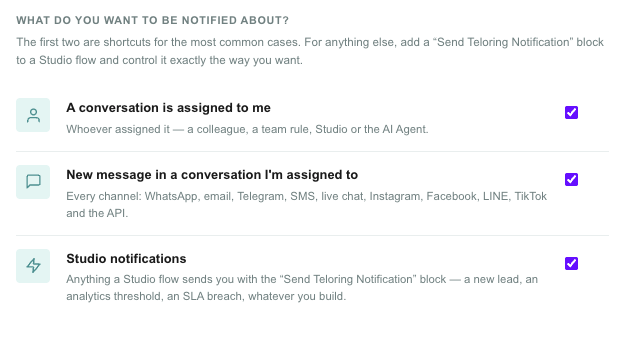
| Type | Fires when |
|---|---|
| A conversation is assigned to me | A conversation's assigned agent becomes you. |
| New message in a conversation I'm assigned to | A customer sends a message into a conversation you already own. |
| Studio notifications | A Studio flow sends you one deliberately. |
A conversation is assigned to me
Fires whenever a conversation lands on your name — no matter who or what put it there:
- a colleague assigning it to you by hand;
- a bulk action on the conversation list;
- a team auto-assigning to an online member;
- a Studio flow handing over to you;
- an AI Agent handing the conversation to a human.
It does not fire when you assign a conversation to yourself. You are already looking at it; a notification for your own click is noise.
The notification tells you the customer's name, which channel it came in on, and who assigned it. Clicking it opens the conversation.
New message in a conversation I'm assigned to
Fires when a customer sends a message into a conversation whose assigned agent is you. Works on every inbox type: WhatsApp, Email, SMS, Telegram, LINE, Live Chat, Messenger, Facebook, Instagram, TikTok, and the API.
It deliberately does not fire when:
| Situation | Why not |
|---|---|
| The conversation is unassigned | Nobody owns it yet — there is no "me" to notify. Use a Studio flow if you want to be told about the waiting line. |
| The conversation belongs to a colleague | You are not the assignee. |
| The conversation is handled by an AI Agent | An AI Agent occupies the assignee slot but has no inbox to notify. |
| An agent sends a message | These alerts are about what customers do. |
The notification includes the start of the customer's message, so you can judge urgency without opening it.
On a high-volume inbox this type can fire often. Many agents run it on sound + bell only and leave email off. Email has its own flood protection for exactly this reason.
Studio notifications
Fires when a Studio flow runs the Send Teloring Notification action and names you as a recipient.
This one switch covers everything the first two do not. Because the message text and the trigger are yours to design, there is no limit to what it can tell you:
- a contact was created with status Lead;
- an analytics threshold was crossed;
- a conversation has been waiting too long;
- a form was submitted;
- a customer replied outside business hours;
- an external system called your webhook.
See Build your own notifications with Studio.
The first two types exist so you get something useful without touching Studio. Once you are comfortable in Studio, it is common to switch both of them off and drive everything from flows instead — that way you control the exact wording, timing, and audience.
How WHAT and HOW combine
The two lists multiply. Every method you switch on applies to every type you switch on.
A worked example. You switch on all four methods, and only the Studio notifications type. In Studio you build "for every new contact created" → Send Teloring Notification with the text New contact {{contact.name}} created!
A contact called Yossi Levi is created. You get all four at once:
| Method | What happens |
|---|---|
| Sound | Your chosen sound plays. There is no text — a sound is just a cue. |
| An email arrives with New contact Yossi Levi created! | |
| Browser push | A desktop notification shows the same line. |
| Bell | The bell badge increases by one; the entry reads New contact Yossi Levi created! |
Had you enabled only the bell, only the bell entry would appear. The flow decides what to say and who to tell — each recipient's own profile decides how it reaches them.
The notification bell
The bell lives in the top bar, to the left of Sign Out, on every page.

The badge
The number on the bell is how many notifications have arrived since you last opened the list. It updates live — you do not need to refresh. When something arrives the bell gives a short shake.
Opening the list
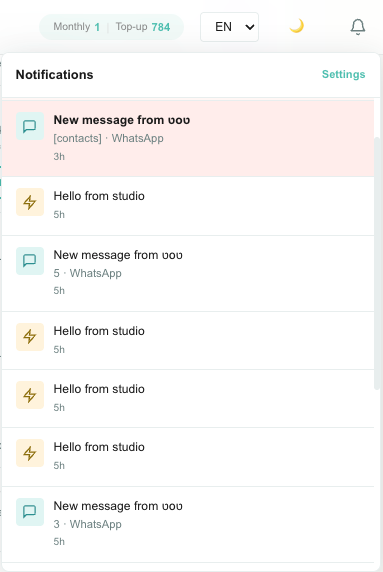
| Element | What it does |
|---|---|
| Notifications | The panel title. |
| Settings | Jumps to the Notifications section of your profile. |
| The list | Your most recent 100 notifications, newest first. |
| An entry | Icon by type, the notification text, any extra detail, and how long ago it arrived. |
| Highlighted entries | Everything that was new at the moment you opened the list. |
Opening the list marks everything as read. That is intentional, and it is worth understanding:
- The badge shows
10. - You open the list. You see the last 100 notifications, and those 10 are highlighted in bold so you can tell what is new.
- The badge clears immediately.
- Change page or refresh, and the bell has no badge — but opening it still shows the same 100 entries, now all plain.
Nothing is deleted by reading it. The history stays; only the "new" marker is cleared. This keeps the bell from becoming a chore that has to be managed.
Clicking an entry
An entry that points somewhere is a link — usually to the conversation involved. Entries without a target (a Studio notification set to Nothing — text only) are plain text.
Notification links always stay inside Teloring. A flow cannot make a notification link to an external site.
Send yourself a test
Two buttons let you check your setup without waiting for a real event.
| Button | Where | What it does |
|---|---|---|
| Send a test push | Next to the Browser push status chip | Sends a push to this browser only. Appears once this browser is registered. |
| Send myself a test | Next to Save | Sends a full notification through your current saved settings — every method you have enabled. |
Save first. Both buttons test what is saved on the server, not what is currently on screen. If you flip a switch and test without saving, you are testing the old settings.
Send myself a test needs at least one delivery method and at least one type switched on, otherwise there is nothing to send.
Build your own notifications with Studio
The Send Teloring Notification action is a THEN block in the Tools group of the Studio block picker.
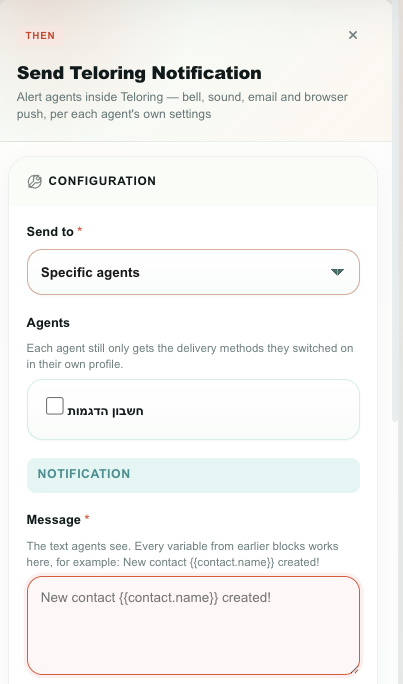
In short:
| Property | What it does |
|---|---|
| Send to | Specific agents · the agent assigned to this conversation · everyone in a team. |
| Message | The text agents see. Supports every {{variable}} from earlier blocks. |
| Extra details | An optional second line. |
| Clicking the notification opens | The conversation · nothing · a specific Teloring page. |
Full reference, outputs, and behaviour: Studio → Actions → Send Teloring Notification.
A flow can decide who gets notified and what it says. It can never decide how loudly. An agent who has notifications switched off, or who has Studio notifications switched off, receives nothing from any flow.
Limits and behaviour
| Behaviour | Value |
|---|---|
| Notifications kept in the bell list | The most recent 100 |
| Notification history retained | 30 days, then deleted automatically |
| New-message emails per conversation | At most 1 every 10 minutes |
| Assignment and Studio emails | Not rate-limited |
| Browsers registered for push per agent | Up to 10; the oldest is dropped after that |
| Duplicate protection | The same event cannot notify you twice within 60 seconds |
| Notification text length | Message up to 160 characters, details up to 600 |
Email flood protection
A busy agent can receive hundreds of customer messages a day. One email each would bury your inbox, so Teloring sends at most one new-message email per conversation every 10 minutes.
- It applies only to the New message type. Assignment and Studio notifications are never held back — they are low-volume and under your control.
- It is per conversation. Messages in three different conversations still produce three emails.
- Nothing else is affected. The sound, the push, and the bell entry all still fire for every message. Only the email is skipped.
The active window is shown on the settings screen so a missing email never looks like a fault.
Privacy and isolation
| Guarantee | How |
|---|---|
| Notifications are private to you | Each notification is delivered on your own private channel and stored under your own agent record. |
| Settings are private to you | Only your signed-in session can read or change them. |
| No cross-account leakage | An agent in one Teloring account can never receive, or read, a notification belonging to another account. |
| Links stay inside Teloring | Notification targets are restricted to Teloring pages. An external or script link is rejected. |
| Text is always escaped | Notification text is displayed as text everywhere, including in email. |
| Deactivated agents stop receiving | Disabling an agent stops their notifications immediately. |
Troubleshooting
| Symptom | Likely cause | Fix |
|---|---|---|
| Nothing arrives at all | The master switch is off, or you have no type selected. | Check Enable notifications, then at least one method and one type. |
| I saved but nothing changed | The change was not saved. | Press Save and wait for the confirmation next to the button. |
| No sound, but the bell works | The browser has not been interacted with yet, or the tab is muted. | Click anywhere on the page. Check the tab is not muted (right-click the tab). |
| No push, everything else works | This browser is not registered, or the OS is blocking it. | Check the status chip. If it says Enabled, see If a test push says it was sent. |
| Push worked, then stopped | The browser dropped the registration — this happens after clearing site data. | Press Enable in this browser again. |
| Push works on one machine, not another | Push is per browser, per device. | Run Enable in this browser on the other machine. |
| No email for new messages, but the bell fires | The 10-minute-per-conversation limit. | Expected. See Email flood protection. |
| No email at all | Your profile email is wrong, or the mail is filtered. | Check your address under My Profile, then your spam folder for do-not-reply@teloring.com. |
| Badge does not clear | The list was never opened, or the page is stale. | Open the bell. |
| Not notified about a new message | The conversation is not assigned to you. | Only the assignee is notified. Use a Studio flow to be told about unassigned conversations. |
| Not notified when I took a conversation myself | By design. | Self-assignment never notifies. |
| A Studio flow notified nobody | No recipient resolved, or the recipients have the type off. | Check the block's notification.recipients and notification.delivered outputs. |
Related
- Studio → Actions → Send Teloring Notification — build your own notification triggers
- Conversations — assignment and the waiting line
- Teams — team routing, which drives assignment notifications
- Agents — profile language, which sets your email language
- Analytics — threshold alerts you can wire into a notification flow