CRM & Customers
Customers is Teloring's mini CRM. It connects conversations, contacts, calls, documents, journey events, and custom business records around a customer profile.
Think of a customer as the main record for a relationship. A customer can represent a business, account, household, organization, or person, depending on how your team works. Around that customer, Teloring connects the people who contact you, their conversations, call history, signed documents, and any custom objects your account creates.
Customers list
Open Customers from the sidebar to see the CRM list.
The list includes:
| Control | Use it to |
|---|---|
| Search | Find customers by name, contact details, or other searchable information. |
| Lifecycle stages | Filter customers by status such as lead, active, inactive, or irrelevant. |
| Create customer | Add a new customer manually. |
| Field editor | Customize fields shown on customer records. |
| Customer cards/grid | Open a customer profile for details and history. |
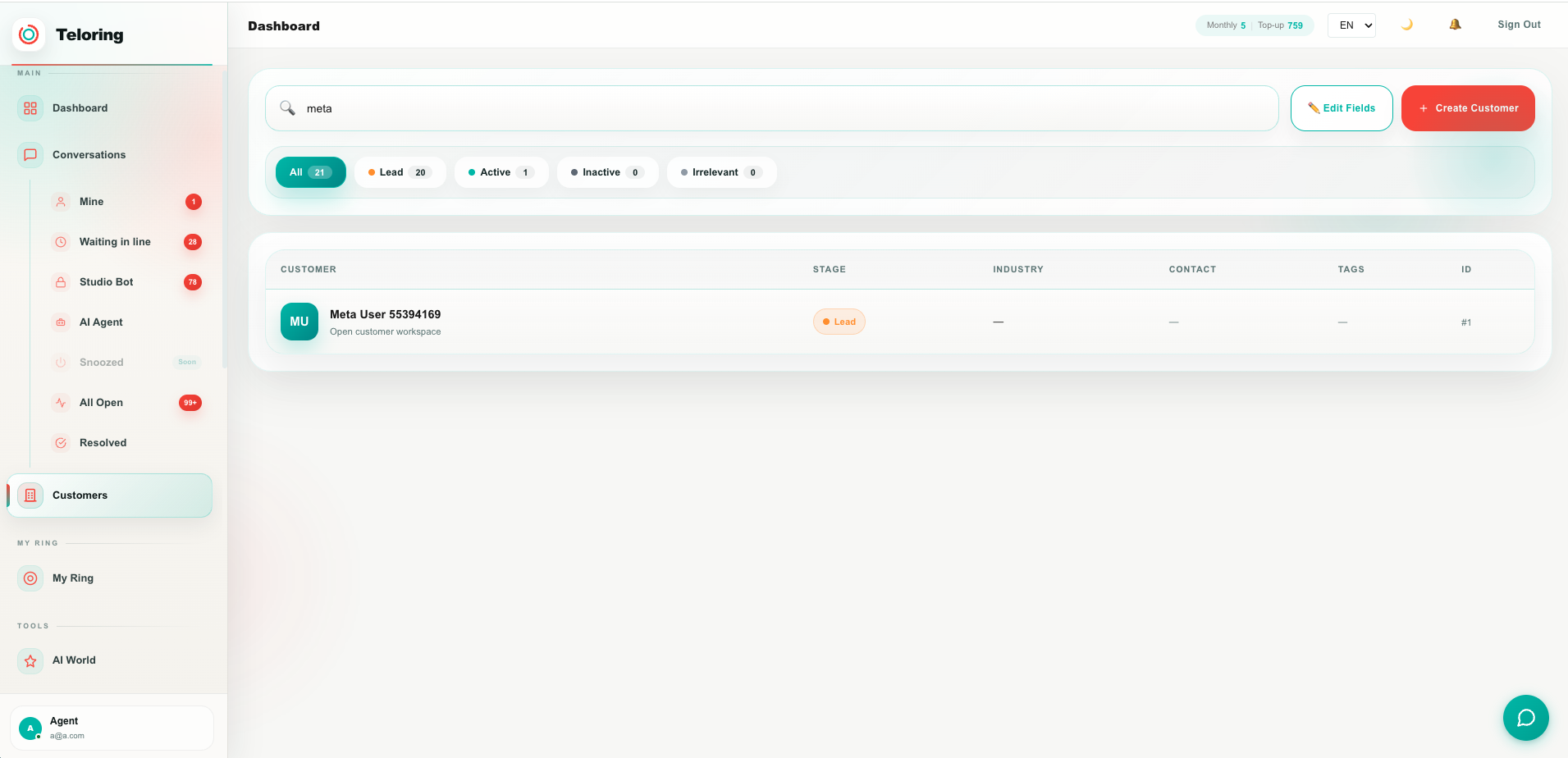
The customer list is usually the best starting point for managers and admins. Agents will often reach the same customer profile from a conversation, using the Customers section in the conversation right sidebar.
Create a customer
To create a customer manually:
- Open Customers.
- Click Create customer.
- Enter the required name.
- Add optional details such as industry, phone, email, website, assigned agent, address, tags, and notes.
- Save the customer.
Customer profile
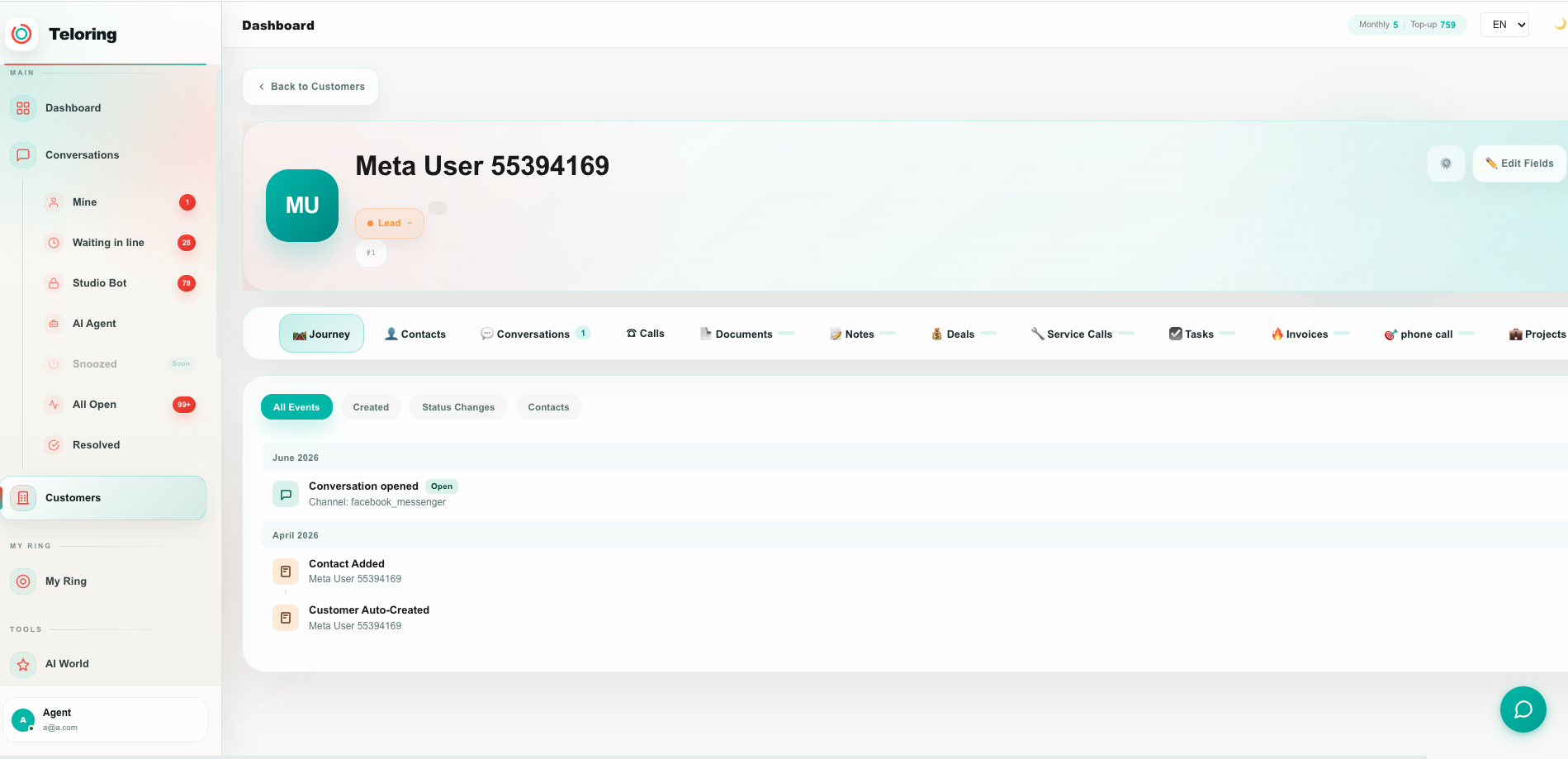
Open a customer to view the full profile.
Depending on enabled features and available data, the profile can include:
| Area | What it shows |
|---|---|
| Overview | Core customer fields and summary details. |
| Journey | Important customer events over time. |
| Contacts | Linked contacts and identities. |
| Conversations | Related customer conversations across inboxes. |
| Calls | Voice activity connected to the customer. |
| Documents | Signed or uploaded documents connected to the customer. |
| Custom objects | Account-specific records such as assets, service calls, deals, subscriptions, or other business objects. |
Customer header
The top of the customer profile shows the most important customer details. This area is meant for quick identification before opening the deeper tabs.
It can include:
| Item | Meaning |
|---|---|
| Customer name | The primary customer display name. |
| Lifecycle stage | The current customer stage, such as lead, active, inactive, or irrelevant. |
| Industry | The customer's industry or business category. |
| Contact details | Phone, email, website, address, or other key fields. |
| Assigned agent | The agent responsible for the customer, when used by the account. |
| Tags and notes | Short customer-level context. |
Admins can customize the top-level customer fields with the field editor.
Built-in customer tabs
Every customer profile is organized into tabs. Tabs separate different kinds of information so agents and managers can find history quickly.
Journey
Journey is a timeline of important customer events. It helps teams understand how the customer record changed over time.
Journey can include events such as:
| Event type | Example |
|---|---|
| Customer created | A new customer record was added. |
| Field changed | A lifecycle stage, owner, or other field was updated. |
| Contact added | A new contact was linked to the customer. |
| Object record activity | A custom object record was created or updated. |
Use Journey when you need to understand the sequence of events, not just the current state.
Contacts
Contacts are the people connected to the customer. A business customer may have several contacts, such as an owner, finance contact, support contact, or branch manager.
Use Contacts to:
| Task | Why it matters |
|---|---|
| Link an existing contact | Connect a person who already exists in Teloring to this customer. |
| Review all customer contacts | See who can contact your team on behalf of the customer. |
| Edit contact fields | Keep names, phones, emails, roles, preferred channels, and notes accurate. |
| Merge customer records | Clean up duplicate customers when needed. |
Contacts are different from customers. A contact is the person. A customer is the account or relationship the person belongs to.
Conversations
The Conversations tab shows conversations connected to the customer. It can include open and resolved conversations across different inboxes.
Use it to:
| Task | Why it matters |
|---|---|
| Review open conversations | See active work connected to the customer. |
| Review resolved conversations | Understand previous issues and outcomes. |
| Switch from CRM to conversation handling | Open a related conversation from the customer profile. |
| Compare channels | See whether the customer contacted you by WhatsApp, email, live chat, voice, or another inbox. |
Calls
The Calls tab shows voice activity connected to the customer when voice is enabled.
Use it to review:
| Item | Meaning |
|---|---|
| Call direction and status | Whether the call was answered, missed, rejected, or completed. |
| Agent | The agent connected to the call, when available. |
| Duration | How long the call lasted. |
| Related conversation | The conversation or customer context connected to the call. |
Documents
The Documents tab shows documents connected to the customer, including document signature activity when enabled.
Use it to review:
| Status | Meaning |
|---|---|
| Ready | A document is prepared and ready for signing or sending. |
| Signed | A customer completed the document. |
| Declined or expired | The document was not completed. |
Documents help teams keep agreements, forms, approvals, and signed files close to the customer history.
Link contacts to customers
Contacts can be linked to customer records so agents see the full business context while handling conversations.
Common examples:
| Example | Why to link |
|---|---|
| One customer, many contacts | Several employees contact support for the same company. |
| One contact, many conversations | A customer reaches out through WhatsApp, email, and live chat. |
| Historical lookup | Managers want to review all interactions for one business. |
Lifecycle stages
Lifecycle stages help teams group customers by relationship status.
| Stage | Typical meaning |
|---|---|
| Lead | A potential customer or new opportunity. |
| Active | A current customer. |
| Inactive | A customer that is not currently active. |
| Irrelevant | A record that should not be treated as an active opportunity or customer. |
Your team can decide the exact operational meaning of each stage.
Custom objects
Custom objects let your account model business data that does not fit into the basic customer fields.
Examples:
| Object | What it can represent |
|---|---|
| Service Calls | Support cases, technical visits, complaints, or operational requests. |
| Deals | Sales opportunities, quotes, renewals, or commercial processes. |
| Assets | Products, devices, locations, subscriptions, contracts, or equipment connected to the customer. |
| Projects | Onboarding work, implementation stages, or long-running work. |
| Any custom object | A record type your admin creates for your business process. |
Custom objects appear as additional tabs on the customer profile. Each tab contains records of that object type for the current customer.
For example, one customer could have:
| Customer | Related custom records |
|---|---|
| Acme Ltd. | 3 service calls, 2 deals, 5 assets, 1 renewal project |
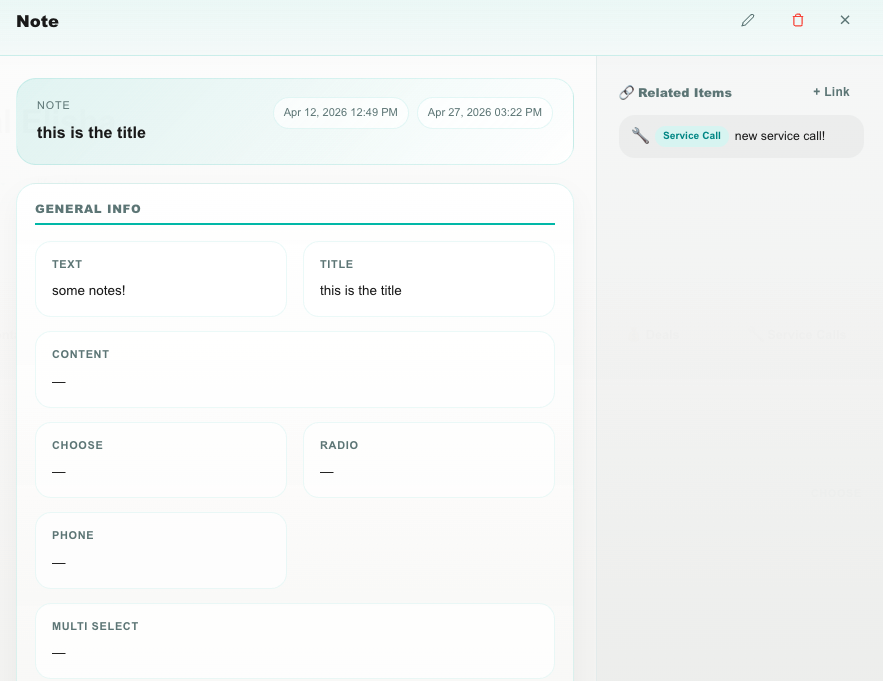
Each object record has its own fields, its own detail panel, and optional related links to other object records.
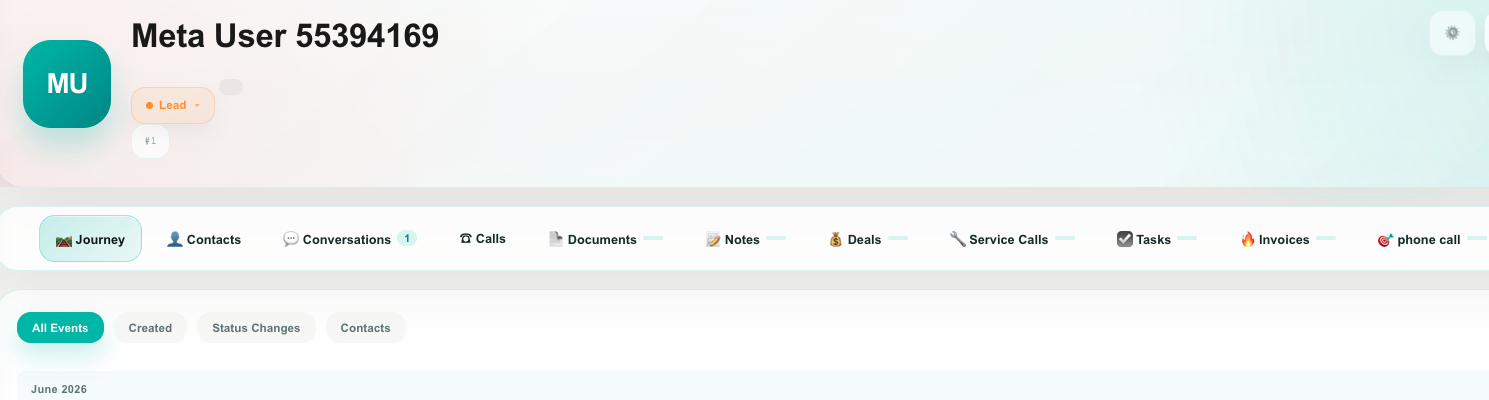
Creating object types
Admins can create new object types from the customer profile. When creating an object type, the admin defines:
| Setting | Meaning |
|---|---|
| Plural label | The tab name, such as "Assets" or "Projects". |
| Singular label | The name for one record, such as "Asset" or "Project". |
| Icon | The visual icon shown on the customer tab. |
| API ID | A stable technical identifier for the object. This is useful for integrations and automation. |
After an object type is created, it appears as a customer tab. Admins can then use the field editor to define the fields for that object.
Field editor
The field editor controls which fields appear on customers, contacts, and custom objects.
Admins can use it to:
| Action | What it does |
|---|---|
| Add sections | Organize fields into groups, such as General, Billing, Contract, or Service Details. |
| Add fields | Add new fields from the toolbox. |
| Reorder sections and fields | Drag fields into the right order for agents. |
| Mark fields as required | Make important data mandatory. |
| Edit labels | Rename fields so they match your team's language. |
| Edit options | Define dropdown, radio, checkbox, and multi-select values. |
| Save the schema | Apply the updated layout to that object type. |
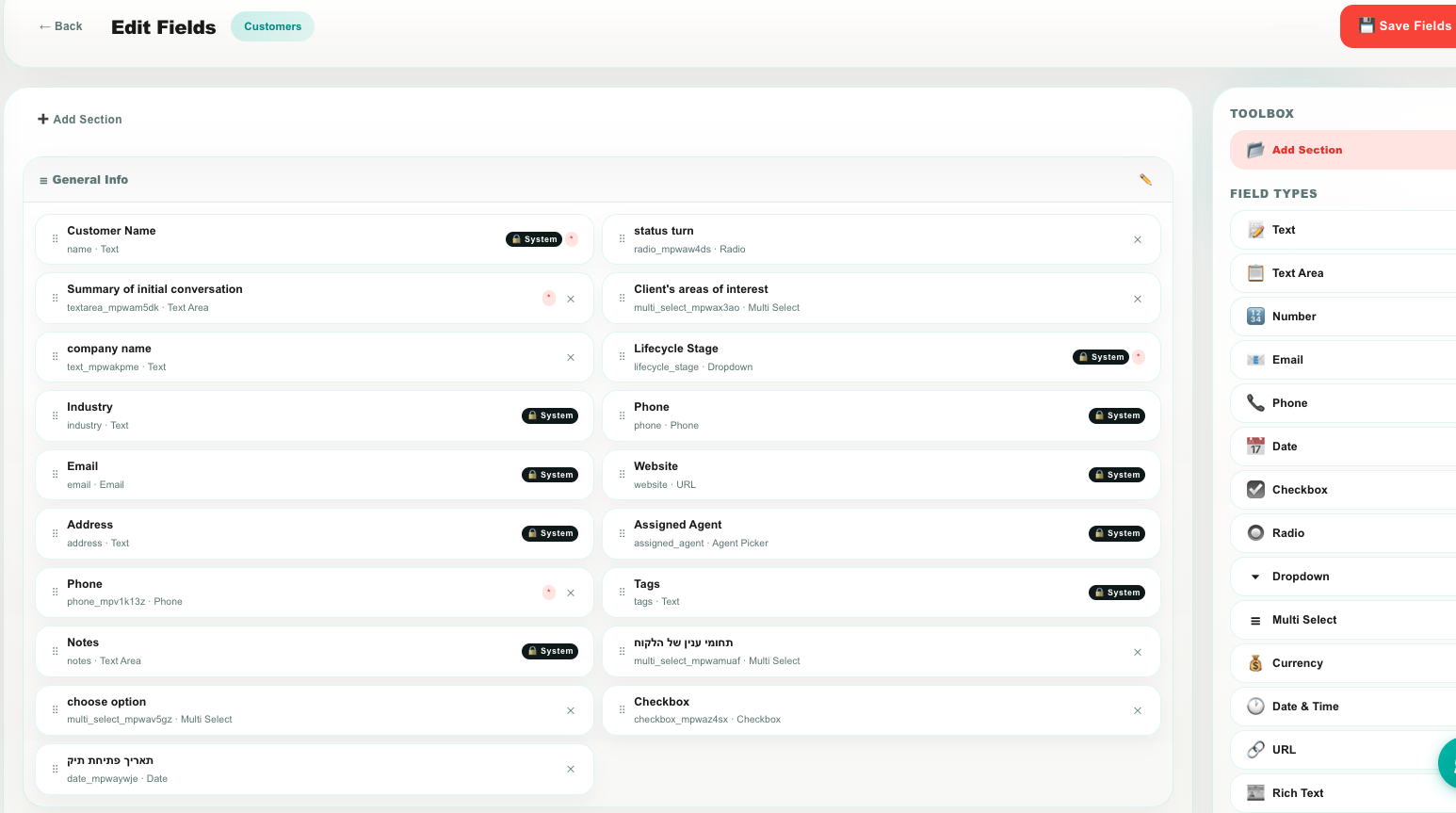
The available field types include:
| Field type | Best for |
|---|---|
| Text | Short values such as name, serial number, or reference. |
| Textarea | Longer notes or descriptions. |
| Number | Quantities, counts, or numeric IDs. |
| Email addresses. | |
| Phone | Phone numbers. |
| Date | A single date, such as renewal date. |
| Datetime | Date and time together. |
| Checkbox | A yes/no value. |
| Radio | One choice from a small fixed set. |
| Dropdown | One choice from a list. |
| Multi-select | Multiple choices from a list. |
| Currency | Money amounts. |
| URL | Links to external resources. |
| Rich text | Formatted notes or longer content. |
| Agent picker | Assign an internal agent. |
| File | File attachment fields where supported. |
| Caption | A visual label or separator inside the form. |
Some fields are system fields. System fields are required by Teloring and cannot be removed, although admins may be able to control how they are displayed.
The field editor shapes records that outlive a conversation — the person, the business, and the objects underneath them. If what you want to record belongs to one conversation instead ("why did they write today?", "how did this end?"), use Conversation Attributes, which are designed in Settings and filled in from the conversation itself.
A quick test: if the same person contacted you again tomorrow, should this value still be there? Yes → a contact or customer field. No → a conversation attribute.
Top-level customer fields vs object fields
Top-level customer fields describe the customer itself. Object fields describe one record under that customer.
| Field location | Example fields | Use it for |
|---|---|---|
| Customer fields | Name, lifecycle stage, industry, phone, email, website, address, assigned agent, tags, notes | Information that belongs directly to the customer. |
| Contact fields | First name, last name, phone, email, role, preferred channel, notes | Information about a person linked to the customer. |
| Object fields | Service status, deal amount, asset serial number, renewal date, project owner | Information that belongs to one custom object record. |
For example, "Customer email" belongs on the customer. "Technician assigned to this service call" belongs on the Service Call object. "Serial number" belongs on an Asset object.
Linking records between objects
Custom object records can be linked to other object records. This creates a relationship between two records so users can navigate between them.
Example relationships:
| Source record | Linked record | Why link them |
|---|---|---|
| Service Call | Asset | The service call is about a specific product or device. |
| Deal | Project | A won deal started an onboarding project. |
| Subscription | Document | A signed agreement belongs to the subscription. |
| Service Call | Deal | A support issue created a renewal or upsell opportunity. |
When you link records, Teloring shows the relationship in the Related Items area. The source record shows the linked item. The target record also knows that another record links back to it.
This means users can open a service call, see the related asset, open the asset, and still see that the service call is connected to it.
Record lists and column settings
Each custom object tab shows a record table. Users can open a record to view details, edit it, delete it when allowed, or review related items.
Some object tables allow column settings, so users can choose which fields appear in the list and whether related links should appear as a column. This helps each team keep the most important fields visible.
Practical example
A service company might use the CRM like this:
- The customer profile stores the company name, lifecycle stage, contact details, assigned agent, and notes.
- Contacts store the people who call or message the company.
- Conversations store every WhatsApp, email, voice, or live chat interaction.
- Service Calls store support cases.
- Assets store the customer's products or equipment.
- A Service Call is linked to the Asset it is about.
- Documents store signed service agreements.
- Journey shows the important changes over time.
This keeps the customer relationship, daily communication, and structured business records connected in one place.