Studio
Studio is Teloring's visual flow builder. You draw a flow on a canvas — when this happens, do that — and Teloring runs it automatically, around the clock, for every conversation, call, form, schedule, or external event you point it at.
Anything a person does repeatedly in Teloring can usually be moved into Studio: greeting a new WhatsApp message, asking two qualifying questions and routing the answer to the right team, opening an IVR menu for phone calls, pushing a new lead into an external CRM, emailing a manager when a report crosses a threshold, or tagging and closing conversations on a schedule.
Studio is built from three kinds of block:
| Badge | Block kind | Question it answers |
|---|---|---|
| WHEN | Trigger | What starts this flow? |
| THEN | Action | What should Teloring do? |
| IF | Condition | Which way should the flow go? |
You connect the blocks with lines, press Publish, and the flow is live.
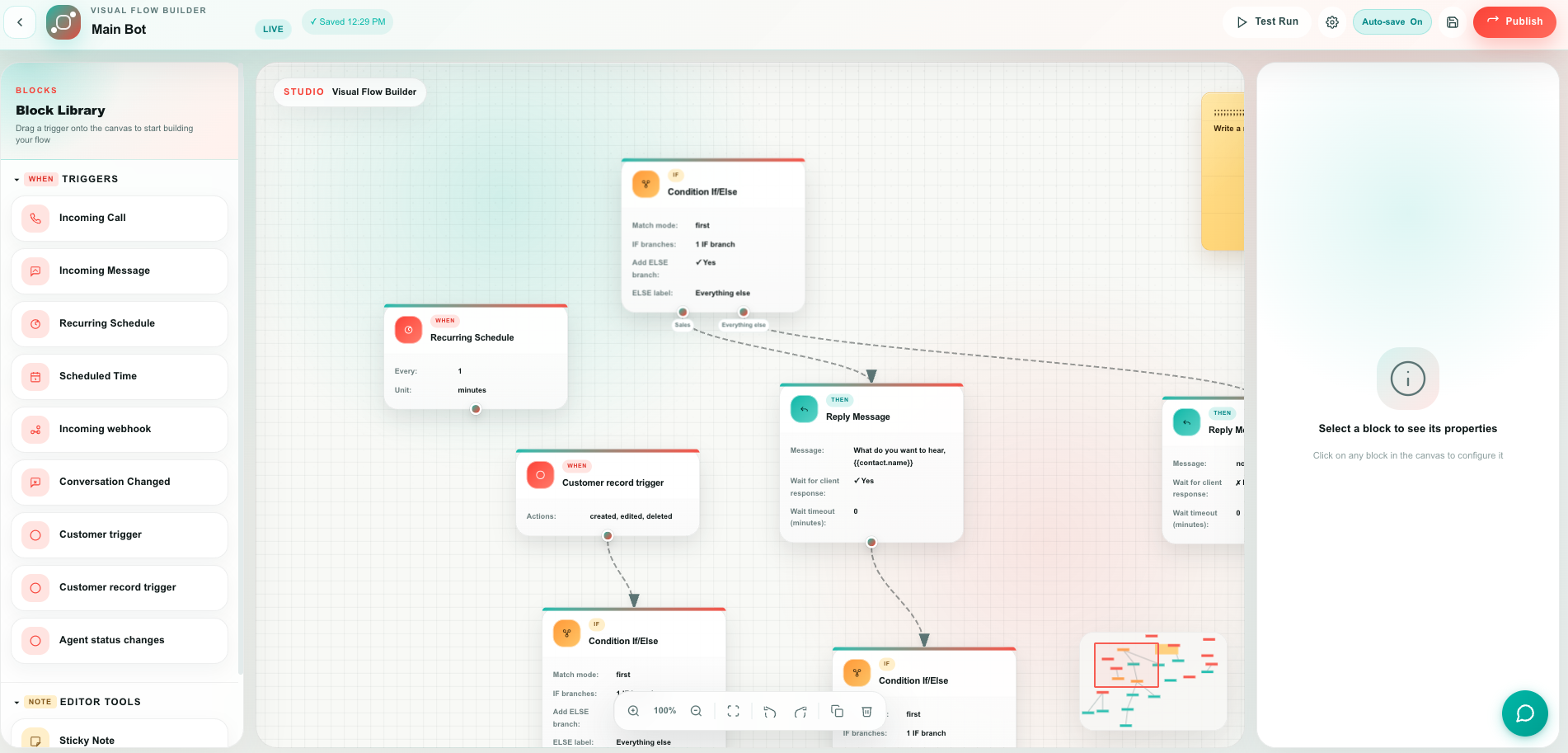
Two ways to build a flow
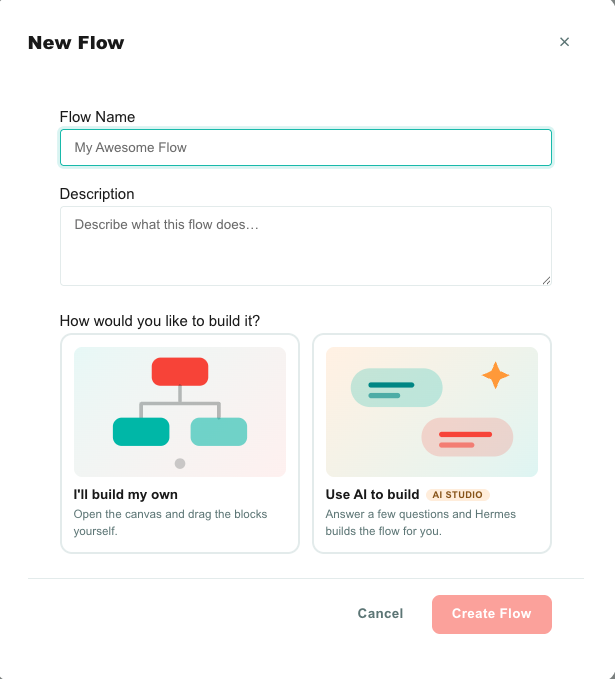
Every flow can be built by hand or by AI. You choose when you create it.
| Way | How it works | Guide |
|---|---|---|
| I'll build my own | You drag blocks onto the canvas and configure them yourself. | This page |
| Use AI to build | You answer a short interview in plain language and Hermes builds the flow for you. | Build a flow with AI |
Both produce the same thing: an ordinary draft flow you can edit and publish. Building with AI requires the AI Studio switch in AI World.
Key facts
| Fact | Meaning |
|---|---|
| Every flow starts with a trigger | A flow with no WHEN block can never run and cannot be published. |
| Draft and live are separate | Editing never touches the running version. Only Publish does. |
| One flow can have several triggers | For example one Incoming Message trigger for WhatsApp and another for Telegram, in the same flow. Only the trigger that matches the real event runs. |
| Blocks can branch and fan out | One block can feed several blocks. All connected paths run. |
| Studio respects human agents | If a human agent owns a conversation, Studio stays out of it completely. |
| Values flow forward as variables | Anything an earlier block produced can be dropped into a later block as {{a.variable}}. |
| Two kinds of flow | Voice flows (started by Incoming Call) and messaging flows (everything else). Each has its own blocks. |
| Account-isolated | Flows, variables, and executions belong to one account and are never visible to another. |
| Test before you publish | The simulator lets you hold a whole conversation with a chatbot, and Test Run walks the draft once with sample data. Neither sends anything to a real customer. |
| Every run is recorded | Executions keeps the run history of each flow — what set it off, what each block did with it, and where it ended. |
| AI can build the first draft | With AI Studio enabled, Hermes interviews you and lays out the whole flow. What it produces is a normal draft you edit and publish yourself. |
Who uses Studio
| Role | Typical use |
|---|---|
| Admins | Build and publish flows, connect webhooks and external systems, manage saved variables and versions. |
| Team managers | Design routing, business-hours behavior, escalation, and follow-up rules. |
| Agents | Benefit from the results — pre-qualified conversations, correct labels, auto-assigned queues, private notes with context. |
Core concepts
Flow
A flow is one automation: a canvas holding blocks and the lines between them. Flows have a name, an optional description, and a status (Draft, Live, or Paused).
Block
A block is one step. Every block has:
- a badge — WHEN, THEN, or IF — and a color that matches it;
- an input port on top (except triggers, which start the flow);
- one or more output ports on the bottom;
- a Configuration panel on the right where you set its properties;
- output variables it hands to every block downstream of it.
| Badge | Color | Meaning |
|---|---|---|
| WHEN | Coral | Trigger — the entry point |
| THEN | Teal | Action — does something |
| IF | Amber | Condition — chooses a path |
| NOTE | Amber | Sticky note — a comment for your team, never executed |
Connection
A line from one block's output port to the next block's input port. The line shows the direction of travel with an animated dotted flow.
Blocks with more than one output — a condition, an IVR menu, Forward to Agent, an Analytics Alert — have one port per outcome, labelled underneath. Wire each outcome to whatever should happen next; a port you leave unconnected simply ends that path.
Messaging flows vs. voice flows
The moment you drop an Incoming Call trigger on the canvas, the flow becomes a voice flow and the block library changes:
| Flow kind | Starts with | Blocks available |
|---|---|---|
| Messaging flow | Any trigger except Incoming Call | Reply Message, Wait, and every general block |
| Voice flow | Incoming Call | Play Sound, IVR Menu, Wait / Pause, Forward to Agent, Forward to External Phone, Hang Up, and every general block |
Studio hides out-of-scope blocks from the picker, flags them on the canvas if a flow somehow contains one, and refuses to publish a flow that mixes them. See Voice call flows.
The Studio list
Open Studio from the left sidebar to see every flow in the account.
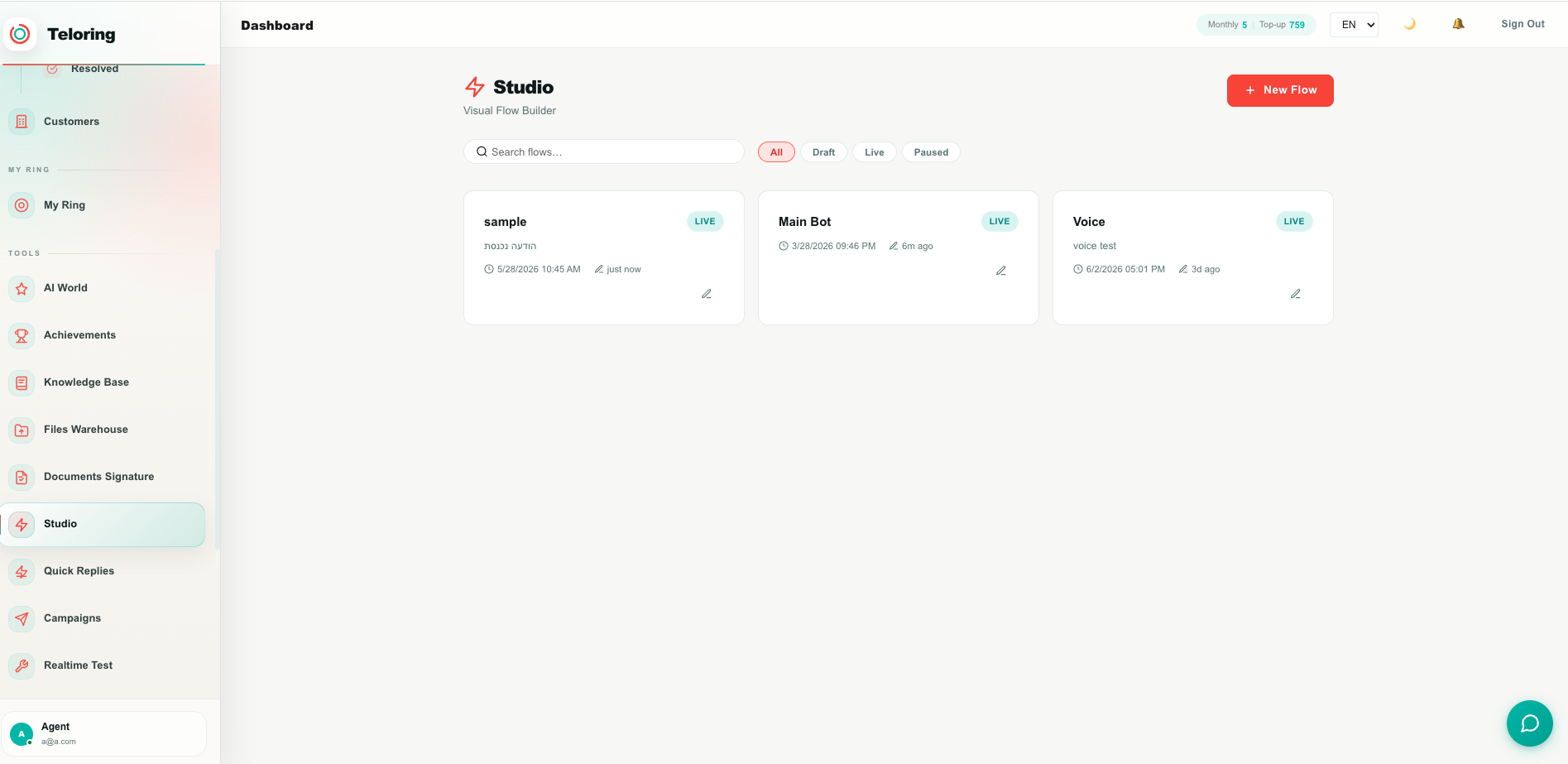
| Control | Use it to |
|---|---|
| New Flow | Create a flow. You are asked for a name, an optional description, and whether to build it yourself or with AI. |
| Search | Filter the list by flow name. |
| All / Draft / Live / Paused | Filter by status. |
| Flow card | Click anywhere on the card to open the flow. |
| Card footer | Shows when the flow was created, when it was last edited, and who edited it. |
| ⚡ Continue with AI badge | The flow has an unfinished Hermes interview. Clicking the card reopens the conversation instead of the canvas; the Edit button still opens the canvas. |
| Edit / Delete | Row actions. Delete works on any flow, live included — you must type the flow's name to confirm. See deleting a flow. |
| Warning badge | Appears when a flow depends on something that no longer exists (for example a deleted analytics alert). The flow is paused automatically until you fix and republish it. |
Create your first flow
- Click New Flow.
- Give it a clear, specific name —
WhatsApp — after-hours auto replybeatsFlow 3. - Add a description so your teammates know what it does.
- Choose How would you like to build it? — I'll build my own or Use AI to build. One of the two is required; the button stays disabled until you pick. Choosing AI opens the Hermes interview instead of the canvas.
- Click Create Flow. The editor opens on an empty canvas.
- Drag a trigger from the left panel onto the canvas.
- Drag a connector from the trigger's bottom port and release it on empty canvas — the block picker opens.
- Pick an action, configure it on the right, and repeat.
- If it is a chatbot, click the trigger and use 💬 Test this flow to rehearse the conversation.
- Test Run, then Publish.
- Watch the first real runs in Executions.
The editor
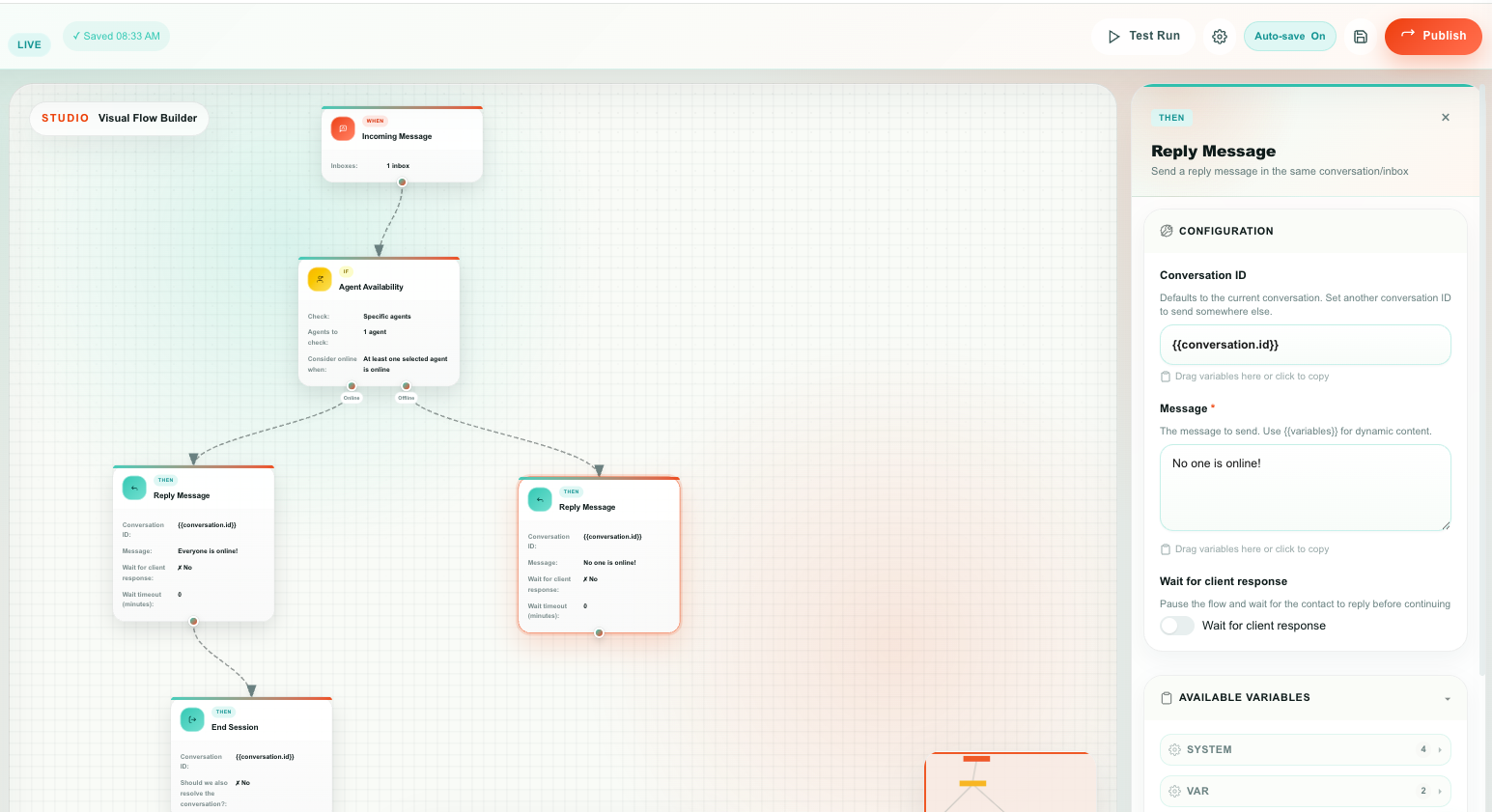
Top bar
| Control | What it does |
|---|---|
| ← | Back to the flow list. |
| Flow name | Click to rename. Saved with the flow. |
| Status badge | Draft, Live, or Paused. |
| Save indicator | Shows Saving…, Saved, Unsaved, or Save failed. |
| Executions | Opens the flow's run history — every past run, and a replay of any one of them on the canvas. |
| Test Run | Runs the draft once with sample data. Nothing reaches real customers. |
| ⚙ Flow Settings | Auto-save switch, Pause / Resume flow, and the list of saved var.* variables. |
| Auto-save pill | Shows whether auto-save is On or Off. |
| 💾 Save now | Saves the draft immediately (Cmd/Ctrl+S). |
| Publish | Makes the current draft the live version. |
Left panel — Block Library
The left panel holds the two things you drag onto the canvas:
- WHEN — Triggers. Every trigger available to the account.
- NOTE — Editor Tools. The Sticky Note.
Below them, the Version bar shows the current version number and the last save time. Click it to open version history.
Actions and conditions are not in the left panel. You add them from the block picker, which opens when you drag a connector out of a block and drop it on empty canvas. That way every new block is already connected to the one before it.
Adding an action or condition
- Point at the bottom port of an existing block.
- Drag out a line and release it on empty canvas.
- The block picker opens.
- Either type in Search all blocks… to search every block at once by name, description, or group, or browse the groups and open one to see its blocks.
- Click a block. It is created on the canvas, already connected.
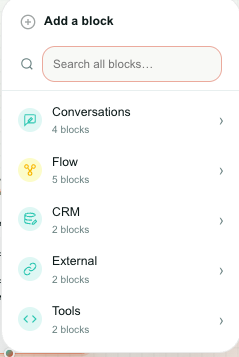
Blocks are organized into six groups:
| Group | What's in it |
|---|---|
| Conversations | Reply Message, Private Note, Change Conversation, End Session |
| Flow | Condition If/Else, Business Hours, Agent Availability, Wait, Save as Variable |
| CRM | Contact Update, Add a record, Update a record, Delete a record |
| Voice | Play Sound, Wait / Pause, IVR Menu, Forward to Agent, Forward to External Phone, Hang Up |
| External | HTTP Request, Send Email |
| Tools | Code, Date and Time |
The picker only ever lists blocks that are legal in the current flow — a messaging flow never shows voice blocks, and a voice flow never shows Reply Message or Wait.
Canvas
| Gesture | Result |
|---|---|
| Drag empty canvas | Pan the view. |
| Scroll wheel | Zoom in and out. |
| Drag a block | Move it. |
| Click a block | Select it and open its properties. |
| Drag output port → input port | Connect two blocks. |
| Hover a connection, click ✂ | Disconnect the two blocks. Both blocks stay on the canvas. |
| Click a connection | Select it. |
The bottom toolbar has zoom in/out, the zoom percentage, Fit to View, Undo, Redo, Duplicate selected, and Delete selected. A minimap in the bottom-right corner shows the whole flow and where you are in it.
You cannot connect anything into a trigger — triggers are always the start of a path. You also cannot connect a sticky note to anything.
Right panel — Properties
Select any block and the right panel fills with its settings.
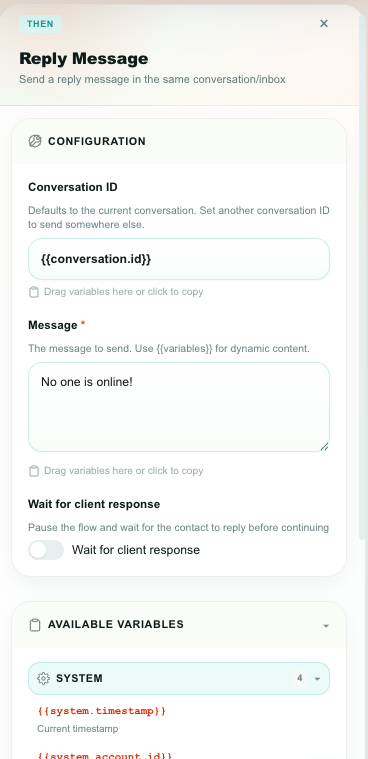
| Section | What it holds |
|---|---|
| Configuration | Every property of the selected block. Fields appear and disappear based on your choices — for example Wait timeout only appears once Wait for client response is on. |
| Available Variables | Everything the blocks above this one produce, grouped by namespace (System, Message, Conversation, Contact, Channel, Reply, and more). Drag a variable straight into a text field, or click it to copy. See Variables. |
On an Incoming Message trigger the panel header also carries a 💬 Test this flow button, which turns the panel into a conversation with your chatbot. See the simulator.
The same panel has two more jobs. While you are replaying an execution it becomes the run's step timeline, and while a simulation is open it becomes the chat.
Warnings on a block
A block shows a ⚠ warning badge on the canvas, and an explanation at the top of its properties panel, when Studio can see it will not work:
| Warning | What it means |
|---|---|
| This block is not connected to anything | Nothing points into it, so it can never run. Drag a connector from an earlier block into its top port. |
| This is a voice block | It is in a messaging flow. Voice blocks only work in a flow that starts with Incoming Call. |
| This block is not supported in Incoming Call voice flows | Use Play Sound, IVR, or a voice transfer instead. |
| A required choice is missing | For example Send Email with no inbox, or Add a record with no object. |
| Invalid JSON body | An HTTP Request whose JSON body no longer parses. |
| The selected analytics alert no longer exists | The alert was deleted in Analytics. |
You can keep editing with warnings on the canvas, but fix them before you publish — the publish dialog reminds you, and some warnings block publishing outright.
Sticky notes
Drag Sticky Note from Editor Tools onto the canvas to leave a comment for whoever opens the flow next: why a branch exists, what an external system expects, who to ask about it.
Sticky notes have a title and a body, can be resized from the bottom-right corner, and have no ports. They are editor-only — they are never executed and are not part of the published flow.
Keyboard shortcuts
| Shortcut | Action |
|---|---|
Cmd/Ctrl + S | Save the draft now |
Cmd/Ctrl + Z | Undo (up to 50 steps) |
Cmd/Ctrl + Y | Redo |
Cmd/Ctrl + D | Duplicate the selected block |
Delete | Delete the selected block or connection |
Duplicating a block copies its type and all of its settings, but not its connections — wire the copy in yourself.
How a flow runs
- An event happens — a customer messages you, a call arrives, a form is submitted, a webhook is called, a schedule comes due, a record changes.
- Studio looks for live flows whose trigger matches that event. Draft and paused flows are ignored.
- The matching trigger node runs. If a flow holds two Incoming Message triggers — one for WhatsApp, one for Telegram — only the one whose settings match the event starts.
- The flow walks forward along the connections. Where a block has several outgoing lines, all of them run. Where a condition chose a branch, only that branch runs.
- Each block adds its outputs to the flow's variables, so later blocks can use them.
- A block can pause the flow — Reply Message waiting for the customer's answer, or a Wait counting down. The rest of the flow resumes later, exactly where it stopped. Other branches keep running in the meantime.
- The run finishes when every path has ended.
Every run is recorded as an execution with a status:
| Status | Meaning |
|---|---|
running | Currently executing. |
waiting | Paused for a customer reply or a timer. |
completed | Every path finished. |
failed | A block returned an error. |
timed_out | A wait expired before the customer replied. |
cancelled | The run was stopped. |
Open Executions in the flow's top bar to read those runs back — step by step, with what each block was handed and what it returned. See Executions.
Studio and human agents
When a flow starts handling a conversation, the conversation moves into the Studio Bot queue and shows that a flow owns it. This keeps bots and people from replying over each other.
| Situation | What Studio does |
|---|---|
| Conversation has no agent | A matching flow can take it over and run. |
| Conversation is assigned to a human agent | Studio skips it entirely — no triggers, no waiting flows, no replies. |
| A flow hands the conversation to an agent or a team (Assign AI / human agent) | Studio releases ownership. Later messages go to whoever took it, not back into the flow. |
| The conversation is resolved | The handover marker is cleared, so a future re-open can be automated again. |
| A flow runs End Session | Studio releases the conversation, and the next customer message starts trigger matching from scratch. |
See Change Conversation and End Session.
Limits
| Limit | Value |
|---|---|
| Blocks per flow | 200 |
| Connections per flow | 500 |
| Saved versions kept per flow | 50 (the most recent) |
| Executions kept per flow | Set by your subscription plan — oldest out, newest always kept |
| Steps recorded per execution | 400 |
| Undo history | 50 steps |
| Wait block | 1–15 seconds |
| Voice Wait / Pause | 0–30 seconds |
| Wait for a customer reply | Up to 30 days |
| Recurring Schedule interval | 1 minute – 24 hours |
| HTTP Request timeout | 1–60 seconds |
| Email recipients per Send Email | 25 |
| Custom email headers | 10 |
Where to go next
| Page | What it covers |
|---|---|
| Build a flow with AI (Hermes) | Describe what you want, answer a few questions, and let AI lay out the flow. |
| Triggers — the WHEN blocks | Every trigger, its properties, and the variables it produces. |
| Actions — the THEN blocks | Every action, its properties, and its outputs. |
| Conditions — the IF blocks | Branching, operators, business hours, and agent availability. |
| Variables | The {{variable}} system and the full variable reference. |
| Voice call flows | Building phone flows: greetings, IVR menus, transfers, recording. |
| Chatbot simulator | Hold a real conversation with your chatbot before a customer does. Nothing is sent. |
| Test, publish, and versions | Draft vs. live, testing, publishing, rolling back. |
| Executions | The run history of a flow, and how to replay one on the canvas. |
| Flow recipes | Complete, worked examples you can copy. |
| Troubleshooting | Why a flow didn't fire, and how to fix it. |