Settings
Settings is the account control center for identity, time logic, login security, API access, and account data. Most settings are account-wide, which means they affect every agent in the same Teloring account.
Use Settings when you need to:
- Update business identity and default account preferences.
- Create business-hour schedules for Studio routing.
- Manage holiday calendars that override business hours.
- Control login security, two-factor verification, and active sessions.
- Create account API keys.
- Export account data or request account deletion.
Settings are account-scoped. Changing Settings in one account does not affect another account.
Open Settings
Open Admin → Settings from the Teloring sidebar.
Settings has six sections:
| Section | What it controls |
|---|---|
| General Info | Business profile, logo, language, timezone, and currency. |
| Business hours | Holiday calendars and named schedules used by Studio. |
| Security & Login | IP restrictions, 2FA enforcement, idle timeout, sessions, and support access. |
| API | Account API keys for system operations. |
| Data & Privacy | Data export, retention policy area, and delete account danger zone. |
| Conversation Attributes | Custom fields agents fill in on a conversation — reason for contact, outcome, order number. |
Each section is a separate permission. A role that grants none of them does not see Settings in the sidebar at all; a role that grants one lands directly on that section.
General Info
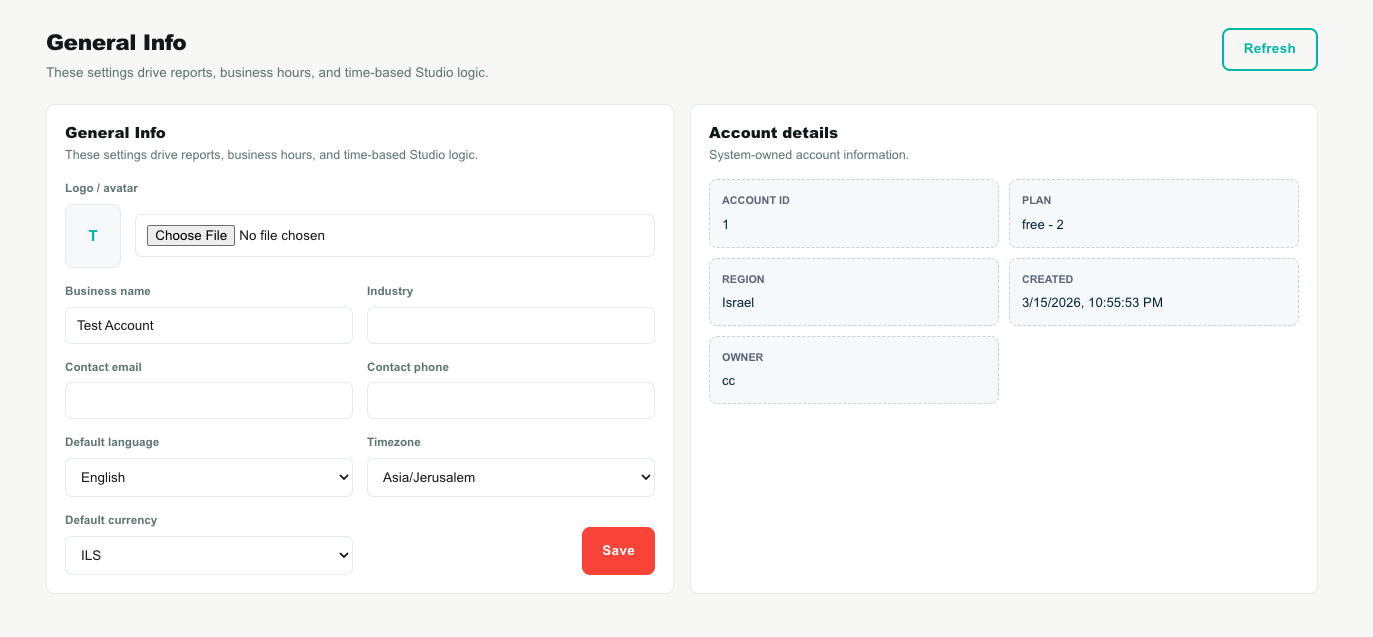
General Info contains editable account details and read-only system details.
Editable fields
| Field | Meaning | Used by |
|---|---|---|
| Business name | The account display name. | Header, account identity, admin views. |
| Logo / avatar | The account visual identity. | Dashboard and account branding surfaces. |
| Industry | Optional business category. | Internal account context and future reporting. |
| Contact email | Main account contact email. | Admin contact and system references. |
| Contact phone | Main account contact phone. | Admin contact and system references. |
| Default language | Default account language. | Account defaults and new user experience. |
| Timezone | Account timezone. Choose from the timezone dropdown. | Reports, business hours, dashboards, filters, and time-based Studio logic. |
| Default currency | Account currency. | Billing, pricing, and account defaults. |
Why timezone matters
Timezone is not only display text. It controls how Teloring understands dates and times for the account.
Timezone affects:
- Business-hour schedules.
- Holiday checks.
- Studio conditions that depend on time.
- Reports and dashboard filters.
- Date-based account behavior.
If the timezone is wrong, a Studio flow can treat a customer message as inside or outside working hours at the wrong moment.
Read-only account details
The account details block is system-owned. It is shown for reference and cannot be edited from this page.
| Field | Meaning |
|---|---|
| Account ID | The internal account identifier. Useful for support and API debugging. |
| Plan | The current account plan. |
| Region | The hosting region label. For example, Israel. |
| Created | Account creation date. |
| Owner | The account owner or first admin. |
Business Hours
Business Hours has two tabs:
- Business Hours — named weekly schedules.
- Holidays — holiday calendars that can override schedules.
Business hours are optional. New accounts do not receive a default schedule. Admins create only the schedules they actually need.
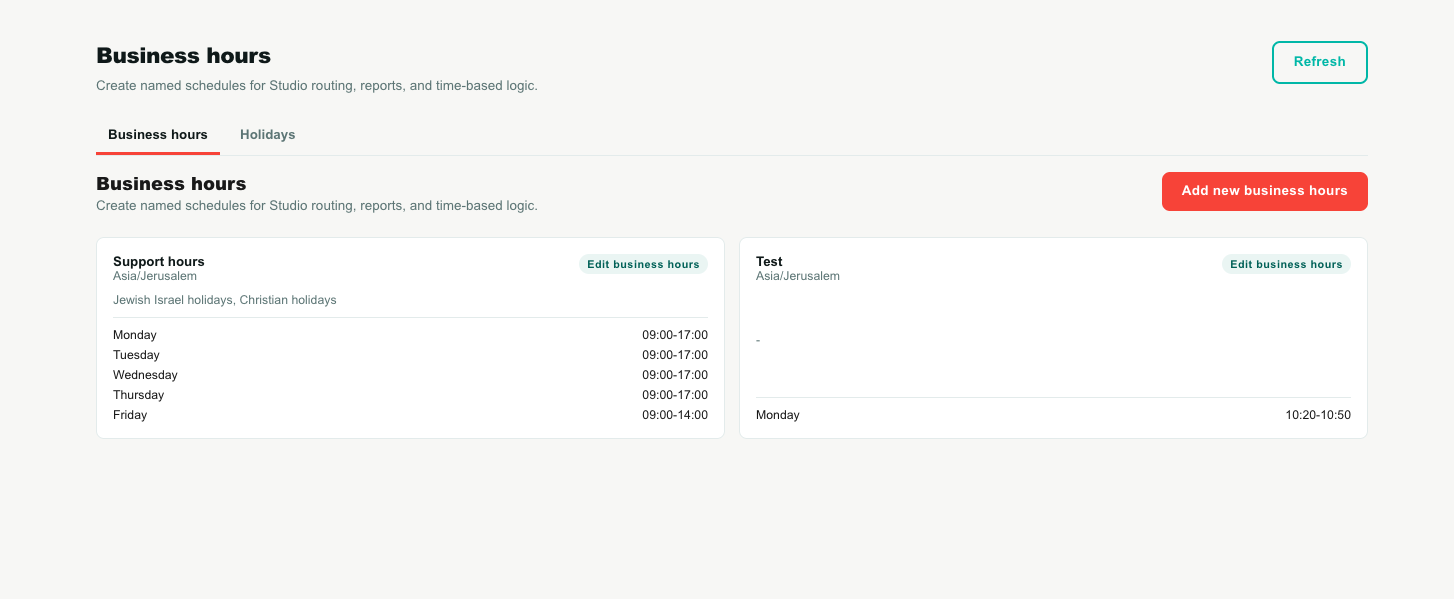
Business Hours tab
The Business Hours tab shows schedule cards. Each card is a named schedule with a timezone, weekly opening hours, and optional holiday calendars.
Use multiple schedules when different teams work different hours.
Examples:
| Schedule | Example use |
|---|---|
| Support hours | Customer support routing. |
| Sales hours | Sales lead routing. |
| VIP support hours | Special working hours for high-priority customers. |
Add a business-hours schedule
To create a schedule:
- Open Settings → Business hours.
- Stay on the Business Hours tab.
- Click Add new business hours.
- Enter a schedule name.
- Choose the schedule timezone.
- Fill the weekly opening hours.
- Turn on Consider holidays if this schedule should close on selected holiday calendars.
- Select one or more holiday calendars.
- Click Save schedule.
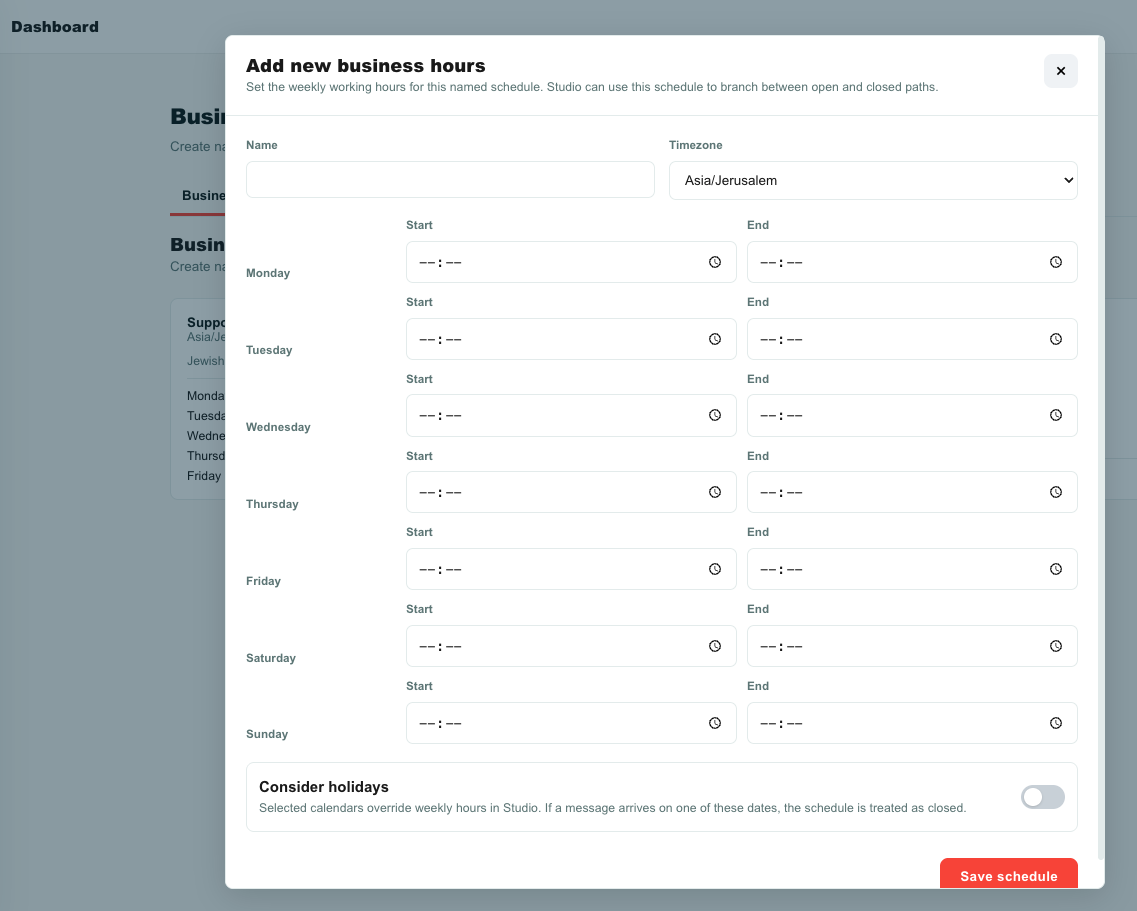
Schedule fields
| Field | Meaning |
|---|---|
| Name | Human-readable schedule name. Use clear names because Studio displays this name when selecting a schedule. |
| Timezone | Timezone used to evaluate the schedule. This can differ from the account timezone when needed. |
| Weekly rows | Opening time and closing time for each day. Leave a day empty when the business is closed that day. |
| Consider holidays | Toggle that enables holiday override behavior for this schedule. |
| Holiday checkboxes | The holiday calendars that should override weekly hours. |
Holiday override behavior
When Consider holidays is off, only weekly hours are checked.
When Consider holidays is on, selected holiday calendars override weekly hours.
Example:
| Schedule rule | Holiday state | Studio result |
|---|---|---|
| Monday 09:00-17:00 | No selected holiday today | open during 09:00-17:00 |
| Monday 09:00-17:00 | Today is in a selected holiday calendar | closed all day |
| Saturday empty | No selected holiday today | closed |
This matters because Studio can branch on a business-hours condition.
Studio business-hours condition
Studio reads the schedules created in Settings.
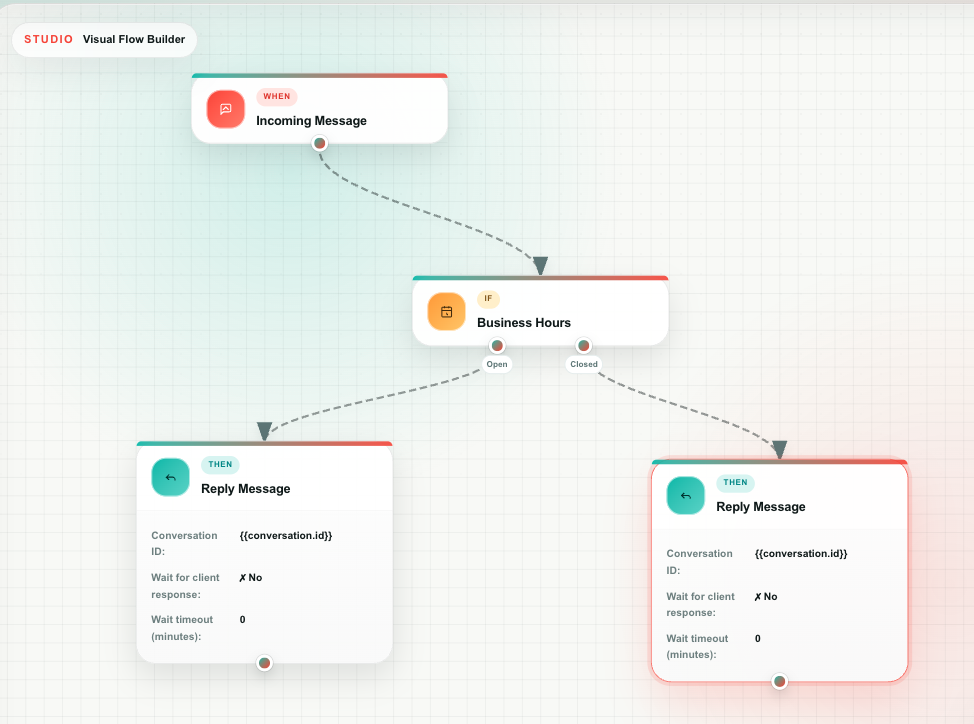
In Studio:
- Add a Business Hours condition block.
- Select a schedule from Settings.
- Connect the Open output to the path for working hours.
- Connect the Closed output to the path for after-hours or holiday handling.
The block returns:
| Output handle | Meaning |
|---|---|
| Open | The message arrived inside the selected schedule and not on a selected holiday. |
| Closed | The message arrived outside the selected schedule, or on a selected holiday override. |
Holidays tab
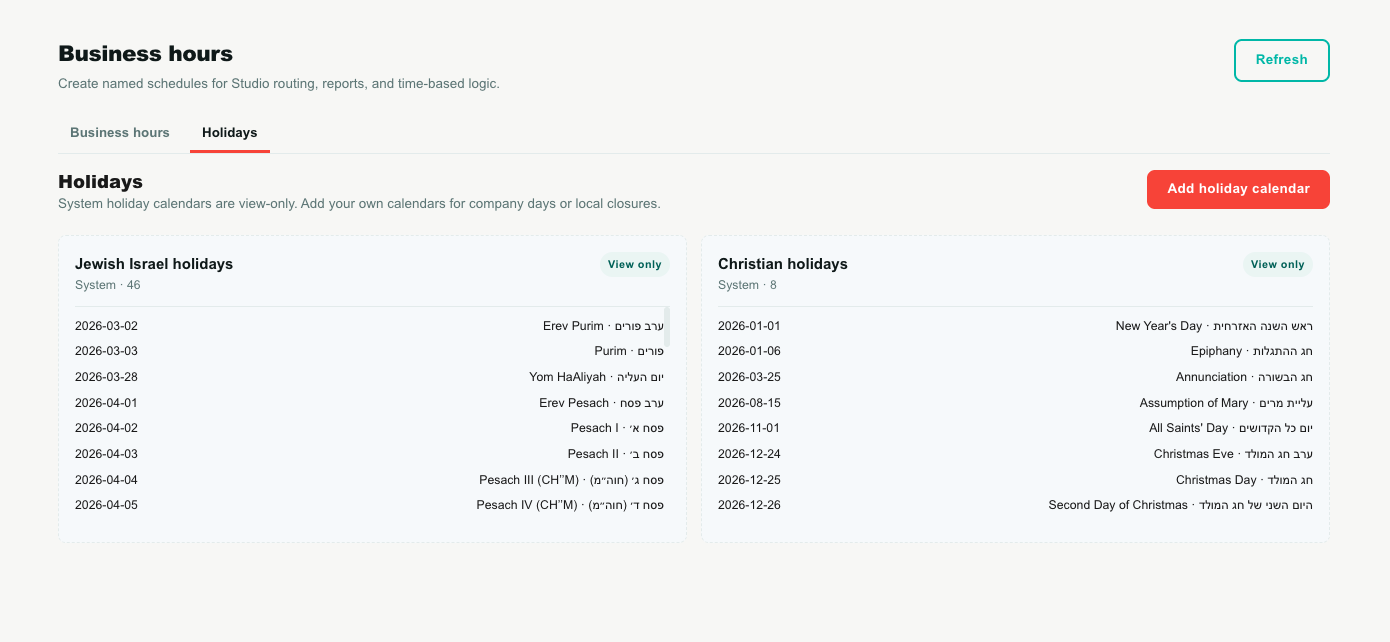
The Holidays tab shows holiday calendar cards.
There are two system calendars:
| Calendar | Editable? | Meaning |
|---|---|---|
| Jewish Israel holidays | No | Global Jewish holiday calendar updated by Teloring super admin from Hebcal. |
| Christian holidays | No | Fixed-date Christian holidays generated by Teloring. |
Admins can also create custom holiday calendars for company-specific or local days.
Examples:
- Company annual event.
- Local office closure.
- Team offsite.
- Regional special day.
System holiday calendars
System calendars are view-only for account admins.
You can:
- See the dates.
- Select them in business-hour schedules.
- Use them as Studio override logic.
You cannot:
- Edit their dates.
- Delete them.
- Rename them.
Custom holiday calendars
To create a custom holiday calendar:
- Open Settings → Business hours → Holidays.
- Click Add holiday calendar.
- Enter a calendar name.
- Add one date per line.
- Save.
Use this format:
YYYY-MM-DD | Title | Hebrew title
Example:
2026-09-01 | Company day | יום חברה
2026-12-31 | Office closed | המשרד סגור
The Hebrew title is optional.
Security & Login
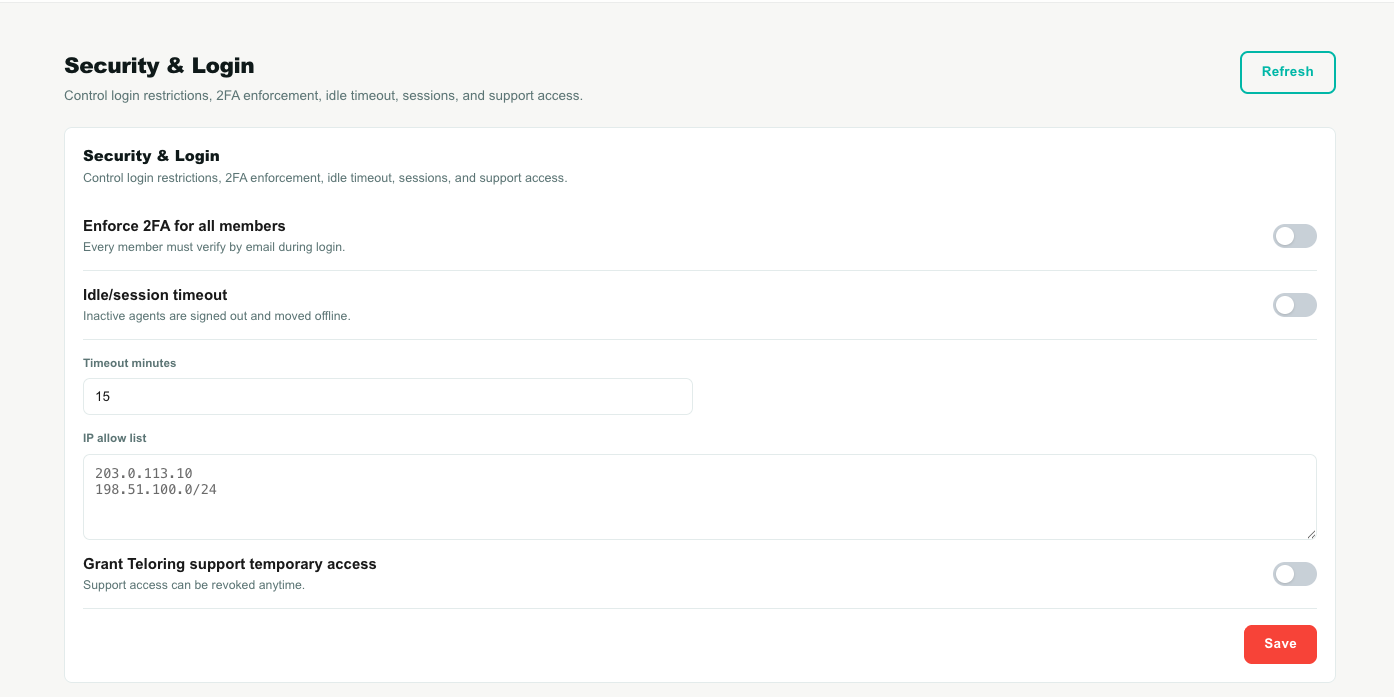
Security & Login controls account access and session behavior.
IP allow list
The IP allow list is optional.
When empty, users can sign in from any IP address that passes normal authentication.
When filled, only the listed IP addresses or CIDR ranges can sign in.
Rules:
- Maximum 5 entries.
- Supports single IP addresses.
- Supports CIDR ranges.
Examples:
203.0.113.10
198.51.100.0/24
Use IP allow list when an account should only be accessible from an office, VPN, or controlled network.
Enforce 2FA for all members
When enabled, every member must verify by email during login.
Flow:
- User enters email and password.
- Teloring emails a verification code.
- The user must enter the code within 5 minutes.
- Login completes only after verification.
New device verification
Teloring also sends an email verification code when a user signs in from a browser that is not trusted yet.
This can happen even when account-wide 2FA is off.
Purpose:
- Protect accounts when a password is correct but the browser is new.
- Reduce risk from stolen credentials.
Idle/session timeout
Idle timeout signs inactive users out.
When enabled:
- Set a timeout between 1 and 60 minutes.
- If an agent does not interact with Teloring during that time, the session is ended.
- The agent is moved offline and returned to the login screen.
Active sessions
The Active sessions table shows recent dashboard sessions.
Use it to:
- See which agents are connected.
- Review IP addresses and last-seen times.
- Force logout a session.
Force logout revokes the session. The affected user is signed out on the next authenticated request.
Grant Teloring support temporary access
This toggle allows temporary support access for Teloring staff.
Use it when Teloring support needs to investigate account behavior with your permission. You can turn it off again at any time.
API
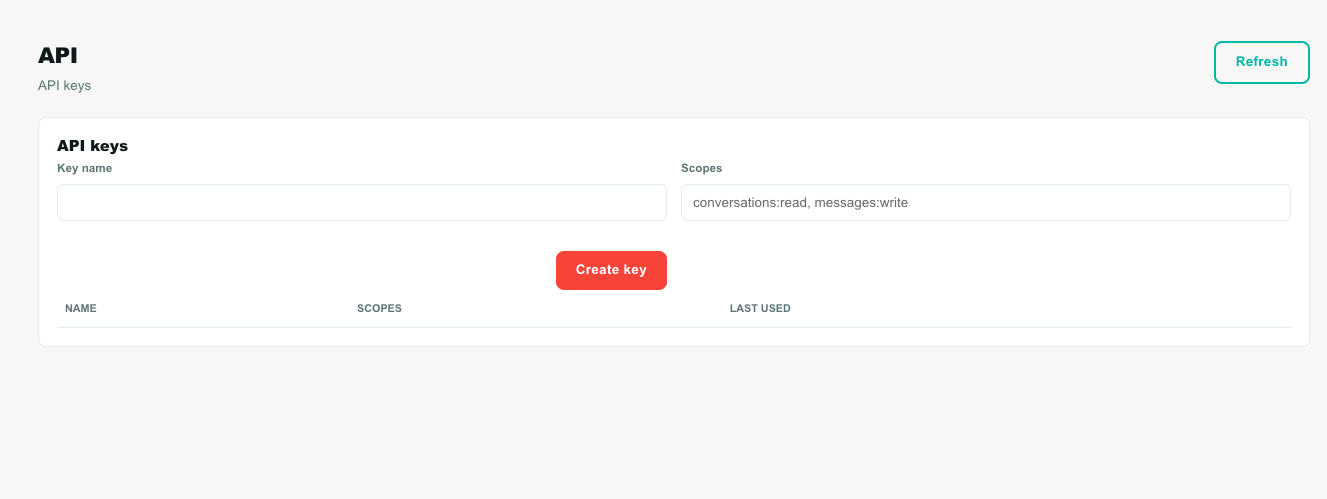
The API page manages account-level API keys.
These keys are for system operations. They are not personal agent login keys.
Create an API key
To create a key:
- Open Settings → API.
- Enter a key name.
- Enter scopes separated by commas.
- Click Create key.
- Copy the key immediately.
The raw key is shown only once. Store it securely before leaving the page.
API key properties
| Property | Meaning |
|---|---|
| Name | Human-readable key name. Use names like CRM sync or Warehouse integration. |
| Scopes | Permissions requested for this key. Scopes are comma-separated. |
| Last used | Last known use time. Empty means the key has not been used yet. |
| Revoke | Disables the key. Revoked keys cannot be used again. |
Data & Privacy
Data & Privacy contains export and account deletion tools.
Data export
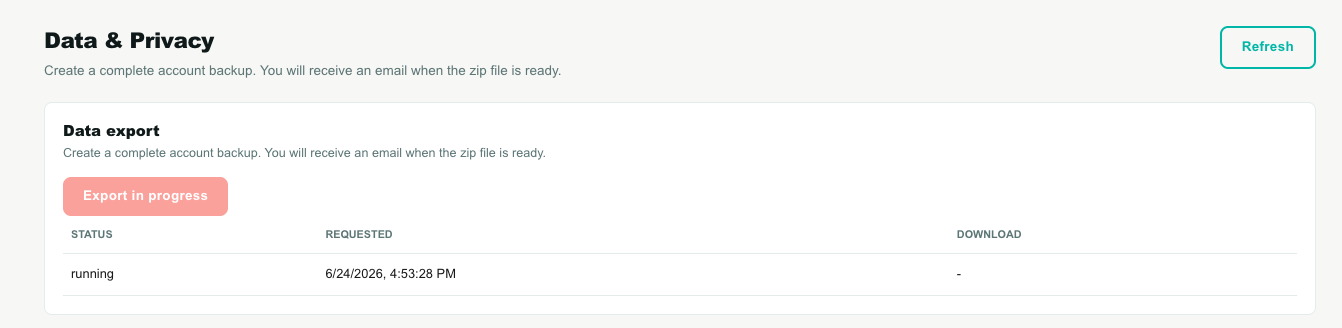
Data export creates a zip backup of account data.
The export includes account data such as conversations, messages, settings, and related Firestore document data.
Flow:
- Admin clicks Request export.
- Teloring queues a background export job.
- The button is disabled while the export is queued or running.
- When ready, Teloring emails the requester.
- The export table shows the download link when available.
Only one unfinished export can be requested at a time. If an export is already queued, pending, running, processing, or in progress, the button shows Export in progress.
Data retention policy
The retention policy area is reserved for the account data-retention PDF.
Danger zone: delete account
Delete account is irreversible.
When confirmed:
- The account is marked deleted and inactive.
- All members are disabled.
- Users can no longer sign in to that account.
To avoid accidental deletion, the admin must type their full name before confirming.
Use Delete account only when the account should be permanently disabled. Contact Teloring support if you are unsure.
Conversation Attributes
Settings → Conversation Attributes is where you design the custom fields agents fill in on a conversation — Reason for contact, Outcome, Order number, Refund amount.
Unlike contact and customer fields, these belong to one conversation: the same customer writing again next week starts with an empty set. That is what makes them the fields you report on in Analytics, and the ones Studio can set automatically.
You build the layout by dragging attribute types from a toolbox, with a live preview of the panel agents will see. Full guide: Conversation Attributes.
Roles & Permissions
Roles & Permissions is no longer inside Settings.
It appears as a separate Admin menu item below Agents and above Audit Log. The permission matrix is marked Soon until role-based permission editing is built.
Recommended setup checklist
For a new account:
- Set business name, contact details, timezone, and currency in General Info.
- Upload a logo.
- Review the read-only account details.
- Create any needed custom holiday calendars.
- Create one or more business-hour schedules.
- Connect schedules to Studio Business Hours conditions.
- Decide whether to enable account-wide 2FA.
- Add IP allow list entries only when login should be restricted to known networks.
- Review active sessions after onboarding.
- Create API keys only for trusted integrations.
- Define your Conversation Attributes — most teams start with Reason for contact and Outcome.