Files Warehouse
The Files Warehouse is the account-wide inventory of file records that supported Teloring features register while your team works. It brings together registered customer attachments, files sent by agents, call recordings, signed documents, Studio voice prompts, form images, and other stored assets in one place.
Use it to answer questions such as:
- How much storage is our account using?
- Which files arrived from customers?
- Which files did our team send?
- Which conversation did a file come from?
- Can I download a stored file?
- Which old files should we permanently remove?
Open Files Warehouse from the Tools section of the Teloring sidebar.
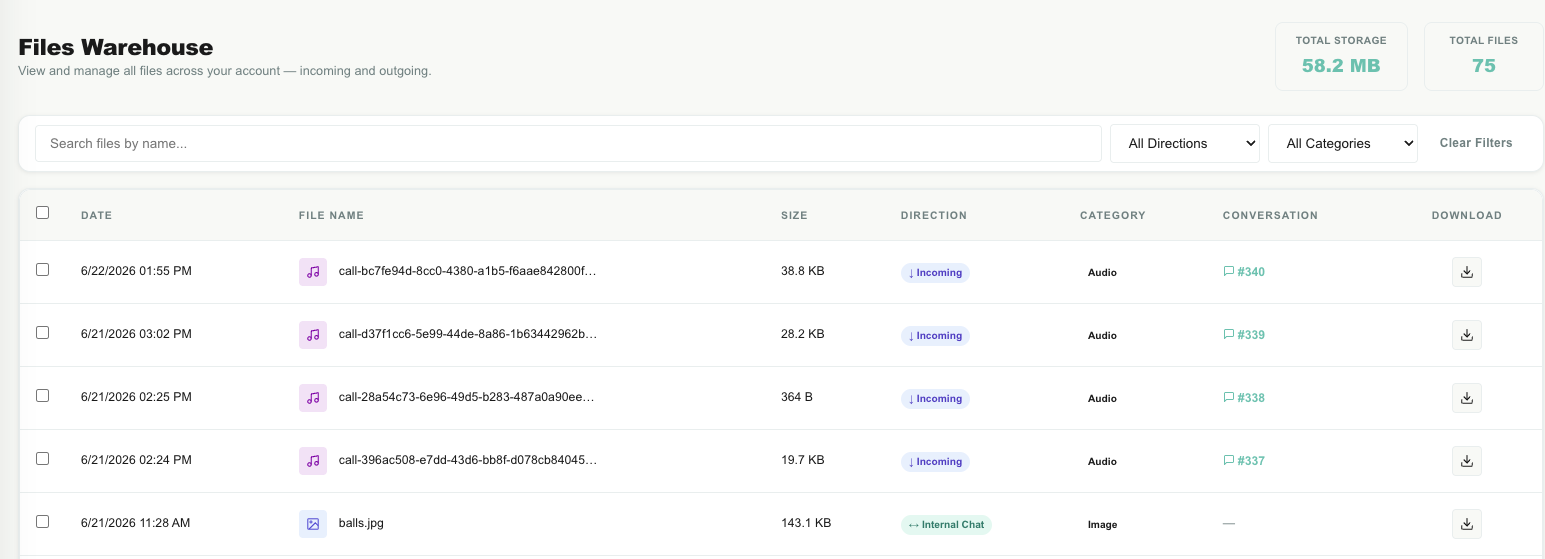
The Files Warehouse is a catalog and management page. Files arrive here automatically from other parts of Teloring. The page does not upload, preview, rename, organize into folders, or share files.
Key facts
| Fact | Meaning |
|---|---|
| Account-wide | The page shows stored files for the whole Teloring account, not only files belonging to the signed-in agent. |
| Automatic inventory | A file is added when a supported Teloring feature stores it. You do not add files from this page. |
| Newest first | Files are listed by their stored date, with the newest files at the top. |
| 25 files per page | Use Previous and Next below the table to move through the inventory. |
| Search and filters work together | A file must match the file-name search, direction, and category currently selected. |
| Summary totals are account totals | Total Storage and Total Files describe the whole account. They do not change when you filter the table. |
| Conversation links depend on context | A link appears only when Teloring recorded a customer conversation ID with the file. |
| Internal-chat downloads are protected | Private agent-to-agent chat attachments cannot be downloaded from the warehouse. Open the internal chat where the file was shared instead. |
| Deletion is permanent | Deleting a file removes the stored object. There is no recycle bin or undo. |
| Account isolation | A user can only list and manage the file records belonging to their own account. |
Who uses the Files Warehouse
| Role | Typical use |
|---|---|
| Agents | Find an attachment, return to its customer conversation, or download a permitted file. |
| Team managers | Review the kinds of files moving through the account and remove selected files that are no longer needed. |
| Administrators | Monitor total storage and, when necessary, delete every stored file in the account. |
This is shared account storage. Removing a file can make it unavailable in the conversation, recording, form, signature process, or other feature that originally used it. Delete only files you are certain the business no longer needs.
How files get into the warehouse
There is no Upload button on this page. Files are registered automatically when supported Teloring features save them.
Common examples include:
| Source | Example |
|---|---|
| Customer conversations | An image, video, audio message, document, or email attachment received through a supported file-registration path. |
| Agent replies | A supported file attached to an outgoing conversation or email. |
| Voice | A recorded inbound or outbound call. |
| Documents Signature | A completed or declined PDF produced by the signature process. |
| Studio | A WAV file uploaded as a voice prompt for an automation. |
| Forms | A logo, background, or question image uploaded in the form builder. |
| Account settings | A stored business logo or similar workspace asset. |
| Internal chat | A private attachment shared from one agent to another. |
Not every Cloud Storage object is a warehouse item. Temporary uploads, generated exports, inline content, and files used only during a short-lived process may be stored elsewhere and may not appear here.
Page layout
The page has four main areas:
| Area | What it contains |
|---|---|
| Header | The page name, explanation, Total Storage, and Total Files. |
| Filters | File-name search, direction, category, and Clear Filters. |
| Selection bar | Appears after you select at least one row and provides bulk-selection and deletion actions. |
| Files table | One row per stored file, followed by pagination controls when results are available. |
Storage summary
Two cards at the top-right summarize the complete warehouse inventory for the account.
| Card | What it means |
|---|---|
| Total Storage | The sum of the recorded file sizes. Teloring automatically displays it in bytes, KB, MB, or GB. |
| Total Files | The number of file records stored for the account. |
These numbers are not a storage quota and do not show how much space remains. They also remain account-wide when the table is searched or filtered. For example, filtering to Images changes the table but not the two cards.
The total is based on the file sizes recorded in Teloring. A legacy record with no stored size can count as a file without adding to the displayed storage amount.
Search and filters
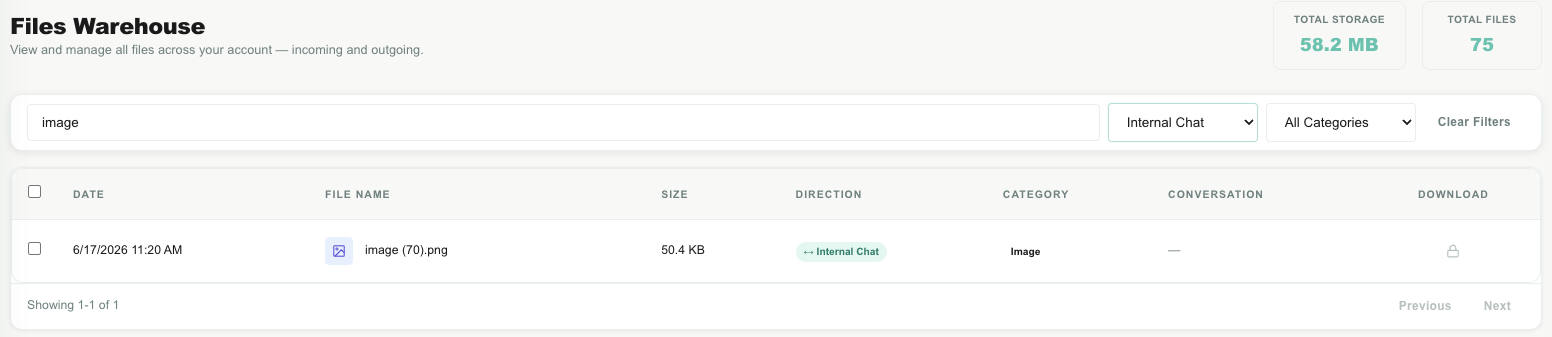
All three filters can be used together.
| Control | What it does |
|---|---|
| Search files by name… | Finds file names containing the text you type. Matching is not case-sensitive. The search runs shortly after you stop typing. |
| All Directions | Shows every direction. Change it to Incoming, Outgoing, or Internal Chat to narrow the table. |
| All Categories | Shows every category. Change it to Image, Video, Document, or Audio to narrow the table. |
| Clear Filters | Clears the search and both dropdowns, returns to page 1, and clears the current file selection. |
A file must match every active control. For example, searching for invoice, choosing Incoming, and choosing Document shows only incoming documents whose stored file name contains invoice.
Direction
Direction describes how the file relates to the account.
| Direction | Meaning |
|---|---|
| Incoming ↓ | The file came into the business, such as a customer attachment or an inbound call recording. |
| Outgoing ↑ | The file went out from the business or was prepared for outgoing use, such as an agent attachment, signed PDF, Studio prompt, or outbound recording. |
| Internal Chat ↔ | The file is internal to the workspace. This includes private agent-to-agent attachments and can include assets created for internal Teloring features. |
Direction does not tell you which inbox or agent handled the file. Use the conversation link, when available, to open its customer context.
Category
Category describes the broad kind of content.
| Category | Typical content |
|---|---|
| Image | JPEG, PNG, GIF, WebP, or another stored image. |
| Video | MP4 or another stored video. |
| Document | PDF, Office document, spreadsheet, text file, CSV, or email attachment. |
| Audio | Voice recording, audio message, or Studio WAV prompt. |
Some provider-specific or older records can have another category, such as a push-to-talk recording. Those files remain visible under All Categories, even though there is no separate dropdown choice for them.
The files table
Each row represents one warehouse record.
| Column | What it shows |
|---|---|
| Selection checkbox | Adds or removes this file from the current bulk selection. |
| Date | When the file record was created. The browser formats the date and time using the user's locale. |
| File Name | The stored original name, with an icon for its category. Long names are shortened; hover over the name to see it in full. |
| Size | The recorded size in bytes, KB, MB, or GB. A dash means no positive size was recorded. |
| Direction | Incoming, Outgoing, Internal Chat, or the raw value on a legacy record. |
| Category | The stored category, such as image, video, document, or audio. |
| Conversation | A #conversation-id link when customer-conversation context is available; otherwise a dash. |
| Download | A download button for permitted files, or a lock for a protected internal-chat attachment. |
The table is read-only apart from selection, download, conversation navigation, and deletion. Its column headings are labels, not sorting buttons.
Download a file
- Find the file by its name, direction, or category.
- Click the download icon at the right end of the row.
- Teloring creates a private, temporary download link and asks the browser to download the file.
The generated link is valid for about one hour. Creating a link does not make the warehouse or storage bucket public.
Your browser can open some file types in a new tab instead of immediately saving them. Use the browser's Download or Save as action if that happens.
Locked internal-chat files
A lock icon means the file came from a private internal chat. It cannot be downloaded from the account-wide Files Warehouse.
This restriction prevents an agent from using a shared inventory page to retrieve an attachment from an agent-to-agent conversation they may not participate in. Open the original internal chat to view the attachment with its proper participant access.
Open the related conversation
When the Conversation column contains a link:
- Click the
#conversation-id. - Teloring opens the Conversations workspace.
- When a message ID was stored with the file, Teloring also loads and highlights that specific message.
This is the fastest way to understand who sent a customer file, why it was sent, and what happened around it.
A dash in the column can be correct. For example, a business logo, Studio prompt, form image, or internal-chat attachment does not belong to a customer conversation. Older file records and some integration-created attachments can also lack conversation context.
Select files
You can select one file, the current page, or the whole account inventory.
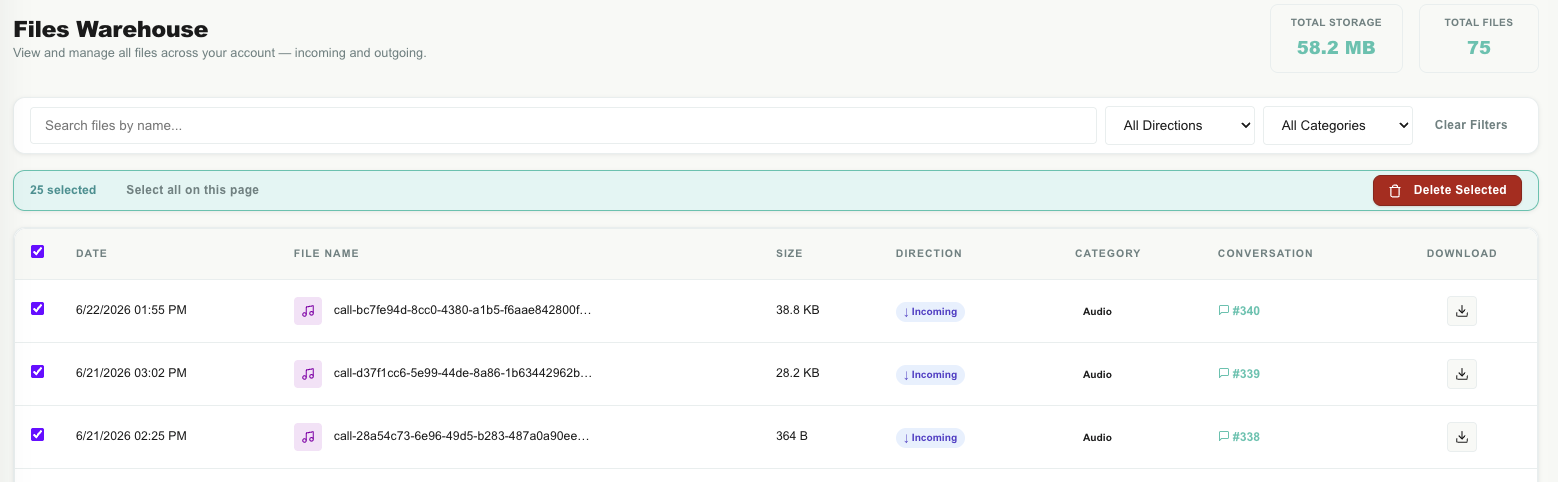
| Selection method | How it works |
|---|---|
| One or more rows | Tick the checkbox at the start of each row. |
| Current page | Tick the checkbox in the table header, or click Select all on this page in the selection bar. This selects the visible rows on the current 25-file page. |
| Whole account | First select the current page, then click Select all N files when that option appears. This switches to account-wide selection. |
The selection bar shows the number currently selected. Row selections remain selected while you move between result pages and while you change filters.
Select all N files means every warehouse file in the account—not only the rows matching the current search or filters. If you intend to remove only filtered results, select those rows individually instead.
To discard a selection, uncheck the selected rows. If selected rows are hidden by a different filter or page, click Clear Filters or reload the Files Warehouse page to reset the selection.
Delete files
- Select the required rows.
- Click Delete Selected in the selection bar.
- Read the confirmation carefully.
- Click Delete Selected in the confirmation window.
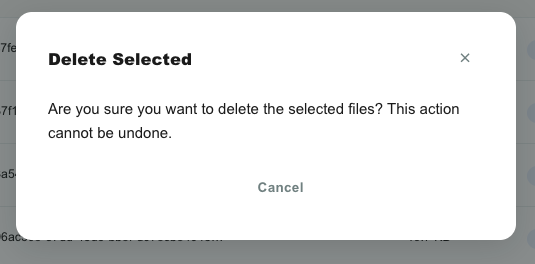
After deletion, Teloring reloads the table and recalculates the two account totals.
| Deletion mode | Permission and scope |
|---|---|
| Selected rows | Deletes the explicitly selected warehouse files. Remember that a selection can include rows carried over from another page or filter. |
| Whole account | Administrator only. Deletes every file record and stored object in the account, including files not shown by the current filters. |
Deletion cannot be undone. It removes the stored file, not just the row in this table. Existing messages and features can retain a reference to the deleted file, but the content itself may stop opening, playing, or downloading.
Bulk deletions are recorded in the account audit log with the number of deleted files, deleted bytes, and whether the operation targeted the whole account.
Pagination
The Files Warehouse displays 25 rows at a time.
| Control | Use |
|---|---|
| Result summary | Shows the current row range, such as 1–25. |
| Previous | Opens the preceding page. It is disabled on page 1. |
| Next | Opens the next page. It is disabled when Teloring has reached the end of the currently returned results. |
Changing a filter or search returns you to page 1. Clicking Clear Filters also clears your selection.
Complete element reference
Header and filters
| Element | Use |
|---|---|
| Total Storage | Read-only total of recorded bytes across the account. |
| Total Files | Read-only count of warehouse records across the account. |
| Search box | Case-insensitive, partial file-name search. |
| Direction dropdown | Filters to Incoming, Outgoing, Internal Chat, or all directions. |
| Category dropdown | Filters to Image, Video, Document, Audio, or all categories. |
| Clear Filters | Resets the search, filters, page number, and selection. |
Table
| Element | Use |
|---|---|
| Header checkbox | Selects or clears all rows on the current page. |
| Row checkbox | Selects or clears one file. |
| Category icon | Visual cue for image, video, document, audio, or another file type. |
| Full-name tooltip | Hover over a shortened file name to read the stored name. |
| Direction badge | Shows how the file relates to the account. |
| Category badge | Shows the stored content category. |
| Conversation link | Opens the related customer conversation and, when known, the specific message. |
| Download button | Requests a temporary signed URL and downloads the file. |
| Lock icon | Explains that a private internal-chat file cannot be downloaded here. |
Selection and deletion
| Element | Use |
|---|---|
| Selected count | Number of rows selected, or the total account file count in account-wide mode. |
| Select all on this page | Selects all visible rows on the current page. |
| Select all N files | Switches from current-page selection to every warehouse file in the account. |
| Delete Selected | Opens the permanent-delete confirmation. |
| Modal close (✕) | Closes the confirmation without deleting. |
| Cancel | Closes the confirmation without deleting. |
| Confirmation Delete Selected | Starts the permanent deletion and is disabled while the request runs. |
Good practices
| Recommendation | Why it helps |
|---|---|
| Search before selecting | Reduces the chance of choosing a similarly named file by mistake. |
| Use the conversation link before deleting | Confirms the file's customer and business context. |
| Prefer individual selection for filtered cleanup | Account-wide selection ignores the active filters. |
| Treat recordings and signed PDFs as business records | Your retention, legal, or compliance policy may require you to keep them. |
| Keep original file names meaningful | File-name search is the warehouse's only text search. |
| Recheck the selected count | Selections can persist when you change pages or filters. |
| Limit account-wide deletion to planned maintenance | It removes files created by many different Teloring features. |
Troubleshooting
| Problem | What to check |
|---|---|
| No files are shown | Click Clear Filters. If the account has no registered files, the table correctly shows No files found. |
| The summary cards do not match the filtered rows | Expected: the cards always describe the whole account, while filters affect only the table. |
| A known file is missing from search | Confirm the stored file name, clear the category and direction filters, and search with a shorter part of the name. Temporary or non-indexed storage objects do not appear in the warehouse. |
| There is no conversation link | The file may be a workspace asset, an internal-chat file, or an older/integration-created record without stored conversation context. |
| The download column shows a lock | The item is a protected internal-chat attachment. Open it from the original internal conversation. |
| Download opens a browser tab | Use the browser's save action. Some browsers preview supported content instead of saving immediately. |
| Download says the file is unavailable | The warehouse record can remain when the underlying object was removed or could not be read. Ask an administrator to check the file source. |
| Select all N files deletion is rejected | Deleting the whole account inventory requires an administrator role. |
| The table is empty after deleting the last rows on a page | Click Clear Filters to return to page 1 and reload the inventory. |
Frequently asked questions
Can I upload a file from the Files Warehouse?
No. Upload or create the file in the Teloring feature that uses it, such as a conversation, form, Studio flow, account setting, or signature process.
Does the search read the contents of documents?
No. It searches the stored file name only. Use the Knowledge Base when you want Teloring's AI to read and answer questions from document contents.
Why did my filters not change Total Storage or Total Files?
The cards always show account-wide totals. Filters apply only to the table.
Can I sort by date, size, or name?
No. The current page is fixed to newest first; the column headings are not interactive.
Why does a file have no conversation?
Some files belong to other parts of Teloring, and some older or integration-created records do not have conversation context. A dash does not necessarily mean the file is broken.
Can I download an internal-chat attachment here?
No. Open the internal chat where it was shared so Teloring can apply that chat's participant access.
Does deleting a row only hide it from the warehouse?
No. It removes the stored file itself and can make the content unavailable anywhere that still refers to it.
Can another Teloring business see our files?
No. The warehouse endpoints and file lookups are scoped to the signed-in user's account.