Forms Builder
Forms Builder lets your team create structured forms, publish them to customers, collect submissions, and trigger Studio automations when a form is completed.
Use Forms when you need controlled information from customers, such as onboarding details, service requests, surveys, quote requests, approvals, intake forms, or follow-up information after a conversation.
Forms are separate from conversations. A form does not create a new inbox and does not become a communication channel. Instead, it collects data and can pass that data to Studio, CRM workflows, or external systems.
Key facts
| Fact | Meaning |
|---|---|
| Forms collect structured data | Customers fill fields on a public form page. |
| Forms are versioned | Every save increments the form version. |
| Submissions are snapshots | Existing submissions stay readable even if the form is edited or deleted later. |
| Layout is column-based | The editor and public form use the same fixed column and row structure. |
| Hidden fields do not show | Hidden fields store internal values without taking visible form space. |
| Studio can react | Every successful submission fires the trigger.form_filled Studio trigger. |
| Field IDs matter | Field IDs become Studio variables, export columns, and stable answer keys. |
Who uses Forms
| Role | Typical use |
|---|---|
| Admins | Build forms, configure branding, publish links, and connect submissions to Studio automations. |
| Team managers | Review submissions, decide which fields are needed, and make sure forms match operational processes. |
| Agents | Share form links with customers when they need structured information. |
| Customers | Fill the public form from a browser on desktop or mobile. |
Forms list
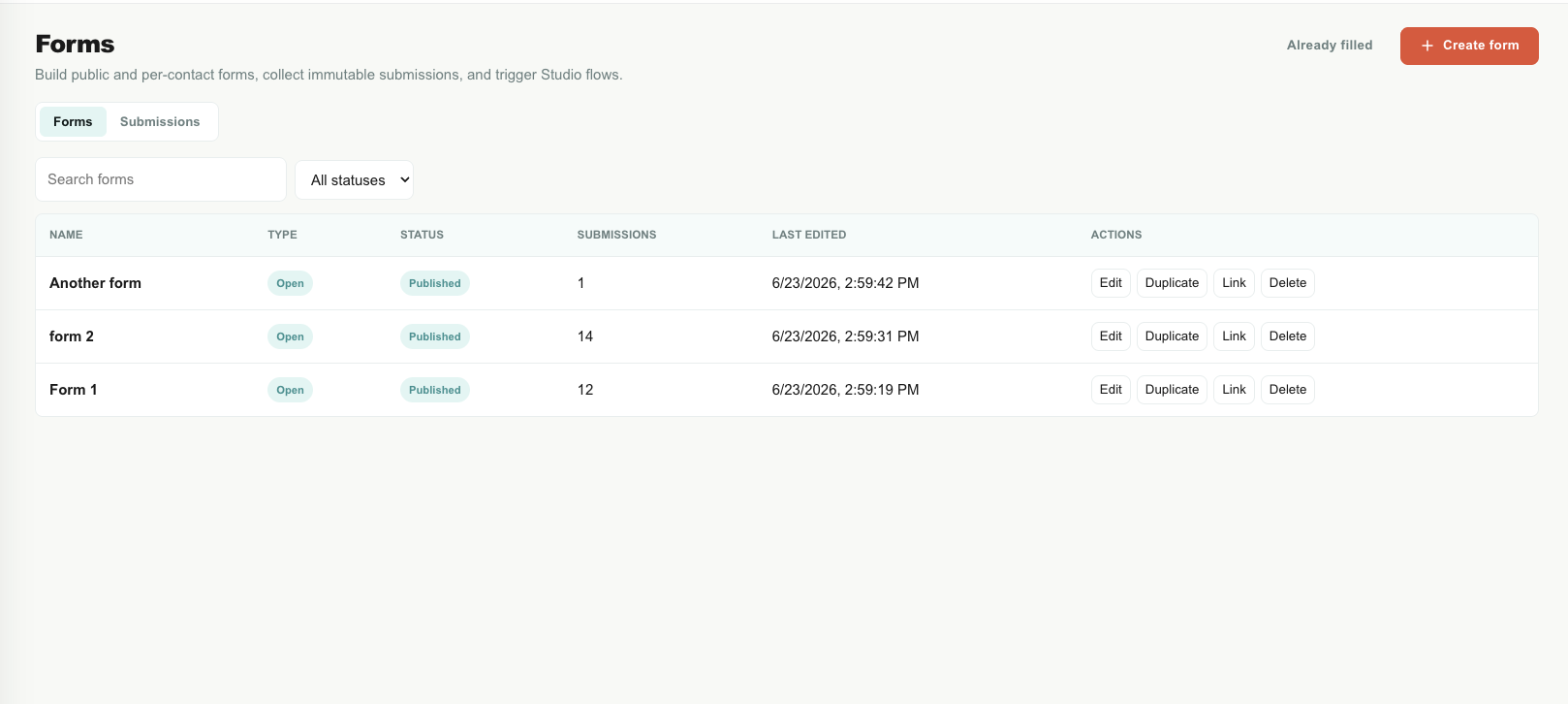
Open Forms from the Teloring sidebar.
The Forms page includes:
| Area | Use it to |
|---|---|
| Forms tab | Create, search, open, duplicate, publish, copy links, and delete forms. |
| Submissions tab | Review submitted answers across forms. |
| Status filters | Separate drafts, published forms, closed forms, and archived forms. |
| Form row actions | Edit a form, duplicate it, copy its public link, or delete it. |
Create a form
To create a form:
- Open Forms.
- Click Create form.
- Give the form a clear name.
- Choose the form type.
- Open the editor.
- Add pages and fields.
- Configure settings.
- Save.
- Publish when the form is ready.
Form types
Forms can be open or specific.
| Type | Meaning | Best for |
|---|---|---|
| Open public link | One reusable public link. Anyone with the link can open the form while it is published. | Website forms, public lead forms, general surveys, open requests. |
| Specific contact link | A per-contact link generated for a known contact or conversation. The link can carry contact context and can be marked fill-once. | Customer-specific approvals, follow-ups, account updates, personalized requests. |
Use an open form when the same form should be shared broadly. Use a specific form when the form belongs to one contact or conversation.
Editor overview
The editor has three main areas:
| Area | What it does |
|---|---|
| Left panel | Field palette. Drag elements from here into the page columns. |
| Center canvas | The form layout. Add pages, set columns, and reorder fields. |
| Right panel | Properties for the selected page, field, or form settings. |
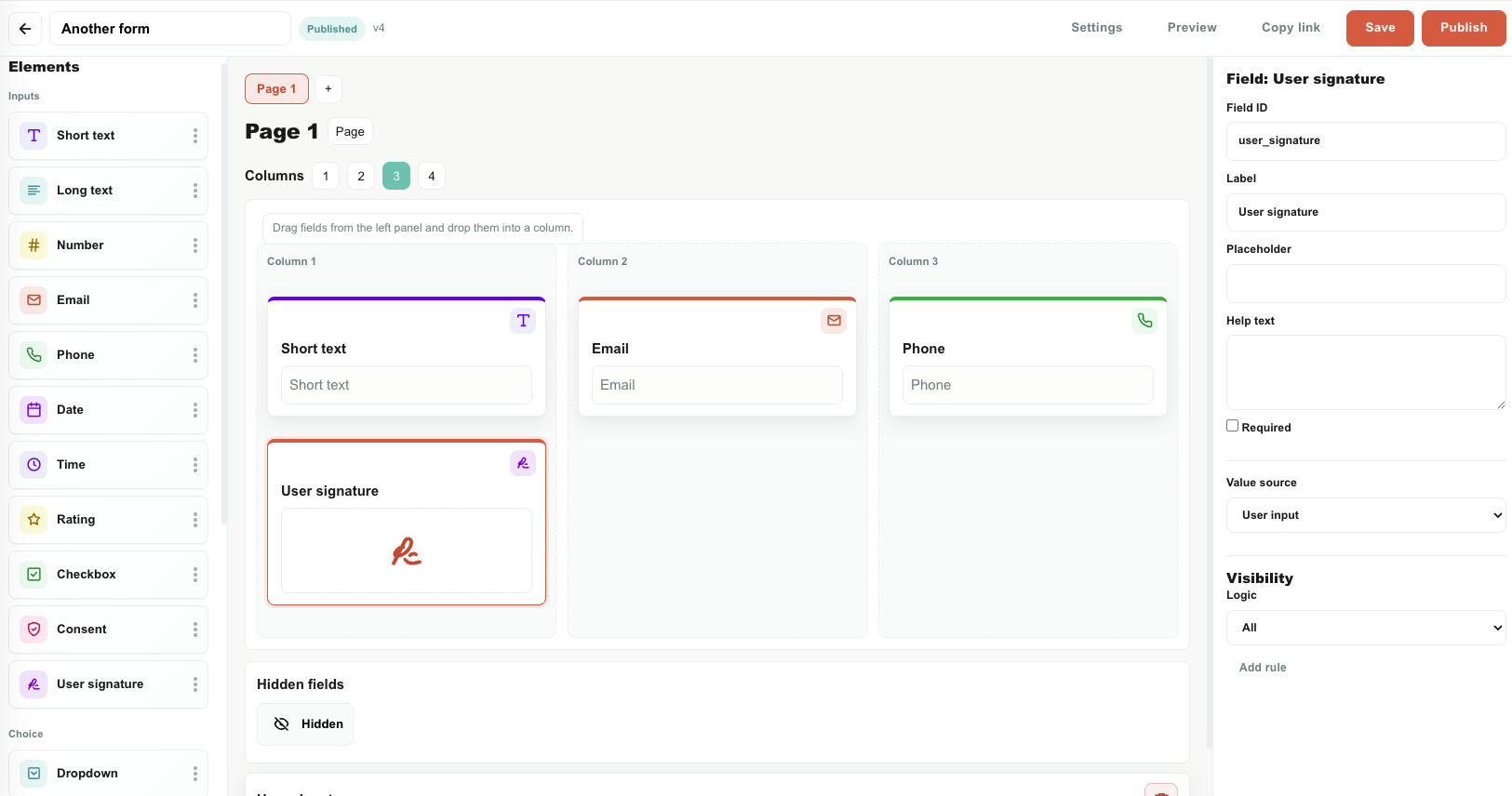
Forms use a fixed column layout. This keeps the public form aligned with the editor. A page can have 1, 2, 3, or 4 columns. Fields are placed into columns and stacked in order. Hidden fields appear in a hidden-field tray and do not take visible space on the public form.
Pages and columns
Use pages to split a long form into manageable steps.
Page properties include:
| Property | Meaning |
|---|---|
| Title | The heading shown for that page. |
| Columns | The number of layout columns on the page, from 1 to 4. |
| Visibility | Optional rules that decide whether the page appears. |
Use one column for simple forms and mobile-first forms. Use two or more columns when related short fields should sit side by side, such as first name and last name, or phone and email.
Add and move elements
To add an element:
- Drag an element from the left panel.
- Drop it into a page column.
- Select it to edit its properties in the right panel.
To reorder fields, drag them within a column or between columns. The public form uses the same column and order structure.
Field properties
Most input fields share these properties:
| Property | Meaning |
|---|---|
| Field ID | The stable technical key for the answer. Studio and exports use this ID. Keep it readable, such as email, request_type, or campaign_id. |
| Label | The question or field name shown to the customer. |
| Placeholder | Light helper text inside the input. |
| Help text | Additional guidance shown near the field. |
| Required | Forces the customer to fill the field before moving on or submitting. |
| Value source | Decides whether the field is filled by the customer, the URL, a fixed hidden value, or contact data. |
| Validation | Optional limits such as minimum, maximum, or length depending on field type. |
| Visibility | Optional logic that decides whether the field appears. |
Field ID and Studio
Field ID is important. If a text field has field ID email, Studio can use:
{{answers.email}}
If a hidden field has field ID campaign_id, Studio can use:
{{hiddenValues.campaign_id}}
Changing a field ID affects future submissions and Studio variables. Existing submissions remain saved as snapshots.
Value sources
Value source controls where a value comes from.
| Value source | Visible fields | Hidden fields | Meaning |
|---|---|---|---|
| User input | Yes | No | The customer fills the field. No extra configuration is needed. |
| URL param | Yes | Yes | Teloring reads a value from the public form URL. |
| Contact field | Yes, for specific forms | Yes, for specific forms | Teloring reads a value from the linked contact. |
| Fixed value | No | Yes | A fixed internal value saved with the submission. |
Visible fields do not use fixed values. If a value should be fixed and not shown to the customer, use a hidden field.
URL param example
If a visible short text field uses:
| Setting | Value |
|---|---|
| Value source | URL param |
| URL param | hi |
Then this form URL:
https://forms.teloring.com/f/example?hi=333
prefills the field with:
333
For hidden fields, the same URL param value is stored in hiddenValues under the hidden field ID.
Visibility logic
Visibility rules let a field or page appear only when conditions are met.
Use visibility logic for:
| Scenario | Example |
|---|---|
| Follow-up questions | Show "Describe the problem" only when request type equals "Support". |
| Conditional pages | Show a billing page only when the customer selected "Invoice issue". |
| Optional consent | Show a signature field only when the customer agrees to terms. |
Visibility logic contains:
| Part | Meaning |
|---|---|
| Logic | Whether all rules must match or any rule may match. |
| Field | The field to check. |
| Operator | The comparison, such as equals, contains, greater than, less than, is empty, or is checked. |
| Value | The value to compare against when the operator needs one. |
Required hidden fields and hidden pages are not forced when they are not visible. Server-side validation rechecks visibility when the customer submits the form.
Element reference
Inputs
| Element | What customers do | Common use | Important properties |
|---|---|---|---|
| Short text | Type one short answer. | Name, city, serial number, account number, subject. | Placeholder, required, value source, min length, max length. |
| Long text | Type a longer answer. | Description, notes, complaint details, instructions. | Placeholder, help text, required, min length, max length. |
| Number | Enter a numeric value. | Quantity, age, budget, rating amount, ID number when numeric validation is needed. | Required, min, max. |
| Enter an email address. | Contact email, billing email, login email. | Required, email validation. | |
| Phone | Enter a phone number. | Callback number, WhatsApp number, alternate phone. | Required, phone validation. |
| Date | Pick a date. | Appointment date, renewal date, birth date, requested service date. | Required, value source. |
| Time | Pick a time. | Preferred callback time, appointment time, delivery window. | Required, value source. |
| Rating | Choose a number rating. | Satisfaction score, service quality, urgency level. | Required, min, max. |
| Checkbox | Check or uncheck one option. | Yes/no confirmation, optional preference. | Required, visibility logic can check whether it is checked. |
| Consent | Confirm agreement. | Terms approval, privacy confirmation, marketing consent. | Required, help text. |
| User signature | Draw a signature with mouse or finger. | Approvals, confirmations, acceptance, service completion. | Required, help text. The submission stores the signature image. |
Choice fields
| Element | What customers do | Common use | Important properties |
|---|---|---|---|
| Dropdown | Choose one option from a menu. | Request type, branch, department, product, issue category. | Options, required, visibility logic. |
| Radio | Choose one visible option. | Yes/no with labels, priority, plan, preference. | Options, required, visibility logic. |
| Multi-select | Choose multiple options. | Products of interest, symptoms, available days, requested services. | Options, required, visibility logic. |
| Record picker | Search and pick one of your records by name. | Product, branch, service, course — anything kept in an object. | Object, required, visibility logic. |
Each option has a label and a value. The label is what users see. The value is what submissions and Studio use.
Record picker
A record picker lists the records of one of your own objects — a product catalogue, your branches, a list of courses — and the visitor picks one by typing part of its name. Only objects you built can be listed on a public form; Customers and Contacts never can, because their names are personal data.
| Property | Meaning |
|---|---|
| Object | Which object's records to offer. The visitor sees each record's name (its primary field), nothing else. |
| Required, visibility logic | As for any field. |
The submission stores the chosen record's id and shows its name in the submissions list; in Studio, {{answers.<field_id>}} holds the id, ready for a linked-record field of Add a record. A submission naming a record that no longer exists is rejected.
Display elements
| Element | What it shows | Common use | Important properties |
|---|---|---|---|
| Heading | A section title. | Start of a section, page heading, instruction block. | Content. |
| Description | Paragraph text. | Instructions, explanations, legal notes, customer guidance. | Content. |
| Divider | A horizontal separator. | Separate groups of fields. | No answer is collected. |
| Image | An image in the form. | Logo, product image, diagram, example, instruction screenshot. | Upload image or image URL. Uploaded images are stored privately and shown with signed links. |
Display elements do not create answers.
Hidden element
Hidden fields save internal values without showing anything to the customer.
Use hidden fields for:
| Use case | Example |
|---|---|
| Campaign tracking | campaign_id = summer_2026 |
| Source tracking | lead_source from a URL param. |
| Internal routing | department = billing |
| External IDs | CRM ID, quote ID, order ID, or customer reference. |
Hidden fields can use fixed value, URL param, or contact field as the value source. They do not occupy a visible column or row in the form.
Form settings
Click Settings in the editor to configure the form.

General settings
| Setting | Meaning |
|---|---|
| Type | Open public link or specific contact link. |
| Status | Draft, published, closed, or archived. |
| Language | The form language code. |
| Direction | Right-to-left or left-to-right layout. |
Branding settings
| Setting | Meaning |
|---|---|
| Primary color | The main accent color used in the public form. |
| Background color | The page background color. |
| Font family | A bundled font used by the public form. |
| Logo | Upload a logo image for the top of the form. |
| Background image | Upload a background image instead of using only a color. |
| Powered by Teloring | Show or hide the Teloring footer mark. |
Uploaded logo, background, and field images are stored in Teloring private storage and count as account files.
Submission settings
| Setting | Meaning |
|---|---|
| Fill once | For specific links, prevents the same link from being submitted more than once. For open links, browser storage provides best-effort duplicate prevention. |
| On submit | Show a thank-you message or redirect the customer to another URL. |
| Submit button text | The text shown on the final submit button. |
| Submit button color | The color of the final submit button. |
| Thank you message | Message shown after submit when On submit is message. |
| Redirect URL | Destination URL when On submit is redirect. |
Create a record
A form can add a record of an object from every submission — an Order, a Service call, a Registration — without a Studio flow.
| Setting | Meaning |
|---|---|
| When the form is submitted, create a record | Switch it on. |
| In object | Any object except Calls and Documents. You need Create on it. |
| Field values | One row per writable field of the object: choose the form answer that fills it, or — on a form sent to a specific contact — the contact, that contact's customer or the conversation, for linked-record fields. Every required field of the object must be mapped (or have a default), or the form cannot be saved. |
Values follow the object's rules: a dropdown answer must match one of the field's options, a number field takes a number, a record picker fills a linked-record field. The record appears in the object's table and change log with the source Form, lookups and counts update, and the Object change trigger fires.
If a record cannot be created — a value the object refuses, a required field left empty, no room on the plan — the submission is still kept; its Record panel shows the reason.
Spam protection
| Setting | Meaning |
|---|---|
| Honeypot | An invisible spam trap. Keep it enabled unless support asks otherwise. |
| Turnstile | Optional Cloudflare verification when enabled for the account. |
Save, publish, and share
| Action | Meaning |
|---|---|
| Save | Saves the current form as the next version. |
| Publish | Makes the form available to customers if the form status is published. |
| Copy link | Copies the reusable public URL for open forms. |
| Duplicate | Creates a new draft based on an existing form. |
| Delete | Deletes the form definition but keeps existing submissions exportable. |
After editing a published form, save the changes. New submissions use the latest saved version. Existing submissions keep the original answers and form snapshot.
Public form experience
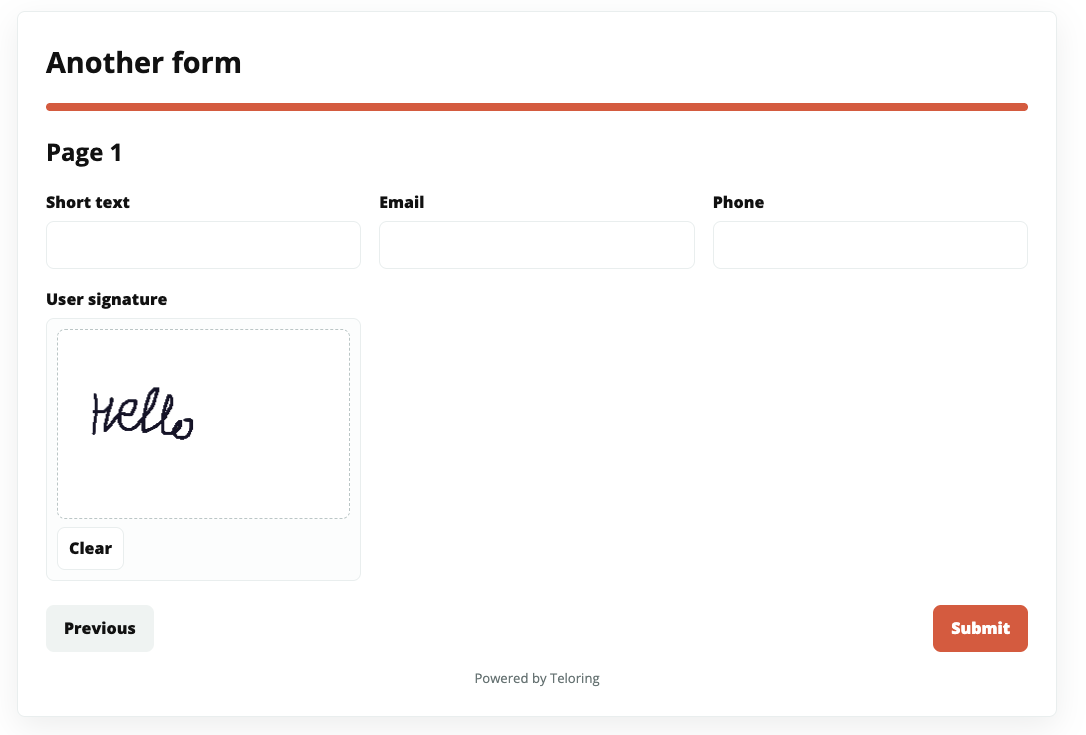
The public form is the customer-facing page.
Customers can:
| Action | Meaning |
|---|---|
| Move between pages | Use Previous and Next buttons on multi-page forms. |
| Fill required fields | Required fields must be completed before continuing. |
| View images | Images added by the form builder can appear as instructions or visual context. |
| Sign | Draw a signature with a finger on mobile or a mouse on desktop. |
| Submit | Send the completed form to Teloring. |
Submissions
Every submission is saved as an immutable snapshot. This means the submission remains readable even if the form is later edited or deleted.
Submissions include:
| Data | Meaning |
|---|---|
| Submission ID | Unique ID for the submission. |
| Form name and version | The form version used by the customer. |
| Answers | Visible fields that the customer answered or that were prefilled. |
| Hidden values | Hidden fields saved with the submission. |
| Source params | URL parameters received by the public form link. |
| Contact ID | Present when the form used a specific contact link. |
| Conversation ID | Present when the form link was generated from a conversation context. |
| Submitted time | The time the form was submitted. |
Open the Submissions tab to review submitted answers. Signature fields appear as signature previews instead of long image-data text.
Studio integration
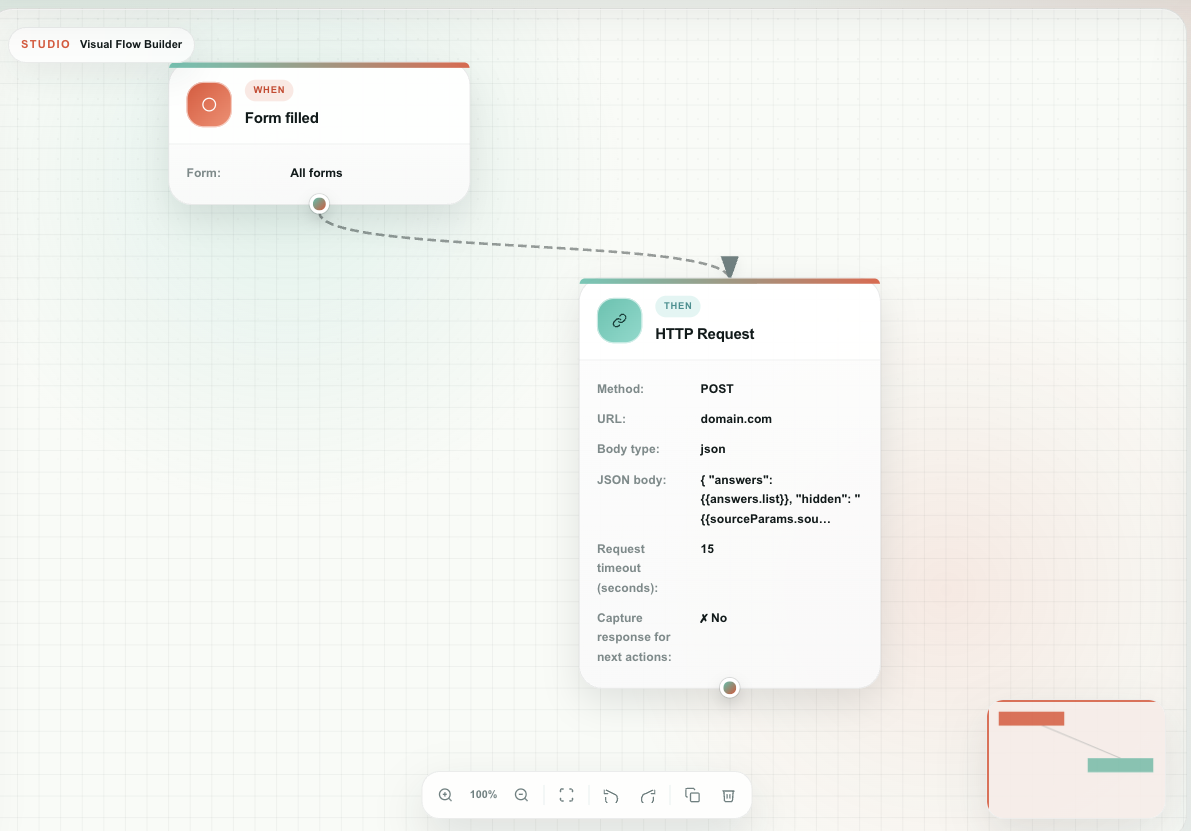
When a form is submitted, Teloring fires the Studio trigger:
trigger.form_filled
Use this trigger to automate work after a form is completed. See Form filled for the full trigger reference.
Common examples:
| Automation | Example |
|---|---|
| Notify a team | Add a private note or send an internal message when a service request form is submitted. |
| Update records | Save answers into contact or customer fields with Contact Update, or Add a record in any object — or let the form itself create the record. |
| Route work | Assign a conversation or create a follow-up task based on selected options. |
| Send data externally | Use an HTTP request action to send form data to another system. |
Studio variables
When the form created a record, {{record.id}} and {{record.object_id}} name it.
The Forms trigger exposes the submitted data as variables.
| Variable | Meaning |
|---|---|
{{form.id}} | Submitted form ID. |
{{form.name}} | Submitted form name. |
{{form.version}} | Submitted form version. |
{{submission.id}} | Submission ID. |
{{contact.id}} | Contact ID for specific forms. |
{{conversation.id}} | Conversation ID when available. |
{{answers.list}} | Array of visible answers, each with field ID, label, type, and value. |
{{answers}} | Object of answers keyed by field ID. |
{{answers.email}} | Exact answer for a field whose Field ID is email. |
{{hiddenValues}} | Object of hidden values keyed by hidden field ID. |
{{hiddenValues.campaign_id}} | Exact hidden value for hidden field ID campaign_id. |
{{sourceParams}} | Object of URL parameters from the public form URL. |
{{sourceParams.utm_source}} | Exact URL parameter value for ?utm_source=.... |
Use answers.list when sending all answers to another system. Use exact paths such as answers.email when one field should update one CRM field.
Recommended form design
Good forms are short, clear, and easy to submit.
| Recommendation | Why it helps |
|---|---|
| Use clear field labels | Customers understand what to enter. |
| Keep Field IDs stable | Studio flows and exports remain predictable. |
| Use hidden fields for tracking | Customers do not see internal campaign or routing values. |
| Split long forms into pages | Customers are less likely to abandon the form. |
| Use columns carefully | Two columns can help short fields; too many columns can make mobile forms harder to scan. |
| Test with a real public link | Confirms URL params, visibility rules, required fields, and Studio triggers. |
| Review submissions before using automation | Make sure field IDs and values match what Studio expects. |
Troubleshooting
| Problem | What to check |
|---|---|
| Public link says form not found | Confirm the form is published, the link was copied from the current form, and the public token exists. |
| A field does not appear | Check field visibility rules and page visibility rules. |
| A required field blocks submit | Check whether the field is visible and whether the required setting is intentional. |
| URL param did not prefill | Confirm the value source is URL param and the URL parameter name matches exactly. |
| A record picker shows no results | The field needs an Object, the form must be published, and the object must hold records whose name starts with what was typed. |
| The record was not created | Open the submission: its Record panel shows the reason — a value the object refused, a required field not mapped, or no room on the plan. The submission itself is always kept. |
| Hidden value missing in Studio | Confirm the hidden field has a Field ID, a value source, and a resolved value. Use {{hiddenValues.field_id}}, not a generic placeholder. |
| Studio variable is unresolved | Confirm the placeholder uses the actual field ID or URL parameter name. |
| Image does not display | Re-upload the image and save the form so Teloring can store the private file path and refresh the signed display URL. |