Triggers — the WHEN blocks
A trigger is the entry point of a flow. It answers one question: what has to happen for this flow to run?
Triggers carry the coral WHEN badge, sit in the Triggers section of the left panel, and are the only blocks you drag onto the canvas directly. Every flow needs at least one — a flow with no trigger cannot be published.
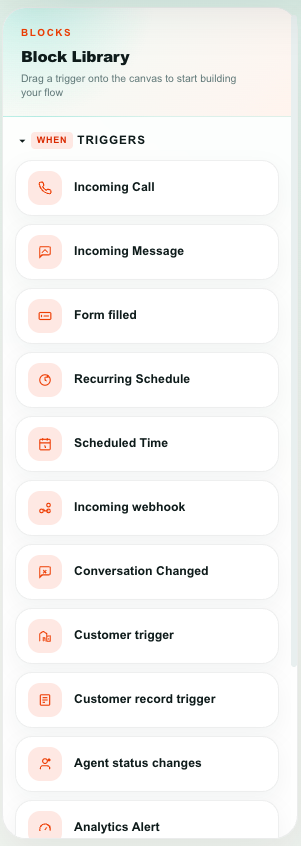
The full list
| Trigger | Fires when | Flow kind |
|---|---|---|
| Incoming Message | A customer sends a message to a selected inbox | Messaging |
| Incoming Call | A phone call arrives on a voice inbox | Voice |
| Form filled | Someone submits a Teloring form | Messaging |
| Conversation Changed | A conversation is opened, resolved, assigned to an agent or a team, labelled, flagged, prioritized, or shows an AI signal | Messaging |
| Object change | A record of any object — a customer, a contact, an order… — is created, edited or deleted | Messaging |
| Agent status changes | An agent signs in or out of Teloring | Messaging |
| Recurring Schedule | A fixed interval elapses (every N minutes / hours / days) | Messaging |
| Scheduled Time | A weekly day-and-time comes around | Messaging |
| Incoming webhook | An external system calls your unique webhook URL | Messaging |
| Analytics Alert | A report metric crosses a threshold you defined in Analytics | Messaging |
Rules that apply to every trigger
- Only live flows fire. A flow in Draft or Paused never runs on real events. Use Test Run while building.
- Several flows can match one event. If three live flows all trigger on incoming WhatsApp messages, all three run.
- One flow can hold several triggers. Studio runs the trigger node whose own settings match the event — not simply the first trigger in the flow. This lets you keep channel-specific entry points side by side in one flow.
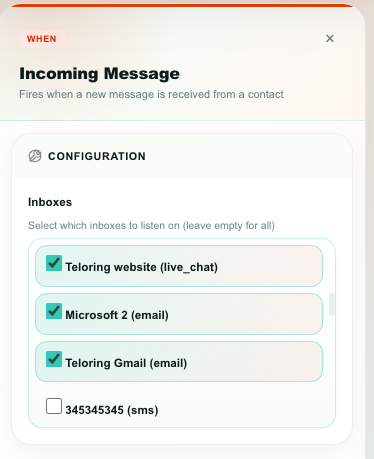
- Leaving a filter empty means "everything". An Incoming Message trigger with no inboxes selected listens on every inbox.
- Trigger failures never break Teloring. If a flow errors, the message, call, or form submission is still delivered and stored normally.
Incoming Message
Fires when a new message arrives from a customer on one of the inboxes you select.
This is the trigger behind auto-replies, chatbots, qualification questions, keyword routing, and out-of-hours messages.
Properties
| Property | What it does | Default |
|---|---|---|
| Inboxes | Tick the inboxes this flow should listen on. Leave every box unticked to listen on all inboxes. | All inboxes |
When it does not fire
| Situation | Why |
|---|---|
| A human agent is assigned to the conversation | The agent owns the conversation; Studio stays out. |
| A flow already handed the conversation to a human | Same reason — the handover sticks until the conversation is resolved or a flow runs End Session. |
| The message is outgoing | Only inbound customer messages count. |
| The message is the reply a paused flow was waiting for | It is consumed by that flow instead of starting a new run. |
Variables it produces
| Variable | Holds |
|---|---|
{{message.content}} | The message text — for a tapped WhatsApp button or a picked list row, the option's title |
{{message.content_type}} | text, image, audio, and so on — button or list when the customer tapped a WhatsApp button or picked a list row |
{{message.reply_id}} | The ID of the button or list row the customer chose (empty for anything typed) |
{{message.id}} | Message ID |
{{message.direction}} | Message direction |
{{message.created_at}} | When it arrived |
{{conversation.id}} | Conversation ID |
{{conversation.status}} | Conversation status |
{{conversation.channel_id}} · {{conversation.channel_type}} | Which inbox and which channel type |
{{conversation.assigned_agent_id}} | Assigned agent, if any |
{{conversation.custom_attributes.*}} | Your account's conversation attributes, as already filled in on this conversation |
{{contact.id}} · {{contact.name}} · {{contact.phone}} · {{contact.email}} · {{contact.company}} | The customer's contact record |
{{channel.id}} · {{channel.name}} · {{channel.type}} | The inbox the message arrived on |
Works the same on every messaging inbox — WhatsApp, Email, SMS, Telegram, LINE, Live Chat, Messenger, Facebook, Instagram, TikTok, and the developer API.
Incoming Call
Fires when a phone call arrives on one of your voice numbers. This is the only trigger that makes a flow a voice flow, which unlocks the Voice blocks and hides the messaging ones.
Properties
| Property | What it does | Default |
|---|---|---|
| Voice inbox (required) | The voice inbox / DID whose calls run this flow. | — |
| Record this call | Records every call that enters this flow. The recording is uploaded, attached to the conversation as a private note, and stored in the customer's record and the Files Warehouse. | Off |
Recording is controlled only here, at the trigger. There is no separate "start recording" action.
Variables it produces
| Variable | Holds |
|---|---|
{{call.uuid}} | Unique ID of this call |
{{call.caller_id}} | The number that is calling you |
{{call.destination}} | The number they dialled (your DID) |
{{call.direction}} · {{call.timestamp}} | Direction and arrival time |
{{call.inbox_id}} | The voice inbox |
{{call.contact_id}} · {{call.contact_name}} | The matched contact (unknown callers become a lead) |
{{conversation.id}} | The conversation created for the call |
{{contact.id}} · {{contact.name}} · {{contact.phone}} | Contact details |
{{channel.id}} · {{channel.type}} | The voice inbox |
See Voice call flows for the complete guide, including IVR menus and transfers.
Form filled
Fires when someone submits a Teloring form. Use it to route leads, notify a team, create CRM records, or start a conversation from a form.
Properties
| Property | What it does | Default |
|---|---|---|
| Form | The form to listen to, or All forms. | All forms |
Variables it produces
| Variable | Holds |
|---|---|
{{form.id}} · {{form.name}} · {{form.version}} | Which form, and which version of it |
{{submission.id}} | The submission |
{{contact.id}} | The contact, when the form is tied to one |
{{conversation.id}} | The conversation, when the form is tied to one |
{{answers.list}} | An array of the visible answers, each with field ID, label, type, and value |
{{answers}} | The answers as an object, keyed by field ID |
{{hiddenValues}} | Hidden field values, keyed by hidden field ID |
{{sourceParams}} | URL parameters the form page was opened with |
Exact answers by field ID. If a form field has the Field ID email, use {{answers.email}}. If a hidden field has the ID campaign_id, use {{hiddenValues.campaign_id}}. If the public form URL was ?utm_source=google, use {{sourceParams.utm_source}}.
Give every form field a readable Field ID before you build the flow — the ID is the variable name. See Forms Builder.
Conversation Changed
Fires when something about a conversation changes: it was opened or resolved, an agent or a team was assigned or removed, labels were added, the flag or priority changed, or AI detected a signal.
This is the trigger for escalation rules, SLA notifications, "customer sounds unhappy" alerts, and post-resolution follow-ups.
Properties
Every filter defaults to any. Combine them to narrow down exactly which change you care about.
| Property | Options | What it does |
|---|---|---|
| Inboxes | Any inboxes | Only react to conversations on these inboxes. Empty = all. |
| Status Change | Any change · Conversation opened · Conversation resolved | Which status event to react to. |
| Agent Assignment | Any agent · Agent assigned (any) · Agent removed · Specific agent assigned | Which assignment event to react to. |
| Specific Agents | Agent picker | Appears when Specific agent assigned is chosen. Pick one or more agents. |
| Team Assignment | Any team · Team assigned (any) · Team removed · Specific team assigned | Which team assignment event to react to. |
| Specific Teams | Team picker | Appears when Specific team assigned is chosen. Pick one or more teams. |
| Labels Added | Any label · Specific labels | React to any new label, or only to the ones you list. |
| Specific Labels | One label per line | Appears when Specific labels is chosen. |
| Flag | Any flag · 🔴 Red · 🟠 Orange · 🟡 Yellow · 🟢 Green · 🔵 Blue · 🟣 Purple | React to a specific flag color. |
| Priority | Any priority · Urgent · High · Medium · Low | React to a specific priority. |
| AI Signals | Any AI signal · Feelings / emotion detected · Churn risk · Upsale opportunity | React to an AI-detected signal on the conversation. |
| Also react to changes made by automations | Off · On | Off by default: a change made by a Studio action or the AI Agent does not fire this trigger, so a flow cannot re-trigger itself. Turn it on only when this flow must run after another automation changes the conversation. |
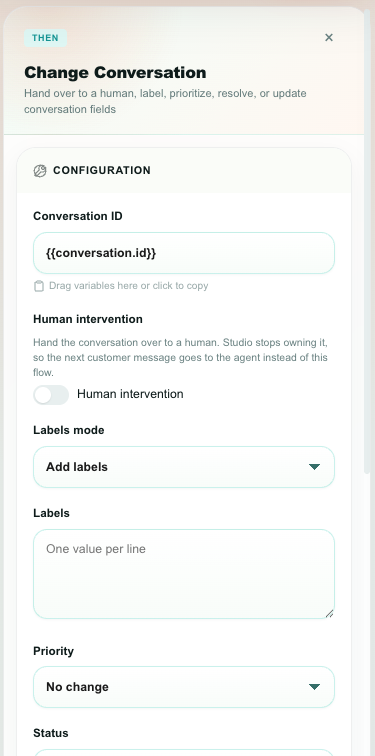
A flow that listens for Conversation Changed and then runs Update Conversation used to trigger itself again on every run. Studio now tells changes made by people apart from changes made by automations: by default, this trigger ignores changes made by a Studio action or the AI Agent, so the loop never starts. If you switch Also react to changes made by automations on, chains of flows are allowed but stop after 5 flows deep, and each account is limited to 300 flow runs per minute. The same rule applies to the Object change trigger.
Variables it produces
Alongside the usual contact.* and channel.* variables:
| Variable | Holds |
|---|---|
{{conversation.id}} · {{conversation.status}} · {{conversation.previous_status}} | The conversation and its status before and after |
{{conversation.assigned_agent_id}} · {{conversation.previous_agent_id}} | Agent assignment before and after |
{{conversation.assigned_team_id}} · {{conversation.assigned_team_name}} · {{conversation.previous_team_id}} | Team assignment before and after, plus the current team's name |
{{conversation.priority}} · {{conversation.previous_priority}} | Priority before and after |
{{conversation.flag}} · {{conversation.previous_flag}} | Flag before and after |
{{conversation.labels}} · {{conversation.labels_added}} | All labels, and just the ones added by this change |
{{conversation.customer_emotion}} · {{conversation.previous_customer_emotion}} | Emotion score before and after |
{{conversation.custom_attributes.*}} | Your account's conversation attributes, as currently stored on the conversation |
{{conversation.channel_id}} · {{conversation.channel_type}} | The inbox |
{{change.type}} · {{change.field}} | What kind of change it was, and which field changed |
{{ai.signal}} · {{ai.message}} | The AI signal and its explanation |
A brand-new conversation fires this trigger with change.type = opened, after the conversation exists — so {{conversation.id}} is always safe to use downstream.
{{change.type}} reports team changes separately from agent changes: team_assigned and team_unassigned, versus assigned and unassigned for an individual agent. That lets a flow react to "handed to Sales" without also firing on every personal assignment.
Saving the Conversation Attributes panel counts as a conversation change, so this trigger fires. Follow it with a Condition on {{conversation.custom_attributes.outcome}} to build rules such as "when Outcome is set to Escalated, notify the duty manager".
- Flows published before Teams existed keep working unchanged — Team Assignment defaults to Any team.
- Specific team assigned with nothing selected never fires. An empty selection means "no team matches", not "every team", so an unfinished trigger cannot fire on assignments you never asked for.
Object change
Fires when a record of one object is created, edited or deleted — a customer, a contact, an order, a service call, any object under Objects. One block covers every object: pick which, and which events.

Properties
| Property | Options | Default |
|---|---|---|
| Object (required) | One of the account's objects | — (a flow cannot be published without it) |
| Fire on | Created · Edited · Deleted | All three |
| Only when these fields change | Any of the object's fields; shown when Edited is ticked | Empty — any edit fires |
| Also react to changes made by automations | Off · On | Off: records written by a Studio action or the AI Agent do not fire this trigger (see loop protection). Imports and background lookup refreshes never fire it. |
Button clicks and formulas
- A button field fires this trigger on every click: tick Edited and choose the button under Only when these fields change.
{{record.<button>}}holds the time of the click and{{event.changed_by}}who clicked. See Buttons. - A formula field counts as changed when an edit to the fields it reads changes its result, so you can watch it like any other field. Formula values recalculated in the background (after a lookup or a count moved) do not fire the trigger.
Variables it produces
| Variable | Holds |
|---|---|
{{record.id}} · {{record.label}} · {{record.url}} | The record, its name (primary field) and a link to its page |
{{record.<field>}} | Every field of the record by its API ID — {{record.status}}, {{record.amount}}, {{record.customer}} (linked records are ids, lists are comma-separated, checkboxes true / false) |
{{record.old.<field>}} | The value before an edit |
{{record.changed_fields}} | Which fields an edit changed, comma-separated |
{{object.id}} · {{object.api_id}} · {{object.label}} | The object |
{{event.action}} · {{event.changed_by}} · {{event.changed_at}} | created, updated or deleted; who and when |
The field list in the Variables panel follows the object you picked, so {{record.…}} offers the real fields.
Agent status changes
Fires when an agent signs in to or out of Teloring. "Online" here means the same green dot you see in Team Chat — a live session, not a status the agent picks.
Properties
| Property | Options | Default |
|---|---|---|
| Status | Agent goes online · Agent goes offline | Both |
| Agents | Pick specific agents, or leave empty for all agents. | All agents |
AI Agents are never included — they hold no session.
Variables it produces
| Variable | Holds |
|---|---|
{{agent.id}} · {{agent.name}} · {{agent.email}} | Who |
{{agent.status}} · {{agent.previous_status}} | New and previous status |
{{agent.changed_at}} | When |
Good uses: notify a manager when the last agent signs out, post a private note when the on-call agent comes online, or re-route waiting conversations at shift change.
Recurring Schedule
Runs the flow repeatedly at a fixed interval — the Studio equivalent of a cron job.
Properties
| Property | What it does | Default |
|---|---|---|
| Every | How many units between runs (1–1440). | 1 |
| Unit | Minutes · Hours · Days | Minutes |
| Limit | Value |
|---|---|
| Shortest interval | 1 minute |
| Longest interval | 24 hours (a Days value is capped at one day) |
Variables it produces
| Variable | Holds |
|---|---|
{{schedule.triggered_at}} | When this run started |
{{schedule.interval_seconds}} | The configured interval in seconds |
A recurring flow runs on its own, with no conversation attached. Blocks that default to {{conversation.id}} have nothing to work with unless you supply a conversation ID yourself — usually from an HTTP Request or a saved variable.
Scheduled Time
Runs the flow on a weekly timetable — one or more day-and-time rows, each with its own timezone.
Properties
| Property | What it does |
|---|---|
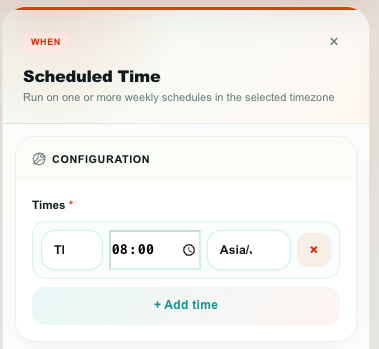
| Times | A list of schedule rows. Each row has a day of week, an hour and minute (24-hour), and a timezone. Add as many rows as you need. |
Use one row for "every Monday at 09:00", or seven rows for "every day at 08:00". Different rows can use different timezones, which is useful for teams spread across regions.
Variables it produces
| Variable | Holds |
|---|---|
{{schedule.triggered_at}} | When this run started |
{{schedule.day_of_week}} · {{schedule.hour}} · {{schedule.minute}} | The row that fired |
{{schedule.timezone}} | That row's timezone |
Incoming webhook
Gives the flow its own public URL. When an external system calls that URL, the flow runs — with the request's body, query string, and headers available as variables.
Use it to start a flow from your website, your billing system, a CRM, an order platform, Zapier/Make, or any service that can send an HTTP request.
Properties
| Property | What it does | Default |
|---|---|---|
| Webhook URL | The unique URL for this trigger, ready to copy. Every trigger node gets its own. | Generated |
| Allowed Methods | Which HTTP methods are accepted: GET, POST, PUT, PATCH, DELETE. | POST |
| Learn next request | Captures the next request that arrives and remembers its shape. | On |
| Learned Variables | Read-only chips showing every variable Studio found in the learned payload. | Empty |
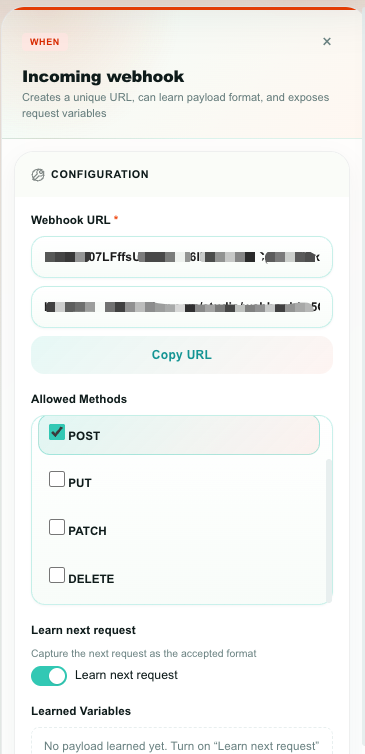
How to set one up
- Add the Incoming webhook trigger and copy its URL.
- Leave Learn next request on.
- Send one real request from the external system to that URL — the exact request you intend to use in production.
- Studio captures it. The editor updates by itself: Learn next request switches off and the Learned Variables chips appear.
- Drag those variables into the blocks below.
After learning
Once a format is learned, Studio only accepts requests that match it: the same method, the same content type, the same body kind, and the required query and body keys. Anything else is rejected, which keeps a malformed or unrelated call from running your flow.
To accept a different shape, turn Learn next request back on and send the new request.
Variables it produces
| Variable | Holds |
|---|---|
{{webhook.method}} | GET, POST, … |
{{webhook.content_type}} | The request's content type |
{{webhook.sender_ip}} · {{webhook.host}} · {{webhook.user_agent}} | Who called, and how |
{{webhook.body}} | The whole body |
{{webhook.query}} | The query string as an object |
{{webhook.headers}} | The headers as an object |
Plus one variable per field found in the learned payload — for example {{webhook.body.order_id}} or {{webhook.query.token}}.
The webhook URL is public and unguessable. Treat it like a password: don't publish it, and rotate it (by deleting the trigger and adding a new one) if it leaks.
Analytics Alert
Fires when a report metric crosses a threshold you defined in Analytics — for example "open conversations above 50", "average first response above 10 minutes", or "CSAT below 4".
Properties
| Property | What it does |
|---|---|
| Alerts to monitor (required) | Tick one or more alerts you created in Analytics. Publishing a live flow that references them switches their monitoring on. |
If the list is empty, create an alert first from a report in Analytics.
Two outputs
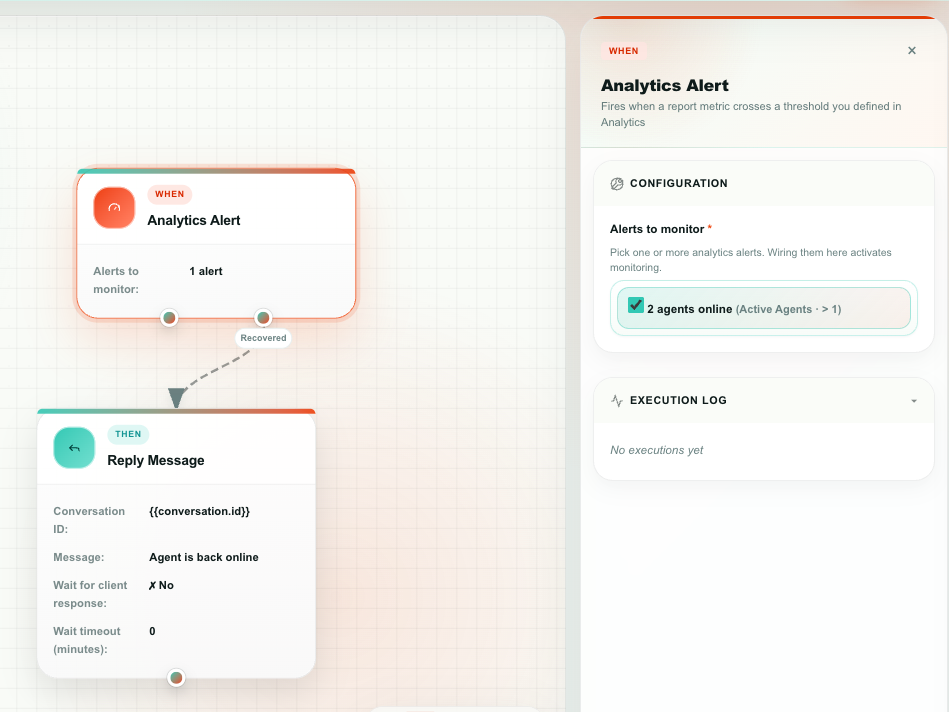
| Output | Fires when |
|---|---|
| Alert | The metric crossed the threshold. |
| Recovered | The metric came back to normal. Wiring this is optional. |
The alert fires once per crossing. While the metric stays over the line it will not fire again — you get one alert, then one recovery, not a message every minute.
Variables it produces
| Variable | Holds |
|---|---|
{{alert.name}} | The alert's name |
{{alert.report_title}} · {{alert.report_type}} | The report behind it |
{{alert.current_value}} · {{alert.threshold}} | The value now, and the line it crossed |
{{alert.direction}} | above or below |
{{alert.series}} | Which series or category crossed, for grouped reports |
{{alert.state}} | in_alert or normal |
{{alert.event}} | alert or recovered |
{{alert.crossed_at}} | When it crossed |
{{alert.id}} · {{alert.report_id}} · {{alert.dashboard_id}} | IDs, for building links |
Deleting an alert disables the flows that use it. If an alert (or the report behind it) is deleted, every flow referencing it gets a warning badge on its card and is paused if it was live. Choose a different alert and republish to clear it.
Next
- Actions — the THEN blocks — what to do once a trigger fires.
- Variables — using everything a trigger produced.
- Flow recipes — complete examples per trigger.