Conditions — the IF blocks
A condition decides which way the flow goes. It carries the amber IF badge and has one output port per outcome, so you can wire a different path to each one.
Studio has three condition blocks:
| Block | Question it asks | Outputs |
|---|---|---|
| Condition If/Else | Does this value match my rule? | One port per IF branch, plus an optional ELSE |
| Business Hours | Are we open right now? | Open · Closed |
| Agent Availability | Is anyone signed in to take this? | Online · Offline |
All three appear in the Flow group of the block picker, and all three work in both messaging and voice flows.
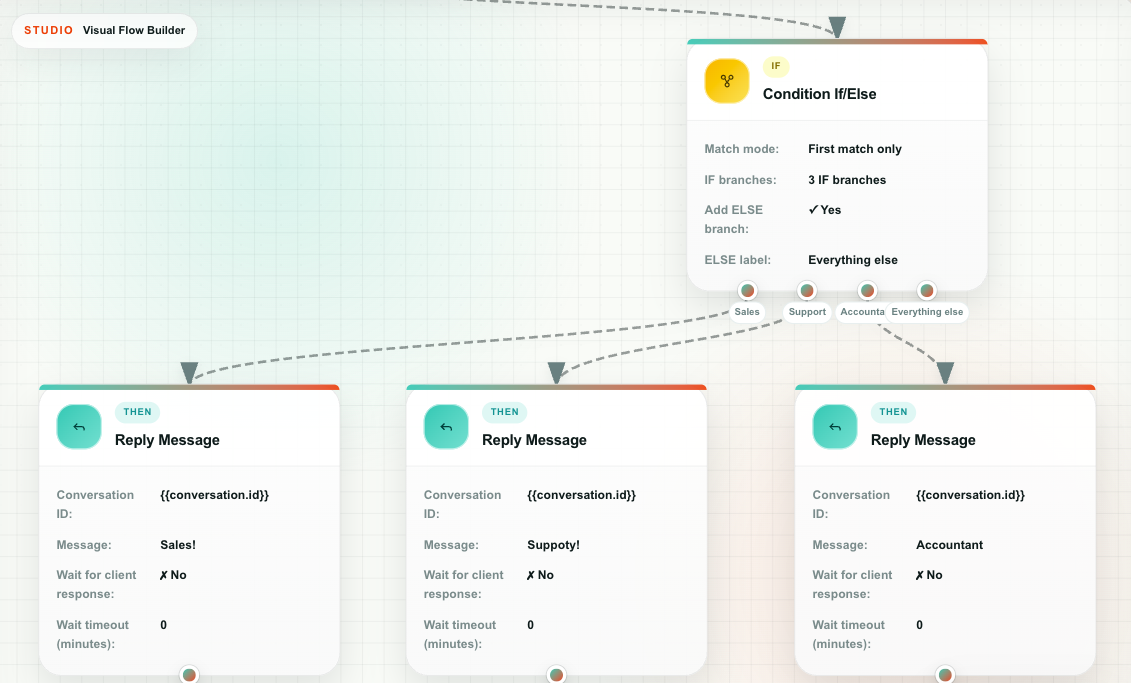
Condition If/Else
Routes the flow by comparing a value against a rule. Each rule you add becomes its own labelled output port.
Properties
| Property | Options | What it does |
|---|---|---|
| Match mode | First match only · All matching branches | What to do when more than one rule matches. |
| IF branches | A list of rules | Each row is one branch. See below. |
| Add ELSE branch | On / Off | Adds a catch-all port for everything that matched nothing. |
| ELSE label | Text | The name shown under the ELSE port. Defaults to Everything else. |
Anatomy of a rule
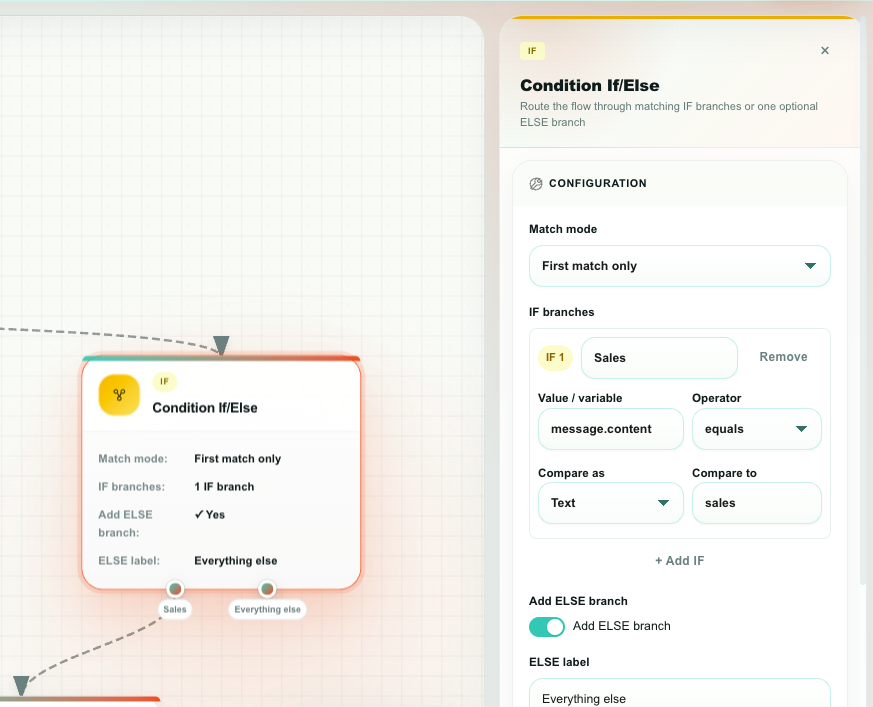
Each IF row has four parts:
| Part | What to put in it |
|---|---|
| Branch label | A short name — Sales, Support, VIP. It becomes the port label on the canvas, so make it readable. |
| Value / variable | The thing being tested, written as a plain variable key: message.content, client_reply.content, http.json.status. |
| Operator | How to compare. See the table below. |
| Compare as | Text · Number · Boolean · Variable — how to read the right-hand side. |
| Compare to | What to compare against: a word, a number, true, or another variable. |
Operators
| Operator | True when | Notes |
|---|---|---|
| equals | The two values are the same | |
| does not equal | They differ | |
| contains | The right-hand text appears anywhere in the left-hand value | Not case-sensitive |
| does not contain | It does not appear | Not case-sensitive |
| starts with | The value begins with the text | Not case-sensitive |
| ends with | The value ends with the text | Not case-sensitive |
| greater than | Left > right | Numbers only; a non-numeric value is never a match |
| greater/equal | Left ≥ right | Numbers only |
| less than | Left < right | Numbers only |
| less/equal | Left ≤ right | Numbers only |
| exists | The value is present and not empty | Compare to is ignored |
| does not exist | The value is missing or empty | Compare to is ignored |
contains is the workhorse for customer replies — people type "sales please" and "I need SALES", not "sales". Reach for equals only when you control the value, for example an HTTP response code or an IVR digit.
Match mode
| Mode | Behavior |
|---|---|
| First match only | Rules are checked top to bottom; the first one that matches wins and only its branch runs. Order your rules from most specific to most general. |
| All matching branches | Every rule that matches runs its branch, in parallel. |
The ELSE branch runs only when no IF rule matched at all.
Branch ports
Every IF rule adds a port under the block, labelled with the branch name; ELSE adds one more. Drag a connector from each port to whatever should happen on that path. A port you leave unconnected simply ends that path — which is a perfectly good way to say "do nothing in this case".
Conditions after a wait
When a condition sits after a Reply Message with Wait for client response on, it evaluates against the customer's answer. Both {{message.content}} and {{client_reply.content}} hold that answer.
If a post-wait condition matches nothing and has no ELSE branch, the flow stays parked at the condition and re-evaluates on the customer's next message. That is useful for "keep asking until they pick a valid option", but it means a customer can loop forever. Always give them a way out: an ELSE branch, a handover to a human, or an End Session block.
Business Hours
Routes the flow by a named schedule you defined in Settings — weekly opening hours in a chosen timezone, with optional holiday calendars.
Properties
| Property | What it does |
|---|---|
| Schedule (required) | Pick one of the account's business-hours schedules. |
Outputs
| Port | Runs when |
|---|---|
| Open | The current time falls inside the schedule's opening hours. |
| Closed | It falls outside them, or the day is a holiday on a calendar the schedule considers. |
| Variable | Holds |
|---|---|
{{business_hours.status}} | open or closed |
{{business_hours.schedule_id}} | Which schedule was evaluated |
{{business_hours.timezone}} | The schedule's timezone |
Notes
- The schedule's own timezone is used, not the customer's and not the browser's. A team in Tel Aviv and a team in London can each have their own schedule in the same account.
- Schedules are created in Settings → Business Hours. New accounts have none — create the ones you actually need. See Settings.
- The same schedule can be reused by any number of flows. Change the hours once and every flow follows.
Good uses: an out-of-hours auto-reply on messaging, and a "we're closed, leave a message" branch on a phone flow.
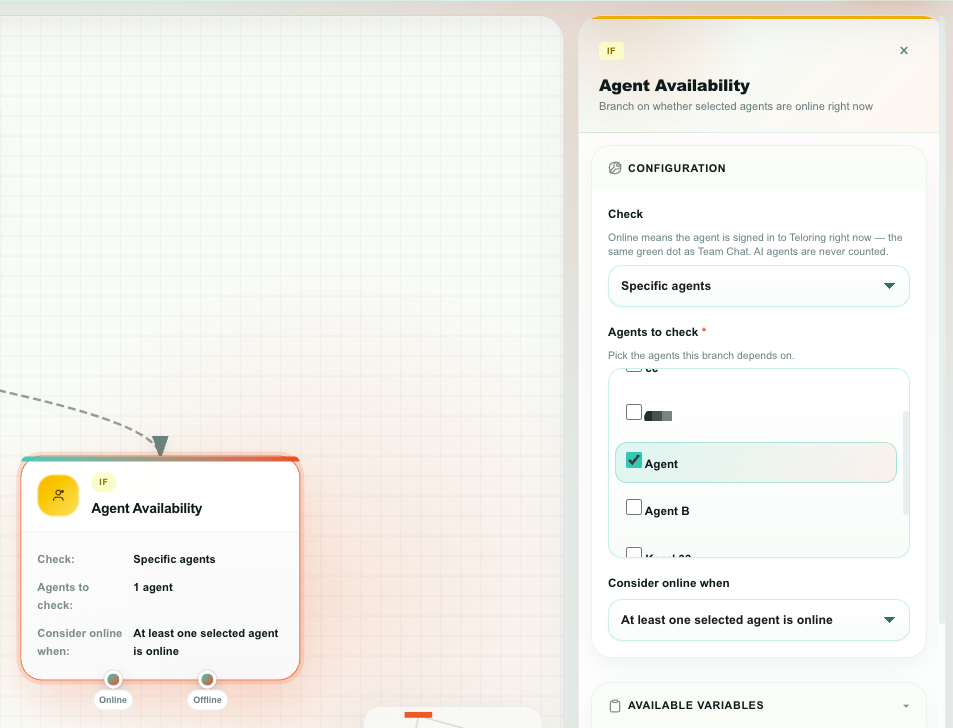
Agent Availability
Asks whether anyone is signed in to Teloring right now — the same green dot you see in Team Chat. It is a live-session check, not a status an agent sets.
Properties
| Property | Options | What it does |
|---|---|---|
| Check | Specific agents · Anyone in the account | Who to look at. |
| Agents to check (required for Specific) | Agent picker | The agents this branch depends on. |
| Consider online when | At least one selected agent is online · All selected agents are online | How strict the check is. Appears for Specific agents. |
Outputs
| Port | Runs when |
|---|---|
| Online | The check passed. |
| Offline | It did not. |
| Variable | Holds |
|---|---|
{{availability.status}} | online or offline |
{{availability.online_count}} · {{availability.offline_count}} · {{availability.checked_count}} | The counts behind the answer |
{{availability.online_ids}} · {{availability.offline_ids}} | Which agents |
{{availability.first_online_id}} · {{availability.first_online_name}} | A convenient "someone who can take this" |
Two rules worth knowing
- An empty selection is never "everybody". If Check is set to Specific agents and no agent is selected, the result is Offline and the block shows a warning. This is deliberate: an unfinished block must not quietly behave like Anyone in the account and pass because some unrelated teammate happens to be signed in.
- AI Agents never count as online. They hold no session, so an always-available AI Agent cannot satisfy a human-availability branch. They are also left out of the picker.
{{availability.first_online_name}} is handy for a message like Connecting you to {{availability.first_online_name}}… right before you hand the conversation over.
Rehearsing a branch
A condition that tests something from outside the conversation — an HTTP Request response, a saved variable, a Code output — cannot be evaluated by the simulator, because the simulation never made that outside call.
Rather than guess, the simulator stops and offers your own branches as buttons, including the ELSE branch as None of the above. You pick the answer the outside system would have given and the rehearsal carries on down that path. Business Hours and Agent Availability are always asked about for the same reason, which is what lets you rehearse after-hours behaviour in the middle of the morning.
See When the simulator asks you a question.
On a real run, the branch a condition chose is recorded. Open the run in Executions, click the condition's step, and Branch taken names the port the flow left through.
Next
- Actions — the THEN blocks — what each branch can do.
- Variables — what you can test in a rule.
- Flow recipes — branching used in complete flows.