Build a flow with AI (Hermes)
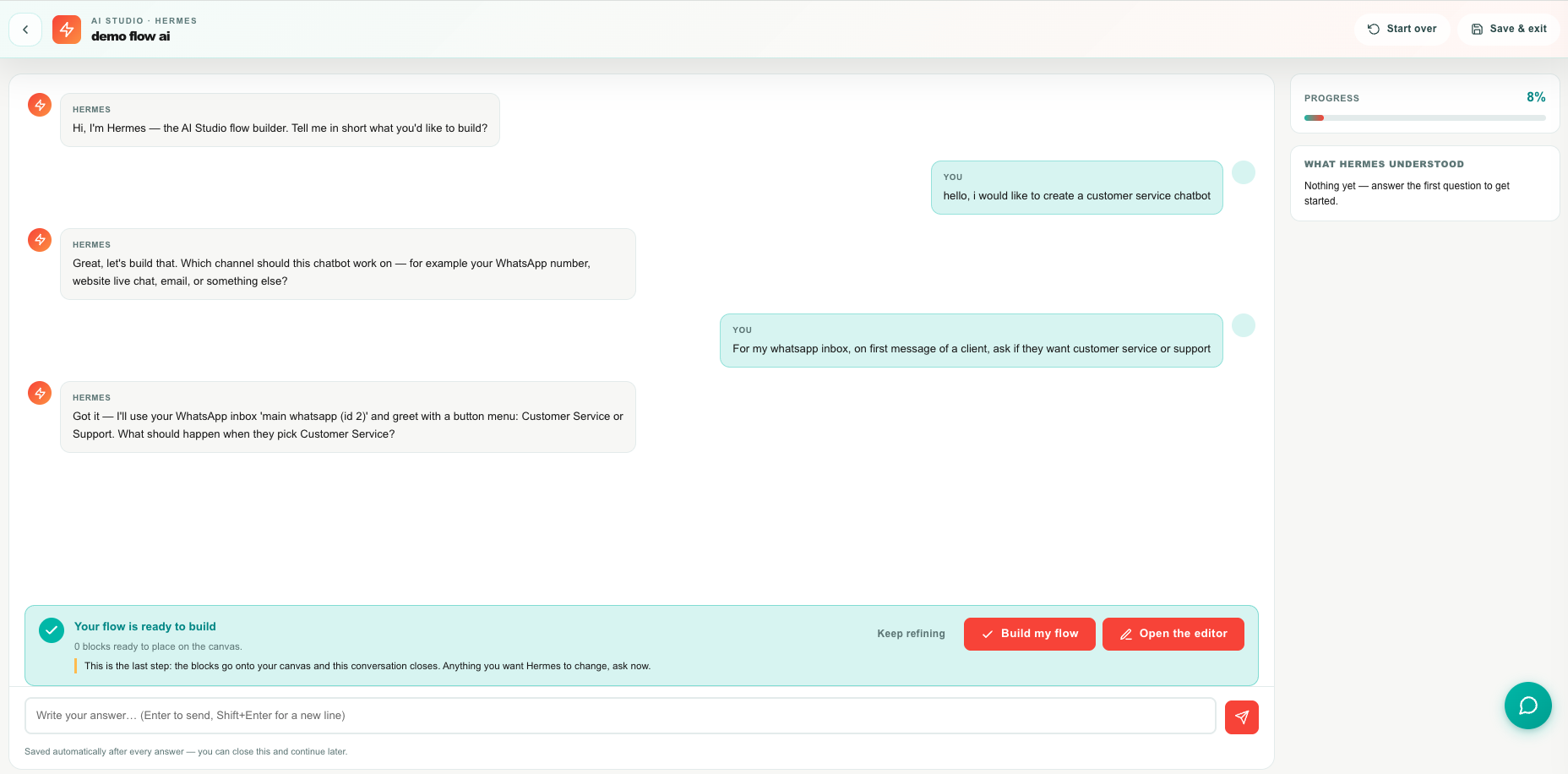
Hermes is the AI flow builder inside Studio. Instead of dragging blocks onto a canvas, you describe what you want in your own words. Hermes asks a handful of follow-up questions, and when it has everything it needs it builds the whole flow for you — the blocks, their settings, and the connections between them.
The result is a normal Studio flow. Nothing about it is locked or special: you open it in the canvas editor, change anything you like, and publish it yourself.
When to use it
| Use Hermes when | Build it yourself when |
|---|---|
| You know what you want to happen but not which blocks to use | You already know the blocks and just want to place them |
| You are new to Studio and want a working example to learn from | You are making a small edit to an existing flow |
| You want a first draft fast, then to refine it by hand | The flow depends on an uploaded file or a WhatsApp template you must pick yourself |
| Your flow has several branches and you want the wiring done for you | You are copying an existing flow's structure |
Hermes is a starting point, not a replacement for the editor. Most teams let Hermes build the skeleton, then spend two minutes polishing the wording of the replies on the canvas.
Before you start
| Requirement | Detail |
|---|---|
| AI Studio must be on | Somebody with AI World → Update turns on the AI Studio switch in AI World. Until then the AI option in Studio is visible but not selectable. |
| Who can use it | Any signed-in agent with Studio → Create. See Roles and Permissions. |
| Your inboxes should exist first | Hermes offers your real inboxes, teams, agents, schedules, and CRM objects by name. If the inbox you want to automate is not connected yet, connect it first — see The Ring. |
| Language | Hermes writes to you in your Teloring interface language (English or Hebrew), and writes the customer-facing message text inside the blocks in that same language. |
If the Use AI to build card is greyed out with "Enable AI Studio to use this", ask an account administrator to switch AI Studio on in AI World. Agents cannot change AI switches themselves.
Start a flow with AI
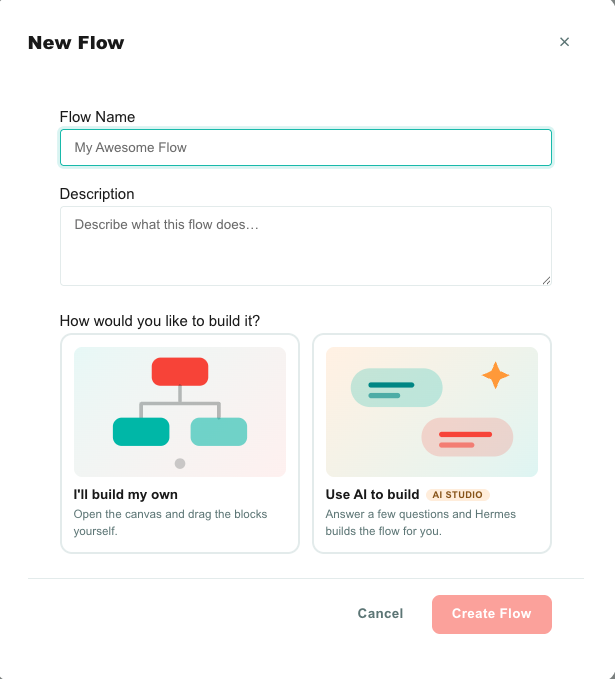
- Open Studio from the sidebar and click New Flow.
- Give the flow a name and, ideally, a short description. Hermes reads both —
WhatsApp — route to sales or supporttells it much more thanFlow 4. - Under How would you like to build it?, choose one of the two cards. Neither is pre-selected, and the button stays disabled until you pick one.
- Click Start with AI.
| Card | What happens |
|---|---|
| I'll build my own | The flow is created and the canvas editor opens, exactly as it always has. |
| Use AI to build | The flow is created and the Hermes chat opens. The button label changes to Start with AI. |
The flow is created as a draft either way, before the conversation starts. If you abandon the interview halfway, you have not lost anything — you are left with an ordinary empty draft flow you can open in the editor or delete.
The Hermes screen
The page has three parts: the conversation in the middle, a progress rail on the right, and a header with two exit actions.

Header
| Element | What it is |
|---|---|
| ← | Back to the Studio flow list. |
| AI Studio · Hermes | The kicker, with the flow's name underneath. |
| Start over | Throws this conversation away and begins a new interview for the same flow. You are asked to confirm, because everything Hermes has collected is lost. |
| Save & exit | Leaves the conversation. Nothing is lost — every answer is already saved. You return to the flow list. |
Neither header button builds anything. There is exactly one build action on the page, and it lives in the panel above the message box.
The conversation
Hermes opens with the same greeting every time:
Hi, I'm Hermes — the AI Studio flow builder. Tell me in short what you'd like to build?
Answer in plain language. There is no syntax, no block names to learn, and no need to know how Studio works:
"I want customers who message us on WhatsApp to choose sales or support, and go to the right team."
From there, every question depends on your last answer. There is no fixed questionnaire. If you said "departments", Hermes asks which departments; if you said "abandoned carts", it asks something else entirely. Along the way it asks about the things that decide which blocks it needs — which inbox, who handles what, what the customer should see, what happens on each branch, what happens when nobody answers, and when the automation should stop.
| Element | What it is |
|---|---|
| Hermes bubble | A question, a short confirmation, or the closing summary. |
| You bubble | Your answer. |
| Thinking… | Hermes is working out the next question and redrawing the flow. This takes a few seconds. |
| Message box | Type your answer. Enter sends it; Shift + Enter starts a new line. Up to 2,000 characters per answer. |
Answer with real detail. "Sales and support" is fine, but "Sales and support — after hours everyone goes to support" saves Hermes two questions and gets you a better flow.
Progress rail
The rail on the right shows what Hermes has understood so far, so you can catch a misunderstanding early instead of at the end.
| Section | What it shows |
|---|---|
| Progress | A percentage and bar — Hermes's own estimate of how far the interview is. It is a guide, not a countdown. |
| What Hermes understood | Every decision collected so far, one line each. This list is rewritten in full after every answer, so it always reflects the current design. Read it. If a line is wrong, say so in your next message. |
| Blocks so far | How many blocks the flow currently contains. Hermes redraws the whole flow after each answer, so this number can go up or down. |
| Needs your attention | Things you will have to finish by hand after the flow is built — see Warnings. Only appears when there is something to say. |
"Blocks so far" is a count, not a preview. You see the actual flow on the canvas after you build it.
Stop and continue later
The interview is saved after every single answer. You can close the tab at any question — mid-sentence, mid-branch, at the end of the day — and nothing is lost.
To pick it up again:
- Open Studio.
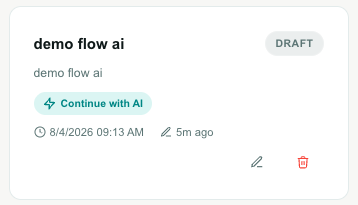
- The flow's card shows a ⚡ Continue with AI badge.
- Click the card. The conversation reopens with the full transcript, the progress bar, and everything Hermes had understood.
| Where you click | Where you land |
|---|---|
| The card itself, while Continue with AI is shown | Back into the Hermes conversation |
| The card's ✏️ Edit button | The canvas editor, at any time |
| The card itself, once the flow has been built | The canvas editor, like any other flow |
If you open the editor mid-interview and add blocks by hand, Hermes will refuse to build over your work later — see Hermes will not overwrite your edits. Finish the interview first, then edit.
Build the flow
When Hermes has everything it needs, it says so and a panel appears above the message box.

| Element | What it does |
|---|---|
| Your flow is ready to build | Plus the number of blocks waiting to be placed. |
| The amber note | "This is the last step: the blocks go onto your canvas and this conversation closes. Anything you want Hermes to change, ask now." |
| Keep refining | Puts your cursor back in the message box. Use it to ask for a change before committing. |
| Build my flow | Opens the confirmation dialog. |
Ask for changes first
Until you press Build my flow, nothing has been written to the canvas and you can keep talking. Hermes redraws the entire flow after each answer, so changes are cheap:
"Add a message before the menu that says we're open 9 to 5."
"If nobody picks a department, send it to support instead of asking again."
"Make the greeting shorter."
The confirmation
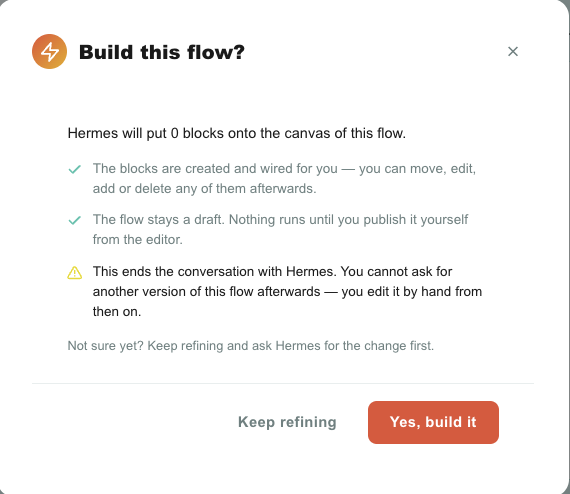
Build my flow opens a dialog that spells out all three consequences, because two of them are one-way:
| What it means | |
|---|---|
| ✅ The blocks are created and wired for you | You can move, edit, add, or delete any of them afterwards. Nothing is locked. |
| ✅ The flow stays a draft | Nothing runs until you publish it from the editor. No customer is affected by pressing Build. |
| ⚠️ This ends the conversation with Hermes | You cannot ask for another version of this flow afterwards. From then on you edit it by hand. |
Click Yes, build it and Studio places the blocks and opens the canvas editor. Click Keep refining to go back to the conversation.
Why building is final
Once the blocks are on the canvas, they are yours. If Hermes could rebuild the flow later it would have to replace whatever you had changed in the meantime — so instead the conversation closes and the editor takes over. The message box is disabled and reads "The flow is built — continue in the editor."
If you want a different flow built by AI, create a new flow and start a new interview.
After Hermes builds
You land in the normal canvas editor with the flow laid out top-to-bottom.
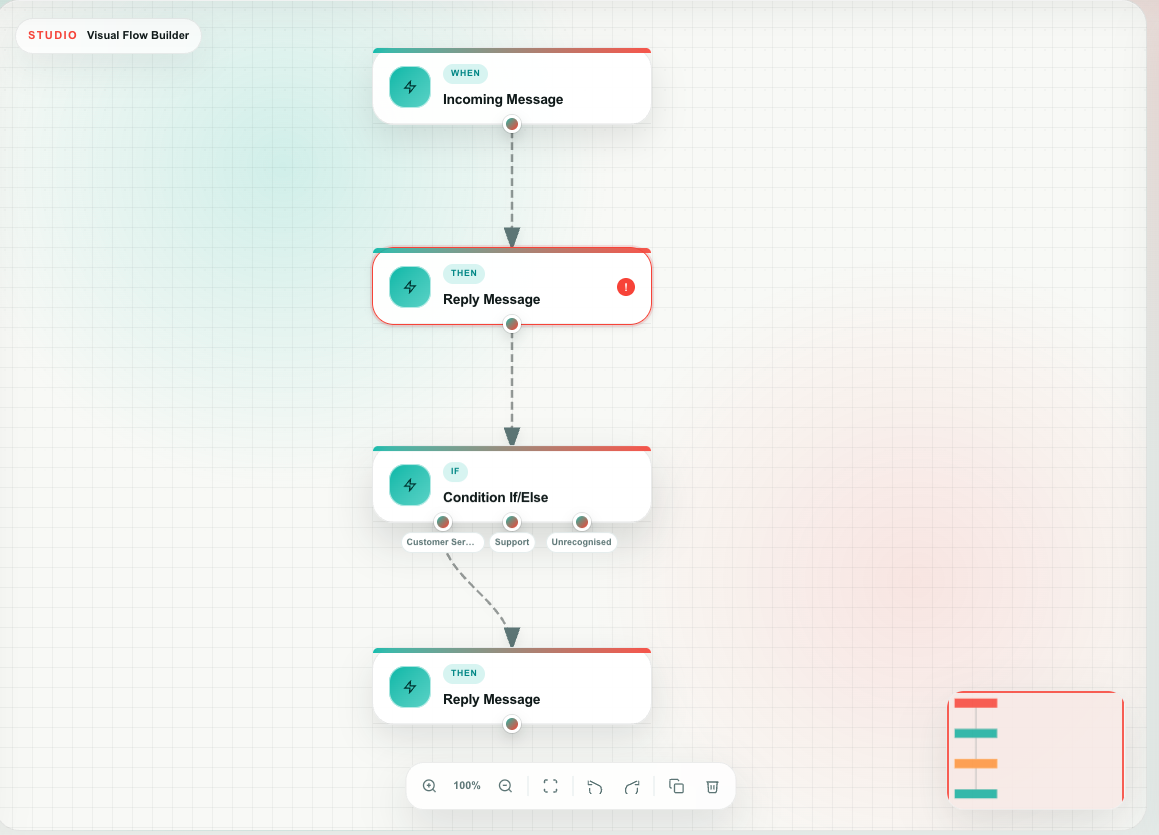
Your next steps are the ordinary Studio ones:
- Read the blocks. Click each one and check its settings in the right panel. Hermes writes real message text — make it sound like your brand.
- Clear any warning badges. Anything Hermes could not fill in (an uploaded voice prompt, a WhatsApp template) shows a ⚠ badge on the block. See warnings on a block.
- Test Run. Walk the draft with sample data — nothing reaches real customers. See Test Run.
- Publish. The flow goes live only when you press Publish. See Publishing.
A flow Hermes built is a completely ordinary flow. Version history, pause and resume, Test Run, saved variables, and delete all work exactly as they do for a flow you drew by hand.
What Hermes knows
Two things, and both come from your live account rather than from a generic template library. This is why Hermes asks "Support or Sales?" using your real inbox names, and why the blocks it produces are already pointing at the right things.
| Hermes knows | So it can |
|---|---|
| Every Studio block — triggers, actions, and conditions, with all of their real settings | Choose the correct block and fill in its properties, including branch rules and output ports |
| Your inboxes, by name and channel type | Ask which inbox, and write the real inbox into the trigger |
| Your agents (and which of them are AI agents) | Route to a named person, and avoid sending "wait for a human" to an AI agent |
| Your teams | Hand a conversation to Sales or Support by name |
| Your labels, forms, and business-hours schedules | Tag conversations, listen to the right form, and branch on opening hours |
| Your CRM objects and their fields | Create or update a Deal, Service Call, or Task with the right field keys |
| Your analytics alerts | Start a flow when one of your own thresholds trips |
Hermes can only see your account. It never sees another business's inboxes, conversations, contacts, or flows.
What Hermes cannot do
| Not possible | What to do instead |
|---|---|
| Upload a file for you — a voice prompt (WAV) or WhatsApp template media | Hermes builds the block and tells you; you attach the file in the editor |
| Pick a WhatsApp template | Choose the approved template on the block in the editor |
| Publish the flow | You publish, always |
| Edit a flow that already has blocks | Start a new flow, or edit the existing one by hand |
| Use an inbox, team, or object you have not created | Create it first, then start the interview |
Warnings
Needs your attention in the right rail lists anything Hermes wants you to know before the flow can work. The same items are worth re-reading after the flow is built.
| Warning | Meaning | What to do |
|---|---|---|
| "…is not one of this account's resources" | Hermes referred to an inbox, team, agent, or object that does not exist | Open the block on the canvas and pick the right one from the dropdown |
| "…removed a selection that does not exist in this account" | Same, for a multiple-choice field such as an inbox filter | Tick the correct inboxes on the block |
| "…is not connected to anything and will not run" | A block has nothing pointing into it | Wire it in from an earlier block, or delete it |
| "…the '…' branch has nothing wired to it" | A condition or IVR branch leads nowhere | Connect it, or accept that this path simply ends |
| "…cannot be used in a … flow and was removed" | A voice block landed in a messaging flow, or the reverse | Usually nothing — Hermes already removed it. Check the flow still does what you asked |
| "upload the … in the editor" | A block needs a file only you can provide | Open the block and upload it |
Warnings do not stop you from building. They are the short list of things to finish by hand.
Hermes will not overwrite your edits
Studio protects work that a person did:
| Situation | What happens |
|---|---|
| You start an interview on a flow that already has blocks | Refused: "This flow already has blocks. Create a new flow to build one with AI." |
| You edit the canvas by hand mid-interview, then press Build my flow | Refused, with a message pointing you to the editor. Your edits stay untouched |
| You press Build my flow on an untouched draft | The blocks are placed |
Limits and good practice
| Limit | Value |
|---|---|
| Length of one answer | 2,000 characters |
| Blocks in a flow Hermes builds | Up to 60 |
| Connections in a flow Hermes builds | Up to 120 |
| Questions in one interview | Up to 60 (a normal interview is 6–15) |
| Messages per account | Throttled — if you hit it, wait a minute and continue. Nothing is lost |
- Name the flow well before you start. Hermes reads the name and description as its first clue.
- Read "What Hermes understood" as you go. Correcting a misunderstanding at question three is much cheaper than at the end.
- Say what should happen when things go wrong — nobody answers, the customer replies with something unexpected, it is 2 a.m. Hermes will ask, but you know your business better.
- Ask for changes before you build, not after. After building, changes are yours to make on the canvas.
- Always Test Run before publishing, exactly as with a hand-built flow.
Frequently asked questions
Does the flow go live automatically? No. Hermes always produces a draft. Nothing runs until you press Publish in the editor.
Can I edit a flow Hermes built? Yes — completely. Move, retype, rewire, add, and delete anything. It is an ordinary Studio flow.
Can I ask Hermes to change a flow it already built? No. Building closes the conversation. Edit it on the canvas, or create a new flow and run a new interview.
What if I close the tab in the middle? Nothing is lost. Every answer is saved as you go. Reopen the flow from the Studio list — it shows ⚡ Continue with AI.
Which language does Hermes speak? Your Teloring interface language. It also writes the customer-facing text inside the blocks in that language. You can rewrite any of it afterwards.
Does Hermes see other businesses' data? No. It only ever reads your own account's inboxes, teams, agents, labels, forms, schedules, and CRM objects. Flows and conversations are account-isolated.
Can Hermes build voice (phone) flows? Yes. Tell it the automation starts with a phone call and it builds a voice flow with IVR menus and transfers. It cannot record the audio prompts for you — upload those in the editor.
Nothing happened when I clicked "Use AI to build". The card is disabled unless AI Studio is on in AI World. A greyed card shows "Enable AI Studio to use this" with a link to the page.
The conversation says it hit a limit. An interview is capped at 60 questions, and each account has a short-term message throttle. Your progress is saved either way — wait a moment and continue, or open the flow in the editor and finish it by hand.
Where to go next
| Page | What it covers |
|---|---|
| Studio overview | The canvas, blocks, ports, and how a flow runs |
| Triggers — the WHEN blocks | Every trigger Hermes can choose from |
| Actions — the THEN blocks | Every action, its properties, and its outputs |
| Conditions — the IF blocks | How the branches Hermes wires actually decide |
| Test, publish, and versions | What to do with the flow Hermes just built |
| AI World | Turning AI Studio on, and every other AI switch |
| Flow recipes | Hand-built examples, useful for checking Hermes's work |