Test, publish, and versions
Studio keeps what you are editing and what is running strictly apart. You can rebuild a live flow in the middle of a busy Monday and nothing changes for your customers until you press Publish.
Draft, live, paused
| Status | Meaning |
|---|---|
| Draft | The flow has never been published. It does not react to anything. |
| Live | A published version is running and handling real events. |
| Paused | The flow still exists, with every block intact, but it reacts to nothing. You set this with Pause flow; Teloring also sets it automatically when a flow depends on something that was deleted. |
Every flow actually holds two copies of the canvas:
| Copy | What it is | Changed by |
|---|---|---|
| Draft | What you see in the editor. | Every edit you make, saved automatically. |
| Live | What real events run against. | Publish, and nothing else. |
Editing a live flow is safe. Your changes accumulate in the draft; the version that customers hit is the one you last published.
A flow built by Hermes arrives as a draft too. The AI never publishes anything — you review it on the canvas, Test Run, and publish exactly as you would a flow you drew yourself.
Saving
Auto-save
Auto-save is on by default. A couple of seconds after you stop editing, the draft is saved and the indicator in the top bar moves from Unsaved to Saving… to Saved.
Manual save
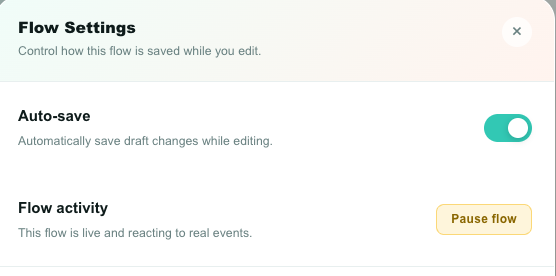
Turn auto-save off in ⚙ Flow Settings when you want full control. Canvas changes then mark the editor as Unsaved and nothing is written until you click the 💾 button or press Cmd/Ctrl+S.
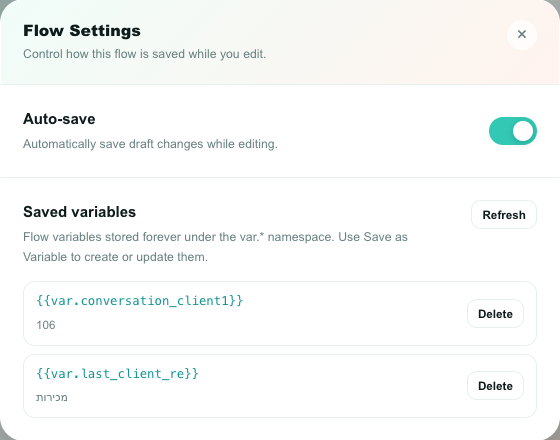
The Flow Settings dialog also lists the flow's saved variables, where you can review and delete them.
Saving is not publishing. A saved draft still has no effect on live traffic.
Test Run
Test Run executes the draft — the version on your screen — with sample data.
| What it does | What it does not do |
|---|---|
| Walks the flow from the first trigger | Send messages to customers |
| Runs conditions and reports which branches matched | Send emails (Send Email validates and reports test) |
| Reports how many blocks executed | Write CRM records |
| Surfaces configuration errors immediately | Place phone calls |
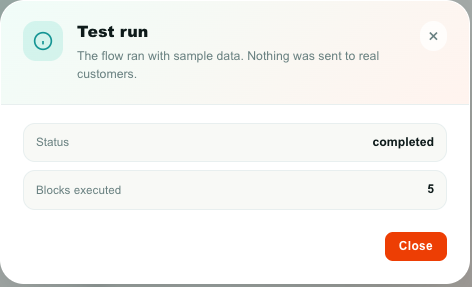
The result shows the run Status and the number of Blocks executed. If the flow has no trigger yet, Studio tells you to add one first.
A Test Run is recorded in Executions like any other run, tagged Test runs, so you can open it and read what every block was handed and what it returned.
Test Run fires the flow once with sample data. The simulator lets you hold the whole back-and-forth — type as the customer, read the bot's replies, press its buttons — and records nothing at all. For a chatbot it is almost always the better tool. Use Test Run afterwards to confirm the flow's shape.
Test Run proves the flow's shape — that the blocks are wired, configured, and reachable. It cannot prove that a webhook returns what you expect or that a message is really delivered. For those, publish to a test inbox and message yourself.
Publishing
Click Publish to make the draft the live version.
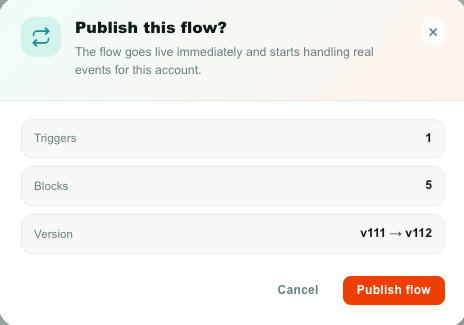
The confirmation dialog summarizes what you are about to release:
| Line | Meaning |
|---|---|
| Triggers | How many trigger blocks the flow has. |
| Blocks | How many blocks in total. |
| Version | The version number the flow will become. |
| Warning | Appears when any block still shows a warning badge. |
Confirm and the flow goes Live immediately.
What publishing does
- Copies the draft onto the live version.
- Increments the version number.
- Saves a snapshot in version history.
- Clears the "unpublished changes" state.
- Switches on monitoring for any Analytics Alerts the flow references.
- Clears any dependency warning that had paused the flow.
What blocks a publish
| Reason | Fix |
|---|---|
| The flow has no trigger | Add a WHEN block. |
| A voice block is in a messaging flow, or the reverse | Remove the out-of-scope block. Its warning badge names the problem. |
Other warnings — an unconnected block, a missing email inbox, invalid JSON — do not hard-block publishing, but the dialog reminds you and you should fix them first.
Publishing affects real customers immediately. Test with a quiet inbox, or with a trigger filtered to a single test inbox, before you publish anything that replies to people.
Version history
Studio keeps the 50 most recent snapshots of each flow. Click the Version bar at the bottom of the left panel to open the list.
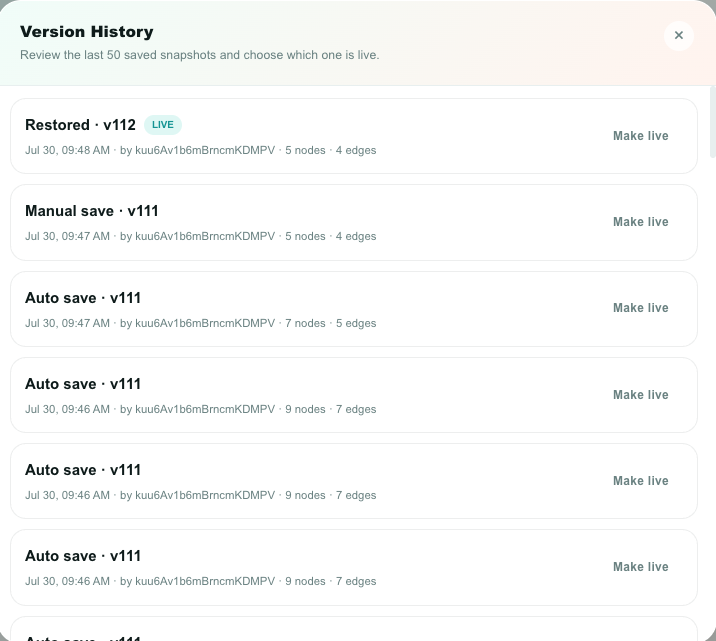
Each entry shows the version number, when it was saved, who saved it, how many blocks and connections it had, whether it is the live one, and how it was created:
| Source | Created by |
|---|---|
| Auto save | Auto-save while editing |
| Manual save | The 💾 button or Cmd/Ctrl+S |
| Published | A publish |
| Restored | Making an older version live |
Previewing a version
Click a version to open it on the canvas in read-only preview. A banner across the top says Read-only preview, and editing, saving, and testing are switched off so you cannot accidentally work on the wrong copy.
From the banner you can:
| Button | What it does |
|---|---|
| Make live | Promotes this snapshot to the live version. |
| Exit preview | Returns to your draft, exactly as you left it. |
If you have unsaved changes when you open a preview, Studio warns you first. Your draft is not lost — it is hidden until you exit the preview.
Rolling back
Make live is the rollback button. It:
- Checks that the snapshot has at least one trigger.
- Promotes it to the live version and into your draft.
- Increments the version number and marks the flow Live.
- Writes a restore snapshot, so the rollback itself is undoable.
Rolling back is the fastest fix when a freshly published flow misbehaves. Open version history, preview the version that worked, and click Make live — then debug the broken draft without any pressure.
Pause and resume
Pause switches a live flow off without changing or deleting anything. Open the flow, click ⚙ Flow Settings, and use Pause flow under Flow activity.
| While paused | Detail |
|---|---|
| The flow reacts to nothing | Incoming messages, calls, form submissions, schedules, webhooks, and analytics alerts all pass it by. |
| Nothing is deleted | Every block, connection, saved version, and saved variable stays exactly as it was. |
| The status badge reads Paused | Both in the editor and on the flow's card in the list. |
| Conversations are handed back | Anything the flow was holding leaves the Studio Bot queue for Waiting in line, so a customer mid-bot-conversation is not left waiting for a bot that will never answer. |
| Branches parked on a wait stop too | A flow waiting on a customer reply or a Wait countdown does not continue while paused. |
| You can keep editing | The draft behaves as normal. |
| Analytics alerts are released | A paused flow stops monitoring the alerts it referenced. |
Resume flow — the same button, once the flow is paused — switches it back on.
Resuming restores the last published version, not your current draft. Un-pausing can therefore never ship a half-finished edit by accident. To make draft changes live, use Publish.
Resuming brings the flow back for new events. Conversations that were released while it was paused stay with the agents who picked them up — they are not pulled back into the bot.
Pause is only available on a live flow. On a draft, the button is disabled — there is nothing running to stop.
| Goal | How |
|---|---|
| Stop a flow temporarily | ⚙ Flow Settings → Pause flow. Reversible in one click. |
| Start it again | ⚙ Flow Settings → Resume flow. |
| Ship draft changes | Publish. |
| Remove a flow for good | Delete it. |
| Change a flow safely | Edit freely. The draft has no effect until you publish. |
Deleting a flow
Every flow card in the list has a Delete action, live flows included. Because deleting is permanent, the dialog asks you to type the flow's exact name before the button unlocks.
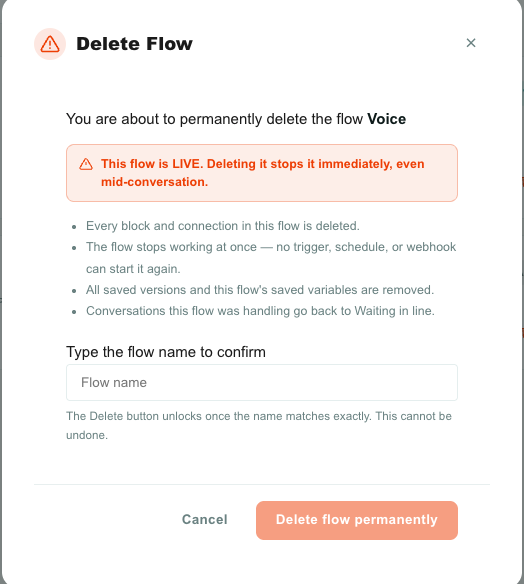
Deleting is a full teardown:
| What goes | Detail |
|---|---|
| Every block and connection | The canvas is emptied and the flow is removed. |
| The flow itself | No trigger, schedule, or webhook can ever start it again. |
| All saved versions | The 50-snapshot history goes with it — there is no rollback afterwards. |
| Every recorded run | The flow's whole execution history is deleted, along with the layout snapshots its replays were drawn against. Nothing is recoverable. |
| The flow's saved variables | Every var.* value this flow stored is removed. |
| Runs that were still waiting | A run parked on a customer reply or a timer is cancelled rather than left to resume into nothing. |
Conversations the flow was handling are not deleted. They are released from the Studio Bot queue and land back in Waiting in line, so an agent can pick them up straight away.
Deleting a live flow stops it instantly, including mid-conversation. If a customer was halfway through a bot conversation, the bot simply stops replying and the conversation moves to the waiting queue. If you only need to switch a flow off, pause it instead.
Automatic pausing
If a flow depends on something that gets deleted, Teloring pauses it rather than letting it fail quietly.
Today this applies to Analytics Alerts: delete an alert (or the report behind it) and every flow referencing it is flagged. The flow card shows a warning badge with the reason, the block that references the missing alert is marked invalid in the editor, and a live flow is switched to Paused.
Pick a different alert — or remove the block — and publish again. Publishing clears the flag.
A safe release routine
- Build on a draft.
- If it replies to people, rehearse the conversation in the simulator and fix the wording and the branching.
- Test Run and fix anything it reports.
- Clear every warning badge on the canvas.
- Point the trigger at a single test inbox and publish.
- Message that inbox yourself and walk each branch.
- Widen the trigger to the real inboxes and publish again.
- Watch the first real runs in Executions — the Failed tile is the one to keep an eye on.
Next
- Chatbot simulator — hold a conversation with your bot before a customer does.
- Executions — read back what real runs actually did.
- Troubleshooting — when a flow does not fire.
- Flow recipes — complete flows to start from.