Executions — see what your flow did
An execution is one run of a flow, recorded from the moment its trigger fired to the moment the last path ended. Executions is where you read those runs back: what set each one off, what every block was handed, what it returned, which branch it took, and where it stopped.
This is the page to open when someone says "the bot replied the wrong thing" or "the flow didn't do anything". Instead of guessing from the customer's side, you see the run itself.
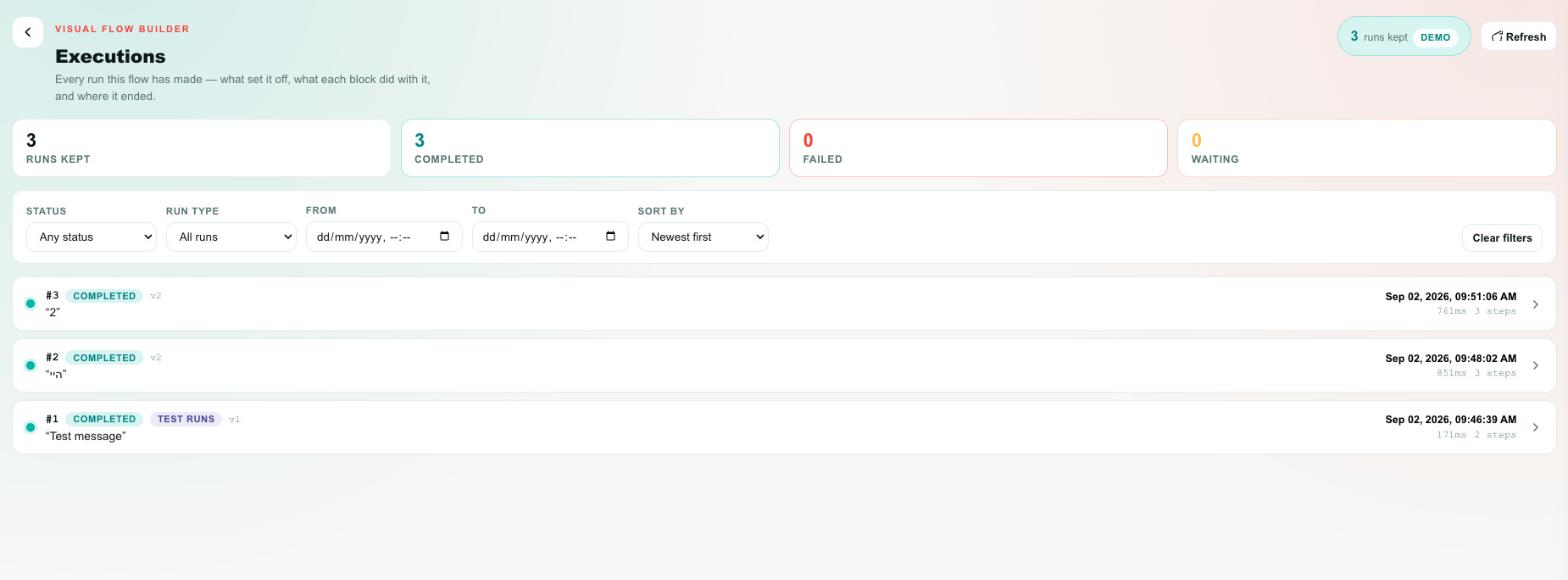
Executions are per flow. Open the flow you want to investigate, then open Executions from its top bar. There is no account-wide run list.
Opening Executions
- Open Studio from the left sidebar.
- Click the flow you want to investigate.
- Click Executions in the editor's top bar.
The page opens over the canvas. Your canvas is untouched underneath — Back to the canvas (the arrow at the top left) returns you to exactly what you were editing, unsaved changes included.
What gets recorded
| Recorded | Not recorded |
|---|---|
| Real runs — a customer messaged you, a form was submitted, a schedule came due, a webhook fired | Simulator sessions. A dry run is not a run, and never appears here |
| Test Run results, marked Test runs so you can filter them out | Anything that happened before this feature was released |
| Every block that executed, in order, with its inputs, outputs, errors and timing | Blocks that never ran — they are shown dimmed on the replay instead |
Recording starts the first time a flow runs after the feature is released. A flow that has been live for months starts with an empty list and fills up from its next run.
A run lasts until the flow's last path ends — not until the next customer message. When a Reply Message waits for the customer, their answer continues the same run; it does not start a new one. So customer writes → bot asks → customer answers is one execution. A new execution starts only once the previous one has ended and the customer writes again.
The list
Header
| Element | What it is |
|---|---|
| Executions | The page title, with a one-line description of what you are looking at. |
| Retention pill | How many runs are kept right now, out of how many your plan allows, and the plan's name. Hover it for the full rule. See How much history you keep. |
| Refresh | Reloads the rows and the counts. Runs do not stream in live — refresh after you have tested something. |
| ← (top left) | Back to the canvas. |
Status tiles
Four tiles sit under the header. Each one is also a shortcut: click it and the Status filter jumps to that value.
| Tile | Counts | Clicking it |
|---|---|---|
| Runs kept | Every run currently stored for this flow | Clears the status filter |
| Completed | Runs where every path finished | Filters to Completed |
| Failed | Runs where a block returned an error | Filters to Failed |
| Waiting | Runs paused right now, waiting for a customer reply or a timer | Filters to Waiting |
Failed is the tile to watch. A number that climbs after a publish usually means the change broke something.
Filters
| Filter | Options | What it does |
|---|---|---|
| Status | Any status, Completed, Failed, Waiting, Running, Timed out, Cancelled | Shows only runs that ended that way. See Run statuses. |
| Run type | All runs, Real runs, Test runs | Separates real customer traffic from your own Test Run results. |
| From | A date and time | Only runs that started at or after this moment. |
| To | A date and time | Only runs that started at or before this moment. |
| Sort by | Newest first, Oldest first, Slowest first, Fastest first | The order of the rows. |
| Clear filters | — | Resets everything back to all runs, newest first. |
Filters apply as soon as you change them.
Picking a From or To date forces the order back to Newest first or Oldest first — a date range and a duration sort cannot both decide the order. The Sort by dropdown updates itself so it always shows the order the rows are actually in.
A row
Each row is one run.
| Element | What it tells you |
|---|---|
| Coloured dot | The outcome at a glance — teal completed, red failed, amber waiting, coral running, grey cancelled. Waiting and running pulse. |
#42 | The run's number. Runs are numbered per flow, so #42 in one flow is unrelated to #42 in another. |
| Status chip | Completed, Failed, Waiting, Running, Timed out, Cancelled. |
| Test chip | Present only on a Test Run. Real customer runs have no chip. |
v3 | Which published version of the flow ran. Useful when a run predates your last publish. |
| Quoted text | The customer message that set the run off. When there is no message — a schedule, a webhook — the trigger's name is shown instead. |
| Red line | The run's error, when it has one. |
| Date and time | When the run started, in your own timezone. |
| Duration | How long the whole run took, from trigger to last path. |
n steps | How many blocks executed. |
n failed | How many of those failed. Only shown when it is not zero. |
Click anywhere on a row to open the run.
Load more at the bottom fetches the next 25 rows. It appears only when there are more.
Replaying a run
Clicking a row loads that run onto the canvas and plays it back.

A light travels the path the run actually took: each block lights up in turn, and a glowing pulse runs along each connection in the order it was crossed. It is the fastest way to see the shape of what happened — where the flow branched, and where it stopped.
Nothing on this canvas can be moved, edited, connected or deleted, and Publish is switched off. You are looking at a record of something that already happened. Exit preview returns you to your draft, exactly as you left it.
The replay banner
| Control | What it does |
|---|---|
| Run #42 · Completed | The run and its outcome, with the coloured dot beside it. |
| Second line | When it started, how long it took, the flow version, and a Test runs marker when it was one. |
| ▶ Replay | Plays the travelling light again from the beginning. |
| Back to executions | Returns to the list, keeping your filters. |
| Exit preview | Closes the replay and restores your draft. |
What the canvas shows
| What you see | What it means |
|---|---|
| Teal ring around a block | It ran and completed. |
| Red ring | It ran and failed. |
| Amber ring | The run paused here — waiting for a customer reply or a timer. |
| Dimmed block | It never ran in this execution. |
| Numbered badge | The step order — 1 is the trigger, 2 is the next block that ran, and so on. A block the flow entered twice shows the number of its last visit. |
| Bright teal connection | The run crossed this connection. |
| Faded connection | This path was not taken. |
Click any block on the canvas to open its step in the step panel.
The flow this replay draws
Studio stores a snapshot of the flow's layout each time you publish a new version, and a replay is drawn against the snapshot the run actually used. Blocks you have deleted since still appear, wired the way they were, so an old run makes sense even after you have rebuilt the flow.
If no snapshot exists for a run — for example a run recorded before its version was snapshotted — the canvas falls back to the flow as it stands today and says so, both in the banner and above the steps:
No snapshot was stored for this run, so the canvas shows the flow as it stands today. Blocks may have changed since.
The Steps panel
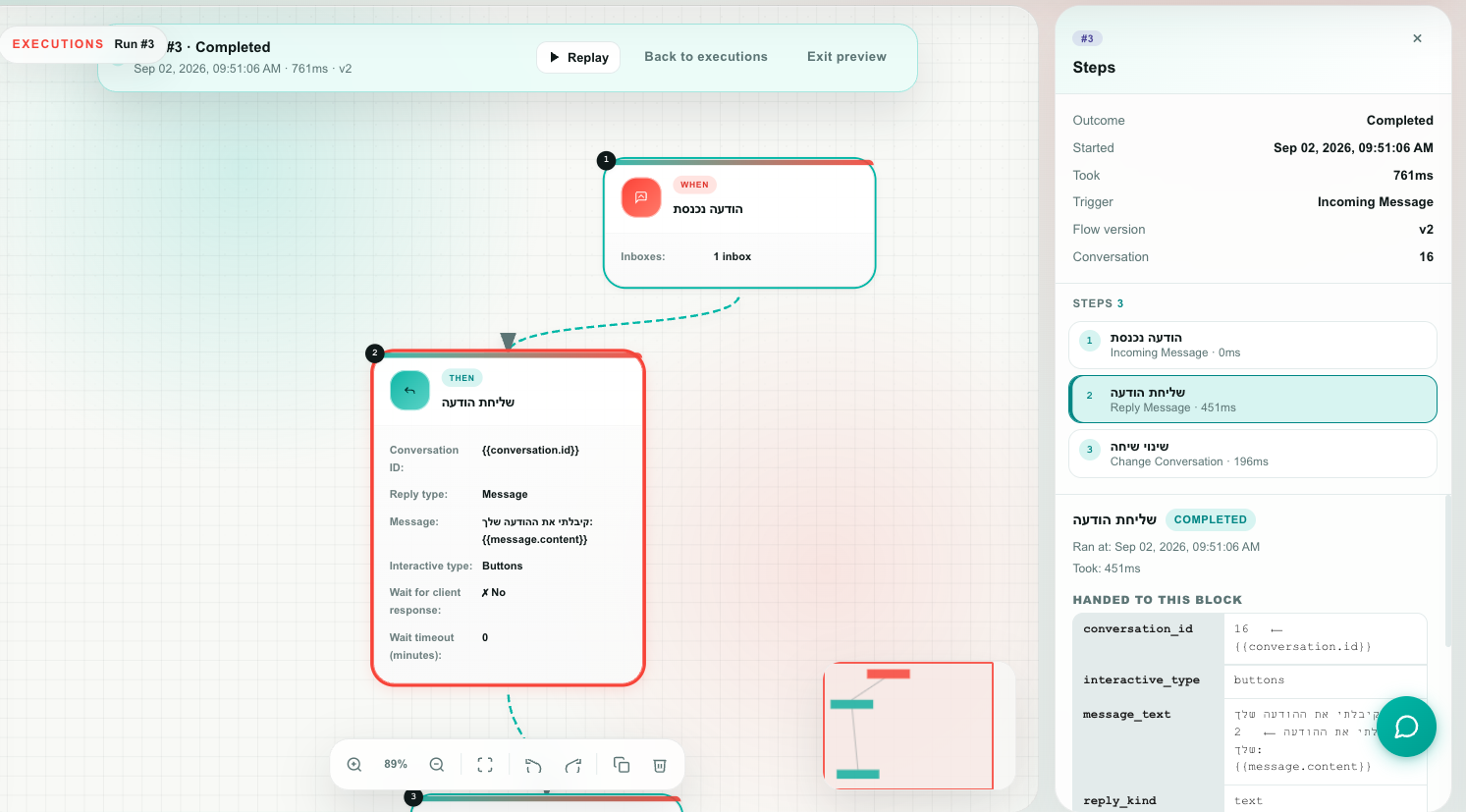
While a run is open, two panels sit either side of the canvas. The run panel (on the right) holds the run's summary and every step in order. The step panel takes the place of the block library — nothing can be added to a run that already happened — and shows one step in full: what came into the block, what it did, and what it passed on.
Run summary
| Field | Meaning |
|---|---|
| Outcome | Completed, Failed, Waiting, Running, Timed out, or Cancelled. |
| Started | When the trigger fired. |
| Took | Total duration. |
| Trigger | Which trigger block started the run. |
| Flow version | The published version that ran. |
| Conversation | The conversation the run belonged to, when it had one. Click it to open the conversation in a new tab. |
| Waiting for | Only on a waiting run — a reply from the customer, a reply that matches a branch, or a Wait block's delay. |
A red box below the summary carries the run's error, when there is one.
The step list
Every block that executed, in order. Each entry shows its step number, the block's name, its type, how long it took, its error if it had one, and a one-line outcome — the customer's message on the trigger, ↩ “reply” on a block that waited for an answer, → branch on a condition.
| Colour | Meaning |
|---|---|
| Teal number | The step completed. |
| Red number | The step failed. |
| Amber number | The run paused at this step. |
A block that has since been deleted from the flow is tagged block since deleted. Its step stays on the timeline — what happened, happened.
The list is a record of what ran, not of which blocks exist. A condition the flow legitimately re-enters — because the first customer reply matched nothing and a second one arrived — appears twice, in the order it ran. That is usually the answer to "why did the customer get asked the same thing again?".
One step in detail
The step panel opens on step 1 — for a chatbot, the customer's message — and ‹ › at its top walk through the steps in order. Click a step in the list, or a block on the canvas, to jump straight to it.
Each step reads top to bottom as three cards:
| Card | What it holds |
|---|---|
| What came in | Where the run came from — the trigger, or the block before it and the branch it left through. The customer message this block was working on, with its type (Text, Chose from a list, Tapped a button), the chosen option's ID, and when it arrived; on the first step also who sent it, on which inbox. Any {{variable}} the block was given, with its value. For a condition, the values its rules read. |
| What the block did | For Reply Message, the message exactly as the customer saw it — text, list button and options — and whether it was sent. For If / Else, every condition marked ✓ or ✕ with what it compared and the actual value it found. The block's error, if it failed. |
| What it passed on | The customer's reply, when the block waited for one, and how long it took them. The branch taken. The variables the block set. And the next block — click it to go there — or a plain sentence saying why nothing came next. |
The last line of What it passed on is usually the answer to "why did the bot stop?":
| It says | It means |
|---|---|
| Next block → a block | The run continued there. Click it. |
| Nothing is connected to the “Fallback” branch, so the flow ended here. | The condition chose a branch you never connected. Connect it, or turn the Else branch off so the flow waits for another reply instead. |
| Nothing is connected after this block, so the flow ended here. | This was the end of the path. |
| Waiting for the customer's reply. | The run is paused on this block right now. |
| The block failed, so this branch stopped here. | The error is shown under What the block did. |
Block settings (as configured), folded at the bottom of each step, still holds the block's settings with every {{variable}} filled in. A field you wrote with variables shows both halves:
message_text Hi Dana, your order is ready ⟵ Hi {{contact.contact_name}}, your order is {{var.status}}
The value on the left is what the block actually used. The template on the right is what you wrote.
Older runs did not save the customer's messages on every step. For those runs the step panel rebuilds the first message and the last reply — and says so — and conditions show which rule matched, but not the values they compared.
Settings whose name looks like a secret — Authorization, api_key, token, password and similar — are replaced with ••• redacted •••. You can still see them in the block's own settings on the canvas; they are kept out of the run log because run logs get exported, screenshotted and pasted into support tickets.
Run statuses
| Status | Meaning | What to do |
|---|---|---|
| Completed | Every path finished. | Nothing — though "completed" only means no block errored. Read the steps to check it did the right thing. |
| Failed | A block returned an error. Other branches kept running. | Open the run and find the red step. |
| Waiting | The run is paused, waiting for a customer reply or a Wait countdown. | Normal for a chatbot. It becomes Completed when the customer answers, or Timed out if they never do. |
| Running | Executing right now. | Refresh in a moment. Most runs finish in under a second. |
| Timed out | A wait expired before the customer replied. | Consider a shorter timeout, or a branch that handles silence. |
| Cancelled | The run was stopped — usually because the flow was paused or deleted while it was mid-conversation. | Expected after a pause or a delete. |
How much history you keep
Your subscription plan decides how many finished runs each flow keeps. The retention pill in the header always shows where you stand:
412 of 500 kept · Free
The rule is oldest out, newest always kept. On a plan that keeps 500, run 501 is recorded in full and the oldest finished run is removed to make room — so you always hold the most recent 500. You never lose a new run because the flow is at its limit.
| Point | Detail |
|---|---|
| Counted per flow | A busy flow cannot push a quiet flow's history out. Each flow keeps its own last N. |
| Never removed | A run that is still Running or Waiting is live state — a customer sitting mid-conversation with your bot — so it is never deleted to make room, whatever its age. |
| Deleting the flow | Takes every run with it. There is no history after a flow is deleted, and no way to get it back. |
| Changing plan | Moving to a smaller plan trims each flow down to the new number over its next few runs. Moving up simply lets history grow further. |
| Nothing is blocked | Retention is a depth, not a quota. Hitting it never stops a flow from running, and never stops you from changing plan. |
The exact number per plan is shown on Billing → Plans, on every plan card, alongside agents, storage and analytics history.
Retention has no "pin this run" button. If a run matters — a bug you are reporting, a case you want to review next week — take a screenshot of the steps panel while it is open.
Test runs and real runs
Test Run results are recorded here too, tagged Test runs, and they count towards your retention.
Use Run type → Real runs while investigating a customer complaint, so your own testing does not clutter the list.
Permissions
| To do this | You need |
|---|---|
| Open Executions, read runs, replay them | Studio → Read |
| See the customer's own messages inside a run | Customers → Conversations → Read as well |
Studio permission is not conversation permission. Without Customers → Conversations → Read, the run's structure is still fully visible — which branch it took, what failed, how long it took, what your flow sent — but the customer's own messages and contact details are hidden, with a note saying why:
The customer's own messages are hidden because your role does not include reading conversations. The flow's own logic — which branch it took, what failed, how long it took — is all shown.
Every default role that grants Studio also grants Conversations, so most accounts never see this. It matters only for a custom role built with one and not the other. See System permissions.
Nobody can edit or delete a run — there is no permission that allows it. Runs leave only through retention or by deleting the flow.
Limits
| Limit | Value |
|---|---|
| Runs kept per flow | Set by your plan. See How much history you keep. |
| Rows per page | 25, with Load more |
| Steps recorded per run | 400. A run that somehow does more keeps the first 400 — where a runaway flow goes wrong is at the start. |
| Long values in a step | Truncated, with the number of characters dropped shown at the cut. |
What Executions cannot tell you
| Question | Where to look instead |
|---|---|
| Why didn't the flow start at all? | No run means no trigger matched. See Troubleshooting → The flow never runs. |
| What did the customer see on their phone? | The conversation itself, in the inbox. |
| Who published this version? | Version history and the Audit Log in Settings. |
| How is this flow doing overall, this month? | Analytics. Executions is per-run, not a report. |
Next
- Test your chatbot with the simulator — hold a conversation with your bot before it meets a customer.
- Testing & publishing — draft versus live, version history, rolling back.
- Troubleshooting — when a flow does not fire at all.