System permissions reference
The System permissions tab answers one question for every feature in Teloring: may this role reach it, and may it change anything there?
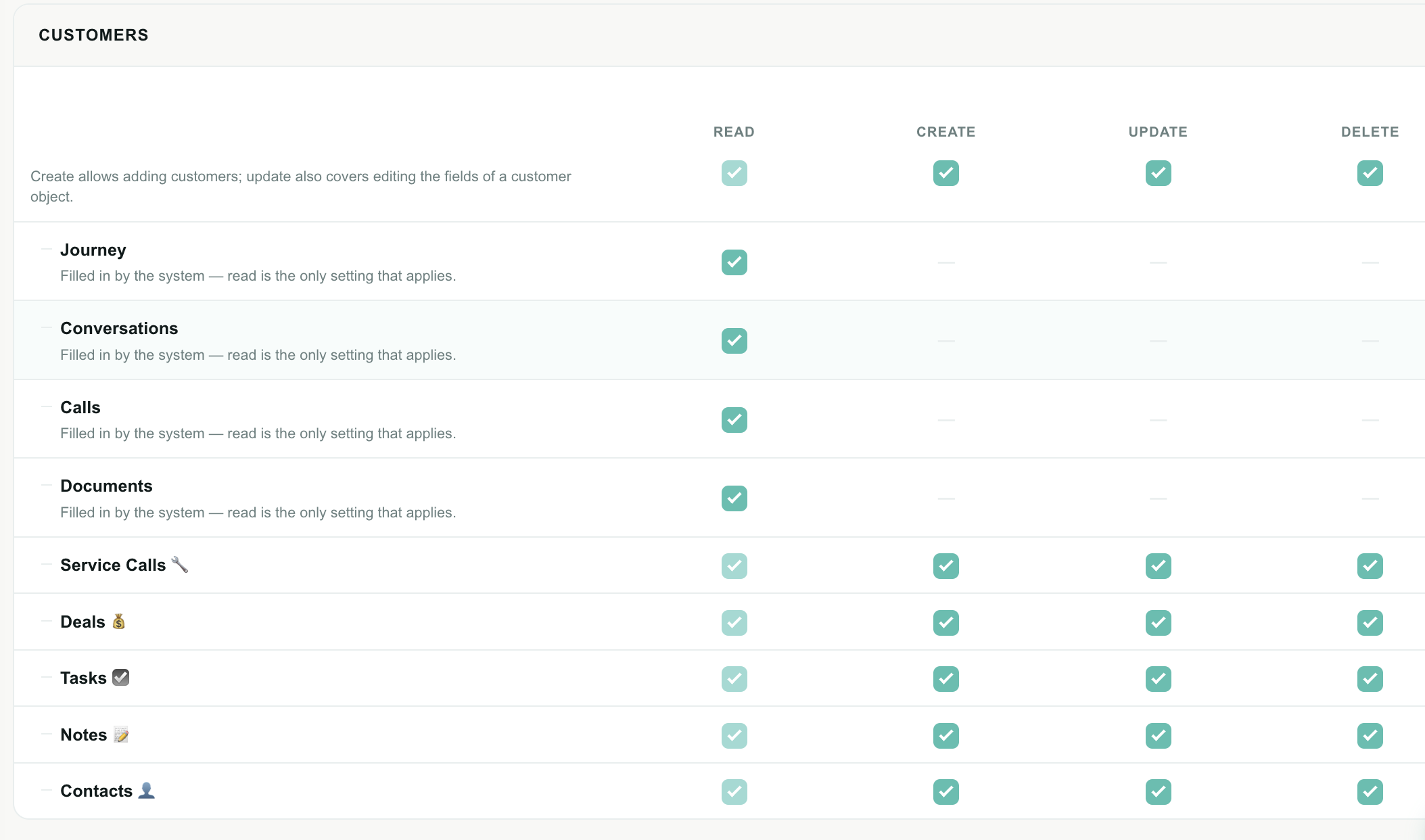
How the grid works
Each row is a feature. Each column is an action. Tick a box to grant it.
| Element | What it does |
|---|---|
| Group heading | Six groups — Customers, Workspace, Tools, Settings, Agents & teams, Billing. Purely for orientation; grouping grants nothing. |
| Row label | The feature, matching the sidebar wording so you can find it in the product. Some rows carry a one-line hint underneath explaining a non-obvious action. |
| Column header | Read, Create, Update, Delete. Click a header to tick or untick that action for every row in the group at once — one click to grant a whole column, a second to clear it. |
| Checkbox | The permission itself. |
— dash | This action does not exist for this feature. There is nothing to grant. Hovering says Not applicable to this item. |
| Indented rows | Objects that live inside a customer, shown nested under Customers. |
How the four actions work
| Action | What it grants |
|---|---|
| Read | Reach the feature and look at it. Nothing can be changed. |
| Create | Add a new item. |
| Update | Change an existing item. |
| Delete | Remove an item. |
Create, Update and Delete each include Read automatically. You cannot create a customer you are not allowed to see, so the moment you tick any write action, Read switches on and locks — it turns a lighter shade and cannot be unticked while a write action is set.

To release Read, untick the write actions first.
The alternative — quietly storing "Update but not Read" and then ignoring it — would mean the grid on screen did not match what the role actually does. The lock keeps the two identical: what you see ticked is exactly what is stored.
An auditor, an accountant, a consultant, a stakeholder who wants dashboards — all of them want Read on a few things and nothing else. Tick the Read column, save, done.
Objects
Every table the account keeps — see Objects. One row per object, plus a default and the builder.
| Feature | Read | Create | Update | Delete | Import / Export |
|---|---|---|---|---|---|
| Every other object | The default for any object without its own row below — including objects created later. | ||||
| Customers, Contacts, Orders, Products… (one row per object) | Open the object and its records; search it from a linked-record picker | Add a record | Edit a record's fields | Delete a record | Import a file into it, export it to Excel |
| Calls, Documents | See the records | — | — | — | Export |
| Object builder | Open the builder | Create objects and fields | Change objects, fields and layouts | Delete objects and fields |
How the default and the rows combine
An object with no row of its own follows Every other object. Tick a row to give one object more than the default, or clear every box on a row to deny that one object while the default still allows the rest. A role whose default denies reading can still be granted a single object — the Objects menu appears for it.
Why some rows are Read-only
Calls and Documents are written by Teloring itself — a call log is a record of a call, a document record of a signing. There is nothing to create or edit, so only Read (and Export) exist. Likewise the customer's Journey, Conversations and the related tabs are read along with the record.
Your own objects appear here automatically
Every object in your account gets its own row the moment it is created, with its own label and icon — no waiting, no separate setup. Hidden objects are listed too, since their records are still data.
Editing records and designing objects are separate: an agent can have Update on Orders without reaching the builder, and an admin can have Object builder without a say over every record. Views → Create (under Workspace) governs saving a view for the whole account; personal views need no permission beyond reading the object.
Workspace
| Feature | Read | Create | Update | Delete |
|---|---|---|---|---|
| Views | Run the saved views of an object you can read (no permission needed beyond the object) | Save a view shared with the whole account | Edit a shared view | Delete a shared view |
| My Ring (inboxes) | Open My Ring and see inbox configuration | Connect a new inbox | Change inbox settings | Disconnect an inbox |
| Analytics | Open Analytics, read boards and reports, export | Create a report or board | Edit a report, board or tab | Delete a report or a whole board |
| Conversation attributes | See the attributes panel in a conversation and on a resolved one, and open the Settings page | — | Fill values in on a conversation, and add or edit attributes in Settings | Remove an attribute from the account's design |
An attribute is part of one account-wide design, not a separate item — so adding one is editing that design, and it needs Update. See Conversation Attributes.
Update covers both filling in and designing (unlike Objects, where the builder is a separate permission). If you want front-line agents to record a reason and an outcome without being able to restructure the form, that separation does not exist today; in practice the Settings page is not somewhere agents go.
Delete is only ever "remove an attribute from the design". It never deletes the values already stored on conversations — those are kept, and re-creating the attribute with the same API ID brings them back into view.
My Ring governs the configuration page — connecting a WhatsApp number, editing email settings, disconnecting a channel.
Whether an agent can work in an inbox is a completely separate thing, on the Channel permissions tab. A front-line agent normally has no My Ring access at all while working in every inbox all day.
One consequence worth knowing: an agent with My Ring → Read sees every inbox in the account listed there, including ones they cannot work in. If that matters for you, do not grant it.
Tools
| Feature | Read | Create | Update | Delete |
|---|---|---|---|---|
| Studio | Open Studio, read flows, versions and run history | Create a flow or a schedule | Edit, publish, pause, resume or test a flow | Delete a flow or schedule |
| AI World | Open AI World and see which features are on | — | Switch AI features on and off | — |
| Knowledge base | Open it, browse sources, ask questions | Create a knowledge base, upload a source | Refresh a source | Delete a knowledge base or a source |
| Quick replies | Open quick replies and use them in a conversation | Create a quick reply or category | Edit one | Delete one |
| Forms builder | Open Forms, read forms and submissions, export | Create or duplicate a form | Edit a form, publish it, upload an image | Delete a form |
| Document signature | Open it and read documents | Create a document and send it for signing | Edit a document | Delete a document |
| Files warehouse | Open it, view and download files | — | — | Delete files |
| Achievements | Open the Achievements page and see progress | — | Collect a completed achievement | — |
| Support & bug bounty | Open Support, read the guides' links and every ticket the account opened | Open a ticket and reply on one | Close a ticket | — |
The unusual ones
AI World has no items to create or delete — it is a board of switches. Update is what lets somebody flip them. With Read only, an agent sees which AI features are on but cannot change any.
Studio run history needs two permissions, not one. Studio → Read opens Executions and shows the whole structure of a run — which branch it took, which block failed, how long each step took, and what your flow sent. The customer's own messages inside that run are conversation data, so they are shown only to an agent who also holds Customers → Conversations → Read. Without it, those values read ••• hidden ••• and the page says why. Every default role that grants Studio also grants Conversations, so this only comes up on a custom role built with one and not the other.
Studio → Update is also what the chatbot simulator needs — it saves the draft before it starts a rehearsal, so Read alone is not enough to open it.
Achievements works the same way. Read shows the page and progress; Update is what lets somebody press Collect and add the reward credits to the account.
Support & bug bounty has no Delete: a ticket is the record of a conversation with the Teloring team, and neither side gets to erase it. Update is closing a ticket, which is final — see Support & Bug Bounty.
Files warehouse has no Create, because files arrive by being uploaded elsewhere — a conversation attachment, a knowledge base source, a form image. Read includes downloading. Delete is the one that matters, and it is the permission that also allows deleting somebody else's upload and using Delete all.
Writing a personal quick reply only you can see is self-service — anybody with Read can do it.
Create, Update and Delete govern the account-wide ones every agent sees. The default Agent role has all four, so front-line agents can build the shared library. If you would rather they only used it, drop the role to Read and keep the write actions for supervisors.
Settings
Each settings tab is a separate row, because they are genuinely different concerns — reading the business address is not reading the API keys. A role that grants none of them does not see Settings in the sidebar at all; a role that grants one lands directly on that tab.
| Feature | Read | Create | Update | Delete |
|---|---|---|---|---|
| General info | Open the tab | — | Change business name, logo, language, timezone, currency, country | — |
| Business hours | Open the tab | Add a schedule or holiday calendar | Edit one | Delete one |
| Security & login | Open the tab, see active sessions | — | Change IP allowlist, enforced 2FA, idle timeout; force-sign-out a session | — |
| API | Open the tab and see the key list | Issue a new API key | — | Revoke a key |
| Data & privacy | Open the tab | Request a data export | — | Delete the entire account |
This is the single most destructive permission in Teloring. It is what allows the Danger Zone → Delete account action.
The default roles give it to Owner only. Keep it that way unless you have a specific reason.
An API key cannot be edited — a key is a secret, and changing it would mean issuing a new one. So the actions are Create (issue) and Delete (revoke).
Webhook subscriptions are governed by the same row, since they are part of the same developer surface.
Agents & teams
| Feature | Read | Create | Update | Delete |
|---|---|---|---|---|
| Agents | Open the Agents directory and search it | Invite a new agent, create an AI Agent | Edit any agent — role, language, 2FA, department, notes, their voice access; reset another agent's password; move another agent's email; resend an invitation; deactivate | Delete an agent profile |
| Teams | Open Teams and see the team list | Create a team | Edit a team — name, members, rules | Delete a team |
| Roles & permissions | Open this page and read every role | Create a role | Edit a role | Delete a role |
| Audit log | Open the audit log and read it | — | — | — |
Things that are always self-service
Two actions on the Agents page never need a permission, because they concern the agent themselves:
- resetting their own password;
- changing their own sign-in email.
Both travel through a one-time link sent to their own inbox. Agents → Update is what extends those actions to other people.
Anybody who can create or edit a role can give themselves — or anybody else — every other permission in Teloring, including billing and account deletion. That is not a flaw; it is what editing a role means.
Treat it exactly like an administrator password. The default roles give Create, Update and Delete to Owner only, and Read to Team Leader so a manager can see the structure without changing it.
Switching Teloring browser calling on for a specific person is part of editing that agent, so it needs Agents → Update. The account-wide voice switch and voice inbox configuration are under My Ring.
Billing
| Feature | Read | Create | Update | Delete |
|---|---|---|---|---|
| Credits | See the credit balance, the header credit badge, and transaction history | — | — | — |
| Recharge (buy credits) | Open Billing → Recharge and see the packages and the auto-reload settings | — | Buy a credit package (charges the company card) and change auto reload | — |
| Subscription | See the current plan, seats and usage meters | — | Change plan | — |
| Credit cards | See stored cards — brand and last four digits only | Add a card | Update a card's expiry | Remove a card |
| Invoices | See and download the account's tax invoices | — | — | — |
| Usage pricing | See the per-action price list | — | — | — |
The Billing entry disappears from the sidebar entirely when a role grants none of these. If a role grants some, only those tabs appear, and opening Billing lands on one the agent can read.
Credits and Recharge are separate rows on purpose. Credits is a number on a screen; Recharge puts charges on the company credit card and can set up a standing order that keeps doing so unattended. Only Owner has Recharge switched on by default — see Credits & Recharge.
The monthly and top-up credit figures in the top bar are shown only to roles with Credits → Read. Roles without it never see the account's balance.
What the default roles grant
R Read · C Create · U Update · D Delete · — no access
| Feature | Owner | Team Leader | Marketing | Agent | Viewer |
|---|---|---|---|---|---|
| Customers | R C U D | R C U D | R C U | R C U | R |
| Journey | R | R | R | R | R |
| Conversations (in customer) | R | R | R | R | R |
| Calls | R | R | R | R | R |
| Documents | R | R | R | R | R |
| Contacts / Service Calls / Deals / Tasks / Notes | R C U D | R C U D | R C U | R C U | R |
| Views | R C U D | R C U D | R C U D | R | R |
| My Ring (inboxes) | R C U D | R U | R | — | R |
| Analytics | R C U D | R C U D | R C U D | — | R |
| Conversation attributes | R U D | R U D | R U | R U | R |
| Studio | R C U D | R C U D | R C U D | — | — |
| AI World | R U | R U | R U | — | — |
| Knowledge base | R C U D | R C U D | R C U D | R | R |
| Quick replies | R C U D | R C U D | R C U D | R C U D | R |
| Forms builder | R C U D | R C U D | R C U D | — | R |
| Document signature | R C U D | R C U D | R | R C | R |
| Files warehouse | R D | R D | R | R | R |
| Achievements | R U | R U | R U | R U | R |
| Support & bug bounty | R C U | R C U | R C U | R C U | R C U |
| Settings → General info | R U | R | R | — | R |
| Settings → Business hours | R C U D | R C U D | R | — | — |
| Settings → Security & login | R U | R | — | — | — |
| Settings → API | R C D | R | — | — | — |
| Settings → Data & privacy | R C D | — | — | — | — |
| Agents | R C U D | R | R | R | R |
| Teams | R C U D | R C U D | R | R | R |
| Roles & permissions | R C U D | R | — | — | — |
| Audit log | R | R | — | — | — |
| Billing → Credits | R | — | — | — | — |
| Billing → Recharge | R U | — | — | — | — |
| Billing → Subscription | R U | — | — | — | — |
| Billing → Credit cards | R C U D | — | — | — | — |
| Billing → Invoices | R | — | — | — | — |
| Billing → Usage pricing | R | — | — | — | — |
Owner is shown fully ticked for reference. In practice it is not a stored grid at all — it is permanent full access that cannot be edited.
This table is what a newly created account gets. A permission added to Teloring after your account was created is not ticked on your existing roles — nothing is ever granted behind your back. Conversation attributes is the most recent example: until you tick it, only Owner reaches the feature. Open a role, tick the row, and save.
Reading the table
- Team Leader is a full support manager with no financial or administrative reach. It can see the API key list and the security settings but change neither, so a manager can answer "is 2FA enforced?" without being able to rotate a key.
- Marketing builds and measures. It can restructure Studio, forms and analytics but cannot connect an inbox, manage agents or reach billing.
- Agent is deliberately narrow outside conversations: customers, quick replies, the knowledge base to look things up, and sending documents for signature. No Studio, no analytics, no settings. It does get Conversation attributes → Update, because recording a reason and an outcome is part of handling a conversation.
- Viewer is Read almost everywhere and write nowhere — and, crucially, no conversations at all (see Channel permissions).
Related guides
- Roles and Permissions — creating, editing, assigning and deleting roles.
- Channel permissions reference — the other half of a role.
- Example roles and recipes — setups to copy.
- Account settings — the settings tabs this grid refers to.
- Objects — the objects, their records and the builder.
- Conversation Attributes — the feature behind the Conversation attributes row.