Teams
A team is a named group of agents — Sales, Support, Billing, Hebrew speakers. Once a team exists, you can assign a conversation to the whole team instead of picking one person.
That solves the everyday problem with per-person assignment: to route a conversation you had to know who is working, who is free, and who handles that topic. With teams you route by responsibility — "this is a Sales conversation" — and let Teloring or the team itself work out who actually takes it.
Teams are account-wide. Every agent sees the same teams; there is no per-agent team list.
Open Admin → Agents, Teams & Roles → Teams in the sidebar.
Teams belong only to the current Teloring account. A team created here is never visible in another account, and a team can only contain agents from this account.
Key facts
| Fact | Meaning |
|---|---|
| A team is a group of agents | Human agents and AI Agents can both be members. |
| Account-wide | Not personal. Everyone works from the same team list. |
| A conversation has one team | The Assigned team field holds one team, or none. |
| A team is not a permission | Team membership does not grant or restrict access to anything. It only affects conversation routing. |
| A team is not a department | The Department field on an agent's profile is a free-text label for display and search. It does not create a team. |
| Optional auto-assignment | A team can hand a conversation straight to a random online member. |
| It controls "Get next" | An agent can only pull a waiting conversation that has no team, or a team they belong to. |
| Studio can route to a team | The Change Conversation action can hand over to a team, and the Conversation Changed trigger can fire on team assignment. |
| Reportable | Analytics has a Teams data source, and Conversations can be grouped by Assigned Team. |
| Managed by permission | Seeing teams needs Teams → Read; creating, editing and deleting need Teams → Create / Update / Delete. See Roles and Permissions. |
Who can do what
| Action | Permission it needs |
|---|---|
| See the Teams page and the team list | Teams → Read |
| Create a team | Teams → Create |
| Edit a team | Teams → Update |
| Delete a team | Teams → Delete |
| Assign a conversation to a team | Can assign conversations on that inbox |
| Filter conversations by team | None — filters only narrow what you can already see |
| Route to a team from Studio | Studio → Update |
Everything that changes a team is enforced on the server. A role without the permission does not see the Add team button, and the API rejects the change even if the button is reached another way.
The default roles give full team management to Owner and Team Leader, and read-only visibility to Marketing, Agent and Viewer.
The Teams page
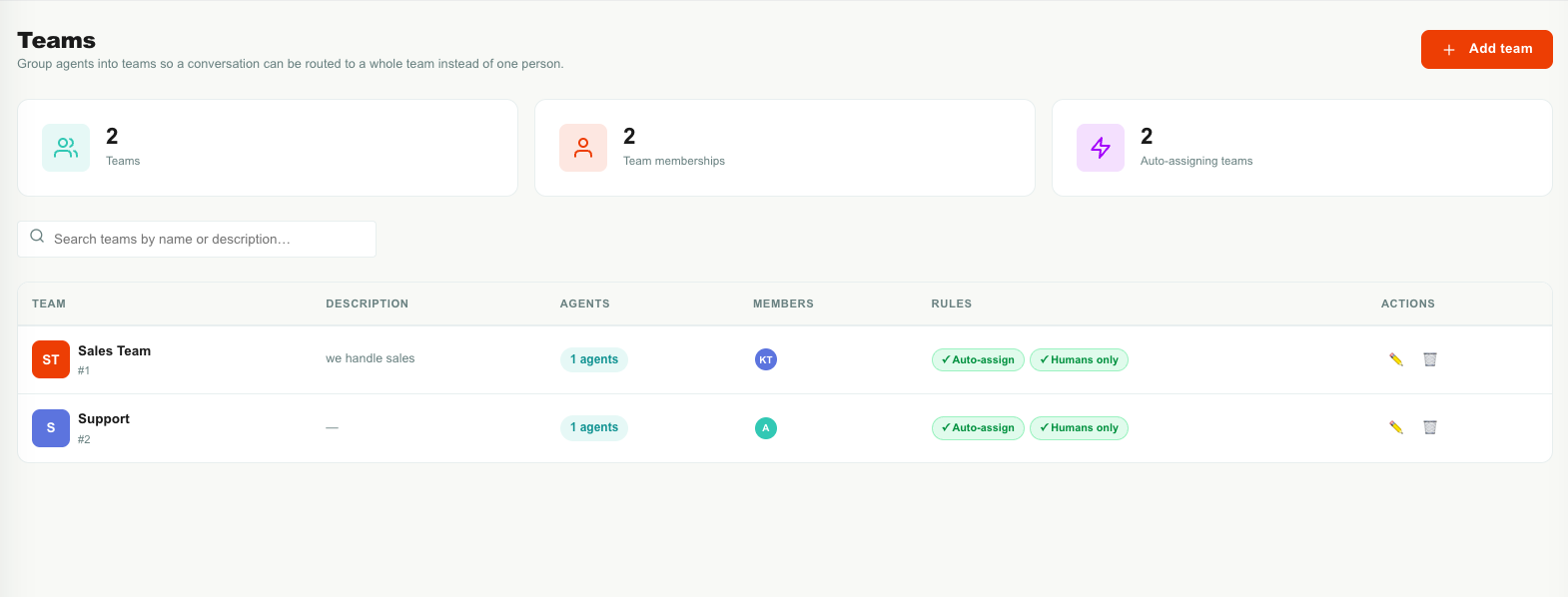
| Element | What it does |
|---|---|
| Add team | Opens the team form. Needs Teams → Create. |
| Teams (stat) | How many teams exist in the account. |
| Team memberships (stat) | The total number of agent-to-team links. An agent in three teams counts three times, so this is usually higher than your agent count. |
| Auto-assigning teams (stat) | How many teams have the auto-assign rule switched on. |
| Search | Filters the list by team name or description. |
| Team list | One row per team, with its members and rules. |
Understand the list
| Column | Meaning |
|---|---|
| Team | The team name, with a coloured initials badge, and the team's ID underneath (#3). The ID is what Studio and the API use. |
| Description | Your own description, or —. Hover to read a long one in full. |
| Agents | How many agents are in the team. |
| Members | Up to five member initials circles, then +N. AI Agents show a 🤖 icon. Hover one for the name. |
| Rules | Two badges showing whether each rule is on (✓, green) or off (✕, grey). |
| Actions | ✏️ Edit and 🗑️ Delete, shown when your role grants Teams → Update and Teams → Delete. |
Create a team
- Open Admin → Agents, Teams & Roles → Teams.
- Click Add team.
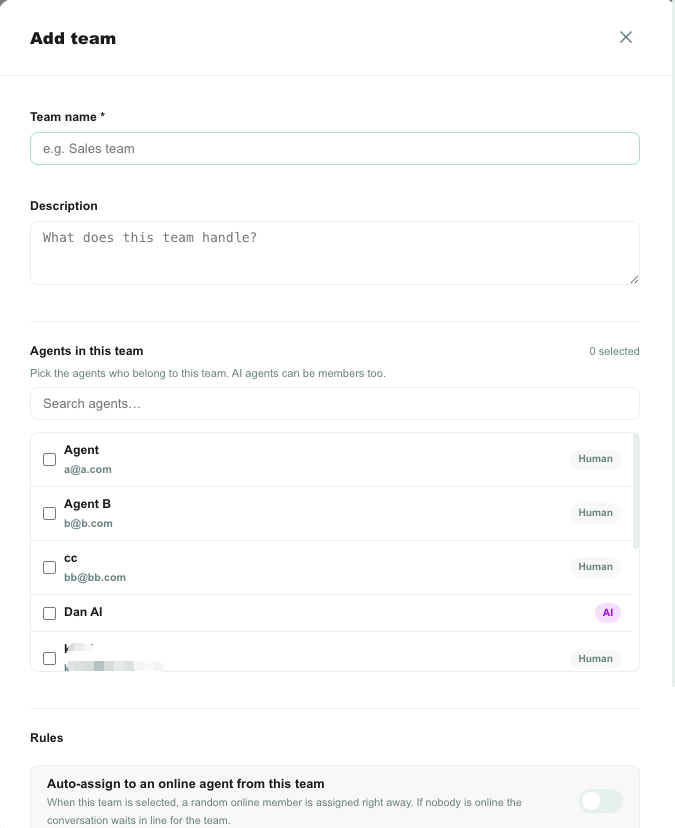
- Type a Team name. This is what agents pick in the conversation, so make it obvious: Sales, not Group 2.
- Optionally write a Description — what this team handles.
- Tick the agents who belong to the team.
- Set the two Rules (see below).
- Click Create team.
Field reference
| Field | Required | Limit | What it controls |
|---|---|---|---|
| Team name | Yes | 100 characters | The name shown everywhere a team is chosen. Must be unique in the account — Teloring compares names case-insensitively, so Sales and sales collide. |
| Description | No | 500 characters | Free text, shown in the list and as a tooltip on the team picker in a conversation. |
| Agents in this team | No | 500 agents | The members. A team with no members is allowed but cannot auto-assign and nobody can pull its conversations — see Limitations. |
| Auto-assign to an online agent from this team | No | — | See Rule 1. |
| Only real agents (no AI agents) | No | — | See Rule 2. |
An account can hold up to 200 teams.
The agent picker
- Type in the search box to filter by name or email.
- Agents you have already ticked float to the top, so a long roster stays manageable.
- Each row shows whether the agent is Human or AI.
- Only active agents appear. Deactivated agents are silently dropped when you save.
- The counter above the list shows how many are selected.
An agent can belong to many teams at once. Somebody in both Sales and Support can pull waiting conversations from either.
The two rules
Rule 1 — Auto-assign to an online agent
When the team is selected, auto-assign to an online agent from this team.
Off (default). Assigning the team leaves the conversation with no owner. It sits in Waiting in line until a member of that team picks it up.
On. The moment the team is assigned, Teloring picks one online member at random and assigns the conversation to them. It goes straight into that person's Mine queue.
| Situation | What happens |
|---|---|
| Several members online | One is chosen at random. |
| One member online | That member gets it. |
| No member online | Nobody is assigned. The conversation waits in line for the team. |
| The team has an AI Agent member and the rule is on | The AI Agent can be chosen, because AI Agents are always online. |
Why random, not round-robin? Teloring runs across many servers at once. Random selection needs no shared counter between them, so it spreads work evenly without one server having to wait for another. Over a working day the distribution evens out.
An agent counts as online while they have Teloring open — exactly the green dot in Team Chat. It is not a status they set manually. Close the browser tab and they stop being online.
AI Agents are always online. They are software, so they never go offline and can be auto-assigned at any hour, including nights and weekends. Use Rule 2 if you do not want that.
Rule 2 — Only real agents
When the team is selected, only include real agents and not AI agents.
Off (default). AI Agents can be members and can be auto-assigned.
On. This team is humans-only:
- AI Agents disappear from the agent picker.
- Any AI Agent already in the team is removed when you save — the rule is enforced, not just displayed.
- Auto-assignment will never choose an AI Agent from this team.
Use it for teams that must reach a person: complaints, escalations, VIP accounts, anything with a legal or contractual review.
Assign a conversation to a team
There are three ways.
From the conversation header
- Open the conversation.
- Open the Assigned team picker (the two-people icon, next to Assigned to).
- Choose a team, or No team.
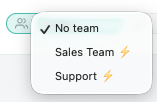
A ⚡ next to a team name means that team auto-assigns to an online member, so you know before you click whether somebody will receive it immediately.
Teloring then tells you what happened:
| Message | Meaning |
|---|---|
| Assigned to Dana from Sales | The team auto-assigned an online member. |
| Waiting in line for Sales | The team owns it, but nobody was assigned. A Sales member must pick it up. |
If the account has no teams yet, the Assigned team control does not appear at all. Create your first team and reload the conversation.
From the conversation list
Right-click any conversation card → Assign team → pick a team or No team. Handy for sorting a backlog quickly.
From Studio
Use the Change Conversation action with Assign AI / human agent on and Hand over to → A team. See Studio actions.
What assignment changes
Assigning a team always does three things:
- Sets the conversation's Assigned team.
- Releases Studio. If a Studio flow owned the conversation, it stops owning it. A conversation is handled by Studio or by people — never both.
- Either assigns an online member (Rule 1 on, somebody online) or leaves it waiting for the team.
Conversation cards show a 👥 team name chip so you can see the owner while scanning the list.
How teams change who gets what
This is the part worth reading carefully, because it changes how work is distributed.
"Get next conversation"
When an agent clicks Get next in the conversation list, Teloring offers only conversations they are allowed to take:
| The waiting conversation has… | Can this agent take it? |
|---|---|
| No team | Yes — anyone can. |
| A team they belong to | Yes. |
| A team they do not belong to | No. It is left for that team. |
So an agent in Support can pull untagged conversations and Support conversations, but never a Sales one. An agent in no team can only pull conversations that have no team.
Among whatever they are allowed to take, the existing fairness rules are unchanged:
- Priority first — Urgent, then High, then Medium, then Low.
- Then oldest first (FIFO), so a waiting customer is not overtaken by a newer one at the same priority.
Example. Two conversations are waiting, both on Support. One arrived an hour ago at Medium. One arrived twenty minutes ago at High. A Support agent clicking Get next receives the twenty-minute-old High one, because priority beats age.
If everything waiting belongs to other teams, Get next says No conversations waiting in line for your teams instead of giving them somebody else's work.
Queue tabs are not filtered by team
Waiting in line still shows and counts every waiting conversation, including other teams'. That is deliberate: teams control fair distribution, not visibility. Anyone can still see the whole queue, open another team's conversation, and take it manually if they need to — a supervisor covering a gap, for example. Only Get next respects team boundaries.
To see just your team's queue, use the Assigned team filter described below.
"Mine" never changes
Mine always means assigned to me as an agent. A conversation that belongs to your team but has no owner stays in Waiting in line — it does not appear in anyone's Mine until somebody actually takes it.
Teams and the agent field together
A conversation can hold a team and an agent. Teloring keeps the two consistent, so you never end up with Sales owned by somebody outside Sales.
| What you do | What Teloring does |
|---|---|
| Assign a team, nobody owns it yet | Auto-assigns an online member (Rule 1 on) or leaves it waiting. |
| Assign an agent who is in the team | Both are kept. |
| Assign an agent who is not in the team | The team is cleared. You will see Team Sales was removed — the new agent is not a member. |
| Move an owned conversation to a team the owner is not in | The agent is cleared and it waits in line for the new team. |
| Send back in line | The team is kept. It means "somebody else on this team should take this", so the team keeps first refusal. |
| Delete the team | Every conversation still on it goes back to the general waiting line. |
If a conversation could sit on Sales while a Support agent owned it, nobody could tell who was responsible, and Sales would never see it in Get next again. Clearing one of the two keeps the answer to "whose is this?" unambiguous.
Filter conversations by team
The conversation filter panel now has two new sections.
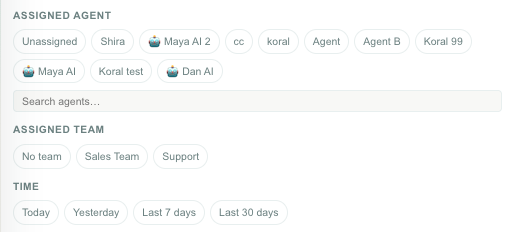
| Filter | What it offers |
|---|---|
| Assigned agent | Every agent, plus an explicit Unassigned chip. Has its own search box for long rosters. |
| Assigned team | Every team, plus an explicit No team chip. |
Both are multi-select and combine with the other filters. Selecting two teams shows conversations in either.
Useful combinations:
- Assigned team = Sales + Assigned agent = Unassigned → the Sales queue nobody has taken.
- Assigned team = No team → conversations nobody has routed yet.
- Assigned team = Sales + the Resolved tab → what Sales closed.
Teams in Studio
Route to a team
In the Change Conversation action, switch on Assign AI / human agent and set Hand over to → A team, then choose the team.
The flow then behaves exactly like a manual team assignment: Studio releases the conversation, and the team either auto-assigns an online member or holds it in the waiting line for its members.
These flow variables become available:
| Variable | Contains |
|---|---|
conversation.handover_team_id | The team ID the flow handed over to. |
conversation.handover_team_name | The team's name. |
conversation.handover_agent_id | The member who was auto-assigned, or empty if it waits in line. |
If Hand over to is set to A team but no team is chosen, the handover falls back to the plain waiting line. The flow editor flags the block with a warning while you are editing, so fix it before publishing.
If the chosen team is later deleted, the block fails rather than parking the conversation on a team that no longer exists. Check your flows after deleting a team.
Trigger on team assignment
The Conversation Changed trigger has a Team Assignment filter:
| Setting | Fires when |
|---|---|
| Any team (default) | Any change. The team is ignored. |
| Team assigned (any) | The conversation now has a team. |
| Team removed | The conversation no longer has a team. |
| Specific team assigned | The conversation's team is one you selected. |
Flows built before Teams existed keep working unchanged — they default to Any team.
Team changes also set change.type to team_assigned or team_unassigned, separately from the agent-level assigned / unassigned, so a flow can react to "handed to Sales" without firing on every individual assignment.
Specific team assigned with nothing selected never fires. An empty selection means "no team matches" — it is not treated as "every team", so an unfinished trigger cannot fire on assignments you never asked for.
See Studio triggers and Studio actions.
Teams in Analytics
Two separate things, and picking the right one matters.
Report on the work a team handled
Use the Conversations data source and group by Assigned Team.
That is where volume, resolution time, priority, and channel live. Examples:
- Open conversations by team.
- Average resolution time by team.
- Conversations Sales resolved this month.
- Count of distinct teams involved this week.
Team IDs are shown as team names in charts, tables, and filter pickers. Conversations with no team group under (none).
Report on the teams themselves
Use the Teams data source. It answers questions about your team setup, not about conversations:
| Field | Use |
|---|---|
| Team | Count teams, or group by team. |
| Team Name | Group or filter by name. |
| Agents in Team | Average, sum, min, or max team size. |
| Auto-assign to Online Agent | Split teams by whether the rule is on. |
| Human Agents Only | Split teams by whether the rule is on. |
| Created By, Created At, Updated At | Who set a team up and when. |
See Analytics.
Edit or delete a team
Edit
Click ✏️ on the row. You can change the name, description, members, and both rules.
Editing a team takes effect immediately for future routing:
- Adding a member lets them pull that team's waiting conversations right away.
- Removing a member stops them pulling new ones, but does not take away conversations they already own.
- Switching Only real agents on removes AI members when you save.
Delete
Click 🗑️ and confirm.
Deleting a team:
- removes the team;
- clears the team from every conversation that still has it, so those conversations return to the general waiting line and anyone can pick them up;
- reports how many conversations were detached.
It does not delete agents, conversations, or messages.
A Change Conversation block that hands over to a deleted team will fail at runtime, and a Conversation Changed trigger filtered on it will stop matching. Search your live flows for the team before you delete it.
Recommended setups
By topic — the common case
- Create Sales, Support, and Billing.
- Put each person in the team or teams that match their job.
- Leave Auto-assign off at first, so people pull work with Get next at their own pace.
- Route incoming conversations to a team, manually or from Studio.
- Turn Auto-assign on later for the team that needs the fastest first response.
Fast first response
- Create Front line with everyone who answers first.
- Turn Auto-assign to an online agent on.
- Route new conversations there from Studio.
- Whoever is online gets it immediately; when nobody is online it waits for the team.
Escalation that must reach a person
- Create Escalations with your senior agents.
- Turn Only real agents on.
- Leave Auto-assign off, so a human deliberately accepts the escalation.
- In Studio, route the angry or frustrated and asked for agent escalation reasons to this team.
AI first, humans second
- Create AI front line containing only your AI Agent, with Auto-assign on.
- Create Human backup with your people.
- Route new conversations to AI front line — the AI is always online, so it always answers.
- In the AI Agent profile, send failure and escalation outcomes to a human.
Limitations and what to watch for
These are real product limits today, not mistakes on your side.
| Item | What actually happens | Do this instead |
|---|---|---|
| Queue badge counts | Waiting in line counts every waiting conversation, including other teams'. The number can be higher than what Get next will actually give you. | Use the Assigned team filter to see your own team's queue. |
| No team queue tab | There is no sidebar tab for "my team's conversations". A team conversation with no owner sits in Waiting in line. | Filter by Assigned team, or pin the filter combination you use. |
| One team per conversation | A conversation cannot belong to two teams at once. Choosing a second team replaces the first. | Use a single team plus labels for anything cross-cutting. |
| No team-level working hours | A team has no schedule of its own. | Use Studio's Business Hours condition before routing to a team, or working hours in an AI Agent profile. |
| No team priority or skill weighting | Auto-assign is purely random among online members. There is no "give it to the least busy" or "prefer the specialist". | Keep teams small and focused, or assign manually where it matters. |
| An empty team | You can save a team with no members. Assigning it means nobody can auto-receive it, and nobody can pull it with Get next. It sits in the queue until somebody opens it manually or you fix the team. | Always add at least one member. |
| Team membership is not permission | Being in a team does not restrict what an agent can see or open. | Use channel permissions for visibility. Teams control routing only. |
| Created by / updated by | Recorded on the team for the audit log, but not shown on the Teams page. | Check Admin → Audit Log for team.created, team.updated, and team.deleted. |
Troubleshooting
"Get next" says nothing is waiting, but the queue shows conversations
Everything waiting belongs to teams you are not in. The message No conversations waiting in line for your teams confirms it. Ask an admin to add you to the team, or open the conversation from the list and assign it to yourself manually.
I assigned a team and nobody received it
Expected when either the team's Auto-assign rule is off, or no member was online. Check:
- Open the team and confirm Auto-assign to an online agent is on.
- Confirm at least one member is online — the green dot in Team Chat.
- If the team is humans-only and its only member is an AI Agent, nobody is eligible.
The team disappeared when I assigned an agent
That agent is not a member of the team. Teloring cleared the team so the conversation has one clear owner. Either add that agent to the team, or pick an agent who is already in it.
The agent disappeared when I assigned a team
The previous owner is not a member of the new team, so the conversation went back to the waiting line for the new team. Assign a member of the new team if it needs an owner immediately.
An AI Agent keeps getting auto-assigned at night
AI Agents are always online, so they are always eligible. Turn Only real agents on for that team, or remove the AI Agent from it.
I cannot create a team
Your role does not grant Teams → Create, so the Add team button is hidden. Ask somebody with Roles & permissions → Update to add it — see Roles and Permissions.
"A team with this name already exists"
Names are unique per account and compared case-insensitively — Sales and sales collide. Pick a different name, or edit the existing team.
A Studio flow stopped routing
If the flow handed over to a team that was deleted, the block now fails. Open the flow, pick a current team, and publish again.
Related guides
- Agents and AI Agents — create the people and AI profiles that become team members.
- Conversations — assignment, queues, Get next, and filters.
- Studio actions — the Change Conversation team handover.
- Studio triggers — the Conversation Changed team filter.
- Analytics — the Teams data source and the Assigned Team grouping.
- Roles and Permissions — access control, which teams deliberately do not provide.