Conversations
Conversations are the main agent workspace. This is where messages from connected inboxes become one organized customer service desk.
Conversation screen layout
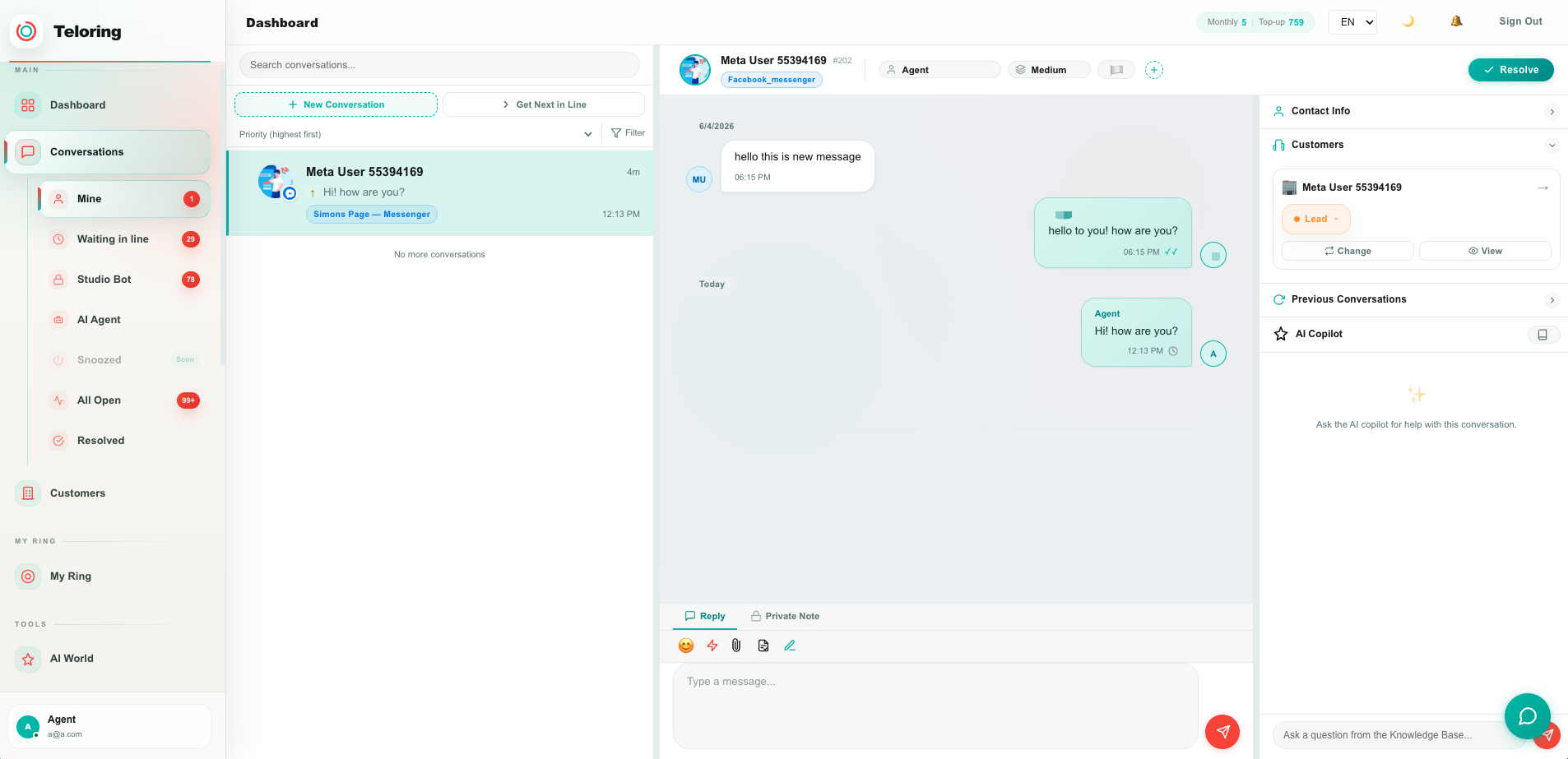
The conversation screen has three working areas:
| Area | What it contains |
|---|---|
| Left panel | Search, new conversation, get next in line, sorting, filters, bulk actions, and the conversation list. |
| Center panel | The selected conversation, messages, email thread view when relevant, and reply composer. |
| Right panel | Contact fields, the linked customer (Objects records), labels, notes/context, and AI Copilot tools. |
Right sidebar
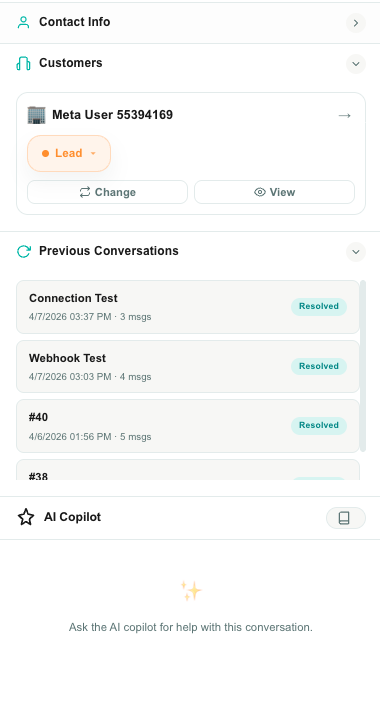
The right sidebar keeps the customer context next to the live conversation. Agents can answer faster because they do not need to leave the conversation page to check basic contact details, customer history, previous conversations, or AI support.
The right sidebar is split into sections:
| Section | What it shows | Common actions |
|---|---|---|
| Contact Info | The individual person in the conversation, such as name, phone, email, company, status, and custom contact fields. | Edit contact details and save updates directly from the conversation. |
| Customers | The customer linked to this conversation — a record of the Customers object. This is usually the company, account, household, or main customer record behind the contact. | View the linked customer, change the customer link, search for an existing customer, or create a new customer from the conversation. View opens the Customers table with this customer's side panel — journey, conversations, contacts and every linked object. |
| Previous Conversations | Other conversations connected to the same contact or customer. | Review history before replying, open older conversations, and understand whether this issue is new or a continuation. |
| Conversation Attributes | Custom fields your account defined for a conversation — such as reason for contact, outcome, or order number. | Record what this conversation was about and how it ended, then save. Shown only when your account has defined attributes. |
| AI Copilot | AI assistance for the current conversation. | Ask questions, use a selected knowledge base, review AI notes, and insert useful AI answers into the reply composer when appropriate. |
Contact Info
Contact Info is about the person who sent the message. It is useful when the same customer has several people contacting your team, or when one person contacts you from several channels.
Use it to check or update:
| Field | Example |
|---|---|
| Name | The person's name as agents should see it. |
| Phone | The contact's phone number. |
| The contact's email address. | |
| Company | The organization or business name connected to the person. |
| Status | The contact status used by your team. |
| Custom fields | Any additional fields your account uses for contacts. |
When an agent changes a contact field, the updated information is saved for future conversations with the same contact.
Customers
The Customers section connects the conversation to the CRM. This is important because one customer can have many contacts, many conversations, calls, documents, and custom records.
If a customer is already linked, agents can open the customer profile from the right sidebar. If the conversation is not linked yet, agents can search for an existing customer or create a new one from the conversation.
Use customer linking when:
| Situation | What to do |
|---|---|
| The contact belongs to an existing customer | Link the conversation/contact to that customer. |
| The contact is a new business or customer | Create a new customer from the conversation. |
| The conversation was linked to the wrong customer | Change the linked customer. |
| You need the complete customer history | Open the customer profile. |
Previous Conversations
Previous Conversations helps agents understand the history before replying. It is especially useful when a customer comes back through a different channel, or when a new agent takes over an issue.
Use it to answer questions like:
| Question | Why it matters |
|---|---|
| Has this customer contacted us before? | Prevents repeated questions and improves continuity. |
| Was the last issue resolved? | Helps avoid reopening old problems without context. |
| Which channel did they use before? | Helps understand customer preference and history. |
| Which agent handled the last case? | Makes follow-up and escalation easier. |
Conversation Attributes
Conversation Attributes are custom fields that belong to this conversation, not to the person. Your account designs them once — typically Reason for contact, Outcome, or Order number — and agents fill them in while they work.
The difference from Contact Info matters:
| Contact Info | Conversation Attributes | |
|---|---|---|
| Describes | The person | This one conversation |
| Next conversation with the same person | Keeps the same values | Starts empty |
| Good for | Their phone, email, company, department | Why they wrote today, what you did, which order |
Fill the fields in and click Save. Values stay with this conversation and follow it into the resolved archive, where they become read-only.
Because the answers are structured, they are the fields you report on later — "what do people contact us about, and how long does each type take?". See Conversation Attributes for the full guide, including how to design them and how Studio can fill them in automatically.
The section only appears when your account has defined attributes and your role allows it. With Read but no Update, the fields are visible but locked.
AI Copilot
AI Copilot is designed to support the agent, not replace the agent. Agents can ask Copilot questions about the conversation, use a selected knowledge base, or review AI-generated insights.
Depending on enabled AI features, Copilot can help with:
| Use case | How it helps |
|---|---|
| Summarizing context | Gives a quick overview of long conversations. |
| Answer drafting | Suggests wording agents can use or edit before sending. |
| Knowledge base answers | Searches approved knowledge base content and returns an answer based on that source. |
| Conversation insights | Shows items such as urgency, labels, churn risk, upsell opportunity, or detected subject when enabled. |
| Language help | Helps rewrite or translate replies when account features allow it. |
Agents should review AI answers before sending them to customers, especially when the answer includes pricing, legal, billing, medical, technical, or policy-sensitive information.
Find the right conversation
Use the queue links in the sidebar to choose the work list:
| Queue | Best for |
|---|---|
| Mine | Conversations assigned to you. |
| Waiting | Unassigned conversations waiting for handling. |
| Chatbot | Conversations currently handled by Studio bot mode. |
| AI Agent | Conversations currently handled by an AI agent. |
| On Hold | Conversations parked until a chosen time. See On Hold. |
| All Open | Open conversations across the account. |
| Resolved | Closed conversations and historical review. |
Inside a queue, use search, sort, and filters to narrow the list by channel type, inbox name, labels, assigned agent, assigned team, priority, flag, and time period.
The Assigned agent filter includes an explicit Unassigned chip, and the Assigned team filter includes a No team chip, so you can isolate work nobody has picked up or routed yet. Both are multi-select.
A conversation assigned to a team but not yet to a person stays in Waiting. To see only your team's share of the queue, filter Waiting by Assigned team. See Teams.
Get next conversation
Get next takes the decision out of your hands: Teloring picks the conversation you should handle now, by priority first, then oldest first among equal priorities.
If your account uses Teams, it only offers conversations you are allowed to take — ones with no team, or with a team you belong to. A conversation belonging to another team is left for that team. When everything waiting belongs to other teams you will see No conversations waiting in line for your teams.
Right-click quick actions
In open conversation queues, agents can right-click a conversation in the left list to open quick actions. This is useful when you need to organize work without opening the conversation first.
Quick actions can include:
| Action | Use it to |
|---|---|
| Mark as read / unread | Control whether the conversation appears as needing attention. |
| Mark as resolved | Close the conversation when the work is complete. |
| Assign | Assign the conversation to yourself, another agent, an AI agent where available, or send it back in line. |
| Assign team | Route the conversation to a whole team, or clear the team. Only shown when the account has teams. |
| Priority | Change the priority to low, medium, high, or urgent. |
| Assign label | Add or remove conversation labels. |
| Pin / unpin | Keep important conversations at the top of the list. |
| Flag | Add a colored flag for quick visual follow-up. |
| Show customer | Open the linked customer profile, when the conversation is connected to a customer. |
Quick actions update the same conversation fields as the controls inside the conversation. For example, changing priority from the right-click menu is the same as changing priority in the conversation top bar.
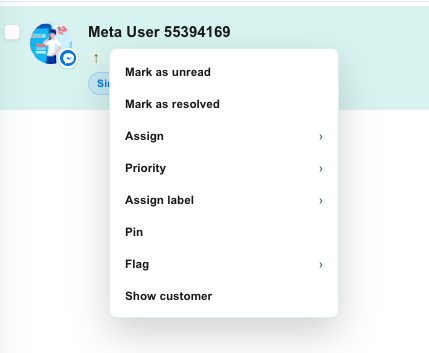
Right-click actions are available for open conversation lists. Resolved conversation views are used mainly for review and history.
Handle a conversation
A normal agent workflow looks like this:
- Open a queue.
- Select a conversation.
- Review the latest messages and customer context.
- Assign the conversation if needed.
- Set priority, flag, or labels when useful.
- Reply to the customer or add an internal/private note.
- Use quick replies or AI Copilot when appropriate.
- Fill in the Conversation Attributes your team uses, such as reason and outcome.
- Mark the conversation as resolved when the issue is complete — or put it On Hold when you are waiting for a time, a delivery, or a callback.
Assignment, priority, labels, and flags
Use the top bar of the selected conversation to keep work organized.
| Control | Use it to |
|---|---|
| Assigned agent | Move ownership to yourself or another agent. |
| Assigned team | Route the conversation to a team instead of one person. A ⚡ marks a team that auto-assigns to an online member. Hidden when the account has no teams. |
| Priority | Mark urgency as low, medium, high, or urgent. |
| Flag | Add a visual signal for follow-up or special handling. |
| Labels | Group conversations by topic, department, campaign, or issue type. |
| On Hold | Park the conversation until a chosen time. It leaves your active queues and returns by itself — when the time is up, or the moment the customer replies. See On Hold. |
| Resolve | Close the conversation when no more action is needed. |
Teloring keeps the agent and the team consistent with each other. Assigning an agent who is not in the conversation's team clears the team, and moving a conversation to a team its current owner is not in clears the agent. Send back in line keeps the team, so the same team keeps first refusal. Full rules: Teams.
Bulk actions
When multiple conversations need the same update, select conversations from the list and use the bulk toolbar to assign, label, mark read/unread, or resolve them.
Bulk actions affect every selected conversation. Before applying them, confirm the selected count and filter context.