Actions — the THEN blocks
An action is a step that does something: sends a message, updates a conversation, writes to your CRM, calls an external API, sends an email, or transforms a value for the next block.
Actions carry the teal THEN badge. You add them from the block picker: drag a connector out of any block and release it on empty canvas.
The full list
| Action | Group | What it does |
|---|---|---|
| Reply Message | Conversations | Sends a message to the customer, and can pause the flow until they answer. |
| Private Note | Conversations | Adds an internal note that the customer never sees. |
| Change Conversation | Conversations | Hands over to a human, a team, or the waiting line; labels, prioritizes, resolves, renames, and sets conversation attributes. |
| End Session | Conversations | Releases the conversation from Studio, optionally resolving it. |
| Wait | Flow | Pauses this path for 1–15 seconds. |
| Save as Variable | Flow | Stores a value permanently under var.* for future runs. |
| Contact Update | CRM | Writes to fields on the contact record. |
| Add, Update or Delete a record | CRM | Writes a record of any object — a customer, a contact, an order, anything. |
| HTTP Request | External | Calls an external API, optionally capturing the response. |
| Send Email | External | Sends an email from an inbox or from the Teloring system sender. |
| Code | Tools | Runs a small sandboxed JavaScript transform. |
| Date and Time | Tools | Gets, formats, adds, subtracts, compares, extracts, or rounds dates. |
| Send Teloring Notification | Tools | Alerts agents inside Teloring — bell, sound, email, and browser push. |
| Play Sound | Voice | Plays an audio prompt to a caller. |
| Wait / Pause | Voice | Pauses the call briefly. |
| IVR Menu | Voice | Plays a menu and routes by keypad digit. |
| Forward to Agent | Voice | Rings an agent in the browser and bridges the call. |
| Forward to External Phone | Voice | Transfers the call to an outside number. |
| Hang Up | Voice | Ends the call. |
Branching blocks — Condition If/Else, Business Hours, Agent Availability — carry the amber IF badge and are documented in Conditions.
Things that are true for every action
- Text fields accept variables. Type
{{or drag a variable in from the Available Variables section. See Variables. - Outputs become variables. Everything an action produces is available to every block below it.
- Fan-out runs everything. If an action has three connectors leaving it, all three paths run.
- A failed action stops its own path, not the whole flow — other branches keep going.
Reply Message
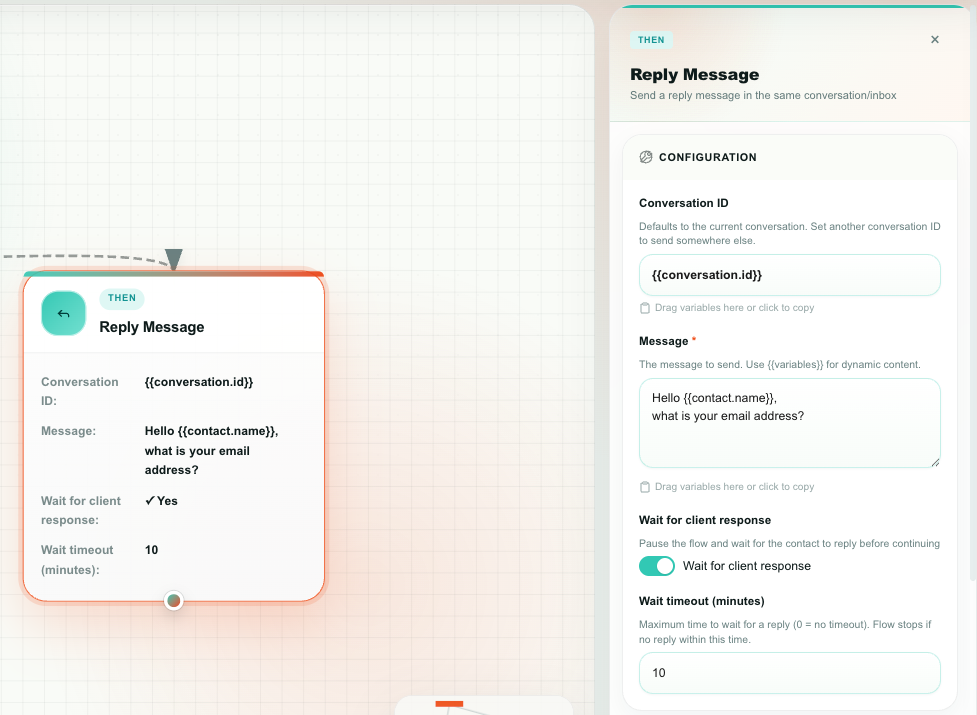
Sends a message to the customer in the conversation, exactly as if an agent had typed it. It goes out on whichever channel the conversation is on — WhatsApp, email, SMS, Telegram, live chat, and so on.
This is also the block that turns a flow into a conversation: switch Wait for client response on and the flow pauses until the customer answers.
Messaging flows only.
Properties
| Property | What it does | Default |
|---|---|---|
| Conversation ID | Which conversation to send in. Leave the default to reply in the conversation that triggered the flow. | {{conversation.id}} |
| Message (required) | The text to send. Use variables for personalization. | Empty |
| Wait for client response | Pauses this path until the customer replies. Their reply becomes the new {{message.content}} and is also available as {{client_reply.content}}. | Off |
| Wait timeout (minutes) | How long to wait before giving up. 0 means no timeout — the flow keeps waiting. Teloring holds a waiting flow for up to 30 days either way. Appears only when waiting is on. | 0 |
Outputs
| Variable | Holds |
|---|---|
{{reply.message_id}} | The sent message |
{{reply.conversation_id}} | Where it was sent |
{{reply.sent_at}} | When |
{{reply.status}} | Send status |
{{client_reply.content}} | What the customer replied (when waiting) |
{{client_reply.content_type}} | The reply's type — button / list for a tapped WhatsApp button or picked list row |
{{client_reply.reply_id}} | The ID of the button or list row the customer chose (empty for a typed reply) |
{{client_reply.message_id}} · {{client_reply.received_at}} | Reply message and timestamp |
How waiting behaves
- While the flow waits, the conversation stays in the Studio Bot queue.
- The customer's reply is consumed by the waiting flow — it does not start a second run of the same flow.
- After the wait, you can test the answer with either
{{message.content}}or{{client_reply.content}}; they hold the same text. - If a condition after a wait matches no branch and there is no ELSE branch, the flow keeps waiting at that condition and re-evaluates on the customer's next message. Add an ELSE branch, or an End Session block, so a customer can never get stuck in the flow.
- If the timeout expires, the run ends as
timed_out.
Ask one question per Reply Message. Two questions in one message get one answer, and your condition has nothing clean to match.
Private Note
Adds an internal note to a conversation. It appears in the conversation timeline for agents and is never sent to the customer, on any channel.
Properties
| Property | What it does | Default |
|---|---|---|
| Conversation ID | Which conversation gets the note. | {{conversation.id}} |
| Private note | The note text. Variables are supported. | Empty |
Outputs
| Variable | Holds |
|---|---|
{{private_note.message_id}} | The note |
{{private_note.conversation_id}} | Where it was added |
{{private_note.created_at}} · {{private_note.status}} | When, and the result |
Good uses: record what a bot collected before handing over, paste an order status pulled from an API, or leave the reason a conversation was escalated.
Change Conversation
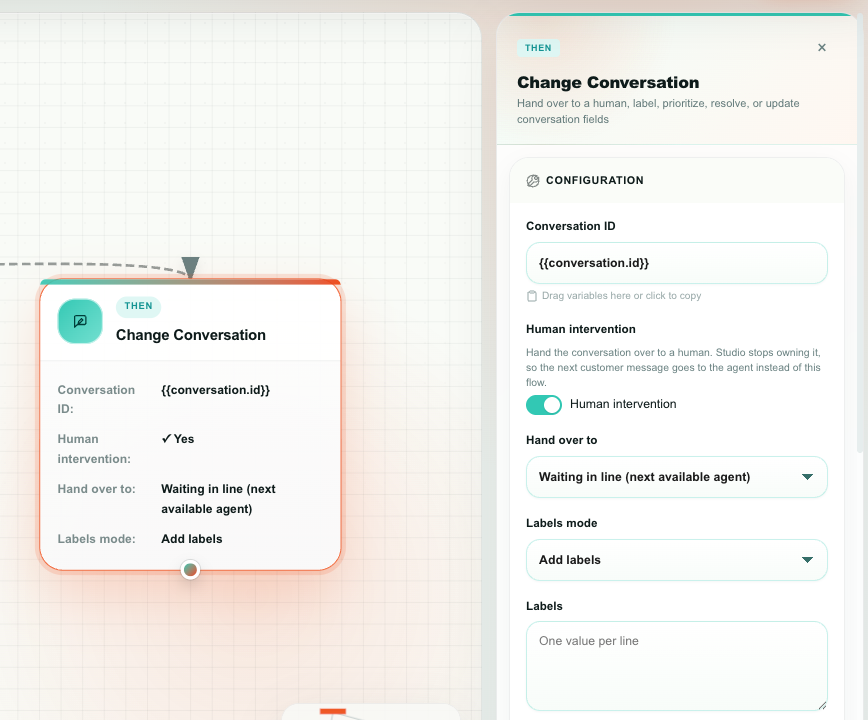
Updates the conversation — and, most importantly, is where you hand it over to a human: one specific agent, a whole team, or the waiting line.
Properties
| Property | Options | What it does |
|---|---|---|
| Conversation ID | Text / variable | Which conversation to update. Defaults to {{conversation.id}}. |
| Assign AI / human agent | On / Off | Hands the conversation to an agent — AI or human — to a team, or to the waiting queue. Studio stops owning it, so the next customer message goes to the agent instead of back into the flow. |
| Hand over to | Waiting in line (next available agent) · A specific agent · A team | Appears when Assign AI / human agent is on. |
| Agent | Agent picker | Appears when handing over to a specific agent. AI agents are listed too, marked · AI. |
| Team | Team picker | Appears when handing over to a team. A ⚡ marks a team that auto-assigns to an online member; the number in brackets is how many agents it has. |
| Labels mode | Add labels · Replace labels · Remove labels | How the labels below are applied. |
| Labels | One label per line | The labels to add, set, or remove. |
| Priority | No change · Low · Medium · High · Urgent | Sets the conversation priority. |
| Status | No change · Open · Pending · Resolved | Sets the conversation status. |
| Flag | No change · None · Important · Follow up | Sets the conversation flag. |
| Subject | Text / variable | Renames the conversation. |
| Conversation attributes | Attribute picker + value | Sets your account's Conversation Attributes on this conversation. Pick the attribute, type the value — variables allowed. See below. |
Outputs
| Variable | Holds |
|---|---|
{{conversation.status}} | Result of the update |
{{conversation.updated_fields}} | Which fields changed |
{{conversation.handover}} | queue, agent, team, or empty |
{{conversation.handover_agent_id}} | The agent it was handed to — for a team handover, the member who was auto-assigned, or empty if it waits in line |
{{conversation.handover_team_id}} | The team it was handed to |
{{conversation.handover_team_name}} | That team's name |
{{conversation.custom_attributes}} | Every conversation attribute, as one object |
{{conversation.custom_attributes.<api_id>}} | One attribute — for example {{conversation.custom_attributes.reason_for_contact}} |
Setting conversation attributes
Conversation Attributes are your account's own fields on a conversation — Reason for contact, Outcome, Order number. They live in this block rather than a block of their own, because they are fields on the conversation exactly like priority and subject.
Click Add field under Conversation attributes, pick an attribute, and give it a value. The value accepts variables, so a flow can classify a conversation from what it already knows:
| Flow | Sets |
|---|---|
| A menu asks "what is this about?" | Reason for contact = the button the customer pressed |
| A form starts the conversation | Order number = {{answers.order_number}} |
| An HTTP Request looks the customer up | Account tier = {{http.json.tier}} |
| The bot resolves the conversation itself | Outcome = Solved by bot |
| Rule | Behavior |
|---|---|
| Values are validated | A value that is not one of a dropdown's options fails the block, so a flow can never write something the agent panel would refuse to show. |
| Deleted attributes are skipped | An attribute removed from Settings after the flow was built is ignored, and the block keeps running. |
| Other attributes are kept | Setting one attribute never clears the rest. |
| Multi-select | Separate values with commas or new lines. |
The block outputs the new values, so every block below it — an HTTP Request above all — sees what was just written. Attributes are also available from the trigger, without this block, on Incoming Message, Incoming Call and Conversation Changed. See Variables.
Understanding Assign AI / human agent
| Setting | What happens |
|---|---|
| Off | Only the labels, priority, status, flag, and subject change. Studio keeps owning the conversation and later messages still run the flow. |
| On → A specific agent | The conversation is assigned to that agent and leaves the Studio Bot queue. If the conversation was on a team that agent does not belong to, the team is cleared. |
| On → A specific agent, and that agent is an AI agent | The AI agent takes the conversation and starts answering: it opens an AI session, sends its greeting, and replies to what the customer has already written. The conversation moves to the AI Agent queue, not to a person's. If the AI cannot take it — the agent is disabled, its profile does not allow that inbox, or the conversation is already resolved — the block fails and the conversation is left exactly as it was. |
| On → A team | The team takes ownership. If the team auto-assigns to an online agent, one of its online members receives it immediately (an AI agent in that team counts as online, and takes the conversation the same way as above); otherwise it waits in line and only members of that team can pull it with Get next. A resolved conversation is re-opened first. |
| On → Waiting in line | The conversation is unassigned and dropped into the Waiting in line queue for whoever is free next. A resolved conversation is re-opened first, because a resolved conversation cannot wait in line. |
Either way, the handover sticks: later messages on that conversation will not be pulled back into this flow — or into any other live flow. The handover is cleared automatically when the conversation is resolved, when the conversation is assigned to a specific agent, or when a flow runs End Session.
- Pick the team. If Hand over to is A team but no team is selected, the handover falls back to the plain waiting line. The editor flags the block while you are editing.
- Deleting a team breaks the block. If the selected team is later deleted, the block fails at runtime rather than parking the conversation on a team that no longer exists. Review your live flows after deleting a team.
Every customer-facing flow should have a route to a human. Wire an "I want to talk to someone" branch, or a fallback branch, into a Change Conversation block with Assign AI / human agent on.
End Session
Ends Studio's involvement with the conversation. The next message from that customer starts trigger matching from scratch, as if the flow had never run.
Properties
| Property | What it does | Default |
|---|---|---|
| Conversation ID | Which conversation to release. | {{conversation.id}} |
| Should we also resolve the conversation? | Also marks the conversation resolved. | Off |
Outputs
| Variable | Holds |
|---|---|
{{session.status}} | Result |
{{session.conversation_id}} | The conversation |
{{session.resolved}} | Whether it was resolved too |
End Session vs. Assign AI / human agent
| Use | When |
|---|---|
| End Session | The bot has finished its job. Nobody in particular needs to act, and the next message should be able to start a flow again. |
| Change Conversation → Assign AI / human agent | An agent (human or AI) or a team needs to take this conversation now. |
Wait
Pauses this path of the flow for a few seconds before continuing. Use it to space out messages so a bot feels less robotic.
Messaging flows only. Voice flows use Wait / Pause.
Properties
| Property | What it does | Default |
|---|---|---|
| Wait duration (seconds) | Between 1 and 15 seconds. | 3 |
Outputs
| Variable | Holds |
|---|---|
{{wait.seconds}} | How long it waited |
Wait only holds up the branch it sits on. If the trigger also feeds another branch, that branch runs immediately — it does not queue behind the wait.
Save as Variable
Stores a value permanently, so later runs of the same flow can read it back. Ordinary variables live only for one run; a saved variable outlives it.
Properties
| Property | What it does | Default |
|---|---|---|
| Variable key | The name to store it under. Always inside the var. namespace. Dynamic keys are allowed, for example var.{{contact.phone}}.address. | var.my_value |
| Value | What to store. Variables are supported. | {{message.content}} |
| Value type | Text · Number · Boolean · JSON | Text |
| Overwrite existing variable | Whether an existing value with the same key may be replaced. | On |
Outputs
| Variable | Holds |
|---|---|
{{saved_variable.key}} | The normalized key that was written |
{{saved_variable.value}} | The stored value |
{{saved_variable.status}} | Result |
How saved variables work
- They are per flow. Two flows can each have their own
var.counterwithout colliding. - They are loaded into every run of that flow, so
{{var.my_value}}is available from the first block onward. - Keys are forced into the
var.namespace, so a saved value can never overwrite a system, contact, conversation, or message variable. - Unsupported characters in a key become underscores.
- Review and delete them in ⚙ Flow Settings → Saved variables.
Good uses: remember a per-customer preference keyed by phone number, store the last synced ID from an external system, or keep a running counter.
Contact Update
Writes to fields on the contact record — the person, not the company.
Properties
| Property | What it does | Default |
|---|---|---|
| Contact ID | Which contact to update. | {{contact.id}} |
| Fields to update | Rows of field → value. The field name is a dropdown of the contact fields your account actually defined in the Field Editor. A field already used in one row disappears from the other dropdowns. Values support variables. | Empty |
Outputs
| Variable | Holds |
|---|---|
{{contact.status}} | Result |
{{contact.updated_fields}} | Which fields were written |
Protected system fields cannot be written by a flow. If a field you expect is missing from the dropdown, add it to the Contacts object in the object builder first. Contact Update is a shortcut for the conversation's contact; Update a record does the same for any object.
Add, Update or Delete a record
Three blocks that write any object under Objects — a customer, a contact, an order, a service call, anything your account defined.

Properties
| Property | Options | What it does |
|---|---|---|
| Object (required) | Dropdown of the account's objects | Which object the record belongs to. The field list below follows this choice. Calls and Documents are written by the platform and are not offered. |
| Record ID (Update, Delete) | Text / variable | Which record. Usually {{record.id}} from an Object change trigger, or {{new_record.id}} from an earlier Add a record. Must be exactly one record. |
| Fields (Add, Update) | Rows of field → value | The object's writable fields. Values support variables; a linked record takes a record id (or several, comma-separated); a checkbox takes yes / no; a dropdown takes one of its options exactly as written. |
Values are validated by the Objects engine before anything is written — required fields, options, unique values, links to records the account really has — so a bad value fails the block instead of corrupting the record. A variable that does not resolve is skipped (listed in skipped_fields), not written as {{…}}. Lookups, counts and auto numbers are filled by the engine. Customers and the records of your own objects count against the plan's limits.
Outputs
| Variable | Holds |
|---|---|
{{new_record.id}} · {{new_record.label}} · {{new_record.url}} | Add a record — the new record |
{{new_record.<field>}} | Every field of the saved record, lookups and auto numbers included |
{{new_record.status}} · {{new_record.skipped_fields}} | created, or why not; fields that were not saved |
{{updated_record.id}} · {{updated_record.updated_fields}} · {{updated_record.skipped_fields}} · {{updated_record.status}} | Update a record |
{{deleted_record.id}} · {{deleted_record.status}} | Delete a record — deleted, not_found, or in_use when other records still link to it |
Every write appears in the record's change log with source Studio, refreshes lookups and counts, and fires the Object change trigger of other flows (not this flow's own trigger unless it opts in).
A Test Run validates the values and resolves the variables but writes nothing; the block reports status = validated.
HTTP Request
Sends data to an external system, or fetches data from one. This is the general-purpose bridge between Teloring and the rest of your stack.
Properties
| Property | Options | What it does |
|---|---|---|
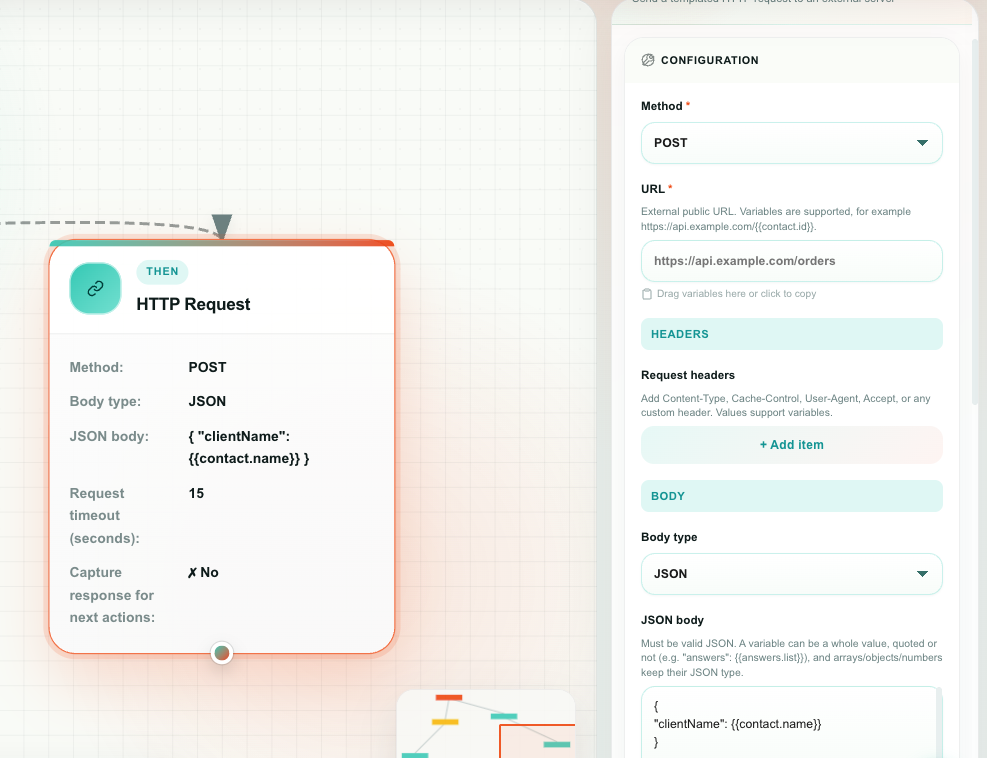
| Method | GET · POST · PUT · PATCH · DELETE · COPY · HEAD · OPTIONS | The HTTP method. |
| URL (required) | Text / variable | The full URL. Variables are supported, for example https://api.example.com/orders/{{contact.id}}. |
| Request headers | Key/value rows | Any headers you need. Content-Type, Cache-Control, User-Agent, and Accept are offered as presets. Values support variables. |
| Body type | None · JSON · Form data | What to send in the body. |
| JSON body | Text area | Appears for JSON. Must be valid JSON. |
| Form fields | Key/value rows | Appears for Form data. Values support variables. |
| Request timeout (seconds) | 1–60 | How long to wait for the server. |
| Capture response for next actions | On / Off | See below. |
Capture response — on or off?
| Setting | Behavior | Use when |
|---|---|---|
| Off | Fire-and-forget. The request is queued and sent in the background; the flow continues immediately. | You are notifying an external system and do not need its answer. |
| On | The flow waits for the response and exposes it as variables. | You need the answer — an order status, a price, a customer ID. |
Outputs
| Variable | Holds |
|---|---|
{{http.status}} | Send status |
{{http.task_id}} | Background job ID, when capture is off |
{{http.status_code}} | HTTP status code, for example 200 |
{{http.ok}} | true for a 2xx response |
{{http.content_type}} | The response content type |
{{http.body}} | The raw response body |
{{http.json}} | The response parsed as JSON |
{{http.headers}} | The response headers |
{{http.error}} | The error, if the call failed |
When the response is a JSON object, its fields are also flattened into their own variables — {{http.json.order_id}}, {{http.json.customer.name}}, and so on.
Variables inside a JSON body
Studio is type-aware when it fills a JSON body:
- A variable that fills a whole value — written bare (
"answers": {{answers.list}}) or as a complete quoted string ("answers": "{{answers.list}}") — keeps its real JSON type. Arrays stay arrays, numbers stay numbers, objects stay objects. - A variable inside a longer string (
"greeting": "Hi {{contact.name}}!") is substituted as text, with quotes and special characters safely escaped. - A variable that resolves to nothing is left as-is.
The editor validates the JSON while you type. Invalid JSON turns the box red and puts a warning badge on the block; you can keep editing, but fix it before publishing.
Security
Studio only calls public http:// and https:// addresses. Localhost, private networks, loopback, link-local, and cloud metadata addresses are blocked, so a flow can never be used to reach inside infrastructure.
Send Email
Sends an email. This is a pure send — it does not create a conversation, a contact, or a message in any inbox timeline, so you can email a manager, a supplier, or an internal alias without polluting an inbox.
Properties
| Property | Options | What it does |
|---|---|---|
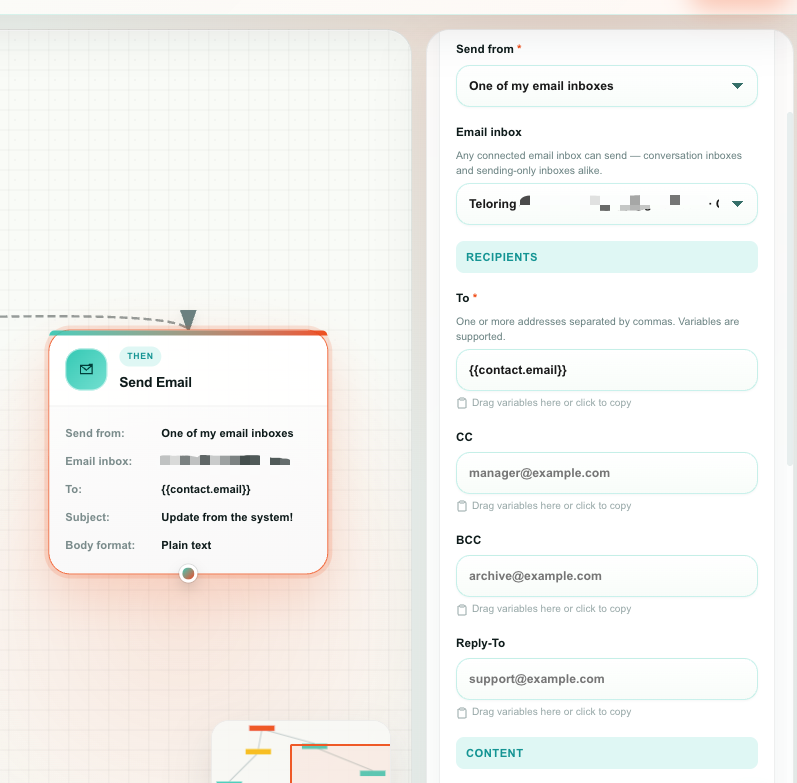
| Send from | One of my email inboxes · Teloring system sender | Who the email comes from. |
| Email inbox | Dropdown of connected email inboxes | Appears for the inbox option. Any connected email inbox can send — conversation inboxes and sending-only inboxes alike. |
| System sender | Read-only notice | Appears for the system option, showing the address that will be used. |
| To (required) | Text / variable | One or more addresses. Defaults to {{contact.email}}. |
| CC · BCC · Reply-To | Text / variable | Optional. |
| Subject (required) | Text / variable | The subject line. |
| Body format | Plain text · HTML | How the body is written. |
| Body (required) | Text area | The email content. Variables are supported. |
| Custom headers | Key/value rows | Optional technical headers. X-Teloring-Flow, X-Campaign, X-Priority, and List-Unsubscribe are offered as presets. |
Outputs
| Variable | Holds |
|---|---|
{{email.status}} | sent, failed, or test |
{{email.message_id}} | The sent message |
{{email.from}} · {{email.to}} · {{email.subject}} | What was sent, and to whom |
{{email.provider}} | Which transport delivered it |
{{email.error}} | The error, if it failed |
Recipients and limits
- To, CC, BCC, and Reply-To accept several addresses separated by commas, semicolons, or new lines, and understand the
Name <address@example.com>form. - Every address is validated and de-duplicated. 25 recipients in total, at most.
- At most 10 custom headers. Addressing and threading headers (From, To, Cc, Bcc, Reply-To, Subject, Message-ID, Content-Type, …) are set in the fields above and cannot be overridden here.
- Whichever body format you choose, both a text and an HTML part are sent, so the email renders everywhere.
Replies to the Teloring system sender do not come back into Teloring. If you want answers, either send from one of your own inboxes or set a Reply-To.
A Test Run resolves the sender and validates everything, but sends nothing. The block reports email.status = test.
Code
Runs a small JavaScript transform and returns a value for the blocks below it. Use it for the things a text field cannot do: cleaning a phone number, splitting a name, reformatting an ID, picking one item out of a list.
Properties
| Property | What it does |
|---|---|
| JavaScript code (required) | The code to run. It must return a value. |
New blocks start with a working example:
const phone = "{{contact.phone}}";
const cleanNumber = phone.replace(/^\+/, '');
return cleanNumber;
Reading variables
Two ways, both fine:
// 1 — substituted before the code runs
const name = "{{contact.name}}";

// 2 — read from the frozen variables object
const phone = variables["contact.phone"];
Outputs
| Variable | Holds |
|---|---|
{{code.status}} | Result |
{{code.result}} | The returned value, with its type preserved |
{{code.result_text}} | The returned value as text |
{{code.error}} | The error, if the code failed |
What the sandbox allows
The Code block runs isolated, with a memory cap and a short time limit. It is meant for data manipulation only:
| Allowed | Blocked |
|---|---|
| String, number, array, object, date, and regex operations | fetch, XMLHttpRequest, WebSocket — no network |
The variables object and any {{variable}} you substitute | require, import, process — no modules, no environment |
| Returning any JSON-serializable value | eval, Function, WebAssembly |
Code that does not return a value fails the block on purpose, so the flow never continues with missing data. To call an external service, use HTTP Request.
Date and Time
Calculates and formats dates. Every operation is timezone-aware.
Properties
| Property | Options | What it does |
|---|---|---|
| Operation | Get current date/time · Add time · Subtract time · Format date · Extract part · Time between dates · Round date | What to calculate. |
| Input date | Text / variable | The date to work on, in ISO form. Leave empty for "now". |
| Second date | Text / variable | The other date. Appears for Time between dates. |
| Amount | Number | How much to add or subtract. Appears for Add and Subtract. |
| Unit | Seconds · Minutes · Hours · Days · Weeks | The unit for Amount. |
| Part | Date · Time · Year · Month · Day · Hour · Minute · Weekday | Which piece to pull out. Appears for Extract part. |
| Format | Text | The output pattern, for example %Y-%m-%d %H:%M:%S. Appears for Format date. |
| Timezone | Text | The timezone the calculation runs in. Defaults to Asia/Jerusalem. |
Outputs
| Variable | Holds |
|---|---|
{{datetime.status}} | Result |
{{datetime.result}} | The calculated value |
{{datetime.result_text}} | The value as text |
{{datetime.date}} · {{datetime.time}} | Date part and time part |
{{datetime.timestamp}} | Unix timestamp |
Good uses: work out a follow-up date three days out, format a timestamp for a customer-facing message, or measure how long a conversation has been open before deciding to escalate.
Send Teloring Notification
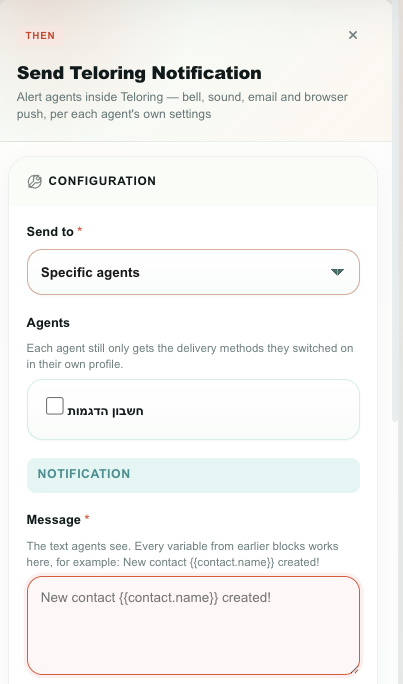
Alerts agents inside Teloring — the notification bell, a sound, an email, and a browser push. Use it for anything the two built-in notification types do not cover: a new lead, an analytics threshold, an SLA about to breach, a form submission, a VIP customer writing in.
This is the flexible half of Notifications. The profile page ships two ready-made types ("a conversation was assigned to me" and "a new message arrived") so an agent who never opens Studio still gets something useful. Everything beyond that is built here.
This block decides the text and the recipients. It never decides how the notification reaches them — that stays with each agent, in their own profile.
An agent who enabled only the bell gets a bell entry. A colleague on the same notification who enabled all four gets a sound, an email, a push, and a bell entry. An agent with notifications switched off — or with Studio notifications switched off — gets nothing at all, and the flow carries on normally.
Properties
| Property | Options | What it does |
|---|---|---|
| Send to (required) | Specific agents · The agent assigned to this conversation · Everyone in a team | Who is notified. |
| Agents | Checkbox list of agents | Appears for Specific agents. Human agents only — an AI Agent has no inbox to notify. |
| Team | Dropdown of teams | Appears for Everyone in a team. Every member is notified. |
| Conversation ID | Text / variable | Appears for The agent assigned to this conversation. Defaults to {{conversation.id}}. |
| Message (required) | Text area | The text agents see. Variables are supported — New contact {{contact.name}} created! |
| Extra details | Text area | An optional second line, shown in the bell list, the email, and the browser push. |
| Clicking the notification opens | The conversation from this flow · Nothing — text only · A specific Teloring page | Where the notification links to. |
| Teloring page | Text / variable | Appears for the specific-page option. A path inside Teloring, such as /dashboard/customers. |
Outputs
| Variable | Holds |
|---|---|
{{notification.status}} | sent, no_recipients, test_mode, or failed |
{{notification.recipients}} | How many agents were targeted |
{{notification.delivered}} | How many actually received something, after their own settings were applied |
{{notification.message}} | The final text, with variables resolved |
{{notification.error}} | The error, if it failed |
recipients and delivered are usually the numbers you want when debugging. recipients: 3, delivered: 0 means the flow found three agents and none of them had Studio notifications switched on.
Understanding "Send to"
| Option | Resolves to | When nobody matches |
|---|---|---|
| Specific agents | Exactly the agents you ticked. | The block reports no_recipients. |
| The agent assigned to this conversation | Whoever currently owns the conversation. | An unassigned conversation has no owner, so the block completes with no_recipients. This is not an error — the flow continues. |
| Everyone in a team | Every member of the chosen team, at the moment the block runs. | An empty or deleted team reports no_recipients. |
Limits and safety
- External links are impossible. The Teloring page field only accepts a path inside Teloring. An absolute URL is dropped, so a notification can never be turned into a link to an outside site.
- Message is trimmed to 160 characters and Extra details to 600.
- The text is displayed as plain text everywhere it appears, including inside the email.
- An empty Message fails the block. As everywhere in Studio, a variable that cannot be resolved is left visible (
{{contact.name}}) rather than silently blanked, so you can spot the mistake. - The same notification cannot reach the same agent twice within 60 seconds.
A Test Run resolves the recipients and the text and validates everything, but notifies nobody. The block reports notification.status = test_mode. Testing a flow never rings real agents.
Example — tell the Sales team about a new lead
- Trigger: Object change → Customers, created
- Condition: If/Else →
{{record.lifecycle_stage}}equalslead - Then: Send Teloring Notification
- Send to: Everyone in a team → Sales
- Message:
New lead: {{record.name}} - Extra details:
Phone {{record.phone}} · Source {{record.source}} - Clicking the notification opens: A specific Teloring page →
{{record.url}}
Every member of Sales who has Studio notifications enabled is alerted, each through their own chosen methods.
Next
- Conditions — the IF blocks — sending the flow down the right path.
- Variables — the full variable reference.
- Flow recipes — these actions used in complete flows.