Voice call flows
A voice flow is a Studio flow that answers the phone. It plays your greeting, offers a keypad menu, checks whether you are open, rings an agent's browser, transfers to an outside number, and hangs up — all from the same canvas you use for messaging flows.
Everything a caller experiences on a Teloring number is defined here. There is no separate "call settings" screen: the voice inbox holds the number, and the flow holds the behavior.
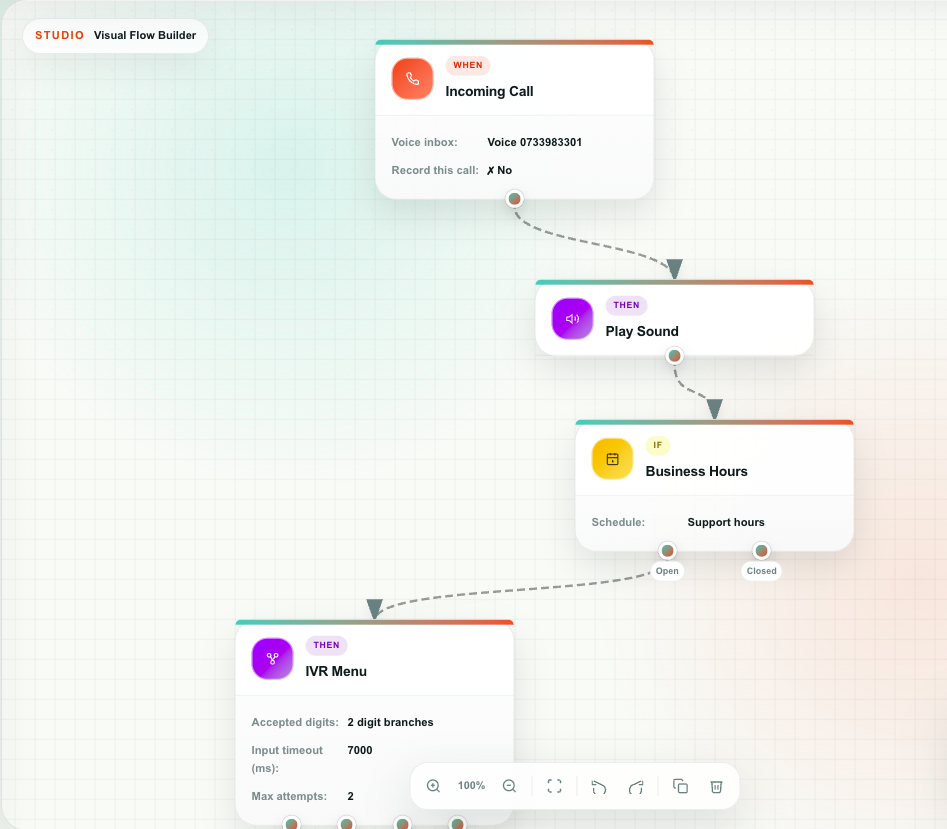
What makes a flow a voice flow
Drop an Incoming Call trigger on the canvas and the flow becomes a voice flow. From that moment:
- The Voice group appears in the block picker — Play Sound, Wait / Pause, IVR Menu, Forward to Agent, Forward to External Phone, Hang Up.
- Reply Message and Wait disappear. A phone call has no message thread to reply into.
- The general blocks stay available: conditions, HTTP Request, Send Email, Private Note, Change Conversation, Contact Update, Add / Update / Delete a record, Code, Date and Time, Save as Variable.
If a flow somehow ends up with a block from the wrong side — pasted in, or left over from an earlier design — the block gets a warning badge and the flow cannot be published until you remove it.
Before you build
| Step | Where |
|---|---|
| Connect a voice number | My Ring → Voice |
| Create your business-hours schedules | Settings → Business Hours |
| Record your prompts as WAV files | Any audio tool. 8 kHz mono PCM is the safe format. |
| Give agents a voice extension | Agents |
Record every prompt before you start building. A voice flow is mostly audio, and it is much easier to lay out when you already know what each prompt says.
Incoming Call — the trigger
Starts the flow when a call arrives on the selected number.
| Property | What it does | Default |
|---|---|---|
| Voice inbox (required) | Which voice inbox / DID runs this flow. | — |
| Record this call | Records every call that enters the flow. | Off |
Recording
Recording is controlled only here. When it is on:
- The whole call is recorded, from the moment it enters the flow.
- When the call ends, the recording is uploaded to your account's private storage.
- A private note with the recording details is added to the conversation.
- The recording is attached to the customer's record and appears in the Files Warehouse.
Call recording carries legal obligations in most countries — usually an announcement at the start of the call. Add a Play Sound block with a recording notice as the first step of a recorded flow, and check your local rules.
Variables
{{call.uuid}}, {{call.caller_id}}, {{call.destination}}, {{call.direction}}, {{call.timestamp}}, {{call.inbox_id}}, {{call.contact_id}}, {{call.contact_name}}, plus {{conversation.id}}, {{contact.*}}, and {{channel.*}}.
Unknown callers are matched or created as a lead automatically, so {{contact.id}} is always usable.
Play Sound
Plays an audio prompt to the caller, then continues to the next block.
| Property | What it does |
|---|---|
| Audio prompt (required) | Upload a WAV file, or pick one you already uploaded. |
| Output | Holds |
|---|---|
{{voice.play_sound.file_id}} | The file that was played |
Audio requirements
| Requirement | Detail |
|---|---|
| Format | WAV only. Other formats are rejected at upload. |
| Recommended encoding | 8 kHz, mono, PCM |
| Storage | Uploaded to your account's private file storage and served only to the phone system |
Free — playing audio does not consume credits.
Wait / Pause
Inserts a short silence before the next block. Useful between two prompts, or to give a caller a beat before a menu.
| Property | Range | Default |
|---|---|---|
| Wait duration (seconds) | 0–30 | 2 |
| Output | Holds |
|---|---|
{{wait.seconds}} | How long it paused |
Voice flows only. Messaging flows use the Wait block instead.
IVR Menu
Plays a menu prompt and routes the call by whichever key the caller presses. This is the heart of most phone flows.
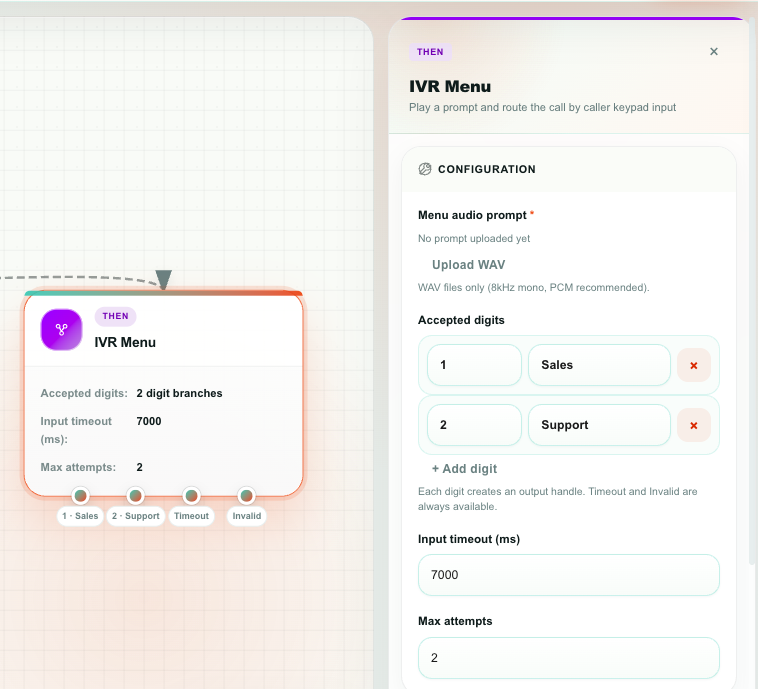
| Property | What it does | Default |
|---|---|---|
| Menu audio prompt (required) | The WAV that reads out the options. | — |
| Accepted digits | The keypad options. Each row has a digit and a label. | 1 · Sales, 2 · Support |
| Input timeout (ms) | How long to wait for a keypress, in milliseconds (1000–60000). | 7000 |
| Max attempts | How many times to replay the menu before giving up (1–5). | 2 |
Outputs on the canvas
The block grows one port per digit, plus two more:
| Port | Runs when |
|---|---|
1, 2, 3 … | The caller pressed that key. The port is labelled with the digit and your label, for example 1 · Sales. |
| Timeout | The caller pressed nothing within the input timeout. |
| Invalid | The caller pressed a key that is not in your list. |
| Variable | Holds |
|---|---|
{{voice.ivr.digit}} | The digit that was pressed |
{{voice.ivr.branch}} | The branch that was taken |
{{call.digit}} · {{call.gathered_digits}} | The last digit, and everything gathered |
Always wire Timeout and Invalid to something — usually back into the same menu, or straight to an agent. A caller who presses the wrong key and hits a dead end just hears silence.
Free — an IVR menu does not consume credits.
Forward to Agent
Rings an agent in their browser and connects the caller once they answer.
| Property | Options | Default |
|---|---|---|
| Routing | Specific agent · Any available agent | Specific agent |
| Agent | Agent picker. Appears for Specific agent. | — |
| Ring timeout (seconds) | 5–120 | 30 |
Any available agent picks the first agent who is currently signed in for voice. If nobody is signed in, it falls back to the first agent who has a voice extension.
Two outputs
| Port | Runs when |
|---|---|
| Completed | The agent answered and the call has now ended. Use this for post-call work — logging, a CRM record, a satisfaction email. |
| Rejected | The agent declined, or the ring timed out with no answer. Use it to try another agent, offer voicemail, or hang up politely. |
An unconnected output simply ends the call.
What the caller and the agent experience
- The caller hears ringback while Teloring waits.
- A call popup appears for the agent, with the caller's number and contact details.
- Answer connects the two sides immediately.
- Reject, or letting the ring timeout expire, takes the Rejected path.
- When either side hangs up, the Completed path runs.
Variables available on Completed
Because these appear only after the call, they are ideal for pushing a full call record into an external system:
| Variable | Holds |
|---|---|
{{voice.forward.status}} · {{voice.forward.agent_id}} | Result of the transfer |
{{call.agent_id}} · {{call.agent_name}} | Who took the call |
{{call.duration_seconds}} | Total call length, arrival to hangup |
{{call.talk_duration_seconds}} | Talk time, answer to hangup |
{{call.wait_duration_seconds}} | How long the caller waited before being answered |
{{call.started_at}} · {{call.answered_at}} · {{call.ended_at}} | Timestamps |
{{call.conversation_id}} · {{call.customer_id}} | Where the call is recorded |
Free — internal transfers do not consume credits.
Agents must have their Teloring tab open to be rung. There is no permanent phone registration, so a signed-out agent is simply not reachable — pair this block with an Agent Availability condition to choose a different path when nobody is around.
Forward to External Phone
Transfers the caller to an outside phone number — an on-call mobile, a partner office, an answering service.
| Property | What it does | Default |
|---|---|---|
| External phone number (required) | The destination, in international form (+972501234567). Variables are supported. | — |
| Ring timeout (seconds) | 5–120 | 30 |
| Variable | Holds |
|---|---|
{{voice.forward.status}} | Result of the transfer |
{{voice.forward.external_number}} | The number that was dialled |
The number you were originally called on is used as the outbound caller ID, so the person receiving the transfer sees your business number.
This block bills credits. Forwarding to an external phone number places a real outbound call. Internal transfers to agents are free.
Hang Up
Ends the call.
| Property | Options | Default |
|---|---|---|
| Hangup cause | Normal clearing · Busy · No answer | Normal clearing |
| Variable | Holds |
|---|---|
{{voice.hangup.cause}} | The cause that was sent |
Use Normal clearing for an ordinary goodbye. Busy and No answer exist so the calling network sees a meaningful reason, which matters if callers are routed by another system before they reach you.
End every path with either a transfer or an explicit Hang Up, after a closing prompt. A path that just stops leaves the caller in silence until the line drops.
Conditions in a voice flow
All three condition blocks work on calls:
| Condition | Typical voice use |
|---|---|
| Business Hours | Open → menu; Closed → "we're closed" prompt and hang up. |
| Agent Availability | Online → Forward to Agent; Offline → voicemail prompt or external forward. |
| Condition If/Else | Route VIP callers by call.caller_id, or branch on a customer status you fetched with HTTP Request. |
A typical structure
Incoming Call  (record: on)
   └─ Play Sound         "Welcome to Acme. This call may be recorded."
        └─ Business Hours
             ├─ Open ──── IVR Menu   "Press 1 for sales, 2 for support"
             │              ├─ 1 · Sales ──── Agent Availability
             │              │                    ├─ Online ── Forward to Agent ──┬─ Completed ─ HTTP Request (log the call)
             │              │                    │                               └─ Rejected ── Play Sound "Sorry we missed you" ─ Hang Up
             │              │                    └─ Offline ─ Play Sound "Leave a message" ─ Hang Up
             │              ├─ 2 · Support ── Forward to External Phone
             │              ├─ Timeout ────── Play Sound (replay) ─ IVR Menu
             │              └─ Invalid ────── Play Sound "That wasn't an option" ─ IVR Menu
             └─ Closed ── Play Sound "We're closed. Our hours are…" ─ Hang Up
Checklist before you publish
- Every IVR digit port is wired, including Timeout and Invalid.
- Every path ends in a transfer or a Hang Up.
- The closed-hours path says something useful, not just silence.
- If recording is on, the first prompt announces it.
- Every prompt is a WAV file, and you have listened to each one.
- Forward to Agent has a Rejected path.
- You called the number yourself and walked every branch.
Test Run exercises the flow's logic with sample data, but it cannot place a real call. The only true test of a voice flow is to dial the number.
Next
- Voice inbox — connecting the number and the agent softphone.
- Conditions — business hours and availability branching.
- Flow recipes — a complete phone-menu example.