The Ring — inboxes overview
The Ring is where you connect and manage every channel your customers use to reach you. Each channel you connect becomes an inbox, and every inbox feeds the same Conversations workspace — so WhatsApp, email, a website chat, a phone call, and an Instagram comment all land in one place, handled the same way.
The page is called My Ring (in the sidebar and at /dashboard/ring). Its tagline says it best: One Ring, Endless Possibilities.
An inbox and a channel are the same thing in Teloring — one connected communication line (for example, one WhatsApp number, one mailbox, or one website widget). This guide uses "inbox" for the connected line and "channel type" for the kind of line (WhatsApp, Email, SMS, and so on).
Key facts
| Fact | Meaning |
|---|---|
| One place for every channel | Connect WhatsApp, Email, SMS, Messenger, Facebook, Instagram, Telegram, LINE, Live Chat, Voice, TikTok, and a developer API — all from one page. |
| One channel type, many inboxes | You can connect several inboxes of the same type (for example, two WhatsApp numbers or three mailboxes). Each is its own inbox with its own name. |
| Everything routes to Conversations | Every inbound message, comment, or call creates or updates a conversation. Agents never need to leave Teloring to reply. |
| Permission-managed | Adding, configuring and removing inboxes need My Ring → Create / Update / Delete. Working inside an inbox is a separate set of per-inbox permissions, so a front-line agent normally answers in every inbox while having no My Ring access at all. See Roles and Permissions. |
| Account-isolated | An inbox belongs to one account (one business). It is never visible to another account. |
| Safe to remove | Deleting an inbox stops new messages on that line but keeps all existing conversations and history. |
The supported inbox types
Each channel type has its own guide page. Click through for the connect steps, screens, and settings specific to that channel.
| Inbox | What it is for | Guide |
|---|---|---|
| Support and sales on a WhatsApp Business number. | WhatsApp · Meta onboarding | |
| A shared team mailbox (Teloring-managed, Microsoft 365, Gmail, or any IMAP/SMTP address). | ||
| SMS | Two-way text-message conversations. | SMS |
| Messenger | Private messages sent to your Facebook Page. | Messenger |
| Facebook Page | Comments and activity on your Facebook Page posts. | Facebook Page |
| Instagram DM | Direct messages from your Instagram account. | Instagram DM |
| Instagram Posts | Comments on your Instagram posts. | Instagram Posts |
| Telegram | Conversations through a Telegram bot. | Telegram |
| LINE | Conversations through a LINE Official Account. | LINE |
| Live Chat | A chat widget you embed on your website. | Live Chat |
| Voice | A phone number with an in-browser softphone for calls. | Voice |
| TikTok Messenger | Direct messages from TikTok. | TikTok Messenger |
| API | A developer inbox for pushing messages in from any custom system. | API |
The My Ring page
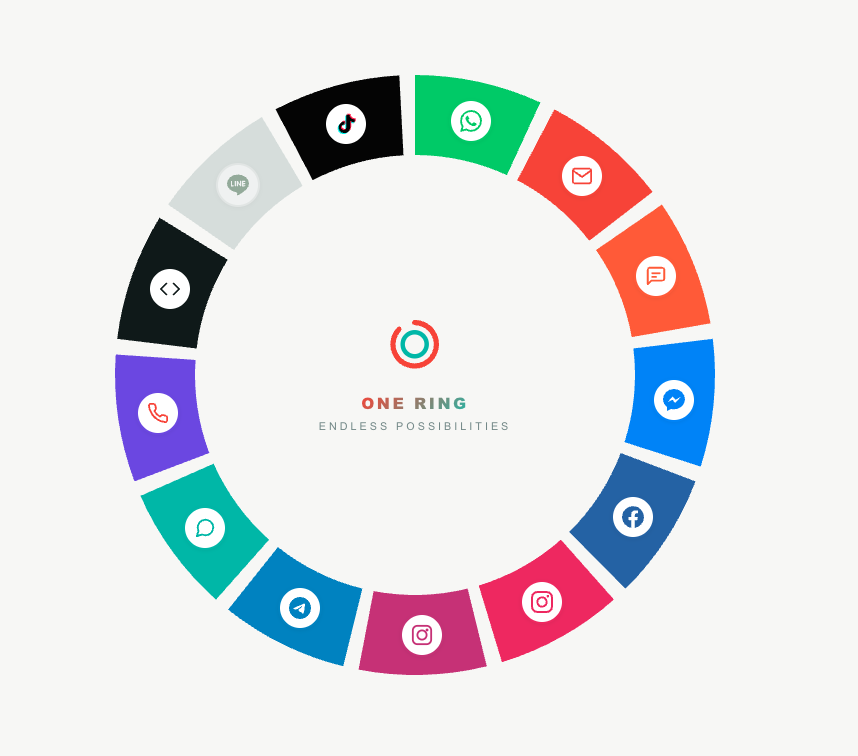
Open My Ring from the sidebar. Instead of a plain list, Teloring draws your channels as a ring — a circle divided into one colored arc per channel type, with the channel's icon on each arc and the Teloring mark in the center.
| Element | What it tells you |
|---|---|
| A colored arc + icon | A channel type shown in its brand color means at least one inbox of that type is connected. |
| A grey arc + faded icon | That channel type has no inbox connected yet — it is available to add. |
| Hover tooltip | Hovering an arc or icon shows the channel name and how many inboxes you have connected (for example, "You have 2 inboxes connected" or "No inboxes connected yet"). |
| Center mark | The Teloring ring logo and the One Ring — Endless Possibilities catchphrase. |
Click any arc or icon to open that channel's modal.
The channel modal
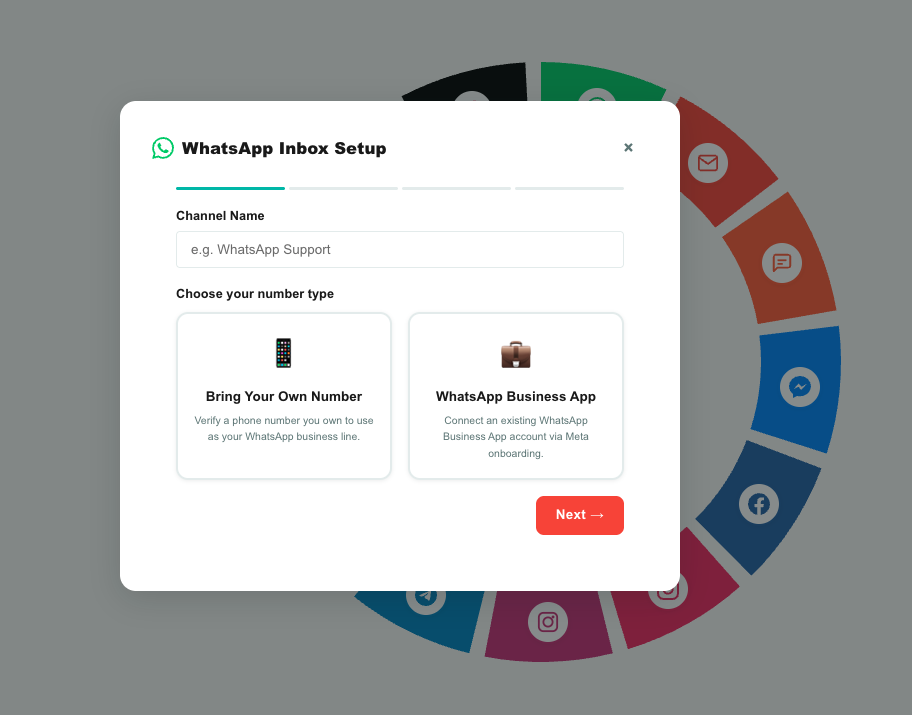
The channel modal lists every inbox you already have of that type and lets you add another.
| Item | Meaning |
|---|---|
| Inbox rows | Each connected inbox of this type, with its name, its ID, and the date it was created. |
| Status badge | For channels that report a connection state (such as WhatsApp), a badge shows whether the inbox is Active, Pending, Receive Only, and so on — see Inbox statuses. |
| Edit (pencil) | Opens that inbox's settings page. |
| Add button | Add to your ring (when none are connected) or Add another channel (when one or more already exist) — starts the setup flow for this channel type. |
Connect an inbox
The exact steps depend on the channel — some need a provider login, a phone number, or a token — but the shape is always the same:
- Open My Ring.
- Click the channel type you want (its arc or icon).
- In the modal, click Add.
- Follow the channel's setup flow (name the inbox and enter or authorize its connection details).
- Complete any provider-side steps (a Facebook or Microsoft login, a WhatsApp number verification, pasting a webhook URL, and so on).
- Confirm the inbox appears connected on the Ring.
- Send a test message to the new line and check that a conversation is created in Conversations.
Setup differs by channel. WhatsApp runs a step-by-step verification wizard, Meta and email OAuth options open a provider login, Telegram and LINE ask for a bot token, Live Chat generates an embed snippet, Voice assigns a phone number, and API generates an endpoint. Each guide page walks through its own flow.
What every inbox has in common
However different the channels are, every inbox shares the same core:
| Property | Detail |
|---|---|
| Name | A label you choose (for example, WhatsApp Support or Sales Mailbox). Agents filter and identify conversations by it, so make it clear. You can rename an inbox any time from its edit page. |
| Active state | Whether the inbox is live. Some channels (like WhatsApp) set this automatically once the provider approves the connection. |
| Inbox ID | A short sequential number (1, 2, 3, …) unique within your account. It appears in the modal and in the edit-page URL. |
| Settings | Channel-specific options shown as tabs on the edit page (for example, WhatsApp Profile and Templates, or the Live Chat Appearance tab). |
| Danger Zone | Every inbox edit page ends with a Danger Zone to delete the inbox. |
The inbox edit page
Click the pencil on an inbox (or use its row in the modal) to open its edit page at /dashboard/ring/{id}/edit. The page shows tabs tailored to that channel type. Most channels open on their main settings; the tabs are described on each channel's guide page.
Inbox statuses
Simple channels are either connected or not. Channels that depend on an outside provider report a more detailed status, shown as a badge in the channel modal. WhatsApp uses the full set:
| Status | Meaning |
|---|---|
| Pending Onboarding | The inbox exists in Teloring, but the provider setup (for example, Meta onboarding) is not finished. Not yet sending or receiving. |
| Pending Approval | Setup is done; waiting for the provider to approve the line. |
| Receive Only | The inbox can receive messages but cannot send yet. |
| Active | Fully live — sending and receiving. |
| Error | Something went wrong with the connection. Contact support. |
| Deleted | The provider account for this line was removed. |
Deleting an inbox (Danger Zone)
Every edit page ends with a Danger Zone. Deleting is deliberately hard to do by accident:
- Click Delete this channel.
- Confirm the first warning.
- Type the exact inbox name to confirm. If it doesn't match, nothing happens.
Deleting an inbox is permanent and cannot be undone. You will no longer send or receive messages on that line. Existing conversations stay in the system — they are not deleted — but the inbox is removed for good. Deleting needs My Ring → Delete.
After an inbox is connected
Once an inbox is live, new customer activity flows straight into the product:
- Conversations are created automatically. An inbound message, comment, or call finds or creates the contact, then opens a new conversation or reuses the customer's existing open one. Media is saved into Teloring. See Conversations.
- Agents work every channel the same way. Reply, assign, label, prioritize, resolve, and link the conversation to a CRM customer — regardless of which channel it came from.
- Filter by inbox. In any conversation queue, agents can filter by channel type and by inbox name, so a team can focus on just one line.
- Automations react to inbox events. A Studio flow can trigger on an incoming message to auto-reply, run a bot, assign the conversation, or update customer fields.
- AI assists on every inbox. AI Copilot (and, where enabled, an AI Agent) runs on incoming messages to summarize, suggest replies, and answer from your knowledge base.
Admin tips
| Tip | Why it helps |
|---|---|
| Use clear inbox names | Agents filter conversations by inbox name and instantly see where a message came from. |
| Connect one channel at a time | It is easier to verify routing and test replies before adding the next line. |
| Always send a test message | Every new inbox should be proven with a real inbound message before agents rely on it. |
| Keep provider logins with few people | Sensitive tokens and provider accounts (Meta, Microsoft, WhatsApp) should sit with the small group holding My Ring → Update. |
| Add multiple inboxes per type when it fits | Separate numbers or mailboxes (Sales vs Support) keep queues clean and reporting meaningful. |