Telegram
The Telegram inbox connects a Telegram bot to Teloring. Customers message your bot, and those messages become conversations in the shared inbox; agents reply through the bot. Connecting is quick — you create a bot in Telegram, paste its token, and Teloring wires up everything else automatically.
Prerequisites
| You need | Why |
|---|---|
| Inbox permission | Connecting a Telegram bot needs My Ring → Create. See Roles and Permissions. |
| A Telegram bot | Create one in Telegram with @BotFather and copy its API token. |
How to get a bot token:
- Open Telegram and search for @BotFather.
- Send the /newbot command.
- Choose a name and username for your bot.
- Copy the API token BotFather gives you (it looks like
123456789:ABCdefGHIjklMNOpqrSTUvwxYZ).
Each Telegram bot can be connected to only one Teloring account.
Connect a Telegram inbox
Open My Ring, click Telegram, and choose Add. The wizard has three steps: Bot Token → Verify → Connect.
Step 1 — Enter the bot token
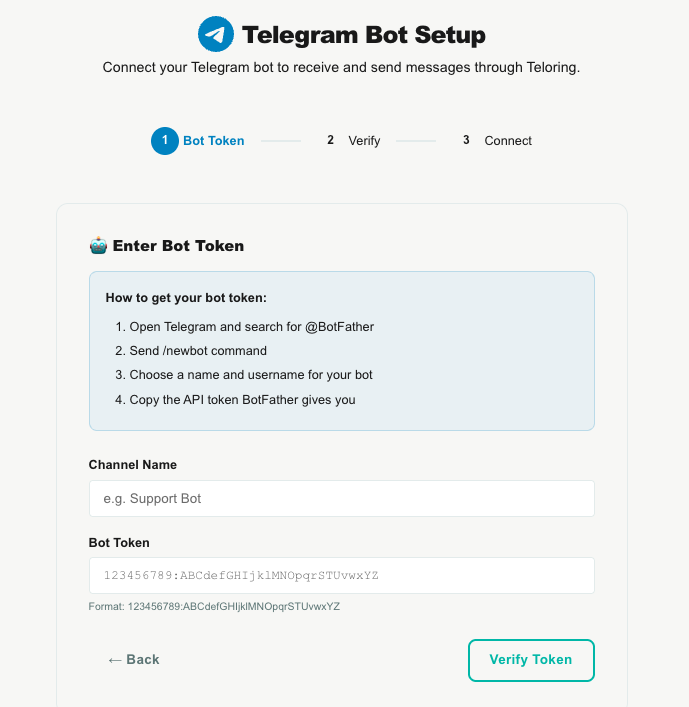
| Field | What to enter |
|---|---|
| Channel Name | A name such as Support Bot. |
| Bot Token | The token from BotFather. |
Click Verify Token. Teloring checks the token with Telegram and shows a preview card with the bot's name, @username, and ID. If you left the channel name blank, it fills in with the bot's name.
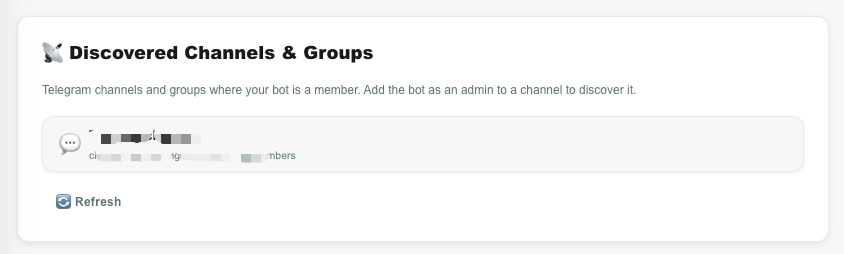
Step 2–3 — Connect
Click Connect Bot. Teloring registers the bot's webhook automatically — you don't paste any URL anywhere — sets up the /start command, and stores the connection securely. The Telegram Bot Connected! screen confirms it's live, with a Manage Bot button that opens the edit page.
The Telegram edit page
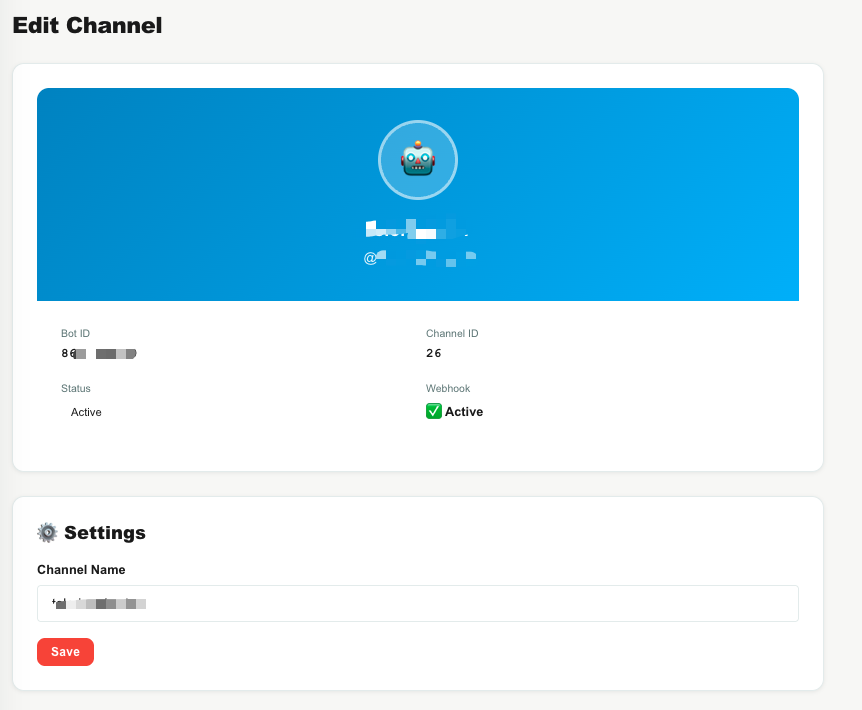
| Section | What it shows |
|---|---|
| Bot profile | The bot avatar, name, and @username. |
| Info | Bot ID, Channel ID, status, and webhook state (Active / Inactive). |
| Settings | The editable Channel Name (Save applies it). You can also replace the bot token here, which re-verifies and re-registers the webhook. |
| Discovered Channels & Groups | Telegram channels and groups your bot belongs to. Add the bot as an admin to a channel to discover it, then Refresh. Shows each channel's title, member count, and whether it's ready to broadcast (which needs a linked discussion group). |
| Danger Zone | Disconnect Bot — removes the webhook and disconnects the bot. Existing conversations are kept; no new messages will arrive. |
Capabilities and limits
| Capability | Detail |
|---|---|
| Two-way messaging | Receive and reply to direct messages with the bot. |
| Send media | Text, images, video, audio, voice notes, documents, animations, stickers, video notes, locations, and contacts. |
| Long messages | Text over 4,096 characters is automatically split into several messages. |
| Typing indicator | Shown to the customer while an agent replies. |
| Channels & groups | The bot can broadcast to a Telegram channel that has a linked discussion group, and comments on those posts become conversations. |
| Agent-initiated DMs | Agents can start a direct message to a Telegram user the bot can reach. |
How Telegram messages become conversations
- A customer messages your bot (or comments in a linked discussion group).
- Teloring matches the person to a contact by their Telegram ID, or creates one.
- It reuses their open conversation on this inbox, or opens a new one, and stores the message.
- Real-time updates, Studio triggers, and AI Copilot fire.
A resolved conversation is never reopened — a later message starts a new one. See Conversations.