The Email inbox turns an email address into a shared team inbox. Incoming mail is threaded into conversations, so agents reply from Teloring instead of a personal mail client, and replies go back out from the same address and stay attached to the same conversation. Rich HTML, attachments, CC/BCC, reply/reply-all/forward, and signatures all work as you'd expect from a full email client.
You can connect email in four ways. They all share the same conversation view, composer, and threading — only how mail is sent and received differs.
Choose a connection type
Open My Ring, click the Email icon, choose Add, and pick a connection type.
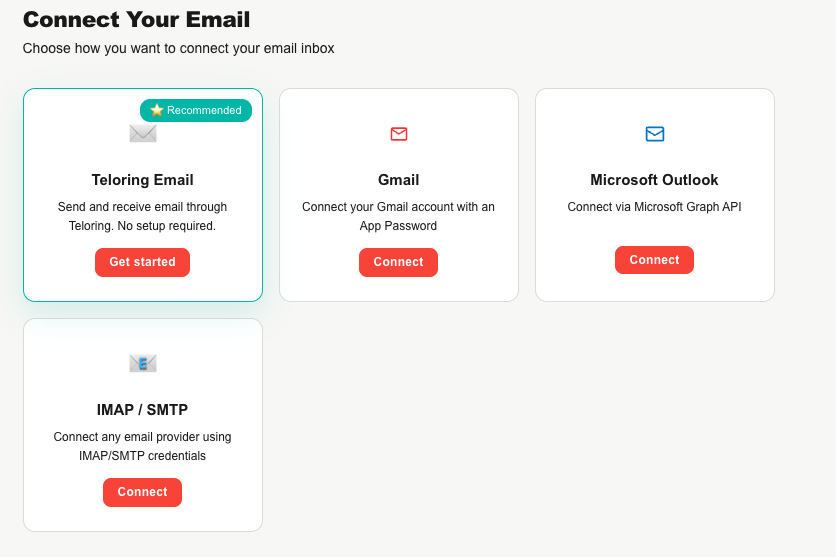
| Type | What it is | Setup effort | Best for |
|---|---|---|---|
| Teloring Email ⭐ Recommended | A mailbox fully managed by Teloring — no mail server needed. | Lowest | Teams that want the fastest start, or a branded address on their own domain. |
| Microsoft Outlook | Connect an Outlook / Microsoft 365 mailbox by signing in with Microsoft. | Low (one sign-in) | Microsoft 365 / Outlook users. |
| Gmail | Connect a Gmail or Google Workspace mailbox with an App Password. | Medium | Gmail / Google Workspace users. |
| IMAP / SMTP | Connect any provider using standard mail-server credentials. | Highest (manual) | Any other provider (Yahoo, a hosting mailbox, a custom server). |
Conversations vs. sending only
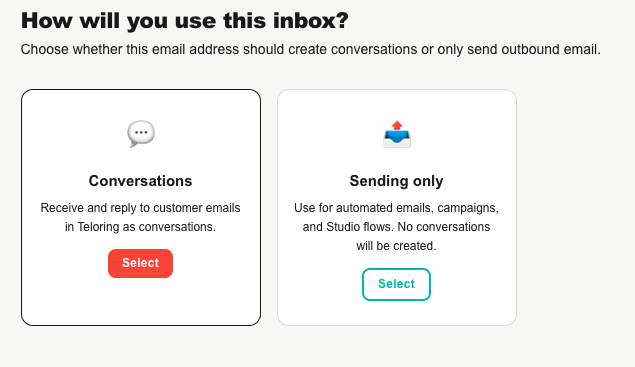
Every email inbox has a purpose, chosen right after the connection type:
| Purpose | Behavior |
|---|---|
| Conversations | Receives and replies to customer email as conversations. This is the default. |
| Sending only | Used for automated email, campaigns, and Studio flows. No conversations are created — inbound mail is ignored. |
Once a "Conversations" inbox has real conversations, its purpose is locked and cannot be switched to "Sending only".
Connect flow by type
Teloring Email (managed)
The recommended option has three modes:
| Mode | What you get | DNS needed? |
|---|---|---|
| Zero Setup | An address like support@yourname.teloring.com. Works instantly. | No |
| Email Forwarding | Keep your current provider and forward incoming mail to a private Teloring address. | No |
| Bring Your Own Domain | Send and receive on your own subdomain (for example, support.yourcompany.com) with your branding. | Yes |
- Zero Setup — pick a prefix (like
support) and a subdomain (yourname), and Teloring checks availability live (✅ Available / ❌ Not available). Add a display name and create the inbox. It's active immediately. - Email Forwarding — after you create the inbox, Teloring generates a private forwarding address. Add a forwarding rule at your current provider that sends mail to it. (The optional "original address" field is just a note for your agents.)
- Bring Your Own Domain (BYOD) — enter a subdomain (root domains are not allowed) and a display name. Teloring shows two DNS records to add — a DKIM record (authorizes Teloring to send signed mail for your domain) and a Return-Path record (for bounce tracking) — plus a private address to forward inbound mail to. Add the records, then click Verify DNS now. The inbox becomes active once verification passes.
Microsoft Outlook (sign-in)
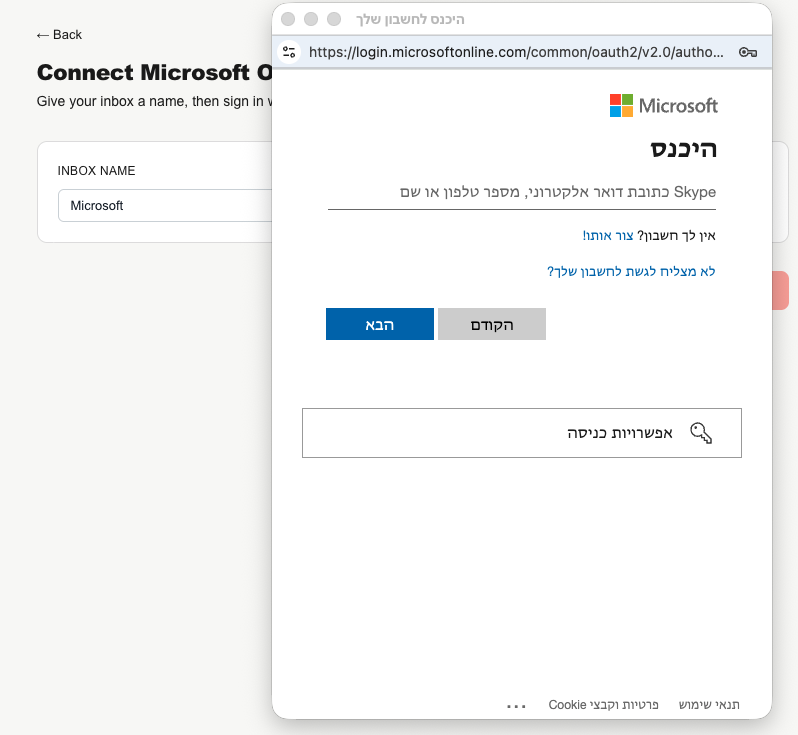
- Name the inbox and click Continue with Microsoft.
- A Microsoft sign-in window opens. Sign in and review the permissions Teloring requests (read and send mail on your behalf).
- Accept. The window closes and the inbox is created — no server settings needed.
If the connection ever expires, the inbox's edit page shows a Re-authorize button to sign in again.
Gmail (App Password)
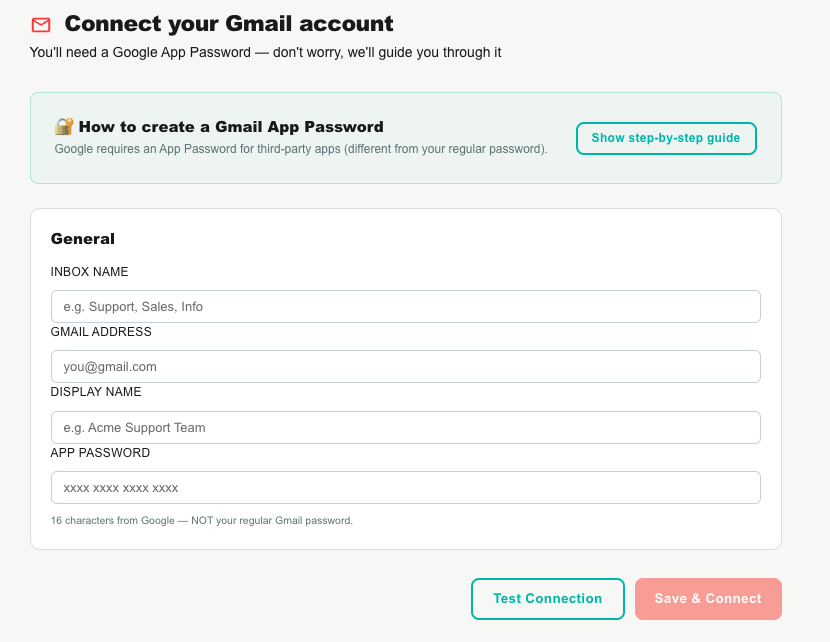
Gmail connects with a Google App Password (not your normal Gmail password).
Google requires 2-Step Verification to be on before you can create an App Password. The setup screen links you straight to Google's 2-Step Verification and App Passwords pages.
- Turn on 2-Step Verification in your Google account.
- Create an App Password named Teloring at Google's App Passwords page (a 16-character code).
- In Teloring, enter the inbox name, your Gmail address, a display name, and paste the App Password.
- Click Test Connection, then Save & Connect once the test passes.
IMAP / SMTP (any provider)
Enter your provider's mail-server details:
| Group | Fields |
|---|---|
| General | Inbox Name, Email Address (the From address), Display Name. |
| IMAP (incoming) | Host, Port (usually 993), Security (SSL/TLS, STARTTLS, or None), Username, Password. |
| SMTP (outgoing) | Host, Port (usually 587), Security, Username, Password. A Use same credentials as IMAP checkbox saves retyping. |
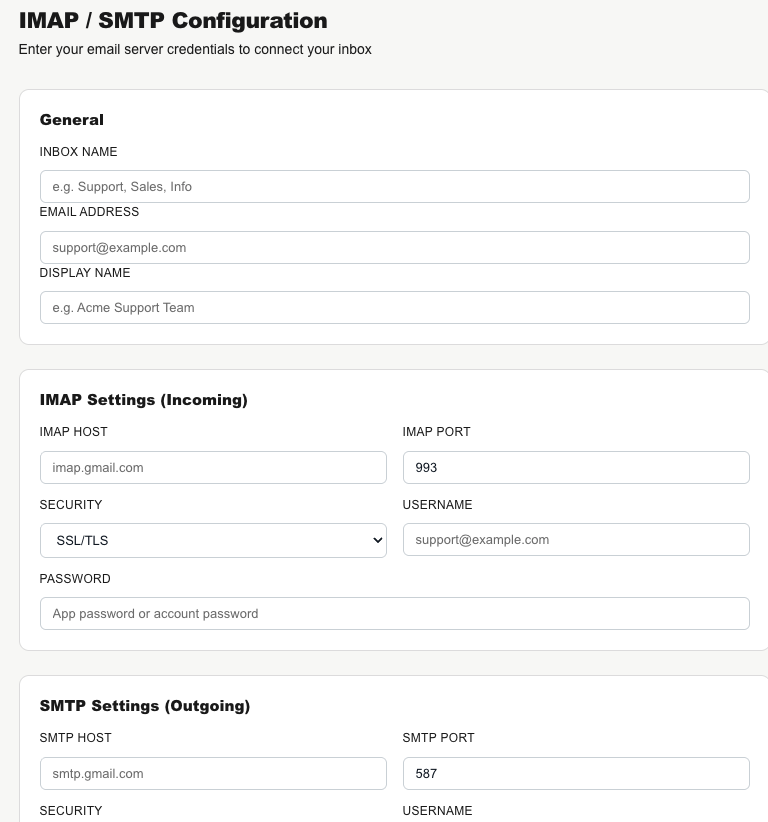
Click Test Connection — IMAP and SMTP are tested separately and each shows a ✅ or ❌ result. Save & Connect unlocks once the test passes.
IMAP and Gmail inboxes do not import old mail. Only messages that arrive after you connect flow into Teloring.
When setup finishes, the Email Inbox Ready! screen confirms the address (and, for BYOD, shows the DNS records and forwarding address).
The email edit page
The edit page keeps a small settings surface:
| Field | Editable? |
|---|---|
| Channel Name | ✅ |
| Display Name | ✅ |
| Connection Type | Read-only (Teloring Email, Microsoft, Gmail, or IMAP/SMTP). |
| Email Address | Read-only. |
| Status | Read-only — ✅ Active, ⏳ Pending verification, or ❌ an error state. |
Type-specific panels also appear here:
- Teloring Forwarding — the forwarding address to copy.
- Teloring BYOD — the DKIM / Return-Path DNS records and a Verify DNS now button.
- Microsoft — a Re-authorize button plus subscription/sync/token details.
A signature and reply-to are configured per inbox and inserted automatically on replies.
Capabilities and limits
| Capability | Detail |
|---|---|
| Rich HTML | Full formatting — fonts, colors, lists, tables, links, and inline images — in a rich composer. |
| Attachments | Sent and received, up to 25 MB per file and 25 MB total per message. |
| CC / BCC | Fully supported in the composer. |
| Reply / Reply All / Forward | Per-message, with correct recipients and quoted content. |
| Sends as your address | Replies go out from the inbox address (or, for Forwarding, the verified original address). |
| Threading | Replies attach to the right conversation using standard email headers. |
| Signature | Configured per inbox and added automatically. |
| DNS / SPF / DKIM | Only Bring Your Own Domain needs DNS (a DKIM and a Return-Path record). Zero Setup, Forwarding, Gmail, Microsoft, and IMAP need none. |
| Real-time delivery | Microsoft and Teloring Email push new mail in instantly; Gmail and IMAP check for new mail about once a minute. |
| Resolved threads | A resolved conversation never reopens — a new email starts a fresh conversation. |
How inbound email becomes conversations
- Mail arrives (pushed for Microsoft/Teloring, polled for Gmail/IMAP) and Teloring routes it to the right inbox.
- Teloring threads it: a reply attaches to its existing conversation using the email's headers; anything new starts a new conversation.
- The sender becomes (or matches) a contact, the message is stored with its attachments and inline images, and the conversation is marked unread.
- Real-time updates, Studio triggers, and AI Copilot fire on the new content (quoted history is ignored).
Agents then reply, assign, label, and link the conversation to a customer — see Conversations.