Complete WhatsApp onboarding with Meta
Creating a WhatsApp inbox in Teloring does two things: it reserves your phone number, and it hands you a one-time onboarding link. The link is where you connect that number to Meta — the company behind WhatsApp — and it is the step people most often stop halfway through.
Until the link is completed, the inbox exists in Teloring but cannot send or receive anything. It shows as Pending Onboarding, and Teloring keeps offering you the link until it's done.
The whole process takes about 5 to 10 minutes and needs no technical knowledge. This page walks through every screen you will see.
WhatsApp is Meta's platform, and only Meta can authorize a business number to send messages through it. Teloring cannot do this on your behalf — Meta requires the business owner to approve the connection while signed in to their own Facebook account. That approval is exactly what the onboarding link collects.
Where to find your onboarding link
The same link is available in three places, so you never have to hunt for it:
| Where | When you see it |
|---|---|
| The setup wizard, step 4 | Right after you create the inbox — the "WhatsApp Inbox Created!" screen shows the link and an Open Meta Onboarding ↗ button. |
| My Ring → WhatsApp | Click the WhatsApp icon in your Ring. Every WhatsApp inbox is listed; a pending one carries a ⚠️ notice with the Open Meta Onboarding ↗ button. |
| The inbox edit page → Onboarding tab | Open the inbox (pencil icon) and go to the Onboarding tab. The button sits there until onboarding is complete. |
The link looks like https://onboarding.direct/xxxxxxxx. It is specific to your number — do not reuse a link from another inbox, and treat it as private.
You can send the link to whoever administers your company's Facebook and business accounts — they don't need a Teloring login to open it. They do need to be signed in to the correct Facebook account.
Before you start
| You need | Why |
|---|---|
| Inbox permission in Teloring | Reaching the link needs My Ring → Read; the edit page needs My Ring → Update. See Roles and Permissions. |
| An existing personal Facebook account | Meta requires it to authorize the connection. A brand-new Facebook account will not be approved for Business Manager — use an established one. |
| Your business details | Legal or trading business name, website, and country. |
| Pop-ups allowed in your browser | Meta's flow opens in a pop-up window. If nothing happens when you click, a pop-up blocker is the usual cause. |
Use a desktop browser and complete all the steps in a single session. Closing the pop-up mid-flow means starting the link again from the beginning. Nothing breaks — but nothing is saved either.
Step 1 — Open the link and start
Opening the link lands you on the onboarding page for your number.
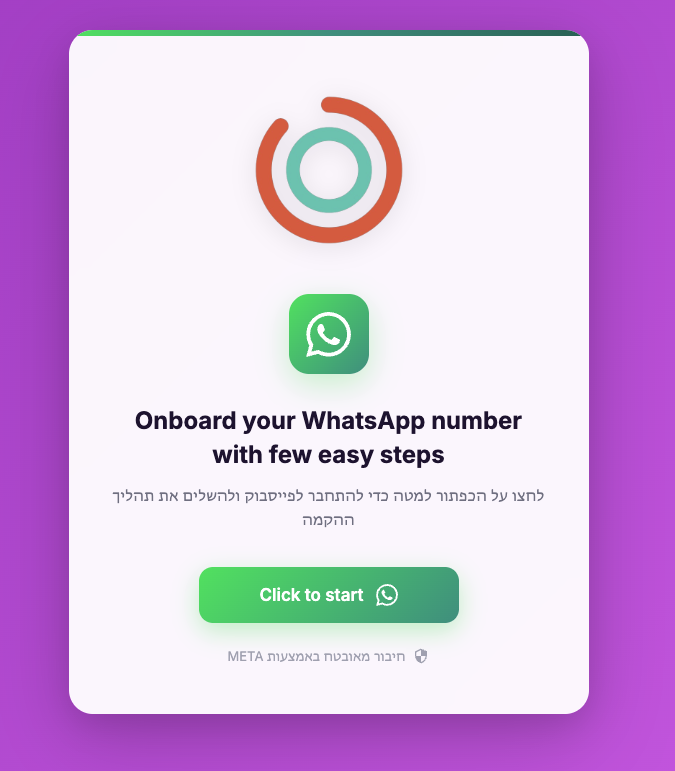
Click Click to start. Meta's sign-in window opens on top of the page.
Leave this page open in the background. It waits for Meta to report back, and it is where you will see the final confirmation in Step 7.
Step 2 — Continue with your Facebook account
Meta asks whether to continue as the account you are currently signed in to.
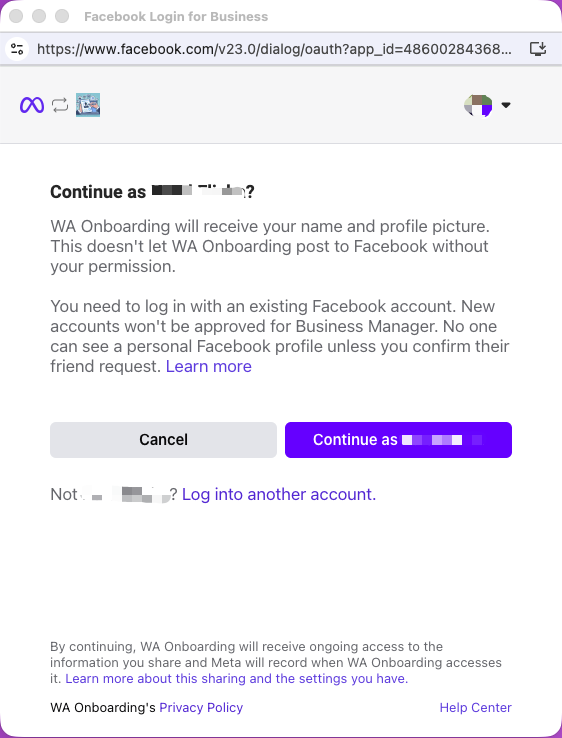
Click Continue as [your name].
This is the moment to make sure you are on the right Facebook account — the one that owns (or should own) your company's business assets. If the name shown is wrong, click Log into another account before continuing. Connecting the wrong account is the most common mistake here, and undoing it later means going through Meta Business Manager.
Step 3 — Confirm the connection
Meta explains what the process does and lists what you'll be able to do once connected.
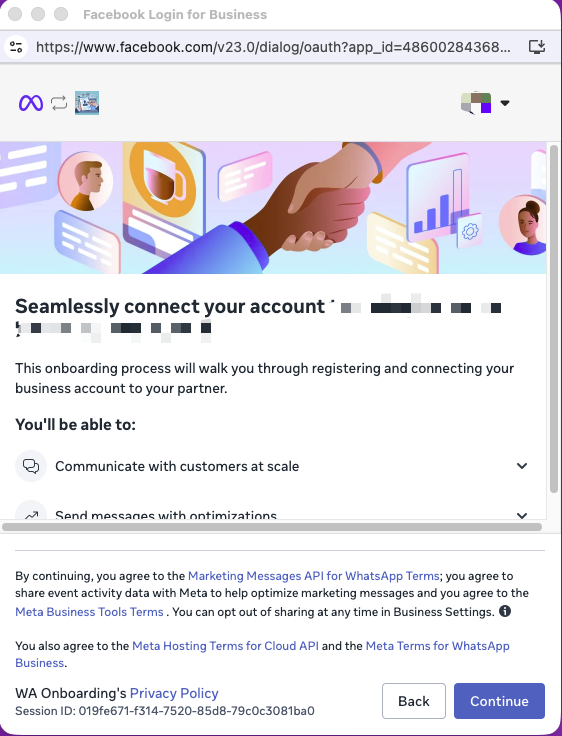
Read the terms at the bottom — the Marketing Messages API for WhatsApp Terms, the Meta Business Tools Terms, the Meta Hosting Terms for Cloud API, and the Meta Terms for WhatsApp Business — then click Continue.
Step 4 — Choose or create your business portfolio
A business portfolio (Meta also calls it a Business Manager account) is the container that holds your company's business assets at Meta.
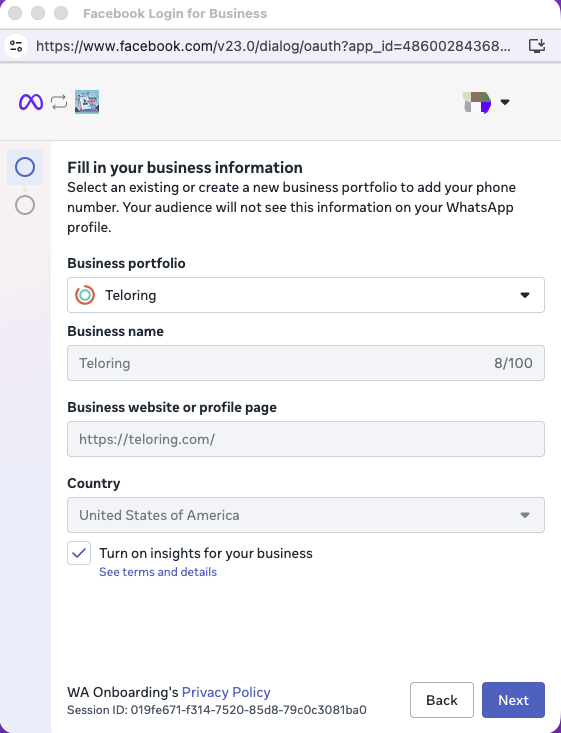
| Field | What to do |
|---|---|
| Business portfolio | Pick your existing portfolio from the dropdown. If your business has none, choose the option to create one — Meta builds it here. |
| Business name | Your legal or trading business name. |
| Business website or profile page | Your website, or your Facebook page if you have no site. |
| Country | Where the business is registered. |
| Turn on insights for your business | Optional Meta analytics. Leave it as you prefer — it does not affect your Teloring inbox. |
Click Next.
Selecting an existing portfolio is always preferable to creating a second one. Businesses that accidentally create a duplicate portfolio end up with WhatsApp assets split across two places, which makes later verification harder.
Step 5 — Create the WhatsApp Business account
Now you create the WhatsApp Business account (WABA) that will hold your number.
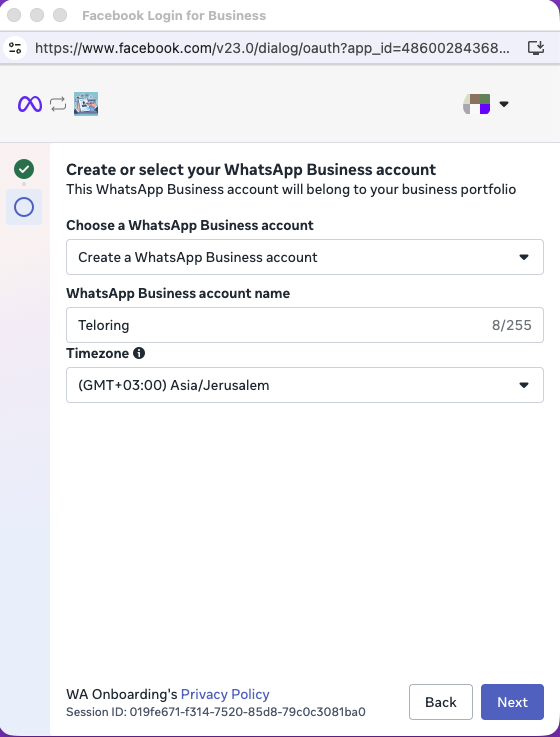
| Field | What to do |
|---|---|
| Choose a WhatsApp Business account | Select Create a WhatsApp Business account from the dropdown — this is the normal choice. Pick an existing account only if your business already has a WABA you intend to add this number to. |
| WhatsApp Business account name | An internal name for the account. Your customers do not see it. |
| Timezone | Your business timezone — for example, (GMT+03:00) Asia/Jerusalem. Meta uses it for messaging metrics and daily limits, so set it correctly. |
Click Next.
Step 6 — Review and confirm access
Meta summarizes the permissions it is about to grant, so your number can actually send and receive through Teloring.
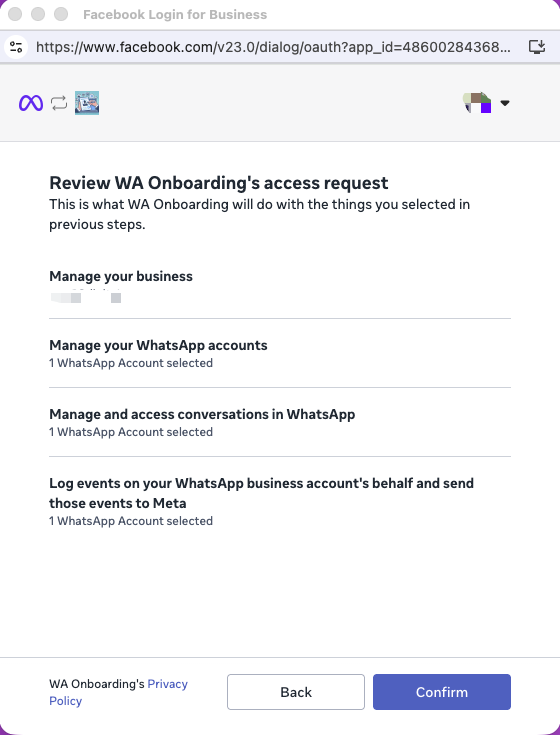
The list covers managing your business, managing your WhatsApp accounts, accessing conversations in WhatsApp, and logging message events back to Meta. All four are required — without them, messages cannot reach your inbox.
Click Confirm.
Meta then confirms you're connected:
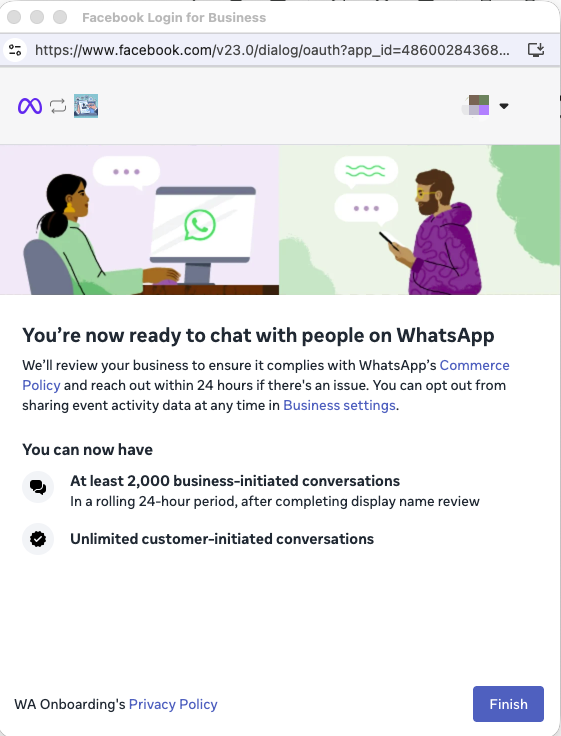
This screen also tells you your starting messaging capacity: at least 2,000 business-initiated conversations in a rolling 24-hour period once display-name review is done, and unlimited customer-initiated conversations. Meta reviews your business against its Commerce Policy and only contacts you (within about 24 hours) if there is a problem.
Click Finish and the Meta window closes.
Step 7 — Wait for the confirmation in Teloring
Return to the onboarding page you left open. It finishes on its own — no action needed — and confirms the number is connected.
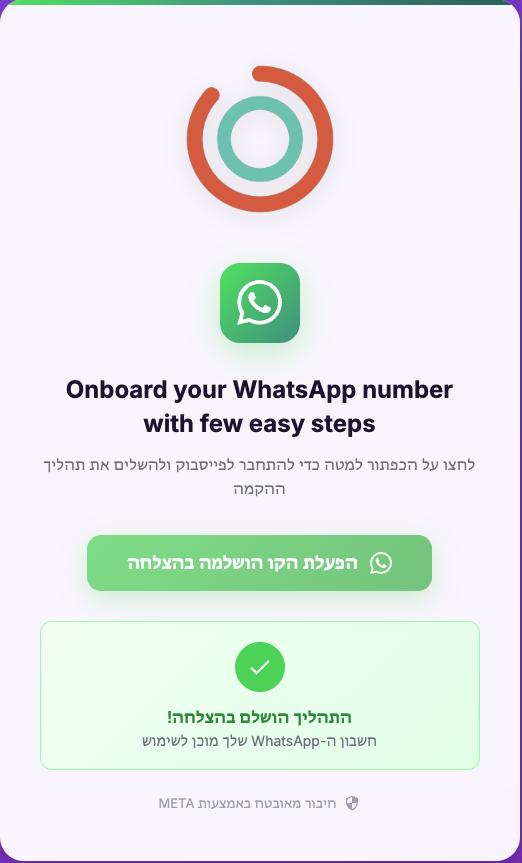
Once you see this confirmation, your side of the work is done. You can close the page.
What happens next
Meta and the WhatsApp platform now finish provisioning the number in the background.
The number is usually usable within minutes, but it can take up to one hour to become fully operational. This is automatic — nothing is stuck and nothing is waiting on you.
There is no need to open a support ticket during that hour. If the inbox is still not Active after an hour, then contact support.
While this settles, the inbox status in Teloring moves along on its own:
| Status | Meaning |
|---|---|
| Pending Onboarding | The link has not been completed. Go back to Step 1. |
| Pending Approval | Onboarding is done; Meta is still approving the number. |
| Receive Only | Incoming messages arrive; sending is not enabled yet. |
| Active | Fully live — sending and receiving. |
You do not need to refresh or re-run anything. When the status reaches Active, the Profile and Templates tabs unlock on the inbox edit page and agents can message customers. See WhatsApp for what to configure next, and Conversations for day-to-day handling.
Even on an Active inbox, you can only send free-form messages inside the 24-hour window that opens when a customer messages you. To start a conversation yourself, you need an approved template — see the Templates tab.
Troubleshooting
| Symptom | What to do |
|---|---|
| Clicking "Click to start" does nothing | A pop-up blocker is stopping Meta's window. Allow pop-ups for the onboarding page and click again. |
| The wrong Facebook account is shown | Click Log into another account on the "Continue as" screen before continuing. |
| "New accounts won't be approved for Business Manager" | The Facebook account is too new. Use an established personal Facebook account belonging to someone at the business. |
| You closed the window mid-flow | Reopen the same onboarding link from any of the three places and start again. Partial progress is not saved, and restarting is safe. |
| The Teloring page never shows the success box | Make sure you clicked Finish on Meta's last screen. If you did, reopen the link — a completed connection is recognized immediately. |
| Still "Pending Onboarding" after finishing | Give it up to an hour, then reopen the inbox. If it hasn't changed after that, contact support with your inbox name and number. |
| You can't find the link | It is in all three places listed above. If none of them shows it, the inbox may already be onboarded — check its status badge. |
Related
- WhatsApp — creating the inbox, business profile, templates, and channel limits
- The Ring — Inboxes — how inboxes work across channels
- Roles and Permissions — who may create and configure an inbox