Live Chat
The Live Chat inbox is a chat widget you embed on your own website. Visitors click a floating bubble to open a chat panel and message your team; those messages arrive in Teloring as conversations, and agents reply from the same inbox they use for every other channel. You design how the widget looks and behaves, then paste one line of code into your site — no developer needed beyond that.
Prerequisites
| You need | Why |
|---|---|
| Inbox permission | Creating a Live Chat inbox needs My Ring → Create; changing its settings needs My Ring → Update. See Roles and Permissions. |
| Access to your website's HTML | To paste the embed snippet before the closing </body> tag. |
Create a Live Chat inbox
Open My Ring, click Live Chat, and choose Add. The setup page has a form on the left and a live widget preview on the right that updates as you edit.
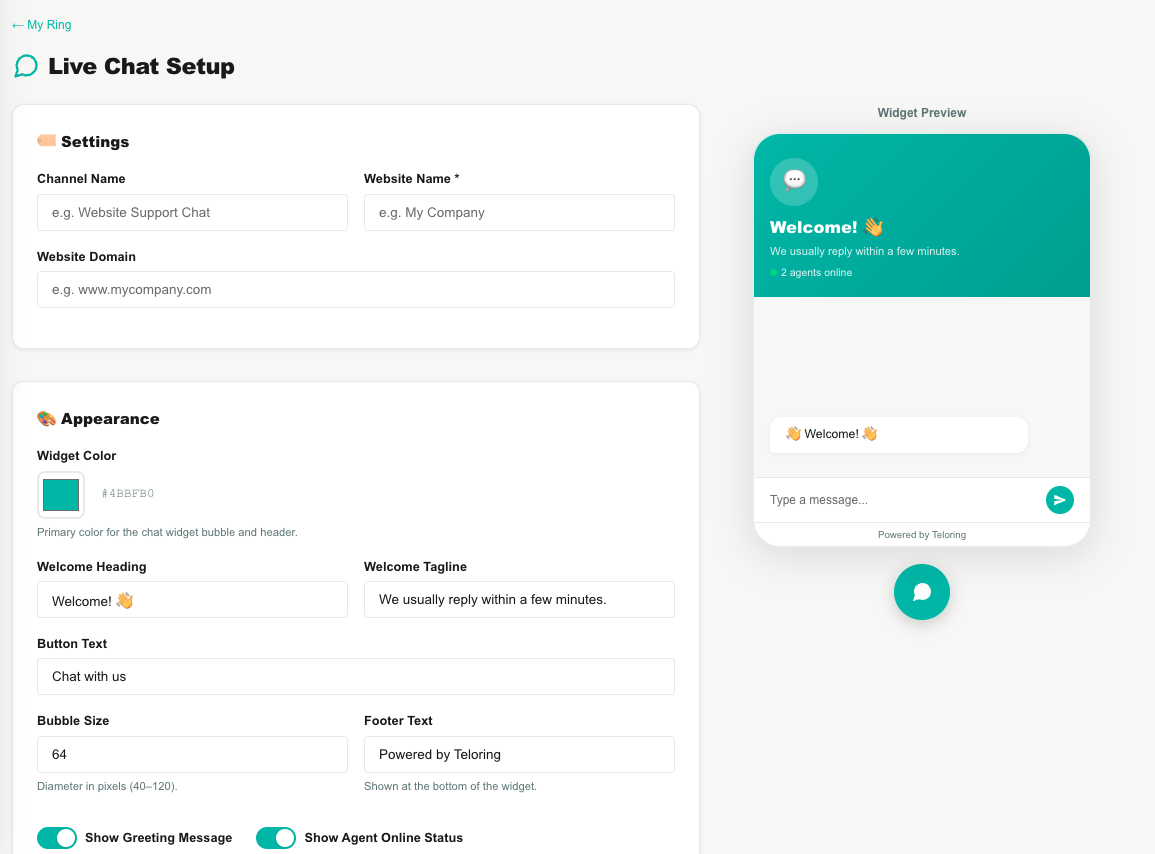
| Field | What to enter |
|---|---|
| Channel Name | Optional internal name (defaults to the website name). |
| Website Name | Required — shown in the widget. |
| Website Domain | Optional — your site's domain. |
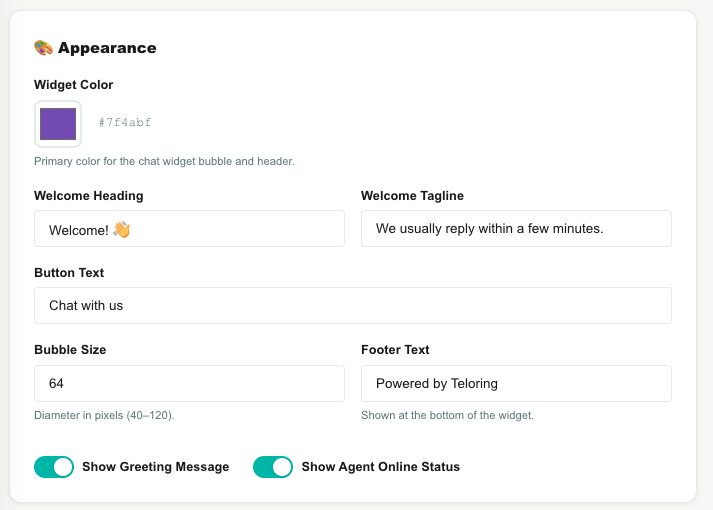
| Widget Color | The primary color for the bubble and header (default teal). |
| Welcome Heading / Tagline | The greeting shown at the top of the panel. |
| Button Text | The label on the chat bubble (default Chat with us). |
| Bubble Size | The bubble diameter in pixels (40–120). |
| Footer Text | Text at the bottom of the widget. |
| Show Greeting Message / Show Agent Online Status | Toggles for the greeting and the live "agents online" indicator. |
| Widget Position | Distance from the right and bottom edges, in pixels. |
| Pre-Chat Form | Optionally collect the visitor's name, email, and phone before the chat starts (each field can be shown and marked required). |
Click Create Live Chat Inbox. Teloring saves the inbox and opens its edit page, where you'll find the embed code.
The Live Chat edit page
The edit page has six tabs, with the live preview alongside.
Settings
Website Name, Website Domain, and Channel Name — plus two image uploads unique to this tab:
| Upload | Notes |
|---|---|
| Website Avatar | Shown in the widget header. Square image, up to 2 MB. |
| Chat Icon Image | A custom bubble icon (64×64 recommended, up to 2 MB). |
Appearance
All the visual options (color, bubble size, headings, button text, footer, position, and the two toggles), plus two edit-only fields:
| Field | Used for |
|---|---|
| Resolved Message | Shown after a conversation is resolved. |
| New Chat Button Text | The label on the button that starts a fresh conversation. |
Pre-Chat Form
Enable a short form shown before the first message, and choose which of Name, Email, and Phone to ask for and which are required, plus a welcome message.
Additional Channels
Show links to your other channels inside the widget, so a visitor can reach you elsewhere. Pick a channel (WhatsApp, Messenger, Email, SMS, Phone, Telegram, Instagram, TikTok, X, or LinkedIn) and give each a label, a link or number, and a short explanation.
Code
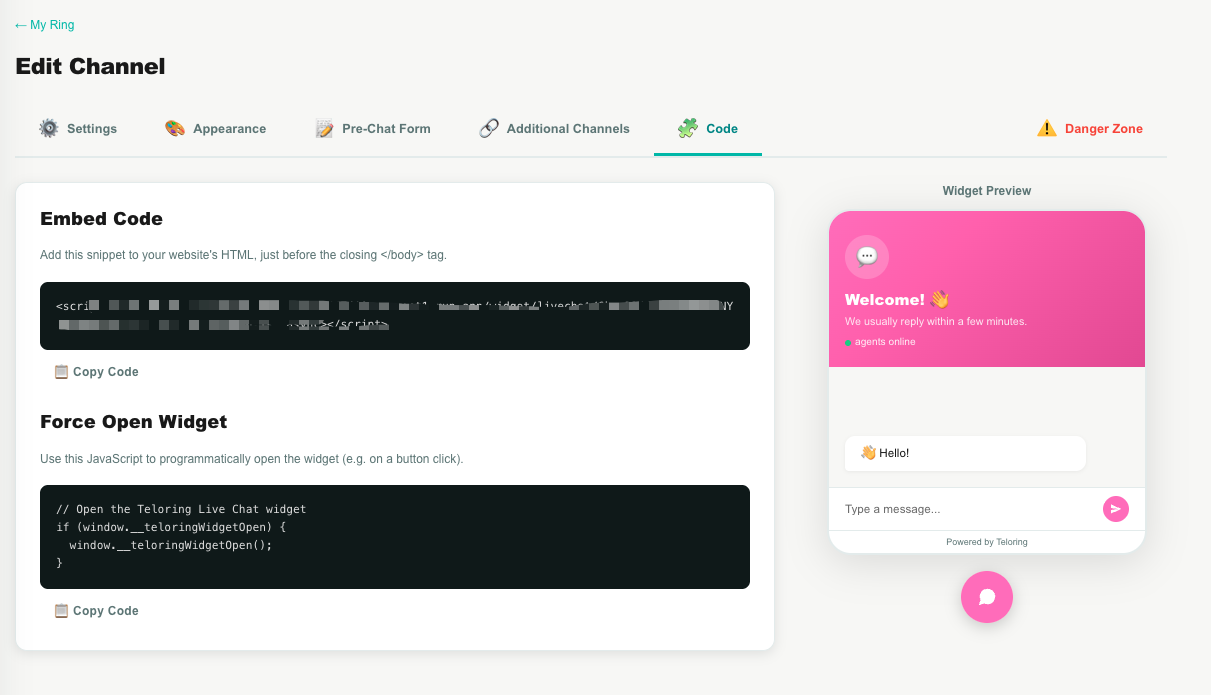
The embed snippet to install the widget:
<script src="https://.../widget/livechat/YOUR_TOKEN/embed.js" async></script>
Add it to your website's HTML just before the closing </body> tag, then copy it with Copy Code. A Force Open Widget snippet is also provided if you want to open the chat from a button on your page.
Danger Zone
Delete the inbox. Existing conversations are kept; the widget stops working once removed.
What the visitor sees
The widget loads in an isolated layer so it never clashes with your site's styling. A visitor:
- Sees the floating bubble in the corner; clicking it opens the chat panel with your heading, tagline, and a live "N agents online" indicator.
- Fills in the pre-chat form (if enabled), then messages your team.
- Gets replies in real time, with read receipts (✓ sent, ✓✓ read) and a notification sound when the panel is minimized.
- Keeps their conversation across page refreshes and browser tabs.
- After a conversation is resolved, sees your Resolved Message and a button to start a new chat — resolved conversations never silently reopen.
How Live Chat messages become conversations
- A visitor sends a message from the widget (with any pre-chat details they provided).
- Teloring creates or matches the contact and opens a conversation on this inbox.
- Agents reply from Teloring; the visitor sees replies live in the widget.
See Conversations.