Views
Views turn your CRM into tables you build yourself. A view is a saved, filterable, sortable table over any object in Teloring — your customers, or any record that lives under a customer (notes, calls, deals, tasks, service calls, documents, form data, and any custom object your account creates).
The idea is simple. Normally, a note or a deal is trapped inside one customer's profile. To answer a question like "show me every note in the system, with the email of the customer it belongs to", you would have to open customers one by one. A view does it in one table: pick the object each row represents, choose the columns to show — including columns pulled from the customer — filter and sort the result, and save it with a name.
If you have used Airtable views, HubSpot custom reports, or Notion linked databases, Views will feel familiar. It is the same idea, built into Teloring's CRM.
Use Views to answer questions like "all open deals whose customer has already signed a document", "every service call opened this week, with the customer's phone number", "customers who have no tasks", or "notes where the created date matches the customer's renewal date".
A view only reads data. It never changes, moves, or deletes a record. Clicking a row simply opens the real record where you can edit it.
Key facts
| Fact | Meaning |
|---|---|
| A view is a saved table | You define it once — object, columns, filters, sort — and reopen it any time. |
| Always live | A view reflects your current data every time you open or refresh it. It is not a frozen snapshot. |
| Account-isolated | A view only ever reads your own account's data. |
| One base object per view | Every row in a view is the same kind of record — all notes, all deals, all customers, and so on. |
| Pull in customer columns | On any object under a customer, you can add columns from that customer (its email, stage, and so on) — the From Customer group. |
| Powerful filters | Combine conditions with AND / OR, compare a field to another field, and filter on the customer's other records ("has at least one document"). |
| Personal or shared | Keep a view to yourself, or share it with everyone in your account. |
| Pin your favorites | Pin up to five views to the sidebar for one-click access. |
| Export anywhere | Download the full result as Excel or PDF, with your columns and labels. |
| Works with any object | Custom object types you create appear as view base objects automatically — no setup needed. |
Who uses Views
| Role | Typical use |
|---|---|
| Agents | Build personal working lists — "my open service calls this week", "leads with no task" — and pin them to the sidebar. |
| Team managers | Share account views that the whole team relies on, such as "all open deals with signed documents". |
| Admins | Curate a set of shared views per business process and control which are personal vs shared. |
The Views landing page
Open Views from the sidebar to reach the landing page. This is the home for all of your views.
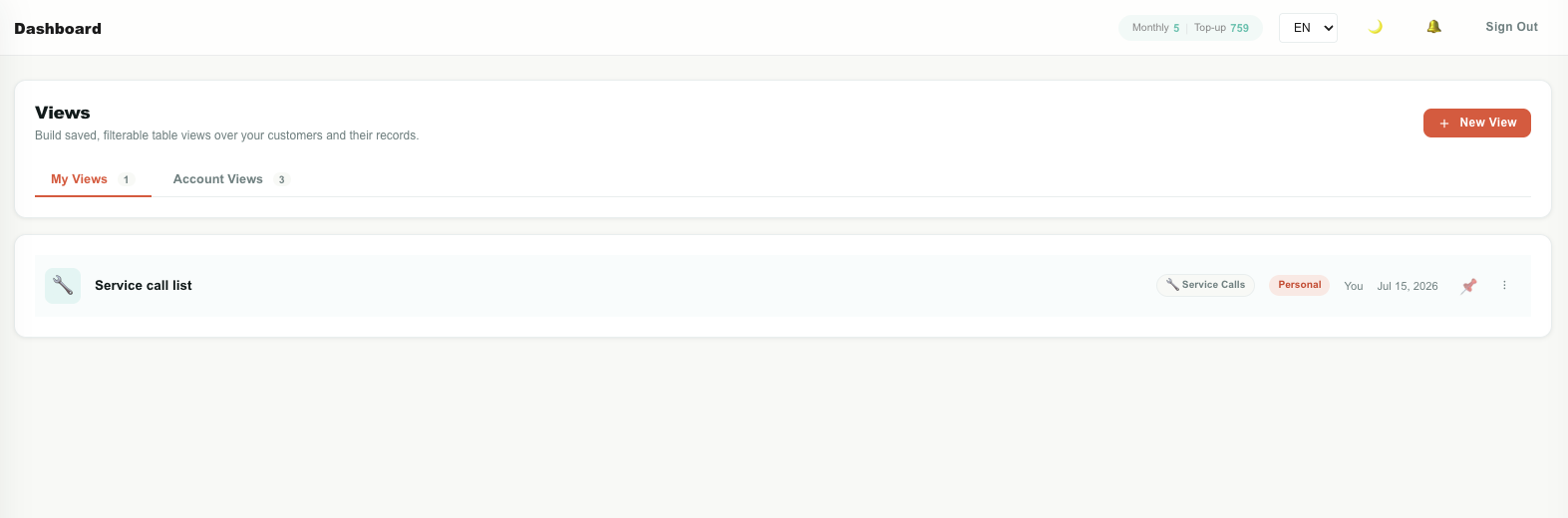
It has two tabs:
| Tab | What it shows |
|---|---|
| My Views | Views you created and kept personal. Only you can see these. |
| Account Views | Views shared with the whole account. Everyone can see and open these. |
Each row is one view and shows:
| Column | Meaning |
|---|---|
| Name and description | The view's title and its optional one-line description. |
| Object | The base object the view is built on, with its icon (for example 💰 Deals). |
| Scope | A Personal or Account badge. |
| Owner | Who created the view (shows You for your own). |
| Last modified | When the view was last changed. |
| Actions | The pin button and a ⋮ menu — see below. |
Click any row to open the view. Click + New View (top right) to build one.
Row actions
| Action | Where | What it does |
|---|---|---|
| Pin / Unpin | The 📌 button on the row | Adds or removes the view from your sidebar shortcuts (up to five). |
| Open | ⋮ menu | Opens the view. |
| Edit | ⋮ menu | Opens the builder to change the view. |
| Duplicate | ⋮ menu | Makes a personal copy you own, named "… (copy)". |
| Export to Excel | ⋮ menu | Downloads the full result as an .xlsx file. |
| Export to PDF | ⋮ menu | Downloads the full result as a PDF. |
| Delete | ⋮ menu | Permanently deletes the view. Shared views warn you first. |
Starter views
The first time anyone in your account opens Views, Teloring creates three ready-made account views so you have working examples right away:
| Starter view | Shows |
|---|---|
| All Notes | Every note across all customers, with each note's customer name and email. |
| Open Leads | All customers currently in the Lead lifecycle stage. |
| Service Calls This Week | Service calls opened this week, with the customer's name and phone. |
These are normal views — you can edit, duplicate, or delete them like any other. They are created once; deleting them will not bring them back.
How a view works
Every view is built from four choices. Once these click, the whole builder is easy.
| Choice | Question it answers | Example |
|---|---|---|
| Base object | What does each row represent? | Deals |
| Columns | Which fields do I want to see? | Deal name, amount, stage, customer email |
| Filters | Which rows should be included? | Stage is Open, and the customer has a signed document |
| Sort | In what order? | Highest amount first |
A view named "Open deals with a signed document" is simply: base object = Deals, columns = deal name + amount + stage + customer email, filters = stage is Open and the customer has at least one signed document, sort = amount descending.
Create a view
- Open Views and click + New View.
- Work through the five sections (base object, columns, filters, sort, and details).
- Watch the live preview on the right update as you go.
- Click Save view.
The builder is a single page with five numbered sections. A live preview of the first rows sits alongside it and refreshes as you make changes.
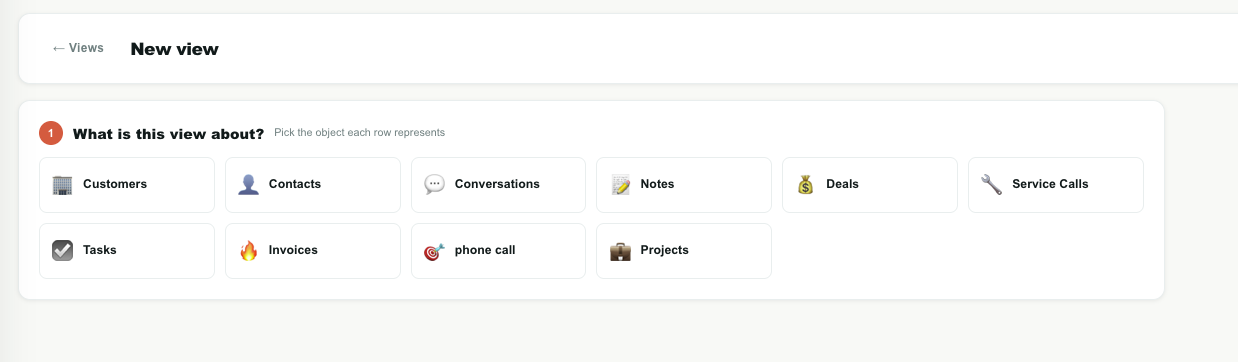
Step 1 — Base object
Pick the object each row in the table represents. You can choose:
| Base object | Each row is |
|---|---|
| Customers | One customer. |
| Contacts | One contact (a person linked to a customer). |
| Conversations | One conversation. |
| Any custom object | One record of that object — Notes, Deals, Tasks, Service Calls, or any object type your account created. |
Click a card to select it.
If you change the base object after you have already picked columns or filters, Teloring warns you and resets them — because columns and filters belong to the object you started with.
Step 2 — Columns
Choose which fields become table columns. The field picker has two groups:
| Group | What it contains |
|---|---|
| [Object] fields | The native fields of the base object (for example, a deal's name, amount, and stage). |
| From Customer | Fields from the customer the record belongs to (for example, the customer's email or lifecycle stage). |
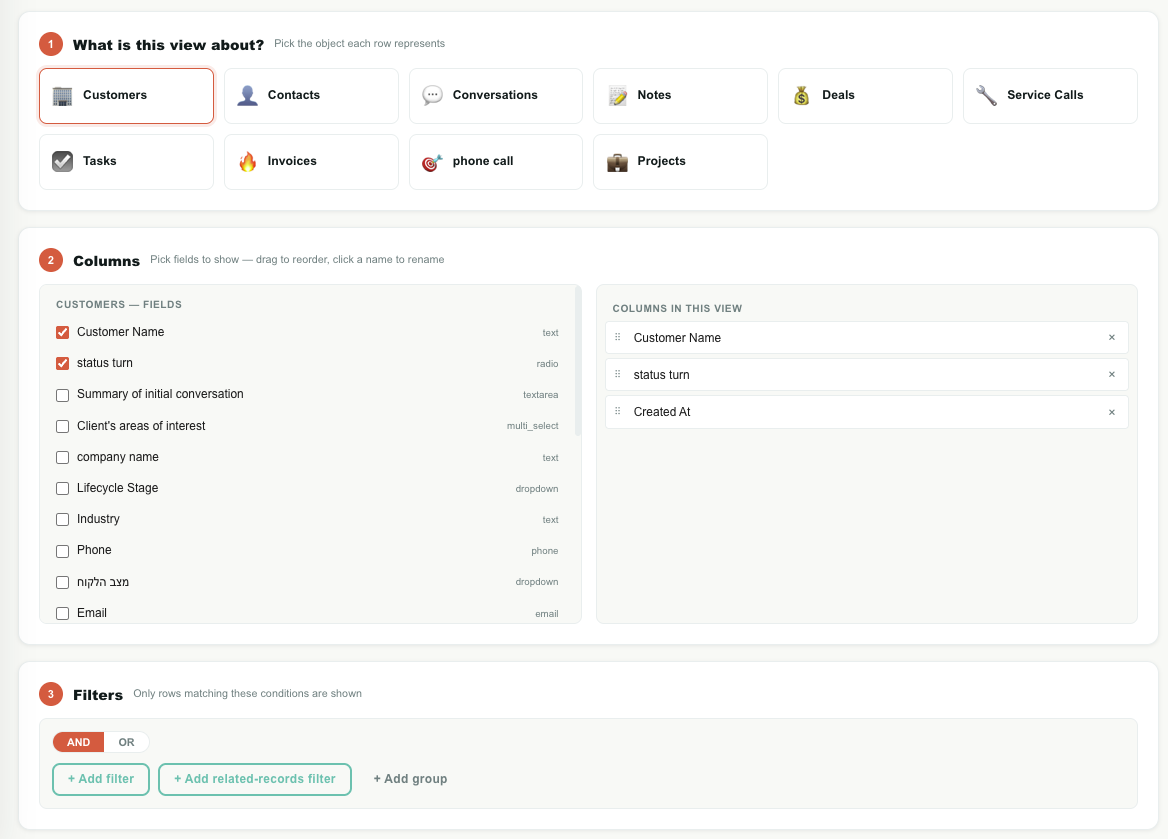
Check a field to add it as a column. On the right, your chosen columns can be:
| Control | What it does |
|---|---|
| Drag handle (⠿) | Drag a column up or down to reorder it. |
| Rename box | Click the column name and type your own header label. |
| Remove (×) | Take the column out of the view. |
A From Customer column carries a small Customer tag so it is clear the value comes from the customer, not the record.
The From Customer group appears for every base object except Customers — on a Customers view, the customer is the row, so its fields are already in the first group.
Why customer columns, but not "sibling" columns
Every record under a customer belongs to exactly one customer, so "the customer's email" is always a single, clear answer. That is why you can pull customer columns onto a deal, a note, or a service call.
You cannot pull columns from another object — for example, you cannot add "the deal's amount" as a column on a Notes view. A customer can have many deals, so which deal's amount is unclear. When you need to filter on the customer's other records, use a related-records filter instead (see below), which asks a yes/no question ("does the customer have a deal?") and has no such ambiguity.
Step 3 — Filters
Filters decide which rows appear. A view with no filters shows every record of the base object.
Filters are organized into groups. Each group combines its conditions with one setting:
| Match mode | Meaning |
|---|---|
| AND | A row is included only if every condition in the group is true. |
| OR | A row is included if at least one condition is true. |
Toggle AND / OR at the top of each group. You can nest one group inside another (up to two levels) to build logic like "stage is Open AND (amount over 1000 OR priority is High)".
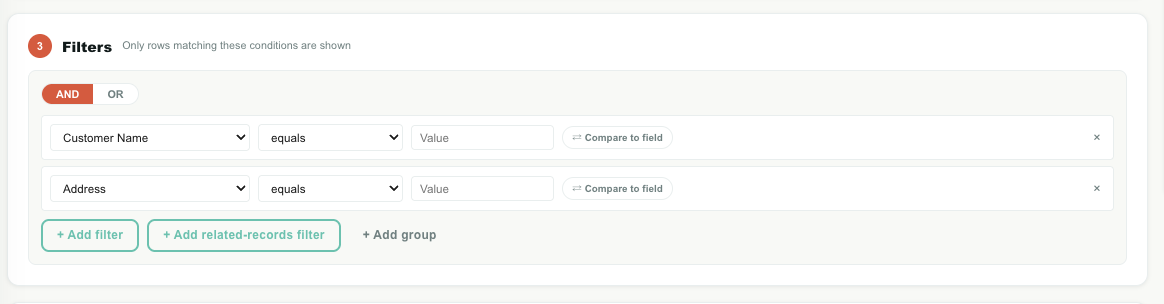
Inside a group you can add three kinds of conditions.
1. A field condition
Click + Add filter to add a row that tests one field. A field condition has three parts:
| Part | Meaning |
|---|---|
| Field | The field to test. The picker is grouped into the object's own fields and From Customer fields, so you can filter on either the record or its customer. |
| Operator | How to compare — equals, is any of, contains, before, in the last…, and more. The available operators match the field type. |
| Value | What to compare against. Where the value is a known list (a dropdown field, an agent, a stage), Teloring shows a dropdown instead of a free text box. |
The operators are exactly the same set used across Analytics, so "This month" or "In the last 7 days" means the same thing everywhere in Teloring. See Operators below for the full list.
2. Compare to another field
Any field condition can compare a field to another field instead of to a fixed value. Click the ⇄ Compare to field toggle on a condition row and pick the field to compare against.
This is useful for questions like:
| Example | Meaning |
|---|---|
| Deal created date equals customer renewal date | Deals created exactly on the renewal date. |
| Deal amount is greater than customer credit limit | Deals above the customer's limit. |
Teloring only offers fields of the same type on the other side — a date can only be compared to another date, a number to another number — so a comparison can never be set up incorrectly.
When comparing two date fields for equality, Teloring matches on the day, not the exact second — so a record created at any time on the renewal date counts as a match.
3. A related-records filter
Click + Add related-records filter to filter on the customer's other records — without adding them as columns. These rows look different on purpose (a dashed, highlighted style) because they ask about the customer, not about the row itself.
They read as a sentence:
Customer [ has at least ] [ 1 ] [ Documents ] (optional: where …)
| Part | Choices |
|---|---|
| Quantity | has at least, has no, has exactly, or has more than. |
| Number | How many records (hidden when you choose has no). |
| Object | Which related object to look at — Documents, Tasks, Deals, and so on. |
| Where (optional) | One or more conditions the related records must match, added with + Add condition. |
Examples:
| Filter | Meaning |
|---|---|
| Customer has at least 1 Documents | The customer has signed or uploaded at least one document. |
| Customer has no Tasks | The customer has no task records at all. |
| Customer has at least 1 Tasks where Created at is In the last 24 hours | The customer got a new task in the last day. |
"Has none" is just the has no quantity — there is no separate switch. Use it to find customers missing something, such as leads with no task or customers with no signed document.
Step 4 — Sort
Choose the order of the rows. Add one or more sort levels; each has a field and a direction (Ascending or Descending). You can sort by the object's own fields or by From Customer fields, and you can add up to three levels — for example, sort by stage, then by amount within each stage.
Step 5 — Name & sharing
Finish the view with:
| Field | Meaning |
|---|---|
| View name | Required. A clear title such as Open deals with documents. |
| Description | Optional one-line summary shown on the landing page. |
| Who can see this view | Personal (only you) or Shared with account (everyone). See Sharing and scope. |
Click Save view to create it. You land on the opened view.
Live preview
As you configure the view, the Live preview pane shows the first rows and a running row count, so you can see the effect of each change immediately. While you are still filling in a condition, the preview simply ignores it until it is complete — so you always see data, not an error. Full validation happens when you save.
The opened view
Opening a view shows its full-width table.
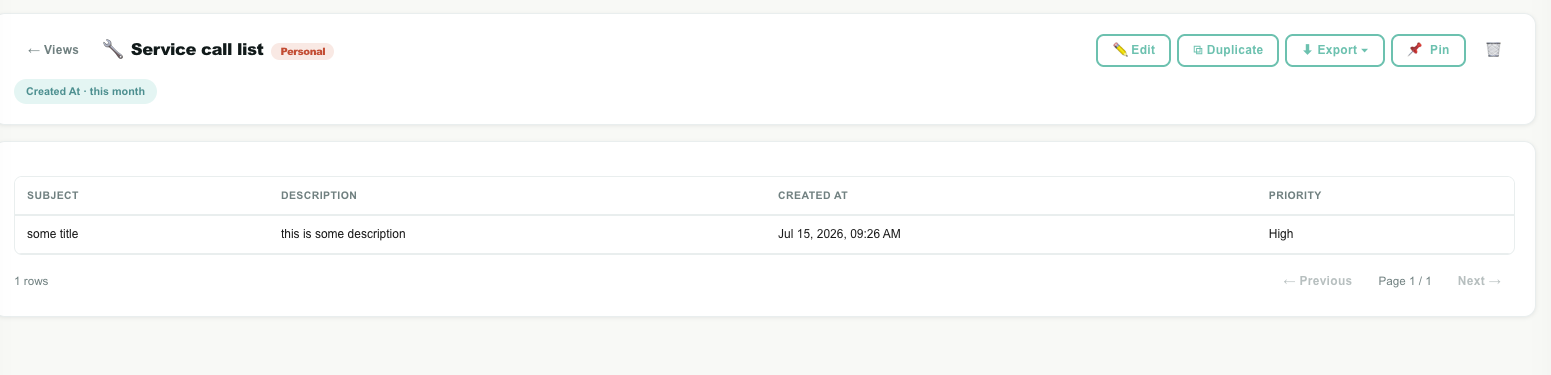
| Area | What it is |
|---|---|
| Header | The view name, its scope badge, and description. |
| Toolbar | Edit, Duplicate, Export ▾, Pin / Unpin, and Delete. |
| Filter chips | A read-only summary of the view's filters. Click any chip to open the builder and change them. |
| Table | The rows, with sticky column headers. Columns pulled From Customer are marked with a small ⤷ indicator. |
| Footer | The total row count and pagination (50 rows per page). |
Sort by clicking a column
Click any column header to sort the table by it; click again to reverse. This is a quick, temporary sort — it does not change the saved view. When your click-sort differs from the view's saved sort, a Save sort to view bar appears so you can either keep the new order permanently or Reset back to the saved one.
Open a record from a row
Views are a way into your existing records, not a new place to edit them. Click any row to jump to the real record:
| Row type | Opens |
|---|---|
| A customer | That customer's profile. |
| A record under a customer (note, deal, task, and so on) | That customer's profile with the record open. |
| A contact | The customer the contact belongs to. |
| A conversation | That conversation. |
Empty result
If nothing matches, the view shows "No records match this view's filters" with a shortcut to edit the filters. Widen or remove a condition to see rows.
Sharing and scope
Every view is either personal or shared with the account.
| Scope | Who can see it |
|---|---|
| Personal | Only you (the creator). It appears on your My Views tab. |
| Shared with account | Everyone in the account. It appears on the Account Views tab. |
| Behavior | Detail |
|---|---|
| Set at creation | Choose the scope in Step 5 when you build the view. |
| Changeable later | Edit the view and change the scope at any time. |
| Reverting to personal | Only the view's owner can turn a shared view back into a personal one. |
| Editing shared views | Any agent can open and edit an account view — keep that in mind for views the whole team relies on. |
| Deleting shared views | Deleting an account view warns you that it is shared with the whole account before removing it for everyone. |
Pinned views
Pin the views you use most to the sidebar for one-click access.
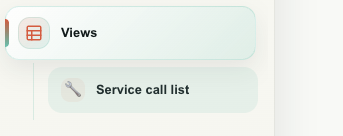
| Fact | Detail |
|---|---|
| Where to pin | Use the 📌 button on a landing-page row, or the Pin button inside an open view. |
| Where they appear | Under the Views item in the sidebar, as named shortcuts. |
| Per person | Pins are yours alone. Pinning a view does not pin it for anyone else. |
| Limit | Up to five pinned views. To pin a sixth, unpin one first — Teloring reminds you when you hit the limit. |
Export to Excel or PDF
You can export a view's results from the landing-page ⋮ menu or the Export ▾ button inside an open view.
| Format | Best for |
|---|---|
Excel (.xlsx) | Working with the data in a spreadsheet. Columns keep your labels, and dates and numbers export as real dates and numbers. |
| Sharing a clean, printable table. It carries the view name, your account name, and the export time in the header. |
| Fact | Detail |
|---|---|
| Full result | The export includes the entire result set — every matching row, not just the page you are viewing. |
| Your setup | Columns, labels, filters, and current sort are all respected. |
| Download | The file downloads to your computer when it is ready. |
A PDF export is capped at the first 3,000 rows to keep the document usable. For very large results, use Excel.
Worked examples
These recipes show how the pieces fit together.
| Goal | Base object | Columns | Filters | Sort |
|---|---|---|---|---|
| All notes with their customer's email | Notes | Note title, content, created at, customer email | — | Created at, descending |
| Open leads | Customers | Name, email, phone, lifecycle stage | Lifecycle stage is Lead | Created at, descending |
| Service calls opened this week | Service Calls | Subject, status, created at, customer name, customer phone | Created at is This week | Created at, descending |
| Open deals whose customer has a signed document | Deals | Deal name, amount, stage, customer email | Stage is Open AND customer has at least 1 Documents | Amount, descending |
| Deals created on the customer's renewal date | Deals | Deal name, amount, customer renewal date | Deal created date equals customer renewal date (compare to field) | — |
| Customers with no open tasks | Customers | Name, lifecycle stage, assigned agent | Customer has no Tasks | Name, ascending |
| High-value deals over the customer's credit limit | Deals | Deal name, amount, customer credit limit | Deal amount is greater than customer credit limit (compare to field) | Amount, descending |
Operators
Field conditions offer operators that match the field's type. These are the same operators used in Analytics.
Text, number, choice, and list fields
| Operator | Use it to |
|---|---|
| Equals / Not equals | Match an exact value. |
| Is any of / Is none of | Match against several values at once. |
| Contains / Doesn't contain | Match part of a text value, or membership in a list field such as tags. |
| Starts with / Ends with | Match the beginning or end of a text value. |
| Greater than / Less than (and or-equal) | Compare numbers. |
| Between | Match a numeric range. |
| Is empty / Is not empty | Match rows with no value, or any value, in the field. |
| Is true / Is false | Match a yes/no field. |
Date fields
Date fields offer a rich set of relative time operators — they always move with the current date, so a view set to This month keeps showing the current month over time.
| Group | Operators |
|---|---|
| Exact | On date, Not on date, Before date, After date, Between dates. |
| Relative (number + unit) | In the last…, In the next…, More than … ago. Units: minutes, hours, days, weeks, months. |
| Day | Today, Yesterday, Tomorrow, Today & yesterday, Today & tomorrow. |
| Week | This week, Last week, Next week, 2 weeks ago, Next 2 weeks. |
| Month | This month, Last month, Next month, Last 2 months, Next 2 months. |
| Quarter | This quarter, Last quarter, Next quarter, Q1–Q4 of this year. |
| Year | This year, Last year, Next year. |
| Rolling | In the last hour / 2 hours, Last 30 / 60 / 90 days, Next 30 / 60 / 90 days. |
| Presence | Has a value, Has no value. |
Tips
| Tip | Why it helps |
|---|---|
| Name views clearly | A good title explains the view at a glance on the shared Account Views tab. |
| Start from a starter view | Duplicate "All Notes" or "Open Leads" and adjust it instead of building from scratch. |
| Use From Customer columns | Add the customer's email or phone to any object view so a row is actionable on its own. |
| Prefer relative date filters | "This week" or "In the last 7 days" stays correct over time without editing. |
| Use related-records filters for "has / has no" | They answer "does this customer have any X" without the ambiguity of pulling in sibling columns. |
| Pin your daily views | Keep the two or three lists you use every day one click away in the sidebar. |
| Share the team's core views | Put views the whole team relies on in Account scope so everyone works from the same list. |
Troubleshooting
| Problem | What to check |
|---|---|
| The view is empty | A filter may be too narrow. Open the filters and widen or remove a condition. Remember AND requires every condition to match. |
| I can't add a customer column | You are on a Customers view — the customer's fields are already the row's own fields, so there is no separate From Customer group. |
| I can't add a "sibling" object as a column | That is by design. Use a related-records filter to ask about the customer's other records, or add the value to the customer with your admin's help so it becomes a customer column. |
| The right side of "Compare to field" has few options | Only fields of the same type are offered, so a date compares to a date and a number to a number. |
| My column sort didn't save | Clicking a column header is a temporary sort. Use the Save sort to view bar that appears to keep it, or Reset to go back. |
| The row count says "showing the first 10,000" | A view returns at most 10,000 rows. Add a filter (such as a date range) to narrow the result. |
| I can't pin another view | You already have five pinned views. Unpin one first. |
| A shared view was changed by someone else | Any agent can edit an account view. Move critical views to the Account tab deliberately, and use personal views for private working lists. |
| A new custom object isn't listed as a base object | Make sure the object type is enabled in the CRM. New object types appear as view base objects automatically once created. |