Variables
A variable is a placeholder that Studio fills in while the flow runs. Write {{contact.name}} in a message and the customer sees Dana.
Variables are what make a flow feel personal instead of canned, and they are how one block passes information to the next.
The syntax
Always two curly braces around a key:
Hi {{contact.name}}, we received your message about {{message.content}}.
| Rule | Detail |
|---|---|
| Format | {{namespace.key}} — for example {{conversation.id}} |
| Case | Keys are lowercase with dots. |
| Unknown keys | Left exactly as they are, so a typo shows up in the output instead of silently vanishing. |
| Where they work | Any text field, text area, URL, header value, JSON body, email field, or condition operand. |
Inserting a variable
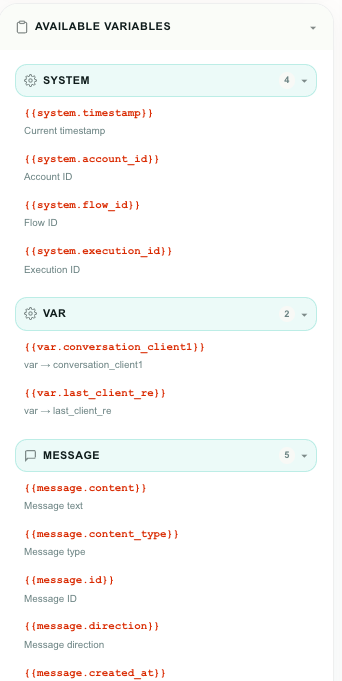
Select a block and open Available Variables in the right panel. It lists everything the blocks above this one produce, grouped by namespace.
| Action | Result |
|---|---|
| Drag a variable into a field | It is inserted at the drop point. |
| Click a variable | It is copied, ready to paste. |
| Click a namespace heading | Expands or collapses that group. |
The list is position-aware. A block near the top of the flow sees fewer variables than a block at the bottom, because it genuinely has less to work with. If a variable you expect is missing, the block that produces it is not upstream of the block you selected.
The namespaces
| Namespace | Comes from | Example |
|---|---|---|
system.* | Always available | {{system.timestamp}} |
var.* | Save as Variable — persists between runs | {{var.last_order_id}} |
message.* | Incoming Message trigger | {{message.content}} |
conversation.* | Most conversation triggers and actions | {{conversation.id}} |
conversation.custom_attributes.* | Your account's conversation attributes | {{conversation.custom_attributes.outcome}} |
contact.* | Conversation and message triggers | {{contact.name}} |
channel.* | Conversation and message triggers | {{channel.name}} |
record.* · object.* · event.* | Object change trigger — every field of the record by API ID, record.old.*, record.changed_fields | {{record.status}} |
new_record.* · updated_record.* · deleted_record.* | Add / Update / Delete a record actions | {{new_record.id}} |
agent.* | Agent status trigger | {{agent.name}} |
call.* · voice.* | Voice trigger and voice actions | {{call.caller_id}} |
form.* · answers.* · hiddenValues.* · sourceParams.* | Form filled trigger | {{answers.email}} |
webhook.* | Incoming webhook trigger | {{webhook.body.order_id}} |
schedule.* | Schedule triggers | {{schedule.triggered_at}} |
alert.* | Analytics Alert trigger | {{alert.current_value}} |
change.* · ai.* | Conversation Changed trigger | {{change.type}} · {{ai.signal}} |
reply.* · client_reply.* | Reply Message action | {{client_reply.content}} |
http.* | HTTP Request action | {{http.json.status}} |
email.* | Send Email action | {{email.status}} |
code.* | Code action | {{code.result}} |
datetime.* | Date and Time action | {{datetime.result}} |
condition.* · availability.* · business_hours.* | Condition blocks | {{availability.status}} |
session.* · saved_variable.* · private_note.* · wait.* | The matching actions | {{session.resolved}} |
System variables
Always present, in every flow, from the very first block.
| Variable | Holds |
|---|---|
{{system.timestamp}} | The current time, in ISO format |
{{system.account_id}} | Your account ID |
{{system.flow_id}} | The flow that is running |
{{system.execution_id}} | This specific run |
{{system.execution_id}} is worth including in HTTP requests and email headers — it is the fastest way to tie an external record back to one Studio run.
Saved variables — var.*
Ordinary variables live for exactly one run. A saved variable lives forever.
| Property | Behavior |
|---|---|
| Created by | The Save as Variable action |
| Scope | Per flow — two flows can each hold their own var.counter |
| Availability | Loaded into every run of that flow, so they work from the first block onward |
| Namespace | Forced into var., so a saved value can never overwrite a system, contact, conversation, or message variable |
| Dynamic keys | Allowed — var.{{contact.phone}}.address stores one value per phone number |
| Managed in | ⚙ Flow Settings → Saved variables, where you can review and delete them |
Reference by trigger
Which variables you have depends on what started the flow. Each trigger's full list is on the Triggers page; here is the short version.
| Trigger | You get |
|---|---|
| Incoming Message | message.*, conversation.*, contact.*, channel.* |
| Incoming Call | call.*, conversation.*, contact.*, channel.* |
| Form filled | form.*, submission.id, answers.*, hiddenValues.*, sourceParams.*, contact.id, conversation.id |
| Conversation Changed | conversation.* (including previous_*), change.*, ai.*, contact.*, channel.* |
| Object change | record.* (every field by API ID, plus record.old.* and record.changed_fields), object.*, event.* |
| Agent status changes | agent.* |
| Recurring Schedule / Scheduled Time | schedule.* |
| Incoming webhook | webhook.*, plus one variable per learned field |
| Analytics Alert | alert.* |
Object and array variables
Some variables hold a whole object or list rather than a single value:
| Variable | Shape | Reach inside it with |
|---|---|---|
{{http.json}} | The response object | {{http.json.order_id}} |
{{webhook.body}} | The request body | {{webhook.body.customer.email}} |
{{webhook.query}} · {{webhook.headers}} | Objects | {{webhook.query.token}} |
{{answers}} | Answers keyed by field ID | {{answers.email}} |
{{hiddenValues}} | Hidden values keyed by field ID | {{hiddenValues.campaign_id}} |
{{sourceParams}} | URL parameters | {{sourceParams.utm_source}} |
{{answers.list}} | An array of answers | Pass it whole to an HTTP request, or loop over it in a Code block |
{{customer.old}} · {{customer.new}} · {{record.old}} · {{record.new}} | Before/after snapshots | {{record.new.status}} |
{{conversation.custom_attributes}} | Every conversation attribute | {{conversation.custom_attributes.order_number}} |
The exact keys inside these objects come from your data. {{answers.email}} only works if a form field has the Field ID email; {{webhook.body.order_id}} only works if the payload actually contains order_id. For webhooks, use Learn next request and Studio will list the real keys for you.
Conversation attributes
Conversation Attributes are your account's own fields on a conversation — Reason for contact, Outcome, Order number. Each one becomes a variable named after its API ID:
{{conversation.custom_attributes.reason_for_contact}}
{{conversation.custom_attributes.order_number}}
{{conversation.custom_attributes}}          ← the whole set, as one object
| Fact | Detail |
|---|---|
| Where they come from | The Incoming Message, Incoming Call and Conversation Changed triggers all load the conversation's current values, so they are available from the first block. |
| After they are written | A Change Conversation block that sets attributes updates these variables, so every block below it reads the new values. |
| Never filled in | Resolves to an empty value rather than leaving the raw {{placeholder}} in your request. |
| Naming | The API ID, not the label. Renaming an attribute's label is safe; renaming its API ID changes the variable name. |
Send the whole set to an external system in one field by putting {{conversation.custom_attributes}} in a JSON body, or pick one out for a lookup:
{
  "conversation_id": "{{conversation.id}}",
  "order": "{{conversation.custom_attributes.order_number}}",
  "disposition": {{conversation.custom_attributes}}
}
Variables in a JSON body
The HTTP Request block is type-aware when it fills a JSON body:
{
  "customer": "{{contact.name}}",
  "answers": {{answers.list}},
  "greeting": "Hi {{contact.name}}!"
}
| Placement | Result |
|---|---|
| A variable filling a whole value, bare or fully quoted | Keeps its real JSON type — an array stays an array, a number stays a number |
| A variable inside a longer string | Substituted as text, with quotes and special characters safely escaped |
| A variable that resolves to nothing | Left untouched |
Variables in a Code block
Inside a Code block you can either substitute a variable into the source, or read it from the frozen variables object:
// substituted before the code runs
const name = "{{contact.name}}";

// read by key — better for values that might contain quotes
const phone = variables["contact.phone"];

return name + " / " + phone.replace(/^\+/, '');
Variables in a condition
In a Condition If/Else rule, the Value / variable field takes a plain key without the braces:
| Field | Write |
|---|---|
| Value / variable | message.content |
| Compare to (as Variable) | var.expected_answer |
| Compare to (as Text) | sales |
Practical tips
- Personalize safely.
{{contact.name}}can be empty for a brand-new WhatsApp contact. Either accept a slightly bare greeting, or branch oncontact.namewith the exists operator first. - Copy IDs into your systems.
{{conversation.id}},{{contact.id}}, and{{system.execution_id}}are the values worth pushing into an external CRM so both sides can be reconciled later. - Use the panel, not memory. Dragging a variable from Available Variables guarantees the key is spelled the way the runtime expects.
- Print it to check it. If you are not sure what a variable holds, drop a temporary Private Note into the branch containing it. The note is internal, so it costs you nothing and shows the resolved value exactly as the flow saw it.
Next
- Actions — every block's outputs.
- Triggers — every trigger's variables.
- Troubleshooting — what to do when a variable renders empty.