Channel permissions reference
The Channel permissions tab decides what an agent may do in each inbox. It is the half of a role that shapes an agent's actual working day.
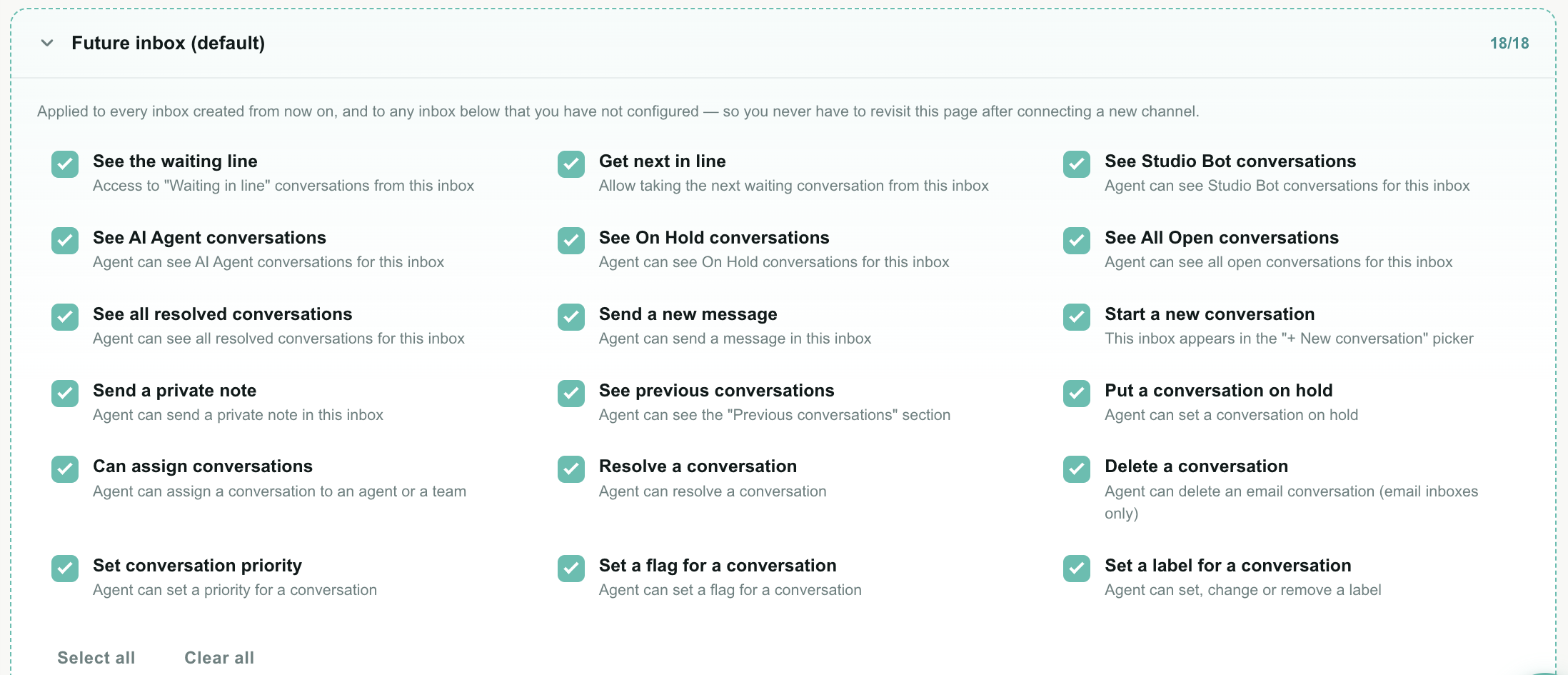
These are not read/create/update/delete. An inbox is a place, and the useful questions about a place are different: can they see its waiting line, can they be handed work from it, may they reply, may they resolve. So each inbox has the same 18 on/off abilities.
How the tab works
| Element | What it does |
|---|---|
| Future inbox (default) | The first card, marked with a dashed border. Sets the defaults for every inbox you connect from now on — and for any inbox below that you have not configured. Always expanded. |
| Inbox card | One per connected inbox, showing its name and channel type. Click the header to expand or collapse. |
Counter (12/18) | How many of the 18 abilities are on for that inbox. Read it at a glance without expanding. |
| Inherited badge | This inbox has never been configured in this role, so it is following Future inbox. |
| Checkbox | The ability. Each has a one-line explanation underneath. |
| Select all / Clear all | Tick or clear all 18 for that inbox in one click. |
The efficient order is:
- Expand Future inbox and set what this role should normally be able to do in any inbox.
- Leave every inbox that matches those defaults alone — they will show Inherited and follow along.
- Only expand and change the inboxes that are genuinely different.
A role for a WhatsApp-only team is therefore: clear everything in Future inbox, then tick what you need on the WhatsApp inbox alone. Two cards touched instead of ten.
Future inbox — how inheritance works
This is the most important idea on the page, and it saves the most work.
An inbox card in a role is in one of two states:
| State | Badge | Behaviour |
|---|---|---|
| Inherited | Inherited | You have never changed this inbox in this role. It uses the Future inbox values, and keeps following them — including if you change Future inbox later. |
| Explicit | none | You have changed at least one box on this inbox. It now has its own settings and no longer follows Future inbox. |
The moment you tick or untick anything on an inherited card, it becomes explicit. Teloring copies the current Future inbox values across first, so changing one box never silently clears the other seventeen.
Why this matters
Connect a new inbox and every role already knows what to do with it. A new WhatsApp number, a second support mailbox, a Telegram bot — each one picks up each role's Future inbox settings automatically. You do not revisit this page, and no role is accidentally left with access to a channel nobody reviewed.
It works in both directions:
| Situation | What happens |
|---|---|
| You connect a new inbox | Every role applies its own Future inbox values to it, immediately. |
| You later change Future inbox in a role | Every inbox in that role still showing Inherited updates too. Explicit ones are untouched. |
| You create a new role after connecting the inbox | Same rule — nothing about the order matters. |
| You delete an inbox | Its stored settings stay harmlessly in each role and disappear from the editor. |
It is easy to read "Future inbox" as a template that does nothing until a channel arrives. It is a live rule: any inbox showing Inherited is being governed by it right now.
Ticking See All Open conversations in Future inbox grants it on every inherited inbox in that role immediately — not just future ones.
The 18 abilities
They are grouped below by what they do. In the product they appear in this exact order.
What the agent can see
| Ability | What it grants | Where the agent notices |
|---|---|---|
| See the waiting line | Access to Waiting in line conversations from this inbox | The Waiting in line queue and its badge count |
| Get Next in Line | Allows taking the next waiting conversation from this inbox | The Get next in line button |
| See Studio Bot conversations | Conversations currently handled by a Studio flow | The Studio Bot queue |
| See AI Agent conversations | Conversations currently handled by an AI Agent | The AI Agent queue |
| See On Hold conversations | Conversations parked until a deadline | The On Hold queue |
| See All Open conversations | Every open conversation in this inbox, whoever owns it | The All Open queue |
| See all resolved conversations | Every resolved conversation in this inbox | The Resolved queue |
| See previous conversations | The Previous conversations panel inside a conversation | The right-hand panel |
What the agent can do
| Ability | What it grants |
|---|---|
| Send a new message | Reply to the customer in this inbox |
| Start a new conversation | This inbox appears in the + New conversation picker |
| Send a private note | Write an internal note on a conversation in this inbox |
| Put a conversation on hold | Use the On Hold button |
| Can assign conversations | Change Assigned to or Assigned team |
| Resolve a conversation | Use the Resolve button |
| Delete a conversation | The Delete button — email inboxes only |
| Set conversation priority | The priority picker |
| Set a flag for a conversation | The flag picker |
| Set a label for a conversation | Add, change or remove labels |
Notes on individual abilities
See the waiting line and Get Next in Line are deliberately separate. A role can watch a queue filling up without being handed work from it — useful for a supervisor who monitors but does not take conversations, and for a team that should only receive work from its own channel.
See All Open conversations is the broad one. It shows conversations owned by other agents. Leave it off and the agent works only from Mine plus whatever they take from the waiting line — the classic front-line setup.
Send a new message and Send a private note are separate on purpose. A role can annotate a conversation for colleagues without being allowed to speak to the customer — a quality reviewer, a specialist adding context, a trainee whose replies are still being checked.
Start a new conversation controls the inbox picker. When an agent clicks + New conversation, only inboxes with this ability are offered.
Can assign conversations covers both the agent picker and the team picker. Handing back your own conversation with Send back in line never needs it — an agent must always be able to let go of their own work.
Delete a conversation only appears on email inboxes, because email is the only channel where deleting a thread is a normal action. Ticking it on a WhatsApp inbox is harmless and does nothing. It is the most destructive conversation permission there is — it destroys the message history — and it is never implied by Resolve.
See previous conversations deserves a moment. The panel shows other conversations with the same customer, which may be from inboxes the agent otherwise cannot work in. Teloring filters that panel per inbox, so each previous conversation only appears if the agent has this ability on the inbox that conversation belongs to — not the one they are currently reading.
Why "Mine" is never filtered
Conversations assigned to an agent are always fully accessible to them, in every inbox, regardless of channel permissions.
The reason is practical. If an agent is assigned an Email conversation and Email is later restricted for their role, filtering it out of Mine would leave a real customer waiting on a conversation nobody can see. Assignment always wins.
So:
| Queue | Filtered by inbox? |
|---|---|
| Mine | No. Never. |
| Waiting in line | Yes — See the waiting line |
| Studio Bot | Yes — See Studio Bot conversations |
| AI Agent | Yes — See AI Agent conversations |
| On Hold | Yes — See On Hold conversations |
| All Open | Yes — See All Open conversations |
| Resolved | Yes — See all resolved conversations |
The same applies to a conversation reached by link or by search: if it is assigned to that agent, they can open it.
Whatever a role allows, the Conversations section and all seven queues stay in the sidebar. Only the contents change.
That is intentional. A menu that changes shape per person is hard to support — "click Waiting in line" stops being reliable advice. A queue an agent cannot see anything in simply shows an empty list.
What else follows these permissions
Channel permissions are applied everywhere a conversation could appear, not only in the queue lists.
| Place | Behaviour |
|---|---|
| Sidebar badge counts | Counted with the same rules as the list, so a badge never says 12 over a list of 3. An inflated badge would itself reveal how much traffic an agent is not allowed to see. |
| Conversation search | Scoped to the same inboxes as the queue being searched, so search cannot surface something the list hides. |
| Message search | Same — message contents from a restricted inbox are never returned. |
| Get next in line | Only offers conversations from inboxes with Get Next in Line. |
| Filters | The filter panel can only ever narrow what the agent may already see. It cannot be used to reach past a restriction. |
| Previous conversations | Filtered per inbox, as described above. |
| Dashboard tiles | The waiting and resolved today figures on the home page follow the same rules. |
| AI Copilot | Available where the agent may Send a new message, since Copilot drafts replies. Nothing to draft, nothing to show. |
| Opening by ID | A conversation in a restricted inbox reports not found, rather than forbidden — whether it exists at all is itself information. |
| The API | Same rules, same results. A script using an agent's session sees exactly what the agent sees. |
Buttons — Resolve, On Hold, Delete — are hidden entirely.
Pickers that display a current value — priority, flag, labels, assignment — are shown greyed out instead. The agent can still read that a conversation is Urgent without being able to change it. Removing them would hide information the agent legitimately needs.
What the default roles grant
These are each role's Future inbox values, which every inbox inherits until you say otherwise.
| Ability | Owner | Team Leader | Marketing | Agent | Viewer |
|---|---|---|---|---|---|
| See the waiting line | Yes | Yes | No | Yes | No |
| Get Next in Line | Yes | Yes | No | Yes | No |
| See Studio Bot conversations | Yes | Yes | No | No | No |
| See AI Agent conversations | Yes | Yes | No | No | No |
| See On Hold conversations | Yes | Yes | No | Yes | No |
| See All Open conversations | Yes | Yes | No | Yes | No |
| See all resolved conversations | Yes | Yes | No | Yes | No |
| Send a new message | Yes | Yes | Yes | Yes | No |
| Start a new conversation | Yes | Yes | Yes | Yes | No |
| Send a private note | Yes | Yes | Yes | Yes | No |
| See previous conversations | Yes | Yes | Yes | Yes | No |
| Put a conversation on hold | Yes | Yes | Yes | Yes | No |
| Can assign conversations | Yes | Yes | Yes | Yes | No |
| Resolve a conversation | Yes | Yes | Yes | Yes | No |
| Delete a conversation | Yes | Yes | No | No | No |
| Set conversation priority | Yes | Yes | Yes | Yes | No |
| Set a flag for a conversation | Yes | Yes | Yes | Yes | No |
| Set a label for a conversation | Yes | Yes | Yes | Yes | No |
Reading the table
- Team Leader has everything, in every inbox, including deleting email threads. It is the support-floor role.
- Marketing can work conversations — reply, start, assign, resolve, label — but sees none of the shared queues. In practice it works only from Mine: conversations assigned to it, or ones it started. That is what "cannot see everyone's conversations" means in a permission grid.
- Agent has the full front-line set, minus the two bot queues and minus deleting. Front-line agents do not need to watch what Studio and the AI are handling, and should not be able to destroy an email thread.
- Viewer has nothing. It is a reporting role with no conversation access at all — every queue is empty for it, and it can still read Analytics and customers.
Common setups
One team, one channel
A WhatsApp team that must not see Email.
- Duplicate the Agent role and name it WhatsApp team.
- Open Channel permissions → Future inbox → Clear all.
- Expand the WhatsApp inbox → Select all, then untick Delete a conversation.
- Save.
Every other inbox stays inherited from an empty Future inbox, so they see nothing there — including any inbox connected later, which is the point.
A supervisor who watches but does not answer
- Duplicate Agent, name it Floor supervisor.
- In Future inbox, keep all the see abilities on.
- Untick Get Next in Line — they monitor rather than take work.
- Keep Can assign conversations on, so they can route.
- Untick Send a new message if they should never reply directly.
A quality reviewer who comments but never replies
- Duplicate Agent, name it Quality review.
- In Future inbox, keep See All Open conversations, See all resolved conversations and See previous conversations on.
- Untick Send a new message, Start a new conversation, Resolve a conversation and Get Next in Line.
- Keep Send a private note on, and Set a label for a conversation so they can tag what they reviewed.
They can read every conversation and annotate it, and the customer never hears from them.
An external contractor on one channel
- Create a role, name it after the contractor.
- System permissions: tick Customers → Read and nothing else.
- Channel permissions: Future inbox → Clear all.
- On their one inbox, tick only what they need: see the waiting line, Get Next in Line, send a message, resolve, see previous conversations.
- Save.
More recipes in Example roles and recipes.
Limitations and what to watch for
| Item | What actually happens | Do this instead |
|---|---|---|
| No per-conversation permission | Permissions are per inbox, never per individual conversation, customer or label. | Separate the traffic by inbox if it must be separated. |
| "Mine" cannot be restricted | An assigned conversation is always visible to its owner, by design. | Control who can be assigned using Can assign conversations and Teams. |
| The queues are always in the sidebar | An agent with no channel access still sees seven queue links, all empty. | Nothing to do. They will not click twice. |
| Delete only applies to email | Ticking Delete a conversation on a WhatsApp or SMS inbox has no effect — there is no delete action on those channels. | Harmless; leave it or clear it. |
| My Ring → Read shows every inbox | An agent with inbox setup access sees all inboxes listed there, including ones they cannot work in. | Do not grant My Ring → Read to roles that should not know an inbox exists. |
| Teams are a separate limit | Even with Get Next in Line, an agent is only handed conversations with no team, or from a team they belong to. | Check Teams when work is not arriving. |
| A deleted inbox keeps its entry | Its settings stay stored in the role, harmlessly, and are no longer shown. | Nothing to do. |
| No per-role schedule | A role cannot grant access only during a shift. | Deactivate the agent, or handle it in Studio. |
Troubleshooting
A queue is empty for one agent but not another
Their roles differ, or the same role has different inboxes configured. Open the role's Channel permissions tab, expand the relevant inbox, and check the ability for that queue.
Remember the Inherited badge: if the inbox is inherited, the answer is in Future inbox, not on that card.
"Get next in line" says nothing is waiting, but I can see conversations waiting
Two possible reasons, in this order:
- Get Next in Line is off for those inboxes, while See the waiting line is on. The role is set to watch, not take.
- Everything waiting belongs to a team the agent is not in.
An agent cannot reply, but the conversation is open in front of them
Send a new message is off for that inbox. If Send a private note is on, they will land on the private note tab — that is deliberate, so they are not staring at a composer that will be refused.
An agent cannot change a conversation's priority, but can see it
Correct behaviour. Set conversation priority is off, so the picker is greyed out rather than hidden — they can read the value, not change it.
A new inbox is visible to a role that should not have it
That role's Future inbox grants it, and the new inbox inherited those defaults. Either clear Future inbox for that role, or expand the new inbox and clear it there.
The Previous conversations panel is missing
See previous conversations is off for the inbox the agent is reading. If the panel is there but shorter than expected, the missing entries belong to inboxes where the ability is off.
An agent sees a conversation from a restricted inbox
Almost always because it is assigned to them — Mine is never filtered. Check Assigned to on the conversation. If it is genuinely not theirs, check whether the inbox card is Inherited and what Future inbox grants.
Related guides
- Roles and Permissions — creating, editing and assigning roles.
- System permissions reference — the other half of a role.
- Example roles and recipes — complete setups to copy.
- Conversations — the queues, Get next, filters and actions.
- The Ring — inboxes — connecting the inboxes these permissions apply to.
- Teams — routing, which also affects what an agent is handed.
- On Hold — the queue behind See On Hold conversations.