Test your chatbot with the simulator
The simulator lets you talk to your chatbot before a customer does. You type as the customer; the flow answers exactly as it would in a real conversation — same wording, same buttons, same branching — and nothing is sent, nothing is saved, and no run is recorded.
It is the difference between "I think this flow works" and "I have had the conversation".
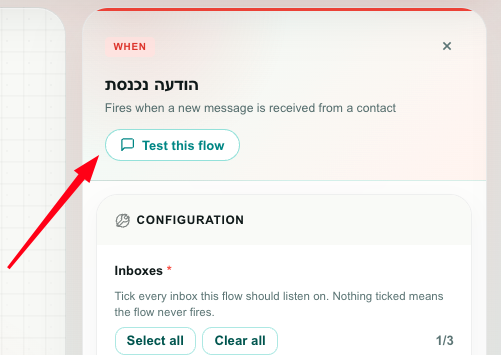
Opening it
- Open the flow in Studio.
- Click the Incoming Message trigger on the canvas.
- In the properties panel on the right, click 💬 Test this flow, just under the block's description.
The panel turns into a conversation. ← Back to settings returns you to the block's properties whenever you want.
The simulator is a chatbot tester, so it starts from the one trigger a chatbot starts from. On any other block the button is not shown. Selecting an Incoming Message block first is what makes it appear.
Your unsaved canvas changes are saved automatically before the simulation starts, so what you talk to is what is on your screen right now — the draft, not the published version. That is the point: you are testing what you are about to publish.
Having the conversation
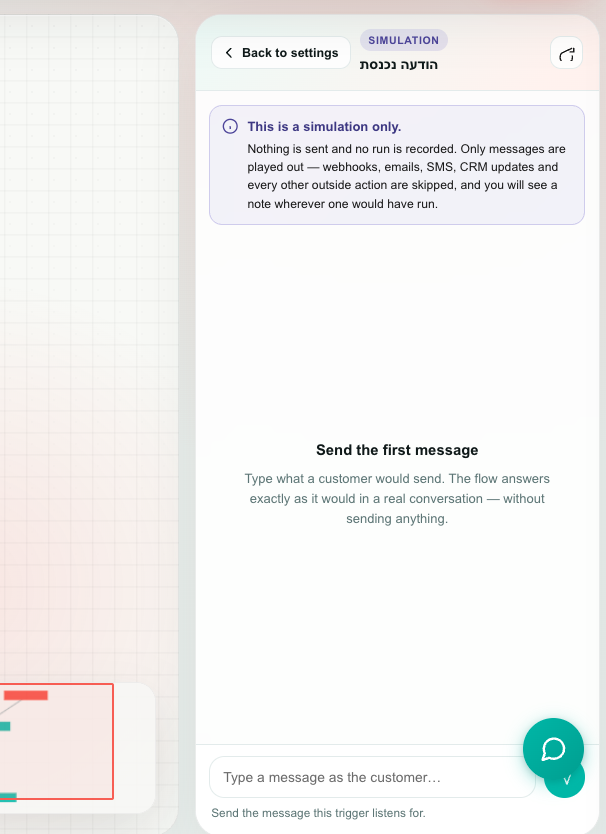
| Element | What it is |
|---|---|
| Simulation badge | A reminder that none of this is real. |
| This is a simulation only | The notice at the top of the panel, spelling out what is and is not played out. |
| Your messages (right, teal) | What you typed, playing the customer. |
| Bot messages (left, white) | Exactly what the flow would send, with the block's name above each one. |
| Grey system lines | The simulator explaining itself — a block it skipped, a branch it took, a dead end it found. |
| ↻ Start over | Throws the conversation away and begins a fresh one from the trigger. |
| Message box | Type and press Enter to send. Shift + Enter adds a line break. |
| Hint line | Below the box: what the flow is waiting for right now. |
Send the first message and the flow starts, exactly as it would if that message had arrived from a customer.
Buttons are clickable
When your flow sends an interactive WhatsApp message — reply buttons, a list, a carousel — the simulator shows the buttons and you can press them. Pressing one sends its label as your reply. Walking a button-driven chatbot is a matter of pressing its buttons.
Buttons from earlier in the conversation grey out once the flow has moved on, so you cannot accidentally answer a question that is no longer being asked.
A button that opens something on the customer's phone — a URL, a phone number, an email address — is shown as Button opens: … rather than as a reply, because a customer pressing it does not send you anything.
When the flow ends
When the flow has nothing more to send, you will see:
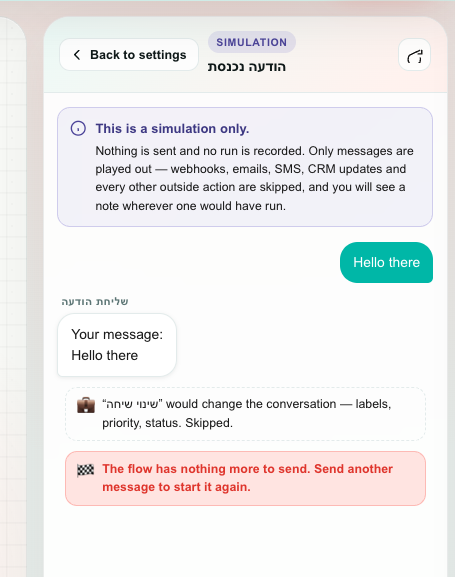
The flow has nothing more to send. Send another message to start it again.
Sending another message re-fires the trigger and runs the flow from the top — which is what happens in production once a flow has finished with a conversation.
Starting fresh
Nothing is saved. Closing the panel, clicking ↻ Start over, or leaving the flow all throw the conversation away, and opening the simulator again starts from an empty screen. A session also expires on its own after 30 minutes of inactivity.
What is played out, and what is not
This is the part to understand before you trust what you see.
Played out exactly
| Block | Behaviour |
|---|---|
| Reply Message — text | The message is composed the same way it would be live, with every {{variable}} filled in from the conversation. |
| Reply Message — interactive | Buttons, list rows and carousel buttons are shown and are pressable. |
| Wait for client response | The flow stops and waits for you to type, exactly as it waits for a customer. |
| Conditions | Evaluated with the real rule engine — the same operators, the same matching — whenever the values they test are known. |
Announced and skipped
Everything that reaches outside the conversation is skipped, and the simulator says so in the transcript. You never have to wonder whether something silently happened.
| Block | What the simulator says |
|---|---|
| HTTP Request | would call an external system. Skipped — a simulation never reaches outside. |
| Send Email | would send an email. Skipped. |
| Send SMS | would send an SMS. Skipped. |
| Send WhatsApp Template | would send a WhatsApp template. Skipped. |
| Add / Update / Delete a record | would write a record. Skipped. |
| Contact Update | would update the contact. Skipped. |
| Change Conversation | would change the conversation — labels, priority, status. Skipped. |
| Save as Variable | would save a variable. Skipped, so a later branch reading it will ask you which way to go. |
| Send Teloring Notification | would notify agents. Skipped. |
| Code | would run custom code. Skipped, so a later branch reading its output will ask you which way to go. |
| Private Note | would add a private note to the conversation. Skipped. |
| Wait | would pause the flow. The simulation continues straight away instead of waiting. |
| Anything else | is not a message, so the simulation skips it. |
Where the conversation stops
Two blocks end the transcript, because they are where the bot stops answering in production too:
| Block | What the simulator says |
|---|---|
| End Session | ends the flow here. In a real conversation the bot stops answering at this point. |
| Change Conversation with Assign AI / human agent on | hands the conversation to a person. The bot stops answering here — in production the customer's next message goes to an agent. |
When the simulator asks you a question
This is the clever part, and the one worth reading twice.
Suppose your flow calls a webhook to look up which department a customer belongs to, then branches on the answer. The simulator skipped the webhook — so it genuinely does not know what came back, and guessing would make the whole rehearsal a lie.
Instead it stops and asks you, offering the branches you actually built as buttons.
"Route by department" — which branch? The value would have come from: Classify via CRM
SalesSupportNone of the above
Pressing Sales means "assume the outside system answered so that this branch matches", and the conversation carries on down it.
| Detail | Why |
|---|---|
| The buttons are your own branches | Including the ELSE branch you built, shown as None of the above. Nothing is invented. |
| There is no free-text box here | The set of branches is known, so an open box could only produce an answer your flow has no path for. |
| A branch with nothing wired to it still appears | Marked nothing connected. Finding that dead end is exactly what a rehearsal is for. |
| The blocks the value came from are named | "The value would have come from: Classify via CRM" points straight at the skipped block. |
What the simulator knows, and what it has to ask about
| It evaluates for real | It asks you |
|---|---|
{{message.content}} — what you typed | {{http.…}} — an HTTP Request's response |
{{conversation.…}} | {{var.…}} — a saved variable |
{{contact.…}} | {{code.…}} — a Code block's output |
{{channel.…}} | {{customer.…}} — a CRM lookup |
{{client_reply.…}} | Anything else produced by a skipped block |
A value the simulator does know but which happens to be empty — a contact with no email on file, say — is treated as a real, empty value and the condition is evaluated against it. That is a genuine case worth testing, not a gap.
Two conditions are always asked about, because they read live system state a rehearsal has no business consulting:
| Condition | Choices offered |
|---|---|
| Business Hours | Open / Closed |
| Agent Availability | An agent is online / No agent is online |
That is a feature, not a limitation: it lets you rehearse your after-hours behaviour at eleven in the morning.
Other things the simulator tells you
| Message | What it means |
|---|---|
| "…" matched "Sales". | The condition ran for real and chose that branch. |
| "…" matched no branch, so this path stops here. | No rule matched and there is no ELSE. In production the flow would stop too. |
| "…" matched no branch and has no ELSE, so the flow waits for another message. | The flow is sitting on the condition, waiting for a reply that does match. Type something else. |
| "…" took the "Sales" branch, but nothing is connected to it — in production the flow would stop here. | A dead-end branch. Wire it up. |
| "…" has no message text once its variables are filled in, so nothing would be sent. | A Reply Message whose text is empty after variables resolve — usually a variable that does not exist at that point. |
| A typing indicator would show here. | A Reply Message set to the "typing…" interactive type. |
| A location message would be sent here. It is not something the customer replies to, so the simulation moves on. | Location, request-location and contact cards are shown as notes rather than as chat bubbles. |
| The simulation stopped after a great many steps — check the flow for a loop. | The flow ran an unusual number of blocks in one turn. Look for a loop. |
Limits
| Limit | Value |
|---|---|
| Messages per simulation | 120 |
| Blocks per turn | 120, then the run stops with a loop warning |
| Message length | 2,000 characters |
| Session lifetime | 30 minutes of inactivity |
| Trigger types supported | Incoming Message only |
If a session expires mid-test you will see "This simulation has expired. Start a new one." Nothing was lost, because nothing was being saved.
Permissions
| To do this | You need |
|---|---|
| Open the simulator and hold a conversation | Studio → Update |
Update rather than Read because the simulator saves your draft before it starts. See System permissions.
A simulation is bound to the agent who opened it. Two people can each run their own on the same flow at the same time without interfering.
Simulator, Test Run, or the real thing?
| Tool | What it proves | What it costs |
|---|---|---|
| Simulator | The conversation — wording, branching, buttons, what the bot says when the customer says X. | Nothing. No message, no run recorded, no credits. |
| Test Run | The flow's shape — every block wired, configured and reachable — in one pass with sample data. | Records an execution, marked as a test. |
| Publishing to a test inbox | Everything, including real delivery, real timing and real external calls. | Real messages, real credits, real webhook calls. |
A good order: simulator while you are writing the conversation, Test Run before you publish, a test inbox for the final check.
It cannot prove that your webhook returns what you think, that an email actually arrives, that a WhatsApp template is approved, or that a message is delivered inside the 24-hour window. Those need a real send. The simulator proves the conversation; a test inbox proves the plumbing.
Next
- Executions — read back what real runs actually did.
- Conditions — the branching the simulator walks with you.
- Testing & publishing — the safe release routine.
- Flow recipes — complete chatbots to rehearse against.