Inboxes and My Ring
My Ring is the place where admins connect and manage customer communication channels. Each connected channel becomes an inbox that can create conversations in Teloring.
What My Ring shows
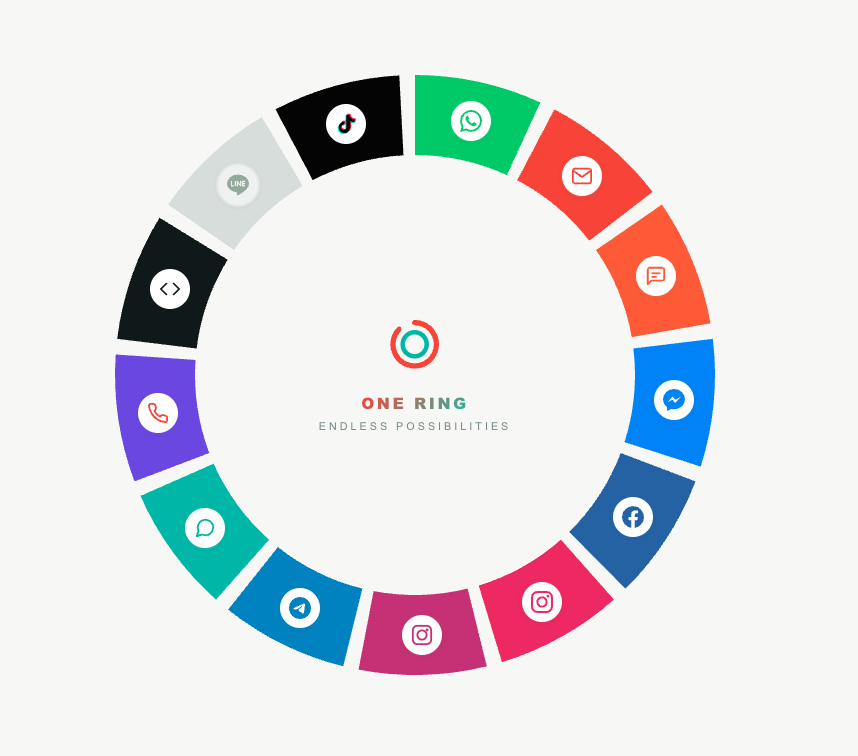
The My Ring page presents supported channels around the Teloring ring. Connected channels appear as active inboxes; disconnected channels remain available for setup.
Supported inbox types include:
| Inbox type | Typical use |
|---|---|
| Customer support and sales through WhatsApp Business. | |
| Shared support addresses, Microsoft email, or Teloring-managed email. | |
| SMS | Text message conversations. |
| Messenger | Facebook Messenger conversations. |
| Facebook Page | Page comments and page activity. |
| Instagram DM | Direct messages from Instagram. |
| Instagram Posts | Comments and interactions from Instagram posts. |
| Telegram | Telegram bot/inbox conversations. |
| LINE | LINE messaging conversations. |
| Live Chat | Website chat widget conversations. |
| Voice | Browser softphone and call conversations. |
| API | Developer-created inbox for custom integrations. |
| TikTok Messenger | TikTok messaging where enabled. |
Open a channel
Click a channel icon in My Ring to open its channel modal.
Depending on the channel, the modal or setup page can show:
| Item | Meaning |
|---|---|
| Connected inboxes | Existing inboxes for that channel type. |
| Setup status | Whether the inbox is active, pending onboarding, or needs attention. |
| Add channel | Starts the setup flow for another inbox. |
| Edit | Opens configuration for an existing inbox. |
| Diagnostics | Shows channel-specific connection or token health when available. |
Add a new inbox
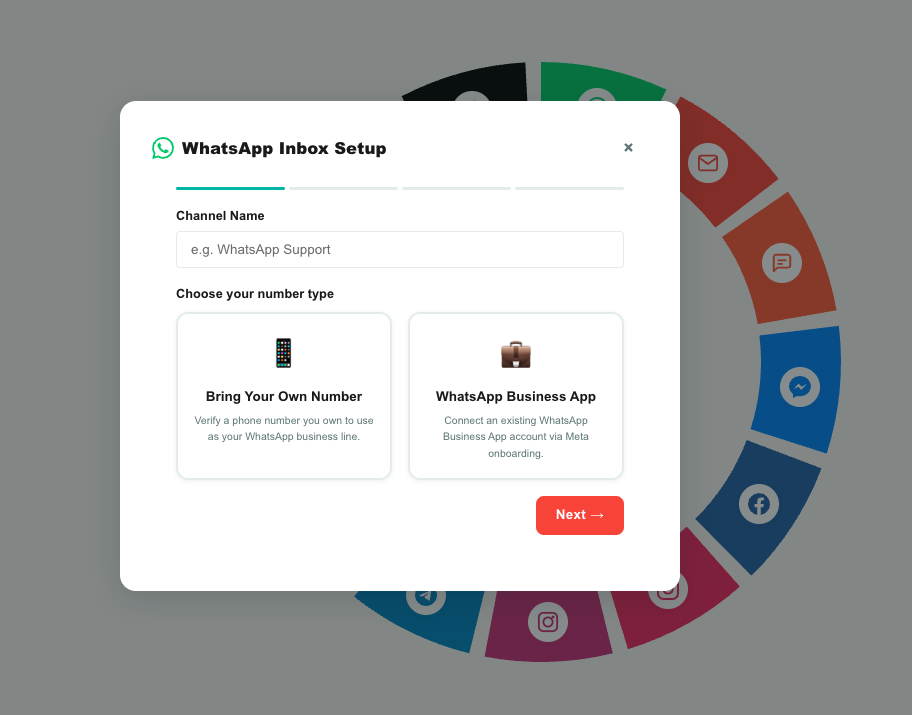
The setup process depends on the channel type.
General steps:
- Open My Ring.
- Click the channel type.
- Click the add channel action.
- Enter the inbox name and required connection details.
- Complete any provider authorization or verification steps.
- Confirm the inbox appears as connected.
- Send a test message from the channel to confirm a conversation is created.
Some inboxes require provider-side setup. For example, Meta inboxes use OAuth and page selection, WhatsApp may require onboarding or number verification, and API inboxes require developer configuration.
Meta inboxes
Meta is split into independent inbox types:
| Meta inbox | What it handles |
|---|---|
| Messenger | Facebook Page private messages. |
| Facebook Page | Facebook Page posts/comments activity. |
| Instagram DM | Instagram private messages. |
| Instagram Posts | Instagram post comments and related interactions. |
You can connect multiple inbox types for the same Page or Instagram account. Teloring routes each event to the correct inbox type.
After an inbox is connected
New customer messages create or update conversations in the Conversations workspace. Agents can then reply, assign, label, prioritize, resolve, or connect the conversation to a CRM customer.
Studio automations can also react to inbox events. For example, an incoming message can start a bot flow, send a reply, assign the conversation, or update customer fields.
Admin tips
| Tip | Why it helps |
|---|---|
| Use clear inbox names | Agents can filter by inbox name and understand where the conversation came from. |
| Connect one channel at a time | It is easier to test routing and replies before adding the next channel. |
| Keep demo messages ready | Every new inbox should be tested with a real inbound message. |
| Review permissions | Only admins should manage sensitive provider tokens and channel settings. |